Window help
System information
See what your phone is made of and how it is doing, in one list. Open a section to read its values, find one value with search, and copy, save or share what you need.
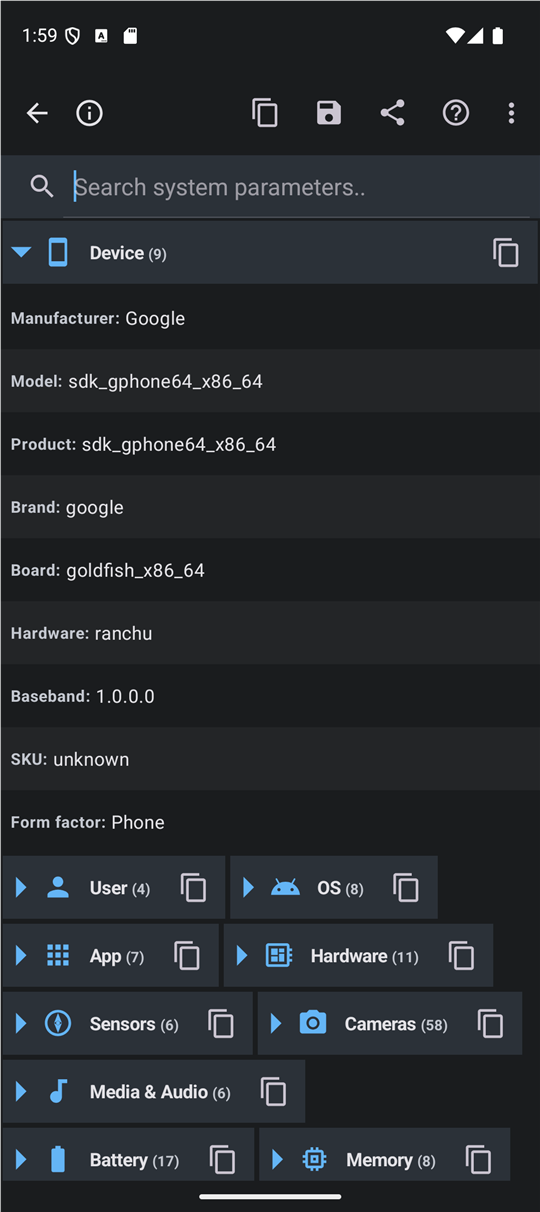
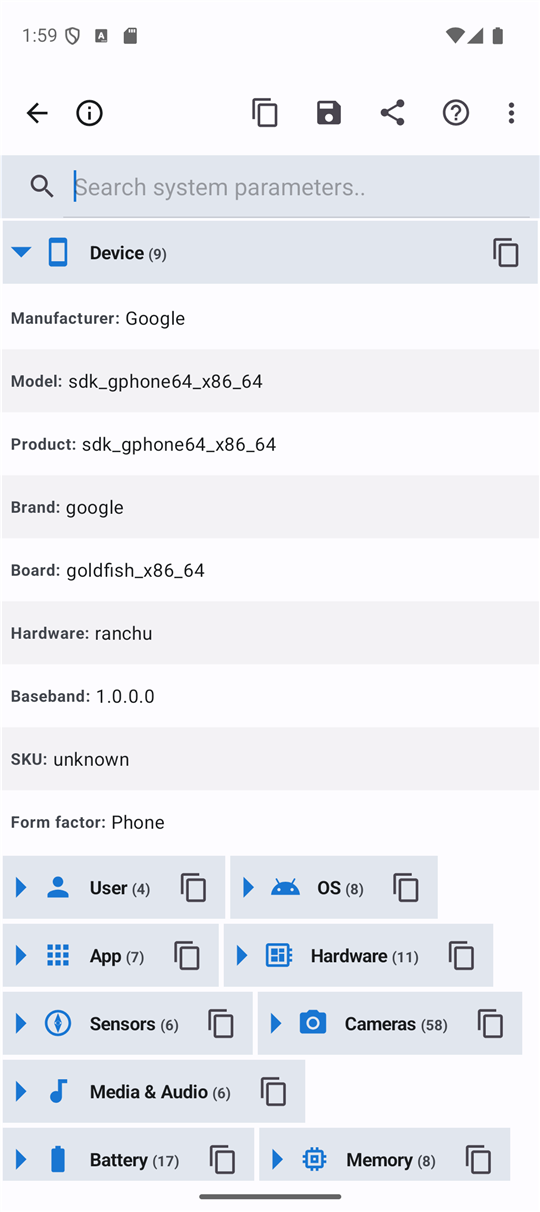
In this order
- Open a section by its title 9, or open all of them with 3. Sections stay open or closed the way you left them.
- Looking for one value? Type a part of its name or value into 8. Only matching rows stay, and the sections that hold them open.
- Tap a row 11 to copy that one value, or the copy button of a section title 10 to copy the whole section.
- Need everything? Use 1, 2 or 4 to take the whole report out of the app.
The elements
1CopyPuts the whole report on the clipboard.
Copies every value of every section as plain text, with the section titles, so you can paste it into a message or a note.
- Why
- A question about your device is easier to answer when you paste the exact values instead of describing them.
- Next
- A message confirms the copy, and the report stays on the clipboard until you copy something else.
- Undo
- Copying changes nothing in the app.
2SaveSaves the whole report as a text file in Downloads.
Writes the report to a file named device_info_ followed by the date and time, ending in .txt, in your Downloads folder.
- Why
- A file keeps the values of today, so you can compare them later or attach them to a message.
- Next
- A message names the file when it is saved, or says that it could not be saved.
- Undo
- The file stays until you delete it in your file manager.
- Shortcut
- Ctrl + S
3Expand all / Collapse allOpens every section, or closes every section.
When every section is open the button closes them all; otherwise it opens them all. Its picture and name change with it.
- Why
- One tap to see everything, or to get back to a short list of titles.
- Next
- The choice is remembered the next time you start the app.
- Undo
- Press it again.
5HelpOpens this page.
The Help button stands at the right end of the top bar, before the overflow menu. It opens this page from its beginning.
With a hardware keyboard, F1 does the same, and F1 pressed while the focus is on one of the elements of this window opens the entry of that element.
- Why
- It explains the window you are looking at without leaving the app.
- Next
- Back returns to the report window.
- Undo
- Closing help changes nothing.
- Shortcut
- F1
6Turn on notificationsTurns on notifications; shown in the overflow menu while they are off.
DeviceInfo shows a notification when your watch sends a report, and you open or share the report from it. While notifications are off, this entry is in the overflow menu: it asks Android to allow them, or opens the notification settings when the question was already answered.
- Why
- Without notifications the phone cannot tell you that a watch report arrived, and Send to phone on the watch is declined.
- Next
- The entry leaves the menu as soon as notifications are on.
- Undo
- You can turn notifications off again in the Android settings.
7Interface sizeMakes the whole app larger, or back to its normal size.
The Interface size entry is in the overflow menu. It offers 100, 115, 130 and 150 percent. The size you choose scales text, pictures, spacing and touch targets together, and applies to this window and to the help pages. It is separate from the text size in the Android settings, which still applies on top of it.
- Why
- A larger interface is easier to read and easier to hit, without changing the size of anything else on the phone.
- Next
- The window opens again at the new size, with your sections open or closed as you left them. The choice is remembered the next time you start the app.
- Undo
- Choose 100 percent to return to the normal size.
8SearchFinds a value among all sections.
Type any part of a parameter name, of its value or of a section title. Capital letters do not matter. Rows that do not match are hidden, and every section with a match opens while you search. When nothing matches, the list says so.
- Why
- The report holds hundreds of values; searching is faster than scrolling.
- Next
- Clear the text to see the full report again, with your sections open or closed as you left them.
- Undo
- A search only filters the view; it changes no setting and no saved choice of open sections.
- Shortcut
- Ctrl + F
9Section titlesOpens or closes a section.
Each title shows its picture, its name and the number of rows in brackets. Tap it, or focus it with a keyboard and press Enter, to open or close the section. Closed sections sit side by side to save space; an open section takes the full width.
- Why
- You see only what you are interested in, and the list stays short.
- Next
- The app remembers which sections are open. During a search, a title opens or closes its section for that search only.
- Undo
- Tap the title again.
10Copy sectionCopies one section.
The button at the end of each section title copies the rows of that section as text.
- Why
- Sometimes you need only the battery or only the network facts, not the whole report.
- Next
- A message names the section that was copied.
- Undo
- Copying changes nothing in the app.
11RowsA parameter and its value; tap to copy it.
Every row shows one parameter and its value. Tapping a row copies it as the name followed by the value, and a message shows exactly what was copied. Rows are shaded in turn to make a long list easier to follow.
- Why
- The fastest way to paste one value, such as the Android version or the model, into a message.
- Next
- The text stays on the clipboard until you copy something else.
- Undo
- Copying changes nothing in the app.