Watch screen help
System information
DeviceInfo on the watch has one screen. It shows what your watch is made of and how it is doing, and it can pass the whole report to your phone.
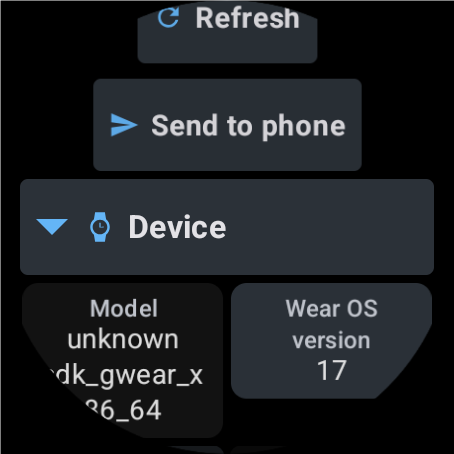
In this order
- Open the sections you want to read 3. Closed sections show how many rows they hold.
- Tap 1 to read the current values.
- Tap a row 4 to copy one value.
- Tap 2 to pass the whole report to the phone.
- Need a reminder? The last row of the list 6 explains the screen.
The elements
1RefreshReads the watch again.
Reads every value afresh and updates the rows. The button is dimmed while a read is under way.
- Why
- Values such as the battery, the memory and the sensors change; Refresh shows the current ones.
- Next
- The rows update in place, and the sections you opened stay open.
- Undo
- Reading changes nothing on the watch.
2Send to phoneSends the report to your phone.
Sends all rows to the DeviceInfo app on the paired phone, which saves the report and shows a notification you can tap to open or share it. A line under the buttons says whether it arrived, or what to do when it did not: bring the phone closer, open the app on it, or turn its notifications on.
- Why
- A phone has a clipboard and a share sheet, so a long report is easier to read and pass on there.
- Next
- While the report is going, the button reads Sending.., and the result appears under the buttons.
- Undo
- Sending only copies the report to the phone; nothing on the watch changes.
3Section titlesOpens or closes a section.
A section title has a triangle: it points to the side while the section is closed and down while it is open. Closed sections sit side by side with the number of their rows in brackets; an open section shows its rows under its title.
- Why
- The watch screen is small, so you open only what you want to read.
- Next
- Your choice is remembered the next time you open the app.
- Undo
- Tap the title again.
4RowsA parameter and its value; tap or press and hold to copy.
A row shows one value. Tapping it, or pressing and holding it, copies it as the name followed by the value, with a short vibration. A row that stands for a list, such as the sensors, opens the list on a tap and copies the whole list on a long press.
- Why
- The watch clipboard lets you paste a value into a text field of the watch; to take the whole report away, use Send to phone.
- Next
- The text stays on the clipboard until you copy something else.
- Undo
- Copying changes nothing else.
5Interface sizeMakes the whole screen larger, step by step.
The Interface size button sits at the end of the list, above the Help row. Each tap moves to the next size: 100, 115, 130 and 150 percent, and then back to 100. The size scales text, pictures, spacing and touch targets together. It is separate from the text size in the watch settings, which still applies on top of it.
- Why
- On a small display a larger interface is easier to read and easier to tap.
- Next
- The screen changes at once, and the button shows the current size. The choice is remembered the next time you open the app.
- Undo
- Keep tapping until the button shows 100 percent.
6HelpShows a short note and says where the full help is.
The Help row is the last row of the list. Tap it to read a short note; tap it again to hide the note. The full help, with a page for every screen of the watch, is in the DeviceInfo app on the phone and on the site.
- Why
- The watch has no keyboard and no top bar, so its help sits at the end of the list instead of in a corner.
- Next
- The note stays open until you tap the row again.
- Undo
- Tap the row again to hide the note.