 Manager settings
What this is for
Set manager startup, theme and language here. Your remote exchange account, publishing, clipboard and scheduled file operations belong to the manager and do not require a locally installed exchange server or enabled SFTP sharing. When the SFTP sharing component is installed, its pages form a group in this window.
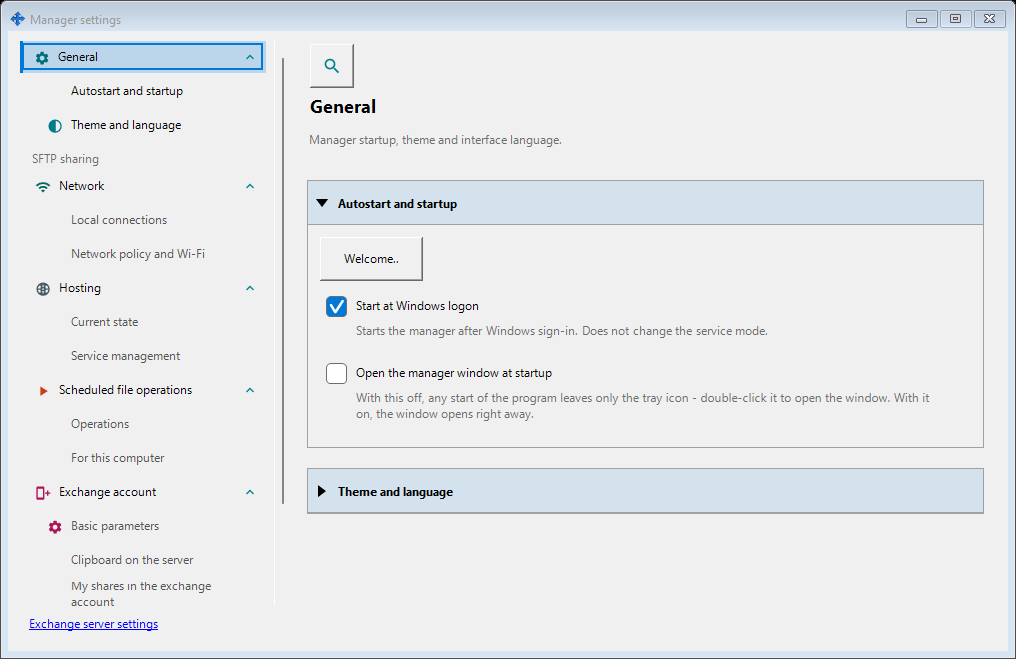
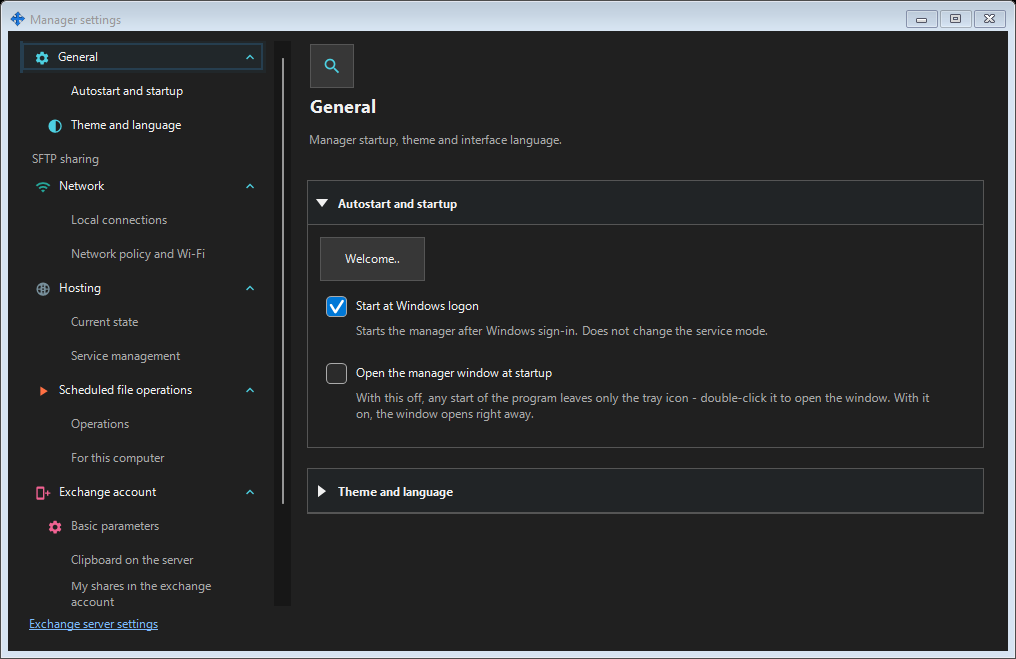
In this order
Open Manager settings from the manager or tray. Choose a page, expand a group, or use Search settings. Use the link to open the local exchange server settings beside this window. Closing one window keeps the other window, schedules and servers running.
The elements
Manager settings
Set manager startup, theme and language here. Your remote exchange account, publishing, clipboard and scheduled file operations belong to the manager and do not require a locally installed exchange server or enabled SFTP sharing. When the SFTP sharing component is installed, its pages form a group in this window. Open Manager settings from the manager or tray. Choose a page, expand a group, or use Search settings. Use the link to open the local exchange server settings beside this window. Closing one window keeps the other window, schedules and servers running.
Manager settings
Set manager startup, theme and language here. Your remote exchange account, publishing, clipboard and scheduled file operations belong to the manager and do not require a locally installed exchange server or enabled SFTP sharing. When the SFTP sharing component is installed, its pages form a group in this window. Open Manager settings from the manager or tray. Choose a page, expand a group, or use Search settings. Use the link to open the local exchange server settings beside this window. Closing one window keeps the other window, schedules and servers running.
Google Drive
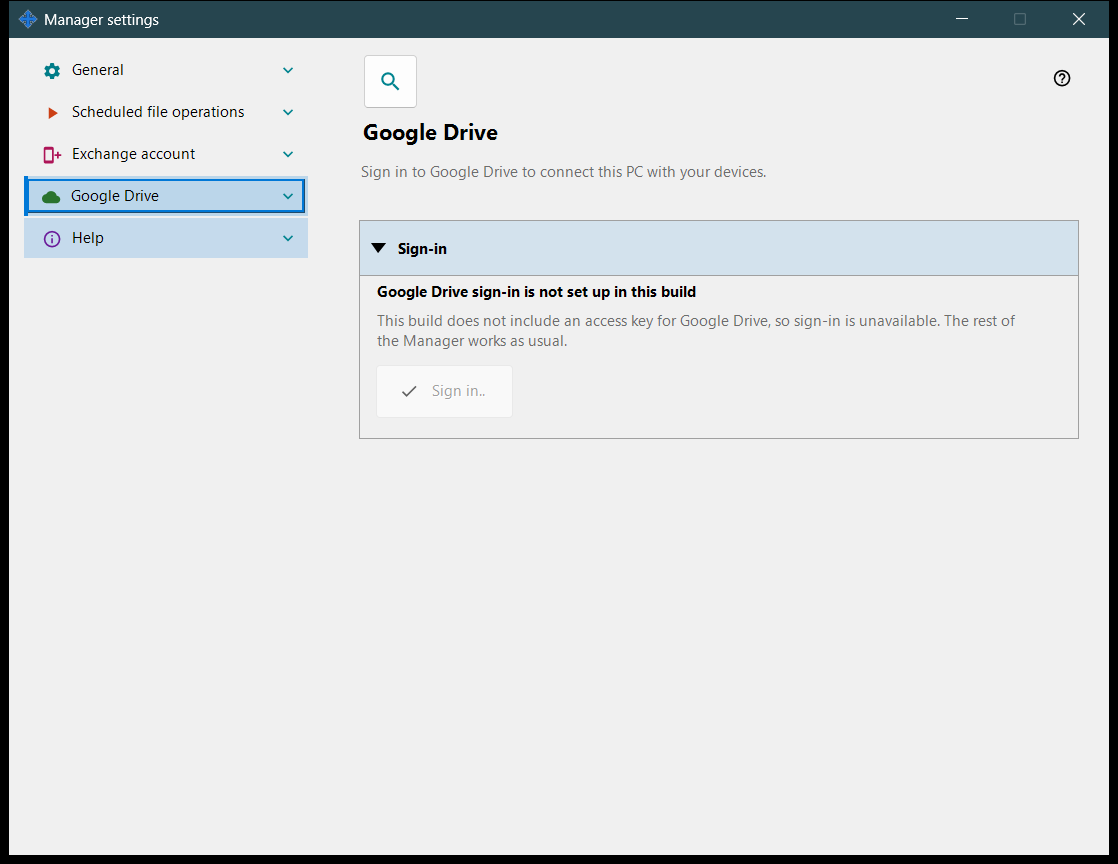
- Open the Share Manager, open Manager settings and choose the «Google Drive» page. You need a Google account and an internet connection. The Google Drive app for Windows is not needed, and you create no Google project, key or setting yourself.
- Press «Sign in..». Your default browser opens Google's page: choose the account, sign in there and approve the access it shows. Your password is typed only on Google's page, never in this application. You can cancel or deny the access there; then nothing is stored.
- Return to the Share Manager: the bold line says «Signed in to Google Drive», and you can close the browser tab. If the browser did not open, check your default browser and press «Sign in..» again. If the browser shows an error, or the page keeps «Waiting for sign-in in the browser..», press «Cancel» and sign in again. The sign-in stays on this PC: after you close the Share Manager, sign out of Windows or restart the PC, it is used again without the browser for as long as Google keeps the access valid.
- To exchange with another device, sign in there too, with the same Google account, on that device's own Google Drive page: on another PC in its Share Manager, on a phone in the Android app. Devices signed in to different Google accounts do not see each other, and both devices need a version of the application that has the Google Drive page. Being signed in sends nothing by itself: what goes via Google Drive is described in the help of the clipboard, of the scheduled operations and of the «Queue on Google Drive» group.
- The application asks only for access to its own hidden folder on your Google Drive (scope drive.appdata). It does not see, browse or synchronize your other files on Google Drive and receives no e-mail address and no profile data. What your devices pass to each other takes space on your Google Drive; the «Queue on Google Drive» group shows it and lets you delete a packet. «Sign out on this device» deletes this PC's records from the hidden folder, revokes the access at Google and deletes the sign-in stored on this PC. Google can then end the access on your other devices signed in with the same account too; if one of them says that its sign-in no longer works, sign in there again. To connect this PC again, press «Sign in..».
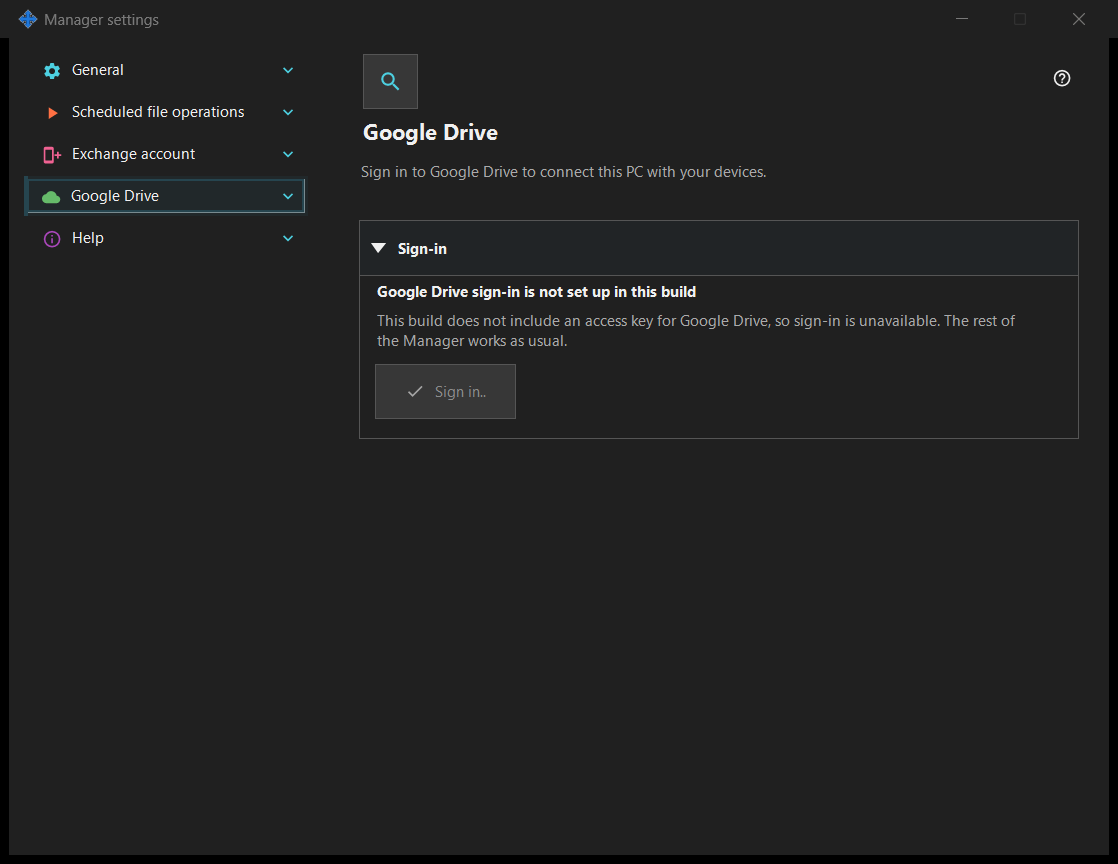
- If something goes wrong, the line under the state says what happened. No connection, or an error from Google: the application retries on its own, you need to do nothing. Sign-in cancelled or access denied: press «Sign in..» again when you want to. An account managed by an organization whose administrator blocks the application: sign in with another Google account or ask the administrator. A message that the sign-in no longer works: the access was revoked or has expired, press «Sign in..» again. No free space on your Google Drive: free some space or delete packets from the queue. The daily upload limit: wait until the next day. «Google Drive sign-in is not set up in this build», or a message that this installation's sign-in key is no longer accepted: install the current version of the application from its official site; the rest of the Share Manager works meanwhile.
Signs this PC in to your own Google account so that the application can use its private hidden folder on your Google Drive. Press «Sign in..»: your default browser opens, you approve the access at Google, and Google returns the answer to this PC on a local address; then you can close the browser tab. The only permission requested is access to the application's own hidden folder on your Google Drive (scope drive.appdata): the application cannot see any other file on your Google Drive and receives no e-mail address and no profile data. If Google grants a different access than requested, the sign-in is rejected. The bold line shows the state. «Not signed in to Google Drive»: «Sign in..» is available; if access was revoked or has expired, the line below says so and asks you to sign in again. «Waiting for sign-in in the browser..»: finish the sign-in in the browser or press «Cancel». «Signed in to Google Drive»: this PC is connected to your Google Drive, and its name and short identifier are shown. «Google Drive is unavailable right now»: the line below gives the reason - no connection, the daily upload limit reached, no free space on your Google Drive, or an error from Google; with no connection or an error the application retries on its own. «Signing out of Google Drive..» is shown while a sign-out runs. «Sign out on this device» asks one question, and the default answer is No. After Yes it revokes the access at Google, deletes this PC's records from the hidden folder on your Google Drive and deletes the sign-in token stored on this PC; a line under the buttons gives the number of records deleted, or says that Google did not confirm the revocation, which you can then do in your Google Account settings. In a build without a Google access key the page shows «Google Drive sign-in is not set up in this build», «Sign in..» is disabled and the rest of the Manager works as usual. While this PC is signed in, the clipboard commands of the Share Manager also work via Google Drive, a scheduled operation can take «Via Google Drive» as its source or destination, and the viewer's resource list shows the folders your other devices publish there. The «Queue on Google Drive» group shows what your devices pass to each other and how much space it takes; select a packet and press «Delete packet» to remove it from your Google Drive. Via Google Drive, files and the clipboard are kept in your own Google account, like your other files on Google Drive; no exchange server takes part.
Manager settings
Set manager startup, theme and language here. Your remote exchange account, publishing, clipboard and scheduled file operations belong to the manager and do not require a locally installed exchange server or enabled SFTP sharing. When the SFTP sharing component is installed, its pages form a group in this window. Open Manager settings from the manager or tray. Choose a page, expand a group, or use Search settings. Use the link to open the local exchange server settings beside this window. Closing one window keeps the other window, schedules and servers running.
Manager settings
In Help / About, choose Export logs for analysis. It collects all retained local Media Exchange Server and SFTP hosting logs, installation/helper logs, and Manager/viewer diagnostics, even with the servers stopped. Remote account logs are not downloaded. Secrets are removed; unreadable, omitted or shortened logs make the result partial and are listed in the review. Send to author opens your mail composer with the reviewed ZIP attached; you decide whether to send. If attachment integration fails, add the ZIP manually. Show in File Explorer selects the ZIP: use Copy, open your destination folder, and Paste. The path in the review can also be selected and copied if Explorer or mail cannot open. The archive remains after reveal or a mail request, including mail cancellation. Cancel before either action removes it. A later export cleans unprotected archives older than seven days; copy the ZIP elsewhere for longer storage. Archives above 20 MiB remain available in Explorer, with mail handoff disabled.
Manager settings · SFTP sharing settings · Exchange server settings