26.09.24 20:50
🚗 In-Car Music Player (Android Head Unit)
Level: Beginner • Time: ~10 minutes • Flavor: Standard, Legacy, VR, noLegal (Lite plays local audio but has no background playback and no Streams; Photos has no audio)
FastMediaSorter works great as a car music player on Android head units - instant access to your full music collection on SD card or USB drive, with steering wheel button support built in.
What is an Android head unit? It’s a car stereo with a touchscreen that runs Android - like your phone, but installed in the dashboard. This guide also works on a regular phone or tablet mounted in the car.
What You Will Need
- Android head unit / phone / tablet in the car
- Music files on SD card, USB drive, or internal storage (MP3, FLAC, AAC, OGG, and others)
- (Optional) Steering wheel media buttons
Step 1 - Add Your Music Folder
- Open the app
- Tap Add
 in the top toolbar
 - Select “Local Folder”
- Navigate to where your music is stored:
- SD card: look for a folder named
/storage/- inside you’ll find a folder with a code like1234-5678, and your music is usually in/storage/1234-5678/Music - Internal storage: try
/sdcard/Musicor/sdcard/Download - USB drive: look in
/storage/usb0/or/storage/usbdisk/
- SD card: look for a folder named
- Select the folder → tap Select
Can’t find your music? Try tapping Add
Musicanywhere in the list. On most devices it’s right there.
Step 2 - Configure the Folder for Music
Long-press your music folder on the main screen → tap Edit (pencil icon).
This opens the folder settings. Set these options:
| Setting | Value | Why |
|---|---|---|
| Profile | Audio Library | Tells the app “this is a music folder” - auto-configures everything for audio |
| Supported Types | Audio only | Hides photos and videos so only music tracks are shown |
| Sort mode | Title (A→Z) or Artist | Keeps your tracks in a logical order |
| Include Subfolders | ON | If your music is organized in artist/album subfolders, this finds all tracks |
Tap Save.
What does “Profile” do? It’s a one-tap preset that sets up the folder optimally for its purpose. Choosing “Audio Library” means the app shows album art, sorts properly for music, and hides non-audio files automatically.
Step 3 - Open the Folder and Start Playing
- Tap your music folder on the main screen
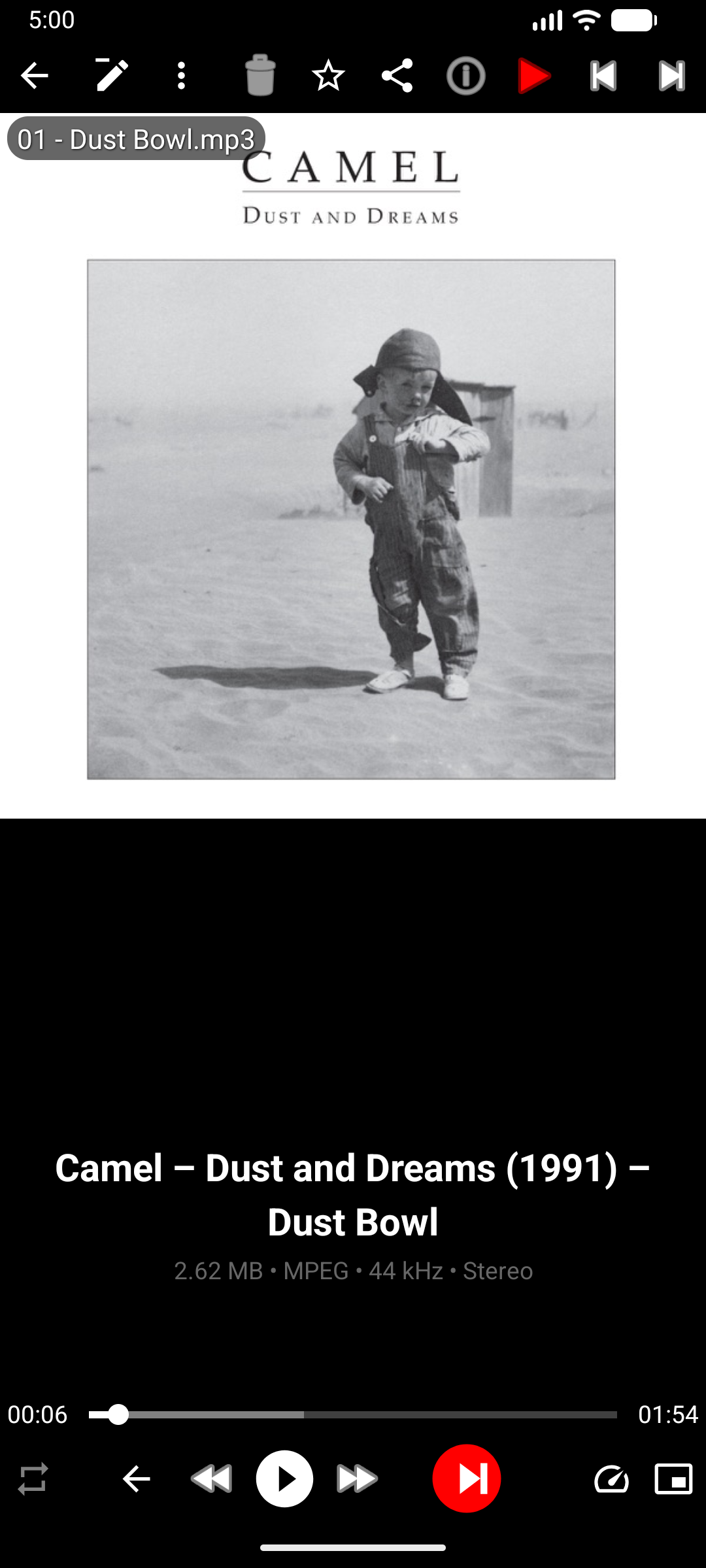
- All tracks appear in a list with album art thumbnails
- Tap any track to start playing
The full-screen audio player opens with album art, progress bar, and playback controls.
Step 4 - Make Sure Music Keeps Playing
This step ensures music keeps playing when the screen turns off, you switch apps, or get a phone call notification:
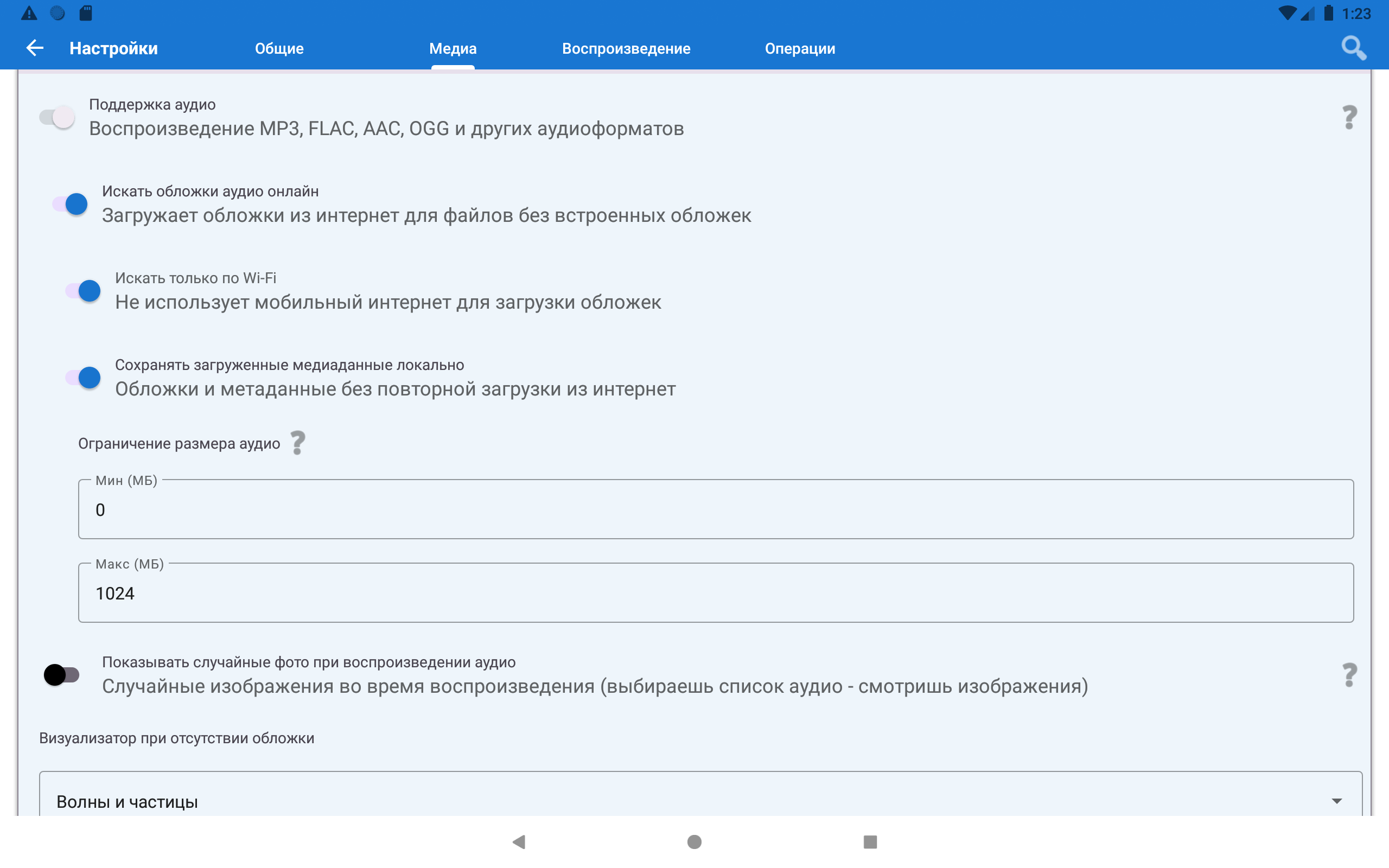
- Go to Settings → Media tab
- Scroll to the Audio section
- Make sure “Audio support” is turned ON
That’s it. Once this is enabled, the app registers as a proper music player - lock screen controls and the notification bar media player appear automatically.
Step 5 - Test Steering Wheel Buttons
Press Next or Previous on your steering wheel.
They work automatically - no setup needed. FastMediaSorter responds to all standard Android media buttons.
Buttons don’t work? Some older head units send non-standard signals. Try going to Android Settings → Accessibility and look for a “media button receiver” option. If that doesn’t help, use the on-screen touch zones (left/right edge of screen) instead - they work perfectly.
Step 6 - (Optional) Use “All Music” - One Place for All Your Tracks
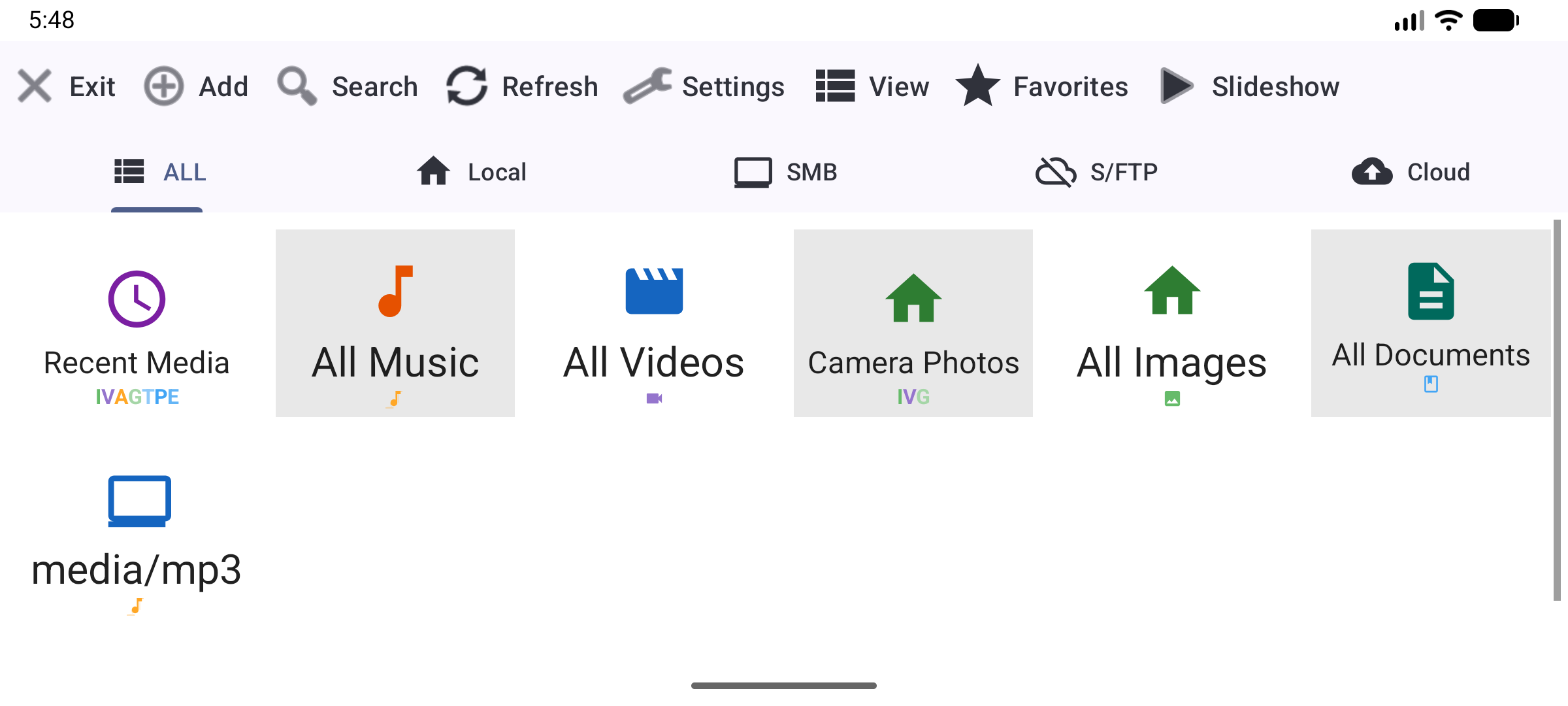
If your music is spread across multiple folders (e.g. some on SD card, some in internal storage), the All Music virtual resource collects everything into one place automatically:
- On the main screen, look for the “All Music” card - it’s usually created automatically if you have local audio files
- If it’s not there: tap Add → scroll to Virtual Resources → tap “All Music”
Now all your tracks from all locations appear together in one list.
Step 7 - (Optional) Home Screen Shortcut for One-Tap Launch
Perfect for when you just want to get in the car and tap one button to start music:
- Long-press an empty spot on the home screen → tap Widgets
- Find FastMediaSorter in the list → drag the “Resource Shortcut” widget to your home screen
- When prompted, select your music resource
- Done - tap the widget anytime and music starts immediately
Step 8 - (Optional) Add Internet Radio Stations
If your head unit has an active mobile data or Wi-Fi connection, you can add internet radio stations directly - no extra app needed:
- Open the main menu (hamburger or dropdown) → tap Streams
- Tap Add (+) → paste any internet radio URL (http/https, .m3u8, RTSP) and tap Save
- Or tap Import catalog to browse the built-in curated station list and add stations by genre or language
- Tap a station row to start inline audio playback - the station name and current track appear in the bottom mini-control
- The list stays visible so you can switch stations without leaving the screen
Background audio: to keep radio playing when you switch apps, go to Settings → Player → Background audio playback and enable it.
Note: Streams requires a network connection, and the Streams screen is absent in the Lite and Photos flavors.
Done! Player Controls
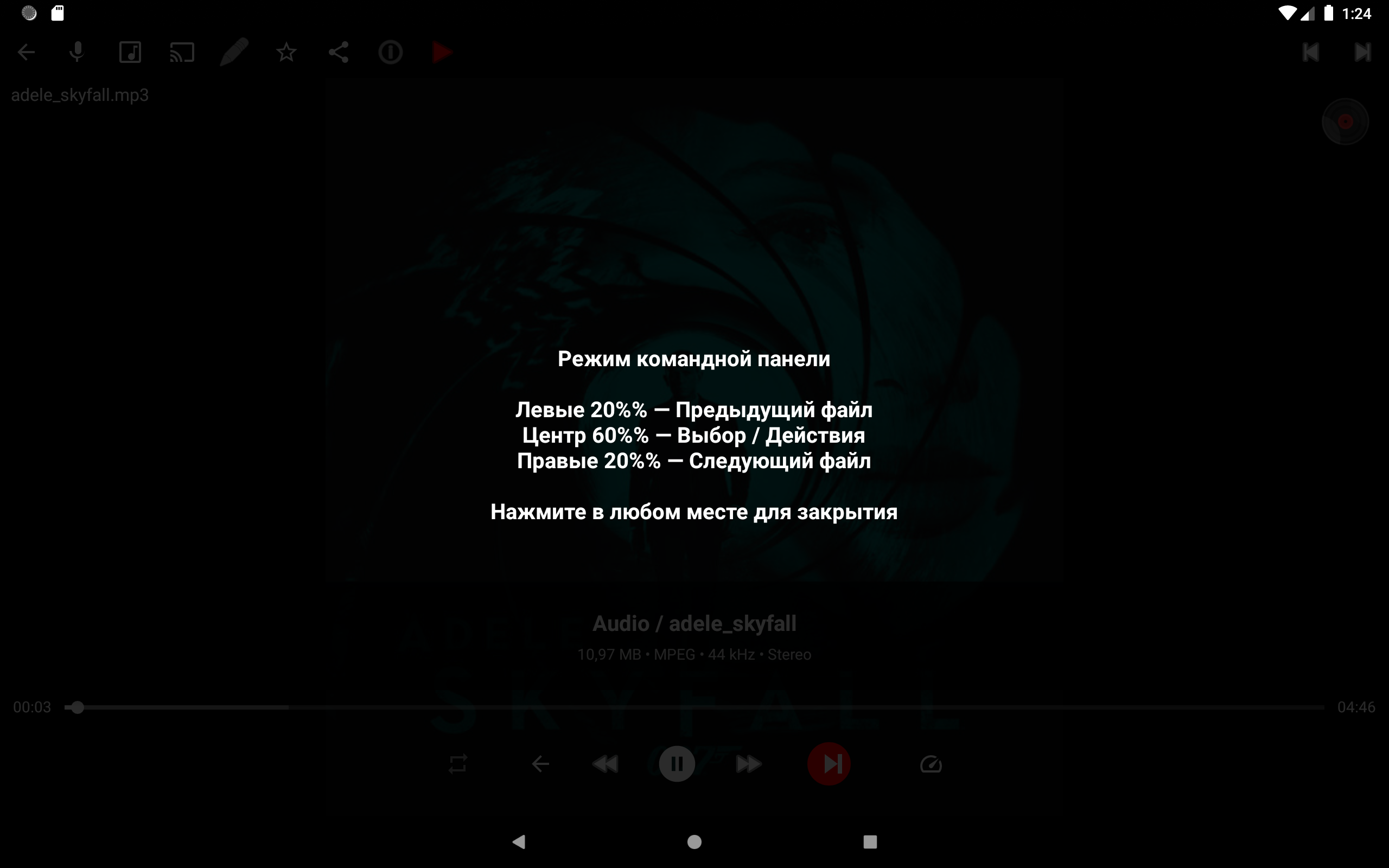
While music is playing, the screen is your control panel:
- Left 20% of screen → Previous track
- Right 20% of screen → Next track
- Center 60% → Pause / Play / Command menu
Troubleshooting
| Problem | What to try |
|---|---|
| Steering wheel buttons don’t work | Check if your head unit sends standard Android media key events. Some units need “media button receiver” enabled in Android Settings → Accessibility |
| Music stops when screen locks | Enable “Prevent Sleep” in Settings → General, or use the audio notification controls to resume. Also check that Audio support is ON (Step 4) |
| No album art shown | Enable “Fetch audio covers online” in Settings → Media → Audio (requires Wi-Fi). For offline art, the app reads embedded cover art from the MP3/FLAC file automatically |
| Can’t find music on SD card | Some Android versions restrict SD card access. Try adding the SD card path by using the “Browse..” button in the folder picker, which uses the Android system file picker with full SD card access |
| Audio stutters or skips | Close other apps running in the background. For FLAC files, make sure the head unit has enough processing power |
| Internet radio stops when I switch apps | Go to Settings → Player → Background audio playback and make sure it is enabled |