26.09.24 06:25
🖥️ Connect to Home NAS / Windows Share (SMB)
Level: Beginner • Flavor: Standard, Photos, Legacy, VR, noLegal (Lite has no network sources)
SMB (also called Windows File Sharing or CIFS) lets you browse files on your home PC, laptop, or NAS device exactly like they were on your phone - no cables, no USB, just Wi-Fi.
Plain English explanation: Imagine your PC has a public notice board on your home Wi-Fi. Any device in the house can read from that board. FastMediaSorter connects to that “board” (your shared folder) and lets you browse your files as if they were stored right on your phone. Nothing is copied or downloaded upfront - files open on demand.
What You Will Need
- Your phone and your PC / NAS on the same Wi-Fi network (same router)
- The IP address of your PC or NAS (e.g.
192.168.1.100) - The share name (the name of the folder you shared, e.g.
Photos) - A username and password for that share (or guest access if enabled)
Not sure about the terms? Don’t worry - Steps 1 and 2 explain exactly where to find these.
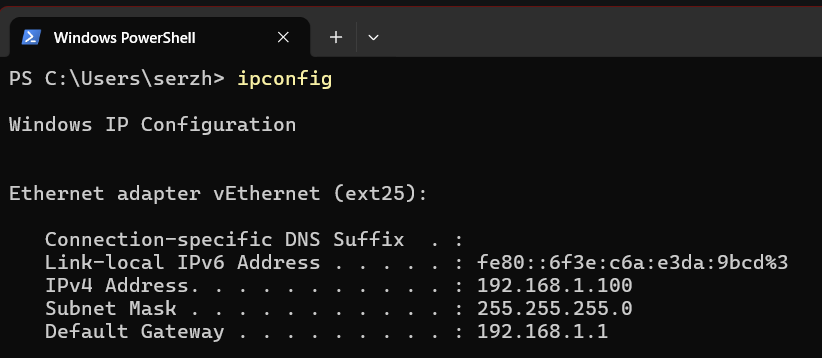
Step 1 - Find Your PC’s IP Address
The IP address is your PC’s “home address” on your Wi-Fi network. You need it so your phone knows where to look.
On Windows:
- Press
Win + R, typecmd, press Enter - a black text window opens - Type
ipconfigand press Enter - Look for IPv4 Address under your Wi-Fi adapter - something like
192.168.1.100
The line you need is labeled “IPv4 Address” (not IPv6, which looks like a long series of letters and numbers). It should start with
192.168.on most home networks.
On a NAS (Synology, QNAP, etc.):
- Open the NAS web panel → Network settings - the IP is shown there
Write the IP down - you’ll need it in Step 6.
Step 2 - Find the Share Name on Your PC
The “share name” is the public name of your folder on the network. It may be the same as the folder name, or different.
On Windows:
- Open File Explorer
- Right-click the folder you want to share → Properties
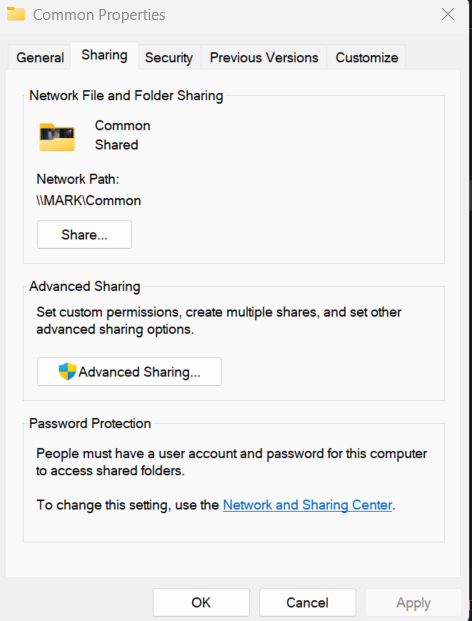
- Go to the Sharing tab
- Look at Network Path - it looks like
\\DESKTOP-ABC\Photos - The part after the last
\is your share name (here:Photos)
Folder not shared yet? Click Share.. → choose Everyone → Add → Share. Windows will show you the network path immediately.
Important: make sure Network Discovery and File Sharing are turned on in Windows. Go to Control Panel → Network and Sharing Center → Change advanced sharing settings → turn on “Network discovery” and “File and printer sharing”.
Step 3 - Open FastMediaSorter and Tap “+”
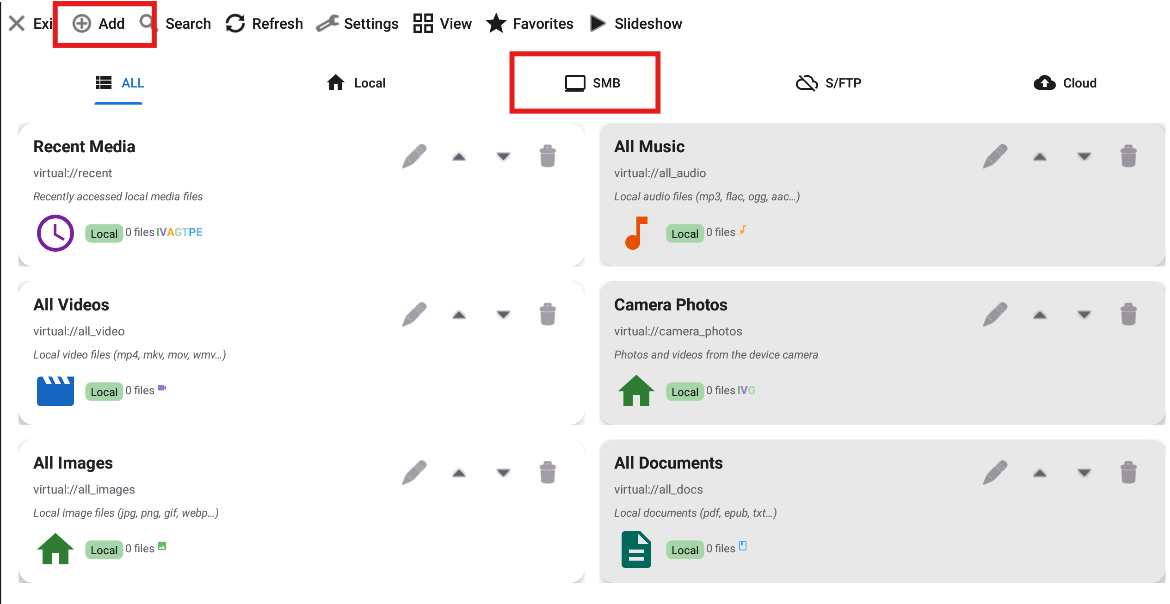
- Open the app
- On the main screen, tap the “Add”
 button in the top toolbar
Step 4 - Select “Network folder (SMB)”
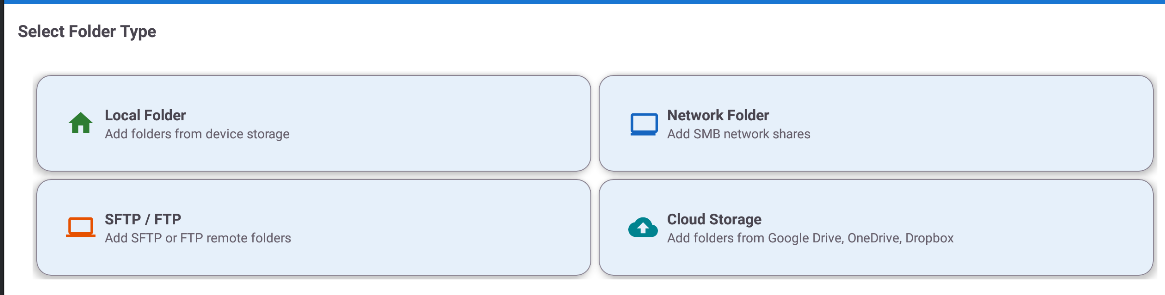
In the resource type list, tap “Network folder (SMB)” (or the SMB tab).
Step 5 - Try Auto-Discovery First
Tap the “Scan Network” button. The app will scan your local Wi-Fi for devices with SMB shares.
- Wait ~10 seconds
- A list of found devices appears
- Tap your PC or NAS - the IP address fills in automatically
Nothing found? That’s okay - skip to Step 6 and type the IP manually. This happens when your router uses AP Isolation (a setting that blocks phone-to-PC communication for security). Manual IP always works.
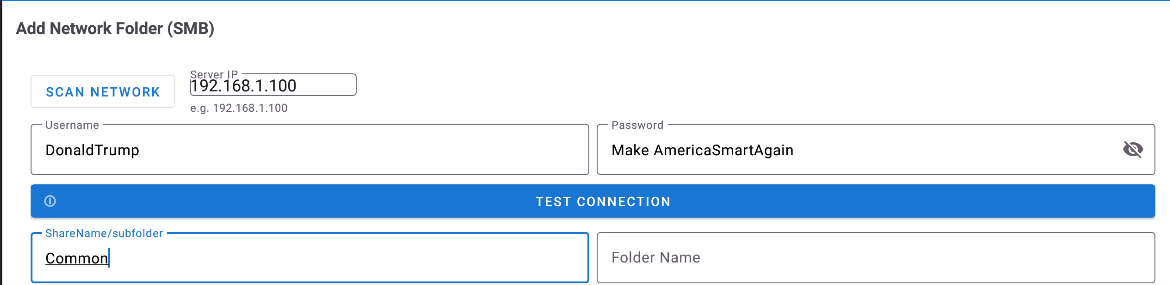
Step 6 - Fill In the Connection Details
Fill in the form:
| Field | What to enter | Example |
|---|---|---|
| Server / Path | \\IP\ShareName |
\\192.168.1.100\Photos |
| Username | Your Windows login name | john |
| Password | Your Windows password | •••• |
| Display Name | Any name you like (optional) | Home PC - Photos |
Using a Microsoft account (email) to log into Windows? Use your full email address as the username (e.g.
john@outlook.com), not just your first name. Your password is the same one you type to unlock your PC.
Don’t have a password, or using Guest? Try leaving the Username and Password blank and tap Test Connection - some home PCs allow open access.
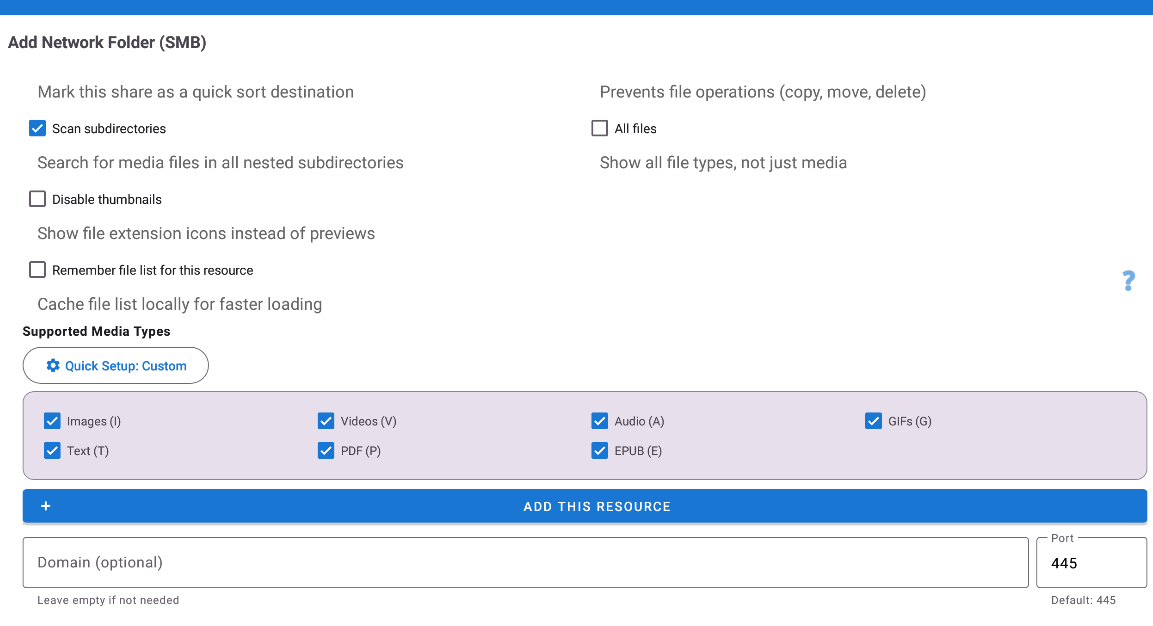
Address format reference:
| Format | Example |
|---|---|
| Standard Windows | \\192.168.1.100\Photos |
| Linux / macOS style | smb://192.168.1.100/Photos |
| Subfolder | \\192.168.1.100\Media\Movies |
| Custom port | smb://192.168.1.100:445/Photos |
Step 7 - Test the Connection
Tap “Test Connection”.
- Green message = success → go to Step 8! You’re almost done.
- Red message = something is wrong → check the Troubleshooting table below. Most common fix: double-check the IP and share name.
Step 8 - Save and Open
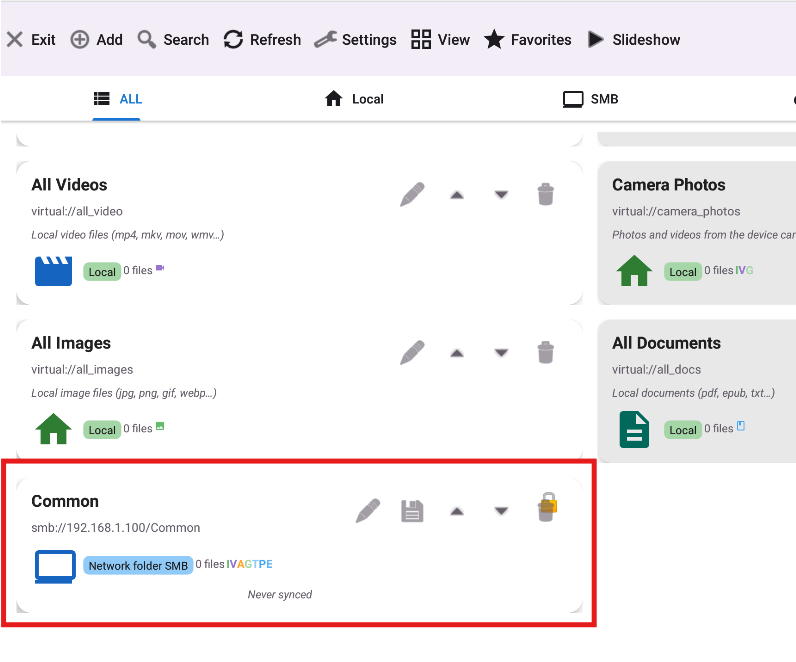
Tap “Save”. The new folder appears on the main screen with an SMB badge.
Tap it to browse its contents - photos, videos, and other files appear as thumbnails like any local folder.
Done! You Can Now..
- Browse all files on your PC from your phone
- Play videos and music directly - no downloading required
- Copy or move files between your phone and PC
- Use this folder as a source for slideshow, photo frame, or car music
Troubleshooting
| Problem | What to try |
|---|---|
| “Connection refused” | Open Windows Firewall → allow TCP port 445 inbound. Or temporarily disable the firewall to test |
| “Wrong password” | Try leaving Username blank (guest access). Or if you use a Microsoft account, enter your full email as the username |
| “Host not found” | Make sure phone and PC are on the same Wi-Fi and same router. AP Isolation (a router safety setting) can block this - try disabling it in router settings |
| Scan finds nothing | Disable VPN on phone. Also check that Network Discovery is on in Windows (Control Panel → Network and Sharing Center). Then try entering IP manually |
| Very slow browsing | Tap Edit on the resource → run Speed Test to see actual throughput. Disable video thumbnails for slow connections |
| Works on Wi-Fi but not mobile data | Expected - SMB is a local network protocol only. It cannot work over mobile data |
→ More help: TROUBLESHOOTING.md