Window help
About
Which build of FileDO you are running, who made it, where to read more and how to ask for help. FileDO itself sends nothing anywhere.
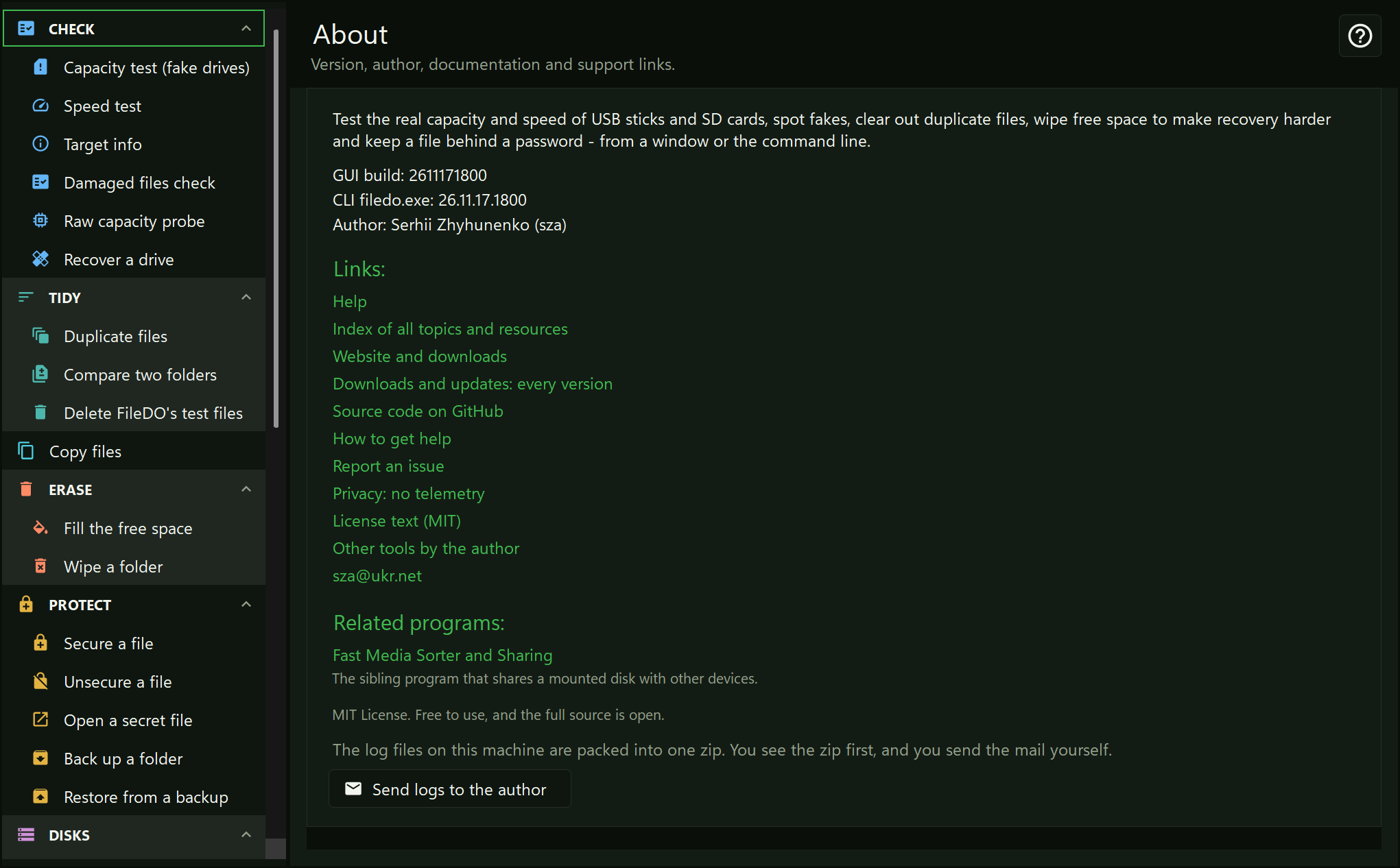
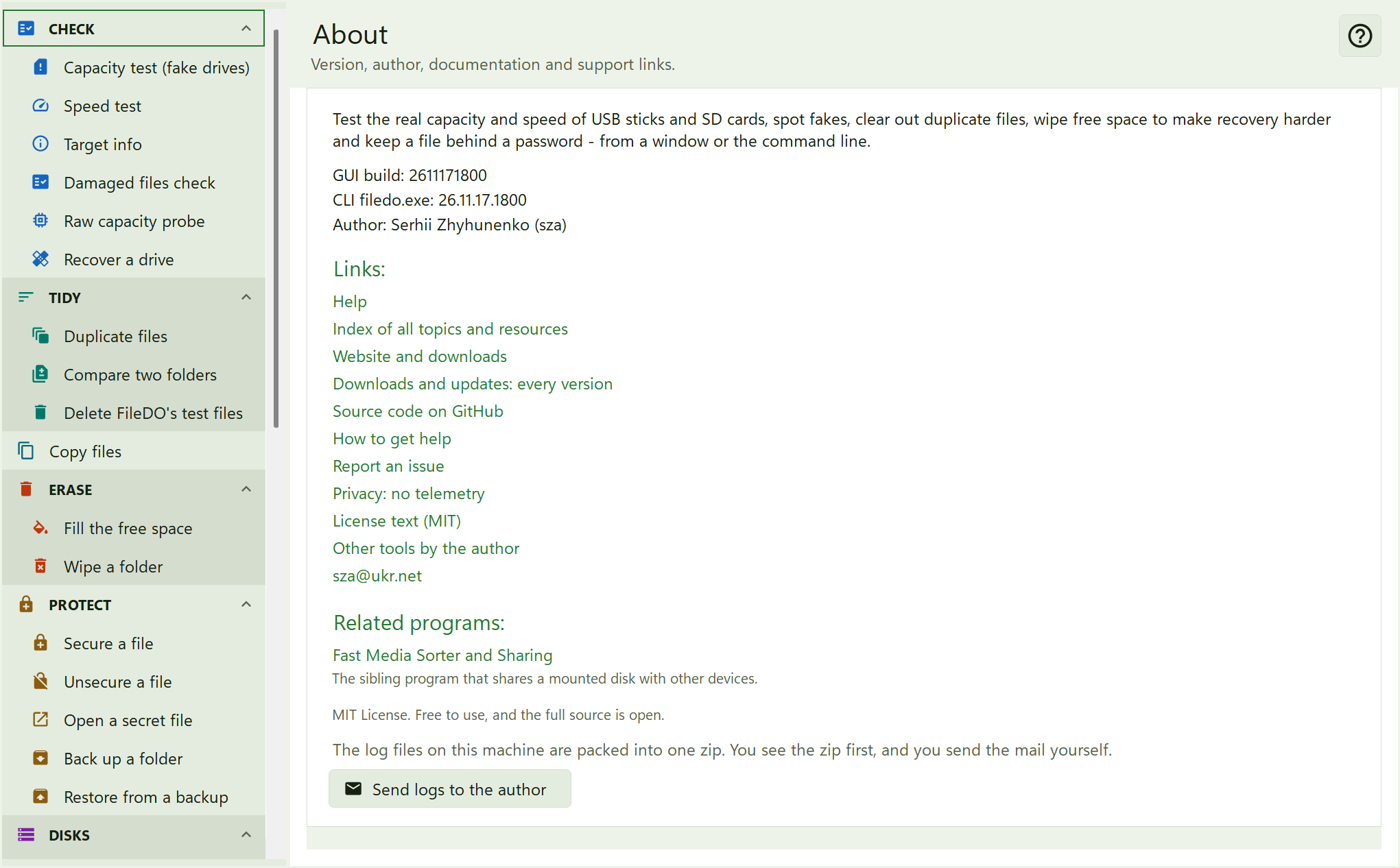
In this order
- Read the build 1 if you need to tell the author which version you have.
- Follow a link 3 to the site, the source or the issue tracker.
- If something goes wrong, send the logs 5 - you see them first.
The elements
1GUI buildWhich version of the window and of the program is running.
The first line is the build of this window; the second is the filedo.exe it works with. Quote both when you report a problem. If the second line says the program is not next to the window, FileDO looks for it on the path or among the Store aliases.
- Undo
- Reading a version changes nothing.
2AuthorWho wrote FileDO.
The name under which FileDO is published. The author's mail address is among the links below.
3LinksWhere to read more, get the source or report a problem.
Help (these pages, on your machine), the index of all topics and resources, the website with the downloads and the guides, every version with its downloads and updates, the source code, how to get help, the issue tracker, the privacy statement, the license text, the author's other programs and the author's mail address. Below them, the related programs with what each one is for. A link is followed only when you click it.
- Next
- The link opens in your web browser or mail program. FileDO stays open.
4LicenceMIT licence. Free to use, and the full source is open.
FileDO is free software under the MIT licence: you may use, copy, change and share it. The source code is public, and the privacy statement says that nothing is sent anywhere.
5Send logs to the authorPacks the log files into one zip for the author.
Collects the FileDO log files on this machine into one zip, shows you the zip, and opens your mail program with a message to the author. Nothing is sent until you send the mail yourself.
- Next
- A folder with the zip opens, and so does a new mail with the zip's location.
- Undo
- Close the mail without sending it and nothing leaves your machine.
6HelpOpens the page you are reading.
Every FileDO window has this button in its top-right corner. It opens the help page of the window you are in, with a picture and every part explained, in your language.
- Next
- The page opens in your web browser. FileDO stays open and nothing in it changes.
- Shortcut
- F1