Window help
Settings
Choose how FileDO looks and behaves: the theme, the language, whether it keeps a history, what it does when Windows starts, and a few Windows options. Each setting applies as soon as you change it.
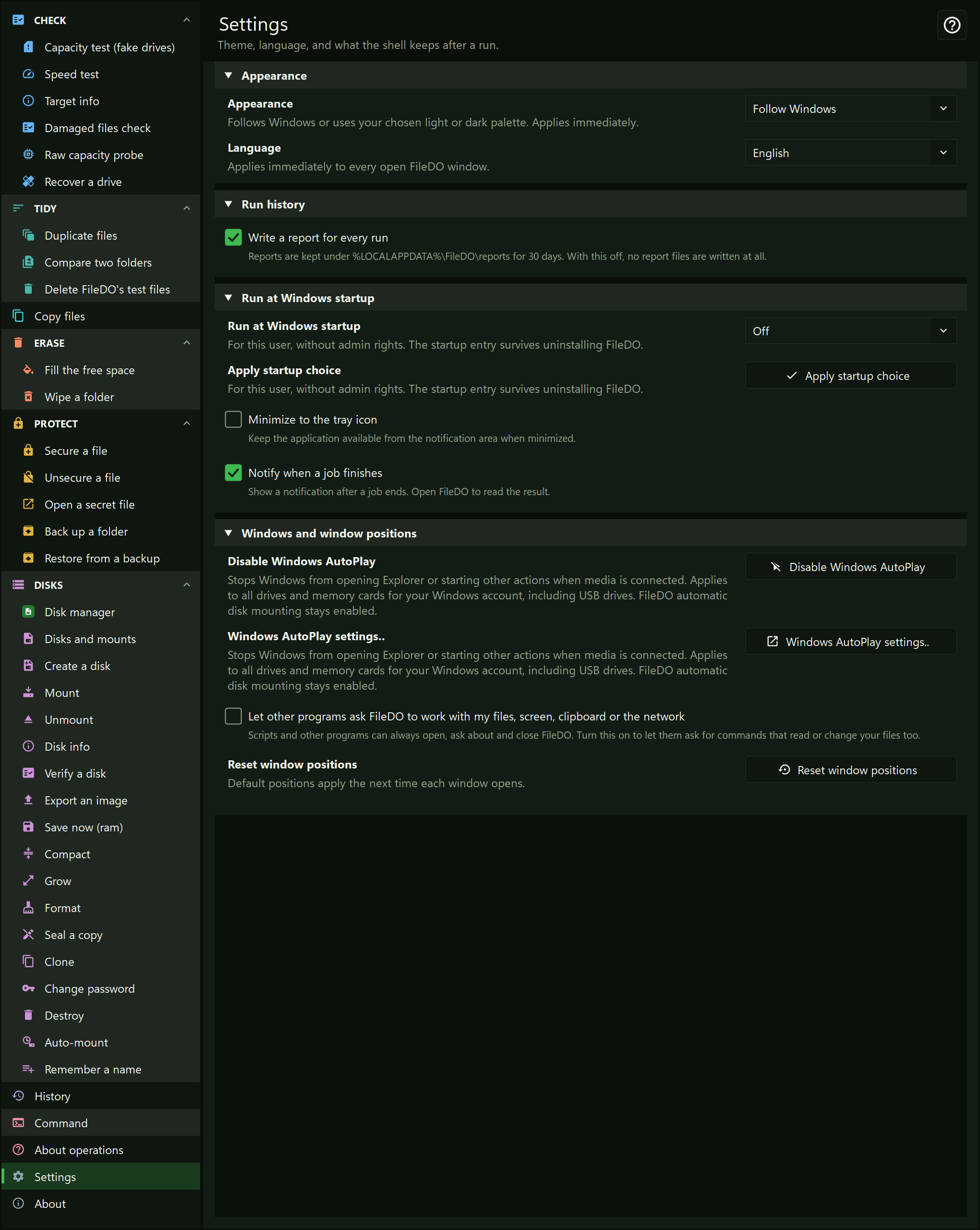
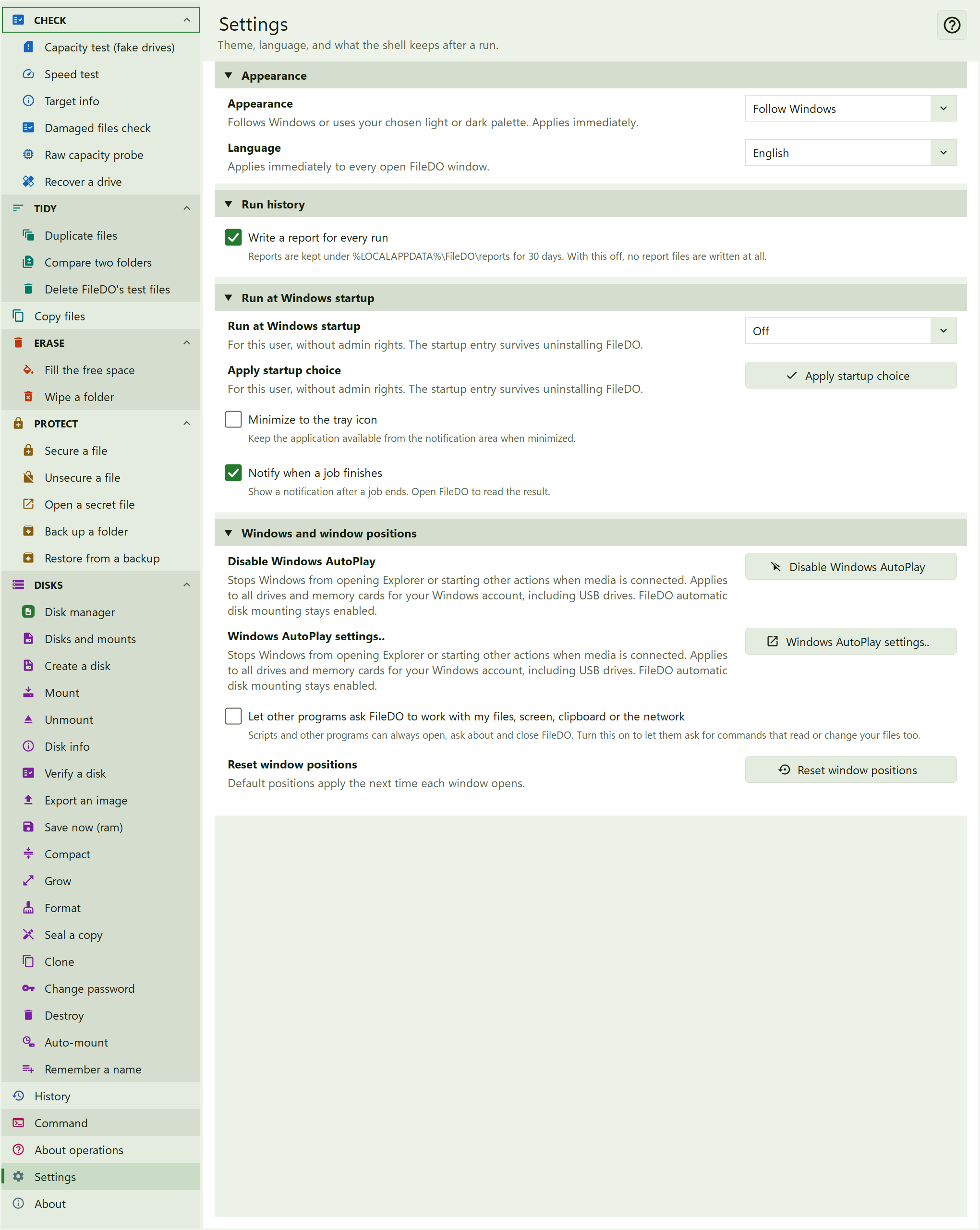
In this order
Settings have no order: change any of them at any time. They are grouped as on the page - Appearance, Run history, Startup and Windows - and each group folds by its header.
The elements
1AppearanceTheme and language.
How the windows look and which language they speak. Both apply to every open FileDO window at once.
2AppearanceFollows Windows or uses your chosen light or dark palette. Applies immediately.
Light and Dark pick a palette; the automatic choice follows the light or dark setting of Windows. Pick whatever is easiest on your eyes where you work.
- Next
- Every open FileDO window changes at once.
- Undo
- Choose the previous value to go back.
3LanguageApplies immediately to every open FileDO window.
The language of every FileDO window, the tray menu and these help pages. English, Russian, Ukrainian, German and French are available.
- Next
- Open windows change at once, and a help page opens in the language chosen here.
4Run historyWhether finished runs are written down.
FileDO can keep a report of every run, so that you can read later what was done and how it ended.
5Write a report for every runReports are kept under %LOCALAPPDATA%\FileDO\reports for 30 days. With this off, no report files are written at all.
With this on, every run leaves a report that you can read in History: the command, the verdict and the details. Turn it off if you do not want any report files written.
- Undo
- Reports already written stay until they are 30 days old. Turn it back on to write them again.
6Run at Windows startupWhat FileDO does when Windows starts and when a job ends.
Whether FileDO starts with Windows, whether minimizing leaves it in the tray, and whether you are told when a job finishes.
7Run at Windows startupFor this user, without admin rights. The startup entry survives uninstalling FileDO.
Choose what happens when you sign in to Windows: nothing, the main window, the Disk Manager, or only the tray icon. The choice is made for your account and needs no administrator rights. In the Microsoft Store build this row opens Windows Settings, where startup apps are managed.
- Next
- Nothing changes until you press the button below it.
8Apply startup choiceSaves the startup choice.
Writes the choice above and registers it with Windows.
- Undo
- Choose Off and apply again to remove it.
9Minimize to the tray iconKeep the application available from the notification area when minimized.
With this on, minimizing the window leaves FileDO in the tray instead of the taskbar. Running jobs and mounted disks stay reachable from the tray icon.
- Undo
- Turn it off to minimize to the taskbar again.
10Notify when a job finishesShow a notification after a job ends. Open FileDO to read the result.
When a job ends, Windows shows a short notice. It does not carry the result; open FileDO or the Disk Manager to read it.
- Undo
- Turn it off to stop the notices.
11Windows and window positionsWindows options and window positions.
Two things that live in Windows rather than in FileDO, and the way to put the windows back where they started.
12Disable Windows AutoPlayStops Windows from acting on drives you connect.
Windows can open Explorer or start other actions whenever a drive or a memory card is connected. This button turns that off for your account - for all drives, not only FileDO's. FileDO's own automatic mounting is a separate thing and keeps working.
- Next
- Windows AutoPlay is disabled, and the line below the button says so.
- Undo
- The next button opens the Windows setting, where you can turn AutoPlay on again.
13Windows AutoPlay settings..Opens the AutoPlay page of Windows Settings.
Shows the Windows setting itself, so you can look at it or change it there without FileDO.
- Next
- Windows Settings opens in its own window.
14Let other programs ask FileDO to work with my files, screen, clipboard or the networkScripts and other programs can always open, ask about and close FileDO. Turn this on to let them ask for commands that read or change your files too.
Lets scripts, scheduled tasks and development tools ask the running FileDO for more than opening, reporting and closing. While this is off, FileDO answers only commands that change nothing of yours: showing a window, telling its state, stopping its own runs and closing. Turn it on to let them ask for commands that read or change your files, screen, clipboard or the network. Only you can turn it on - no command can change it.
- Undo
- Switch it off again at any time; a command that needs it is then refused, with a message that names this setting.
15Reset window positionsDefault positions apply the next time each window opens.
Forgets where you moved and resized the FileDO windows. Use it when a window has ended up off the screen or somewhere inconvenient.
- Next
- Each window opens in its default place the next time it is opened.
- Undo
- Move a window again to give it a new remembered place.
16HelpOpens the page you are reading.
Every FileDO window has this button in its top-right corner. It opens the help page of the window you are in, with a picture and every part explained, in your language.
- Next
- The page opens in your web browser. FileDO stays open and nothing in it changes.
- Shortcut
- F1