26.09.24 20:50
🖼️ Digital Photo Frame on Tablet
Level: Beginner • Time: ~15 minutes • Flavor: Standard, Photos, Legacy, VR, noLegal (for NAS/cloud photos) or any flavor (for local photos)
Turn any Android tablet into a beautiful always-on digital photo frame - streaming your memories from a home NAS or cloud, with optional background music. Zero local storage used.
The idea in one sentence: prop up an old tablet, plug it in, launch a slideshow - it shows your photos automatically, forever, changing every few seconds. Like a real digital photo frame from a store, but powered by your own photo collection from any source.
What You Will Need
- An Android tablet (any size - an old one works great!)
- A stand or mount to keep the tablet upright
- A USB charger to keep it plugged in - the tablet will run all day, so battery isn’t enough
- Your photos on one of: local storage, home PC/NAS via SMB, or Google Drive / Dropbox
- (Optional) A music source for background audio
Step 1 - Add Your Photo Source
Choose where your photos live:
Option A - Local photos (on the tablet itself):
- Tap Add
 → Local Folder → navigate to your photos folder → Select
Option B - Home NAS / Windows PC (SMB):
- Tap Add → Network folder (SMB)
- Tap “Scan Network” → select your PC/NAS from the list
- Fill in share name + username + password
- Tap Test Connection → Save
Full SMB setup: Connect to NAS (SMB). This takes ~5 minutes to set up once, then works forever.
Option C - Google Drive / Dropbox:
- Tap Add → Cloud Storage → choose provider
- Tap Sign in → complete authentication in browser
- Select the folder with your photos → Done
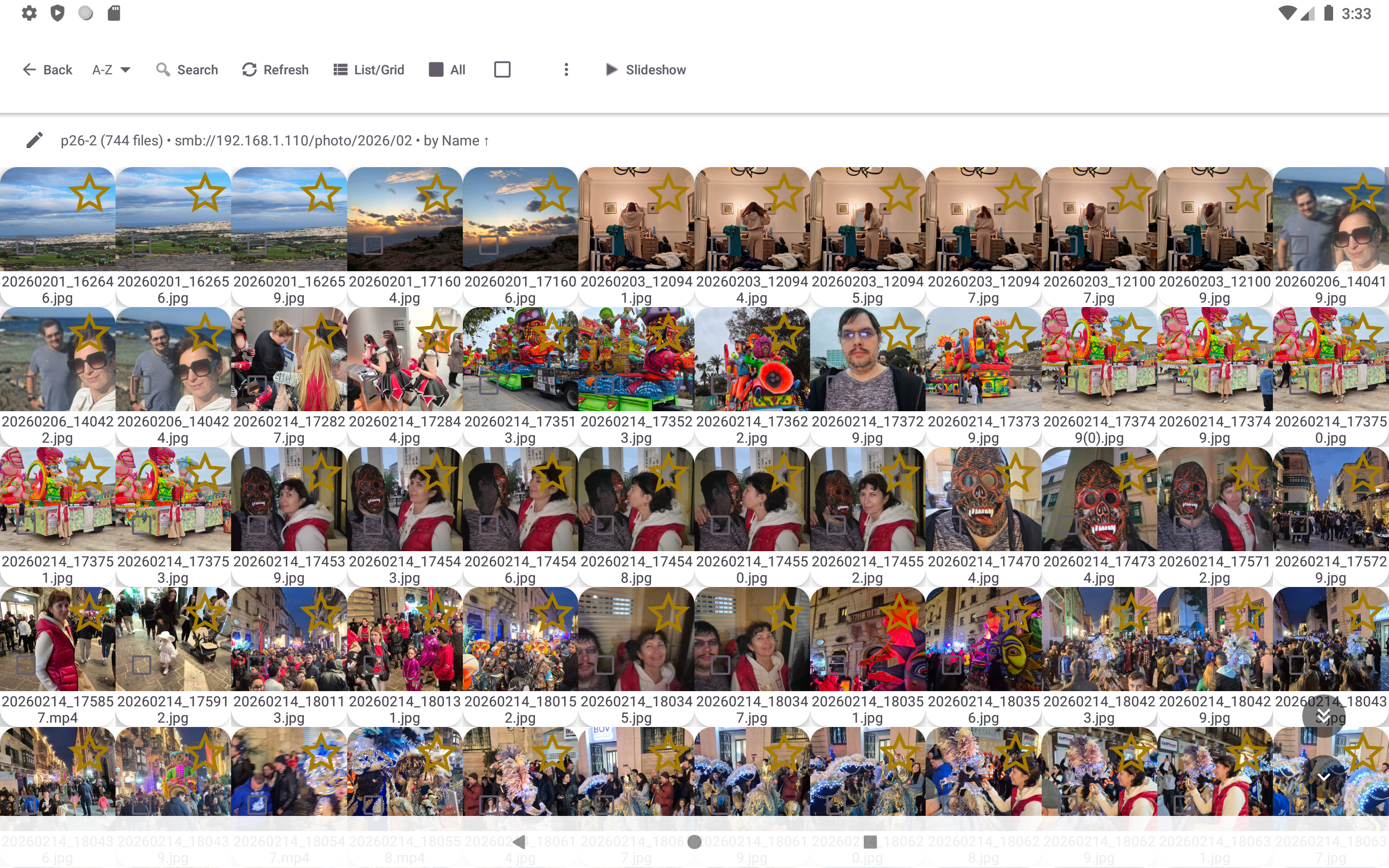
Step 2 - Configure the Folder for Slideshow
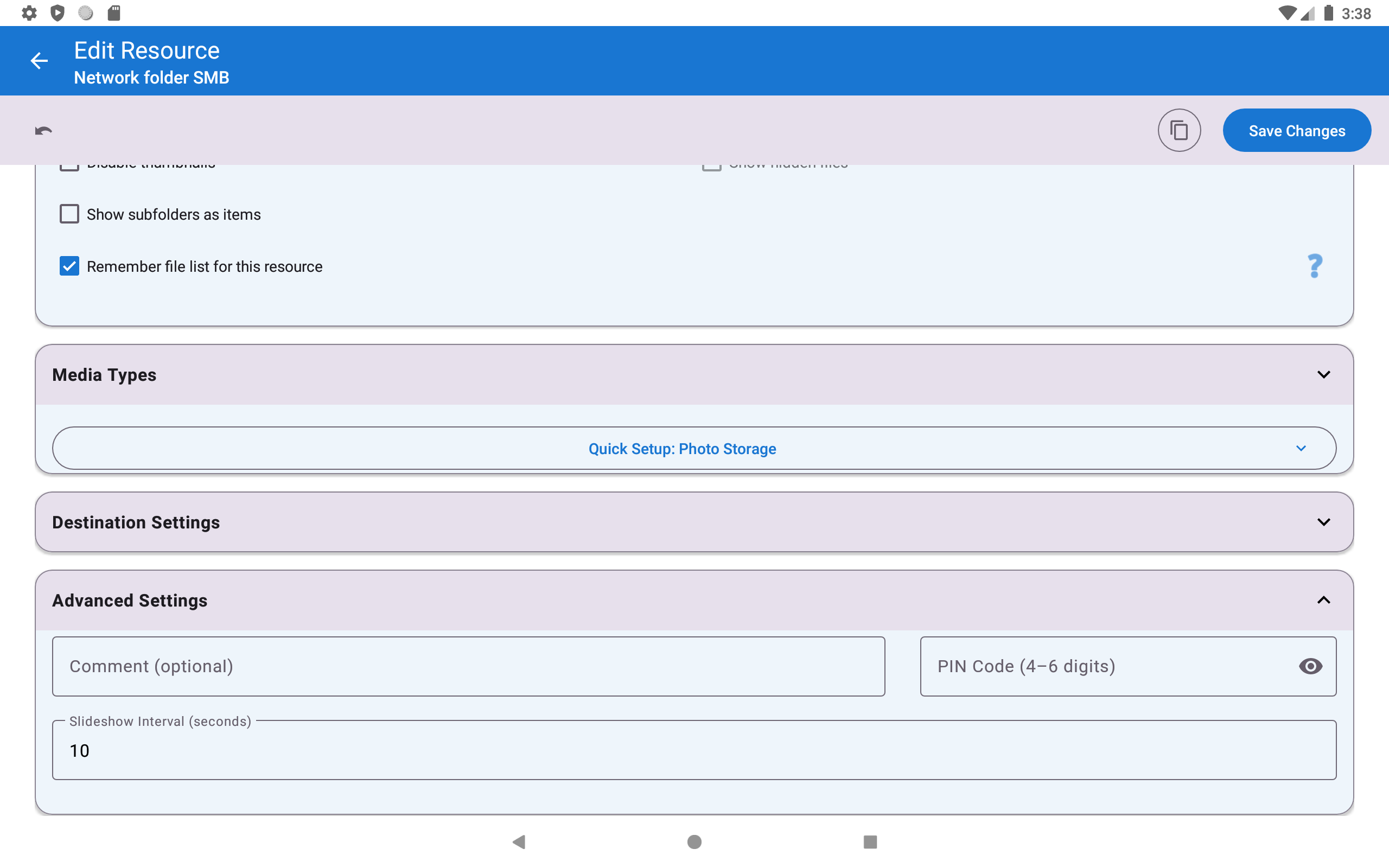
Long-press your photo folder on the main screen → tap Edit (pencil icon).
Set these options:
| Setting | Recommended value | Why |
|---|---|---|
| Slideshow Interval | 5-10 seconds | 5 s = lively family album feel; 10 s = calm, good for art photos or big groups where you want time to recognize everyone |
| Include Subfolders | ON | Shows photos from all subfolders - great if you organize by year/album |
| Sort mode | Date Taken (newest first) or Random | Random = more variety daily; Date = newest photos appear first |
| Supported Types | Images only | Remove Video and Audio - otherwise video files will play too, interrupting the slideshow flow |
Tap Save.
Step 3 - (Optional) Add Background Music
Want soft music playing while viewing photos? Here’s how (needs a flavor with audio - the Photos flavor has none):
- First, add a music source: tap Add → Local Folder → navigate to your music folder
- Go to Settings → Media tab → Audio playback, covers and visuals
- Enable “Show random photos during audio playback”
Then go to Settings → Media tab → Images, GIFs and slideshow:
- Enable “Play music during slideshow”
- Tap “Select Music Source” → choose your music resource
Tip: If music stutters when photos come from a NAS, use a local music folder for audio and let only photos stream from the network - you can freely mix sources this way.
Step 4 - Start the Slideshow
- Tap your photo folder on the main screen to open it
- Tap any photo to open the full-screen viewer
- Tap “Slideshow”
 in the top toolbar
That’s it - the slideshow runs. Photos advance automatically at the interval you set.
Alternative quick start: Tap the bottom-right zone of the photo screen (the screen is divided into a 3×3 grid of invisible tap zones; bottom-right = zone 9 = PLAY).
Step 5 - Keep the Screen On
This step is critical. Android saves battery by turning the screen off after a few minutes - which would ruin the photo frame. You need to disable this.
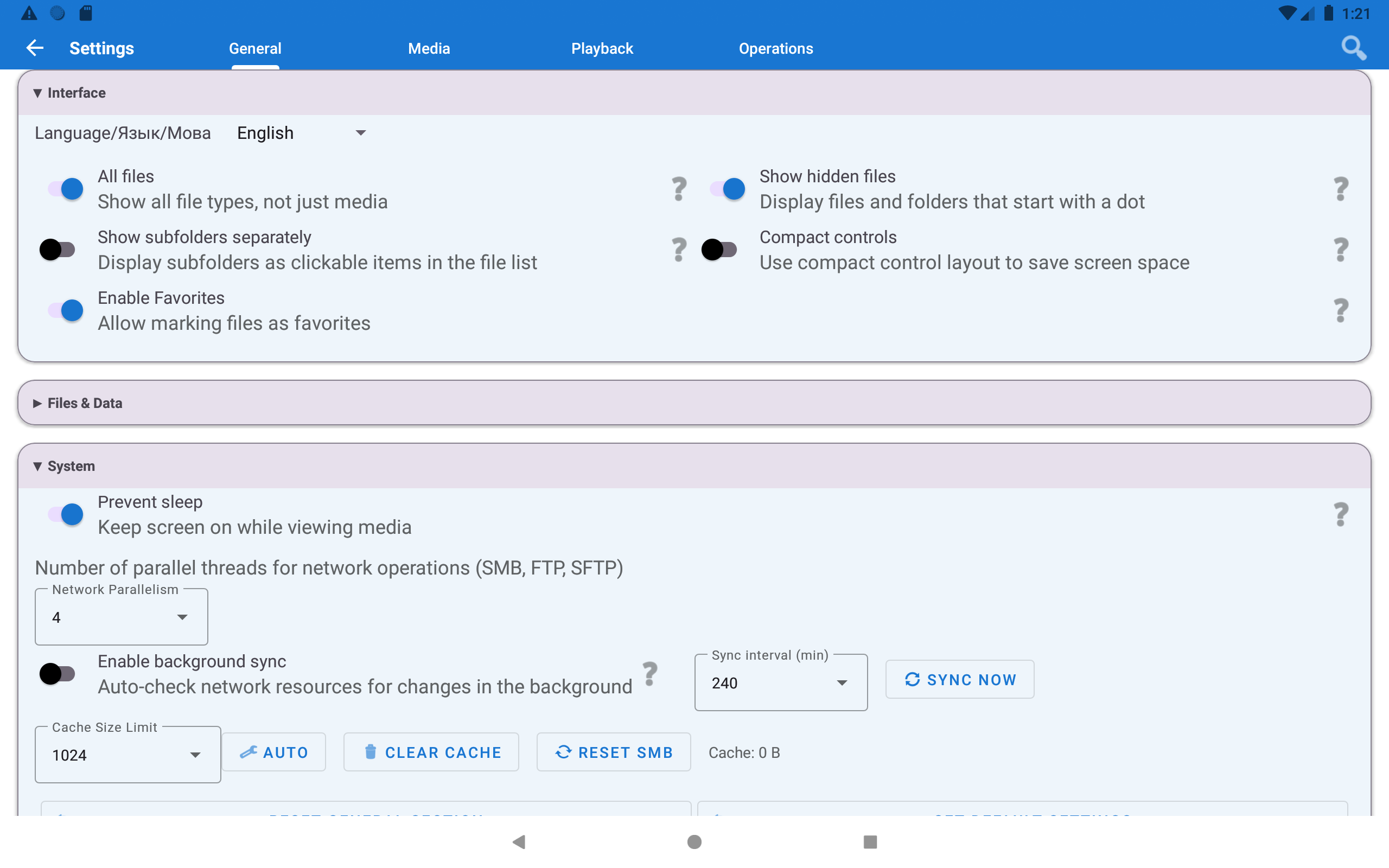
Option A - In-app setting (recommended): Go to Settings → Management → Prevent sleep and turn it on.
This tells Android to keep the screen on as long as the app is running in the foreground. The moment you switch apps or the slideshow stops, the normal screen timeout returns.
Option B - Android system setting: Android Settings → Display → Screen timeout → set to “Never” (or maximum).
Also: Keep the tablet plugged into USB power at all times. A tablet running a slideshow all day will drain its battery by evening. Just use the original charger and leave it connected.
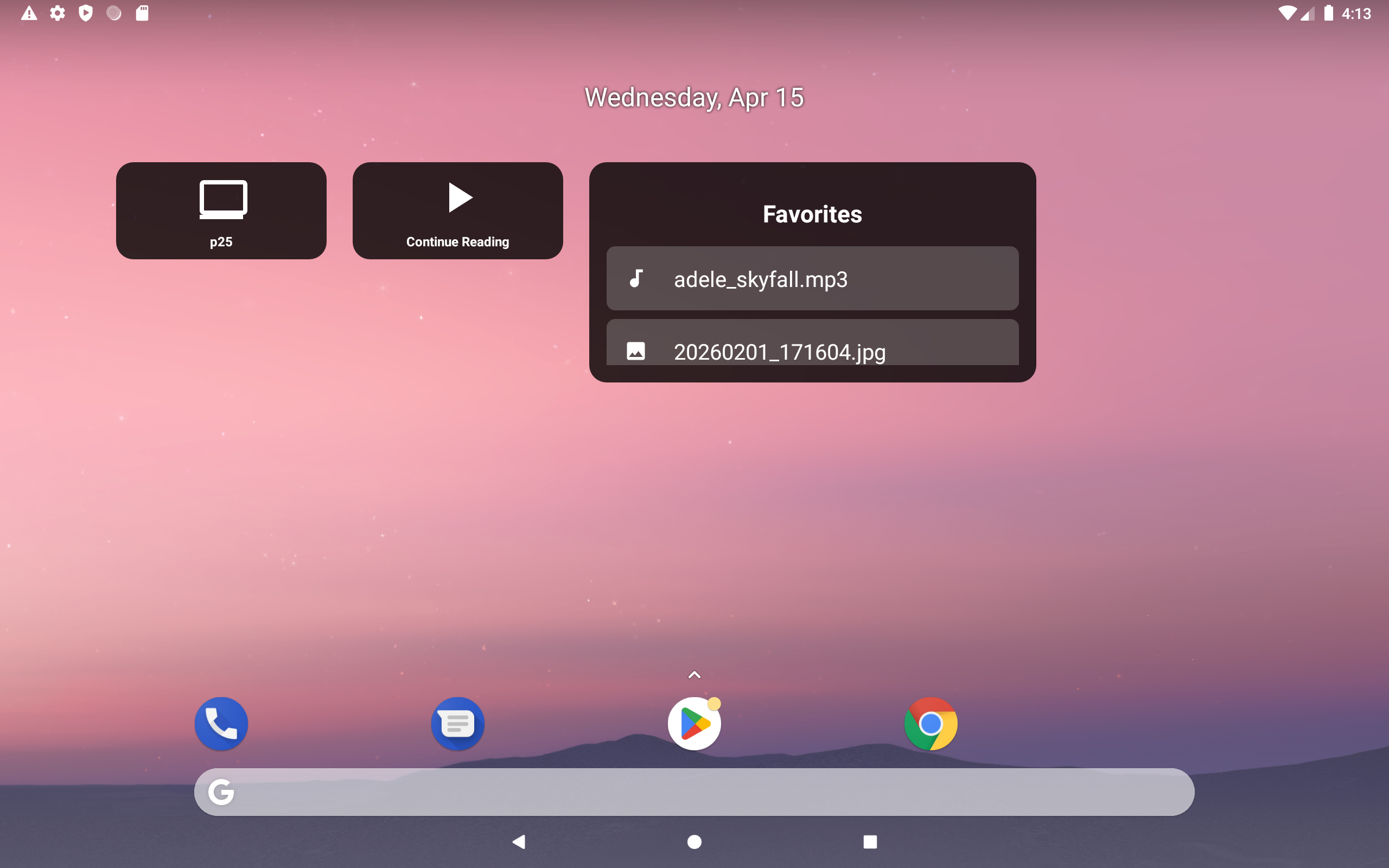
Step 6 - (Optional) Add a Home Screen Widget
This step is for convenience: want to launch the photo frame instantly when you pick up the tablet - without opening the app and navigating?
- Long-press your home screen → tap Widgets
- Find FastMediaSorter in the widget list
- Drag “Resource Shortcut” widget to your home screen
- When prompted, select your photo resource
- Tap the widget anytime → slideshow launches instantly
Done! Your Photo Frame Is Running
Controls while slideshow is playing:
- Tap screen → pause / show controls
- Swipe left / right → skip to next / previous photo manually
- Tap bottom-right zone → stop slideshow and return to file list
Tips
NAS photos not updating after you added new ones? The app caches the file list for speed. To refresh: go back to the folder → tap the Refresh
button in the toolbar. New photos appear immediately.
Photos look zoomed in or cut off? Open Settings → Media → Images → “Crop images to fill screen” and try both positions: OFF keeps the full photo visible, ON fills the screen edge-to-edge (slight cropping around the sides).
Vertical phone used as a frame? Enable “Crop images to fill screen” to avoid black bars on landscape photos.
Troubleshooting
| Problem | What to try |
|---|---|
| Screen goes dark after a few minutes | Enable “Prevent sleep” in Settings → Management (Step 5) and plug in USB charger |
| Photos not showing | Open the folder settings (Step 2) and make sure Images is ticked under Supported Types |
| Music doesn’t play | Verify the music folder contains at least one audio file; check that Play music during slideshow is on in Settings → Media → Images, GIFs and slideshow |
| Slideshow pauses on video files | Expected - videos play, then slideshow resumes. Set “Supported Types → Images only” in folder settings (Step 2) to prevent this |
| SMB photos load slowly | Edit folder → disable “Load thumbnails” to reduce network load. Or reduce slideshow interval to give more loading time |
| Photos repeat too quickly | Increase slideshow interval in folder settings (Step 2) |