Window help
History
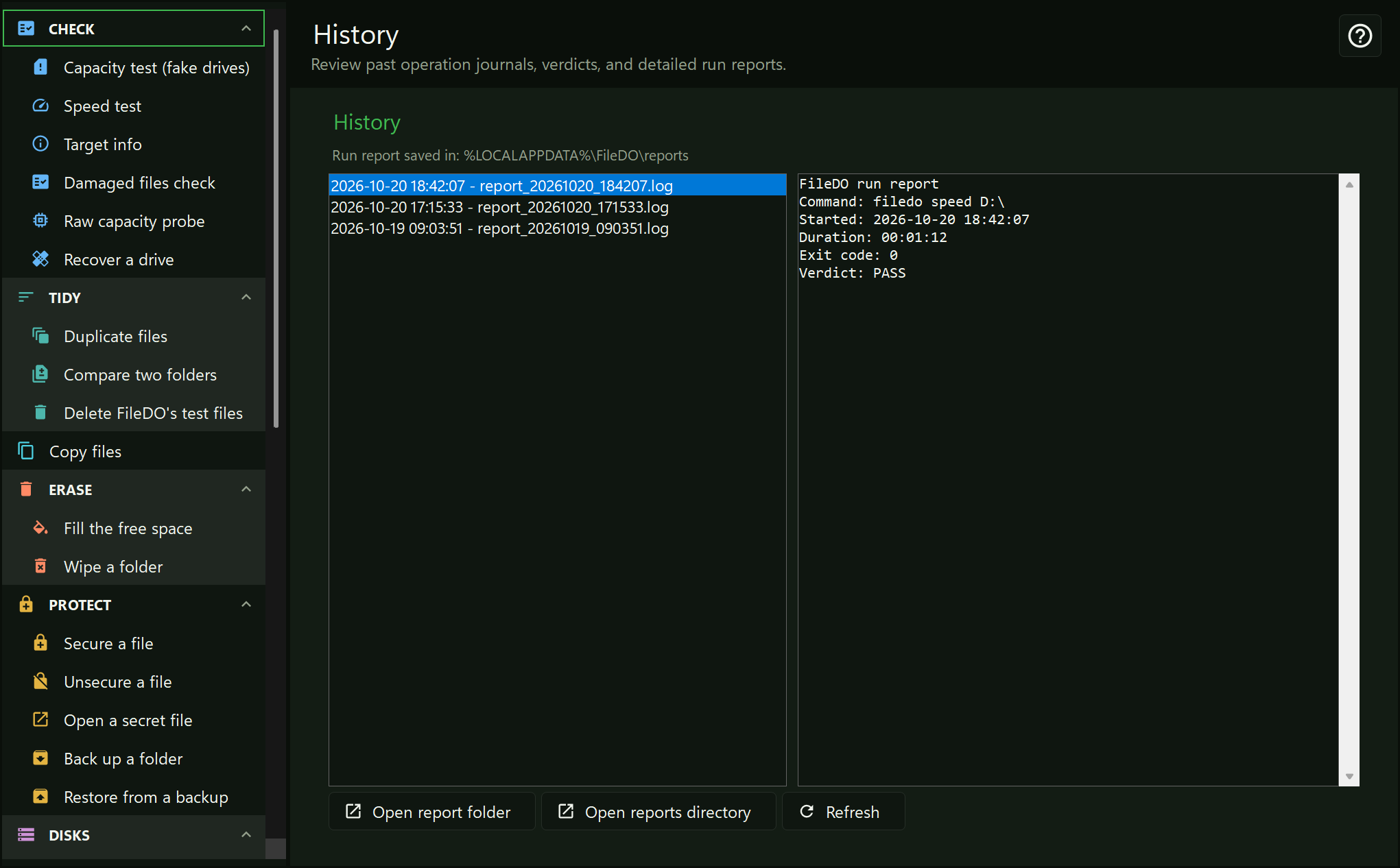
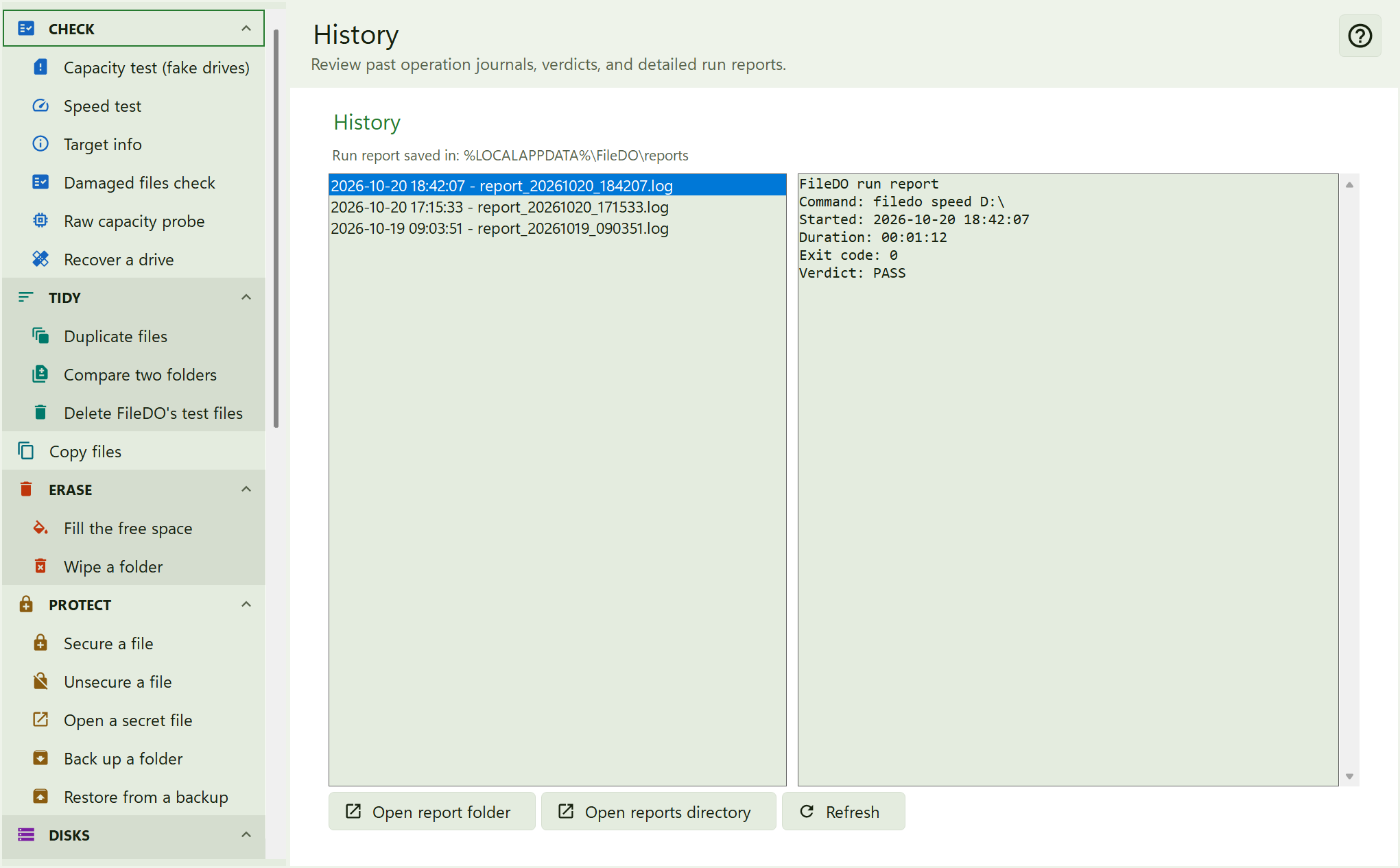
Read what FileDO did before: every finished run leaves a report with its command, its verdict and its details. The page lists the reports, shows the one you select and opens the folder they are kept in.
In this order
- Read the line at the top 1: it says where the reports are kept, or that they are turned off.
- Select a report in the list 2.
- Read its details 3, or open the whole report 4.
- Open the folder 5 to copy or delete reports yourself.
The elements
1Reports folderWhere the reports are kept, or that they are off.
Reports are written when the setting Write a report for every run is on, and kept for 30 days. With it off, this line says so, because an empty list would look like nothing had happened.
2HistoryThe finished runs, newest first.
One row per report. Select a row to read it on the right. The list is read again each time you open this page and when you press Refresh.
- Next
- The details on the right show the command, the verdict and the end of the report.
- Undo
- Selecting a report changes nothing.
3Report contentsThe command, the verdict and the end of the selected report.
Shows the start and the end of the report, which is where the command and the verdict are. A very long report is not loaded whole; open it to read all of it.
4Open report folderOpens the whole report in Notepad.
Opens the selected report file in Notepad. It is the original file, so changes you make there and save are saved in it.
- Next
- The report opens in another program. FileDO stays open.
5Open reports directoryOpens the folder the reports are kept in.
Opens the reports folder in Explorer. Reports older than 30 days are removed automatically; here you can also copy or delete them yourself.
6RefreshReads the list again.
Use it after a run in another window or after deleting files by hand. It only reads; nothing is changed.
7HelpOpens the page you are reading.
Every FileDO window has this button in its top-right corner. It opens the help page of the window you are in, with a picture and every part explained, in your language.
- Next
- The page opens in your web browser. FileDO stays open and nothing in it changes.
- Shortcut
- F1