Window help
DOC-HTML-UI
Turn an e-book or a document into a local HTML book that opens in your browser, with the translation of your choice. Pick a file, press Convert, read the result.
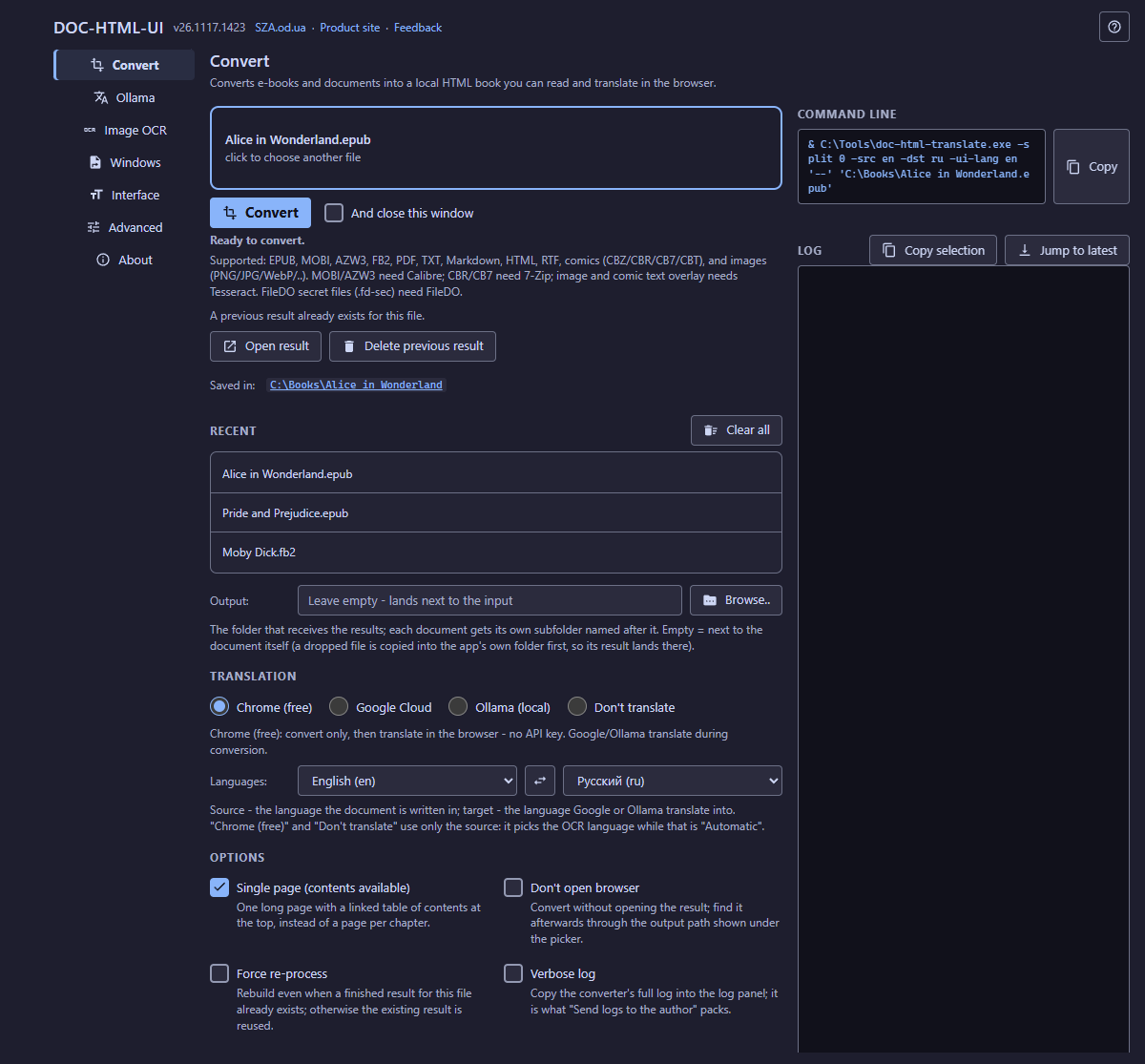
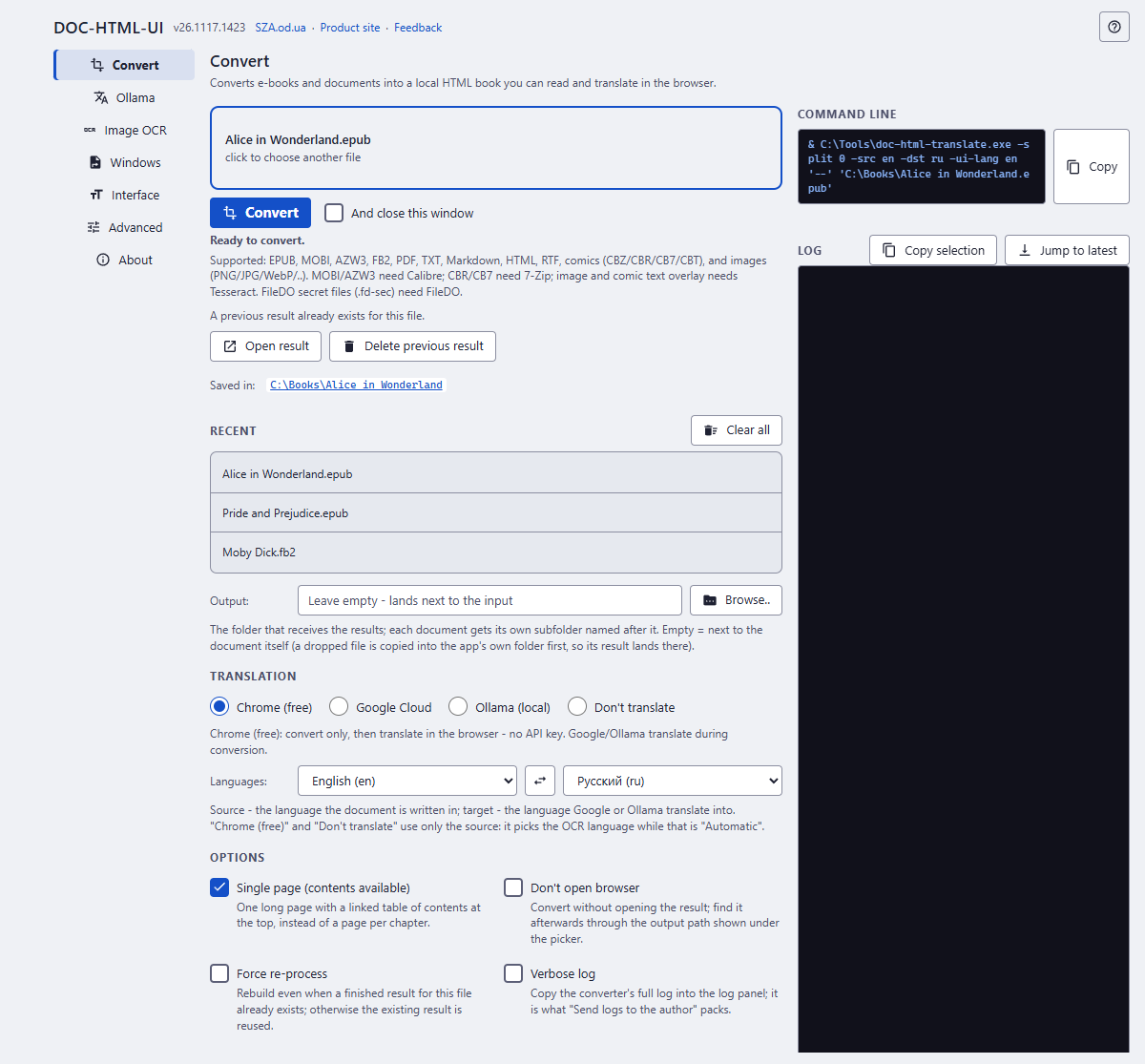
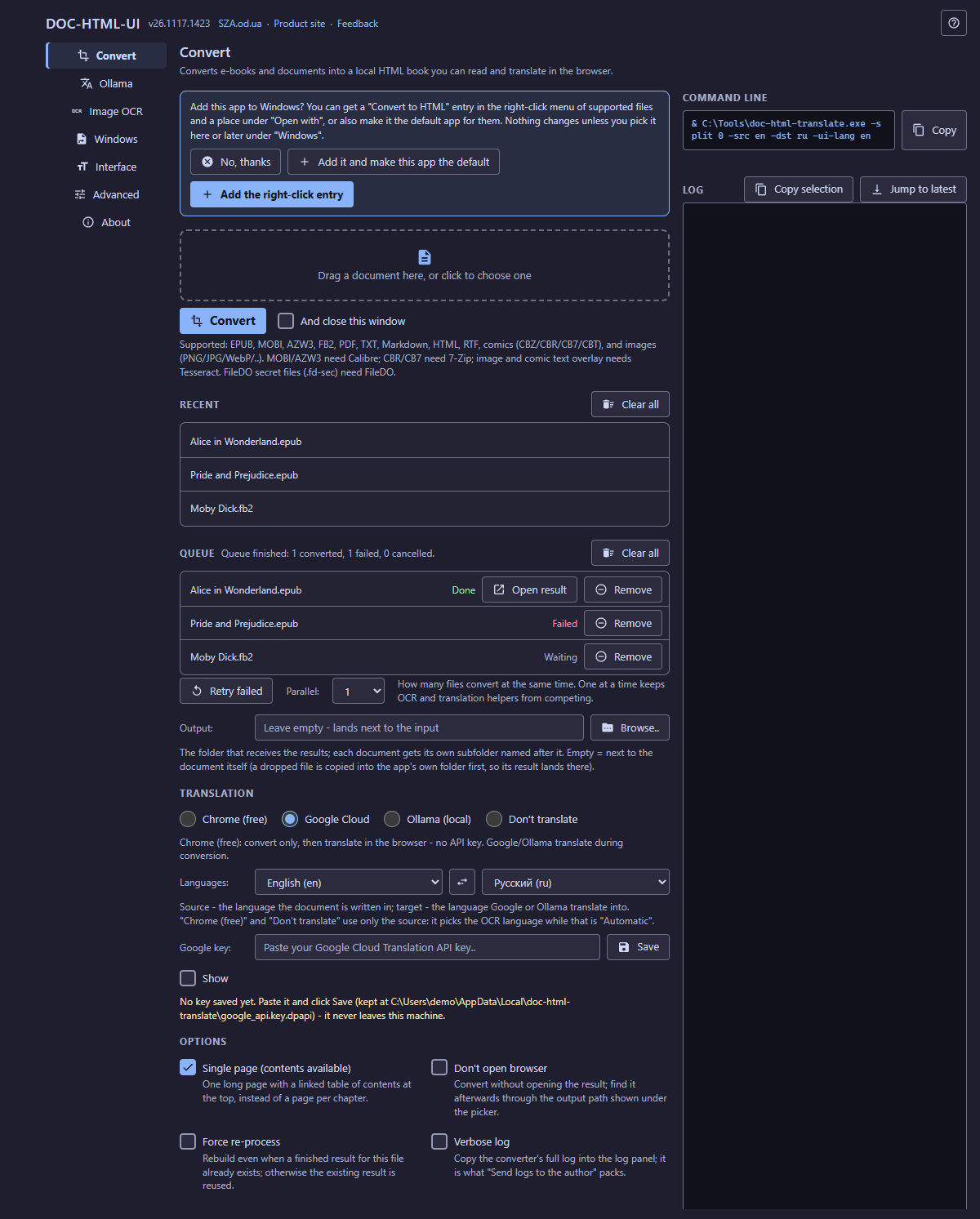
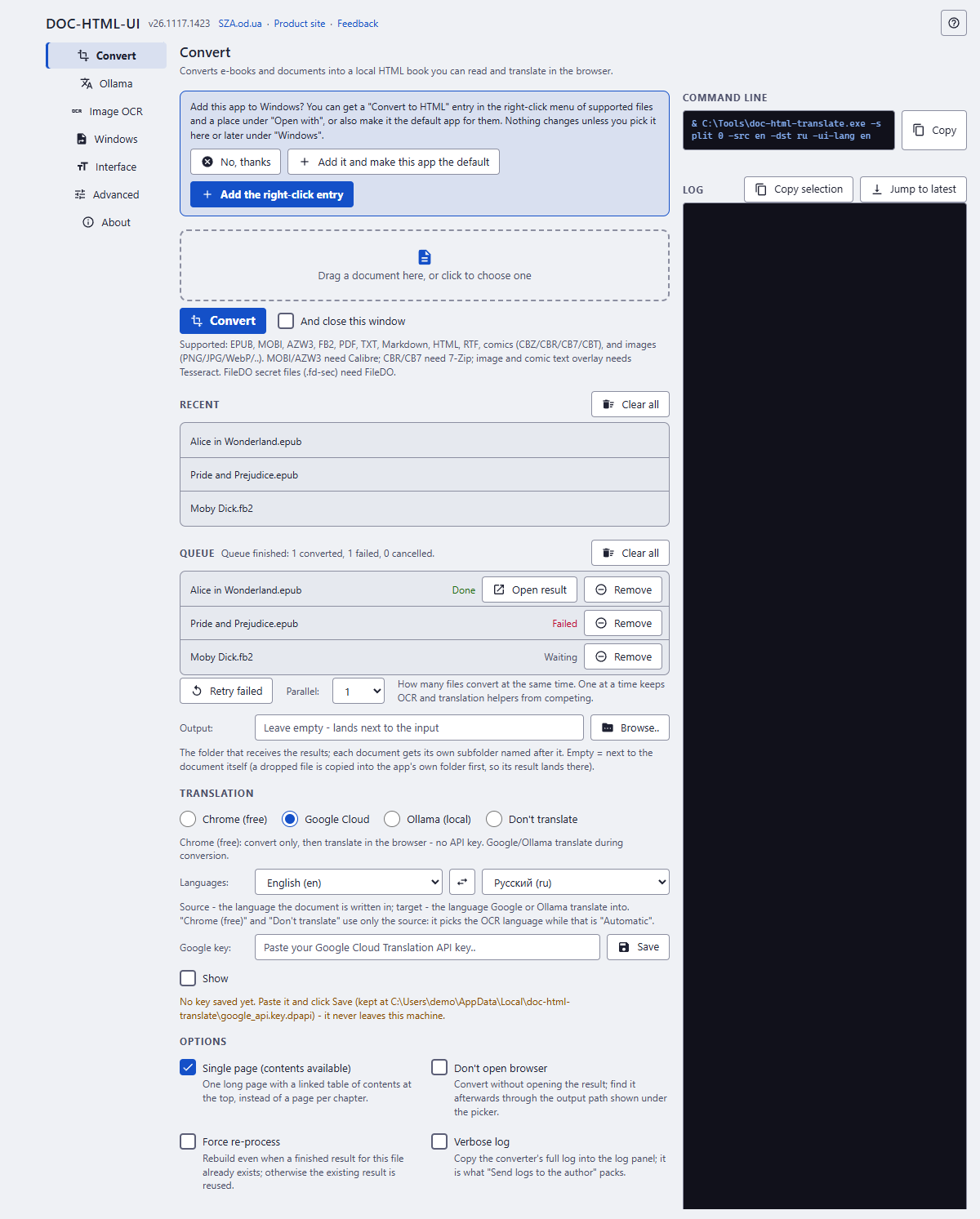
In this order
- Choose the document 3: click the box or drop a file on the window. Several files at once go to the queue 15.
- Read the line under it 5: it says whether everything the conversion needs is in place.
- Say where the result goes 8. Leave it empty to get the book next to the document.
- Choose how to translate 9 and between which languages 10. Chrome (free) converts only; you translate afterwards in the browser.
- Look at the options 11 if you want one long page, no browser window afterwards, or a rebuild.
- Press Convert 4. The Command line 12 shows exactly what runs; the Log 13 shows how it goes.
- Open the finished book from 6, or let the browser open it for you.
The elements
1Help (F1)Opens the help for the part of the window you are in.
Opens this page, or the page of the question that is open. With the focus inside a part of the window it opens the entry of that part.
- Why
- It explains the window with a picture, without a network and without leaving the app.
- Next
- The help opens in its own window; this window stays as it is, and so does an open question.
- Undo
- Close the help window.
- Shortcut
- F1 does the same from anywhere in the window.
2Window headerThe program name and version, the links, and the list of pages.
At the start of the window is the list of pages. The line under each page title says what the page is for, and the links in the header lead to the product site, the SZA hub and a message to the author. In a narrow window the list of pages opens from the Pages button. The theme and the interface language are on the Interface page; the interface language is also the language of the reader's own buttons in the converted book, while the text of the book keeps its own language.
- Why
- The header stays the same on every page, so the way to the help, the site and the other pages is always in the same place.
- Next
- Choosing a page only changes what the window shows. Nothing is converted, saved or reloaded.
- Undo
- Choose the previous page in the list.
3Choose a fileThe document to convert: click to choose it, or drop it on the window.
Click the box to open the file picker, or drag one or more files onto the window. Supported: EPUB, MOBI, AZW3, FB2, PDF, TXT, Markdown, HTML, RTF, comic archives (CBZ, CBR, CB7, CBT) and pictures (PNG, JPG, WebP and others). A FileDO secret file (.fd-sec) is opened with its password. A dropped file is copied into the app's own folder first, so its result lands there unless you set an output folder.
- Why
- Everything else in the window is about this file. Choosing several files at once builds a queue.
- Next
- The line under the box reports whether the file can be converted. Nothing is read or written until you press Convert.
- Undo
- Choose another file; choosing changes nothing on disk.
- Shortcut
- Ctrl + Shift + F puts the keyboard on this box.
4ConvertStarts the conversion; while it runs the same button is Cancel.
And close this window closes this window after a successful conversion or queue, including warnings. The choice is remembered; errors and cancellations leave it open. Converts the chosen file into a folder of local HTML pages with a table of contents, then opens it in the browser unless Don't open browser is ticked. While a conversion runs the button becomes Cancel and a progress line names the stage and counts pages or images. If a finished result for the same file and the same options already exists, it is opened instead of rebuilt; Force re-process rebuilds.
- Why
- It is the only button that writes files; everything above it is a choice.
- Next
- The log fills, the progress line moves, and at the end the window says it is done, done with warnings, or what went wrong and what to do about it.
- Undo
- Cancel stops the conversion at once. What was already written stays in the output folder and the next Convert rebuilds it. A finished result can be deleted under the previous result.
- Shortcut
- Ctrl + Enter converts; Esc cancels a running conversion.
5Status linesTells you whether the file and the helper tools are ready, then how far the conversion is.
Up to three lines sit under the file box. The first says what the conversion still needs: a missing helper, a missing key, an unreadable file, with a button that jumps to the setting. The second names the stage of a running conversion and counts pages or images. The last lists the supported formats and the helpers some of them need: Calibre for MOBI and AZW3, 7-Zip for CBR and CB7, Tesseract for text in pictures, FileDO for secret files.
- Why
- A missing helper is found before the conversion starts, not after a long wait.
- Next
- Each message says what is missing and what will happen without it, for example that the book is converted without translation.
- Undo
- These lines only report; they change nothing.
6Previous resultShown when this file has already been converted.
Open result opens the finished book. The path after Saved in is the folder it sits in; click it to open the folder. Delete previous result removes the result.
- Why
- Opening an existing result is instant and free; deleting it is for a clean rebuild.
- Next
- Deleting asks first and removes only the result folder; the original file is not touched.
- Undo
- A deleted result cannot be brought back; the next Convert builds it again from the original.
7RecentThe last eight documents you chose or dropped.
Click a name to put that file back in the file box. A file that is no longer on disk is greyed out and marked unavailable, so a stale path is never converted by mistake. The arrow keys move through the list.
- Why
- Converting the same book again with other options is a common task.
- Next
- Clear all asks first and forgets the list only; the documents stay where they are.
- Undo
- A forgotten list cannot be brought back; choose the files again.
8OutputThe folder that receives the results; each document gets its own subfolder named after it. Empty = next to the document itself (a dropped file is copied into the app's own folder first, so its result lands there).
The folder that receives the results. Each document gets its own subfolder named after it. Browse.. opens the folder picker; you can also type or paste a path.
- Why
- Leave it empty for the simplest case: the book lands next to the document. Set it to keep all your converted books in one place.
- Next
- The path is remembered, and the command line shows it after -folder.
- Undo
- Empty the field to go back to "next to the document". Results already written stay where they are.
9TranslationChrome (free): convert only, then translate in the browser - no API key. Google/Ollama translate during conversion.
Four ways to treat the language of the book:
- Chrome (free) - convert only, then open the book in Chrome and use its built-in page translation. No key, no account, nothing is sent from this app.
- Google Cloud - translates while converting, with your own Cloud Translation key. Google charges for it; the cost is estimated and asked about first.
- Ollama (local) - translates while converting with a model running on your own computer. Free, slower, needs Ollama running.
- Don't translate - convert only, the explicit form of the default.
- Why
- Start with the free flow; choose a paid or local engine only when you want the translation saved inside the book.
- Next
- Google Cloud shows the key row, Ollama's own settings are on the Ollama page, and the command line shows the engine flag.
- Undo
- Switch back at any time. An existing translated result stays as it was until you rebuild it.
10LanguagesSource - the language the document is written in; target - the language Google or Ollama translate into. "Chrome (free)" and "Don't translate" use only the source: it picks the OCR language while that is "Automatic".
The first list is the source: the language the document is written in. The second is the target: the language Google or Ollama translate into. The button between them swaps the two (Swap source and target).
- Why
- The source language also picks the text-recognition language for pictures while the OCR language is on Automatic.
- Next
- Both are remembered and shown in the command line as -src and -dst.
- Undo
- Pick the previous language, or press the swap button again.
11OptionsFour switches for the shape of the result and how the run behaves.
- Single page (contents available) - One long page with a linked table of contents at the top, instead of a page per chapter.
- Don't open browser - Convert without opening the result; find it afterwards through the output path shown under the picker.
- Force re-process - Rebuild even when a finished result for this file already exists; otherwise the existing result is reused.
- Verbose log - Copy the converter's full log into the log panel; it is what "Send logs to the author" packs.
- Why
- The defaults give one long page with a table of contents and open it in the browser, which suits most books.
- Next
- A change is used by the next Convert and shows in the command line.
- Undo
- Tick or untick again. Results already built are not changed.
12Command lineThe exact command this window will run.
The line shows the converter's command with every setting you chose. It is built by the same code that starts the conversion, so it always matches. Copy puts it on the clipboard, for a script or a scheduled task.
- Why
- It shows what each setting does, and lets you repeat a conversion without the window.
- Next
- Nothing runs until you press Convert.
13LogWhat the converter reports while it works.
The converter's messages, line by line. Copy selection copies the selected lines, or the whole log when nothing is selected; Jump to latest scrolls to the newest line. Tick Verbose log to include the converter's full output.
- Why
- When something does not work, the last lines say how far the conversion got. The Support and diagnostics group of the About page packs them for the author.
- Next
- Each run writes its own log to a folder on this computer; see the About page.
14Windows questionAsked once, on the first start: should the app add itself to Windows?
Offers a "Convert to HTML" entry in the right-click menu of supported files and a place under "Open with", or the same plus making this app the default for those files. No, thanks is a real answer: nothing is written to Windows, and the app works the same.
- Why
- The app writes nothing to Windows on its own; it asks first.
- Next
- The question does not come back. The same choices are on the Windows page.
- Undo
- Switch the entries off again on the Windows page.
15QueueSeveral files converted one after another.
Choosing or dropping two or more files fills the queue. Each row shows the file and its state (Waiting, Converting.., Done, Failed, Cancelled, Action needed); click a name to see that file's command and readiness above. Retry failed converts only the files that did not finish, Cancel queue stops the running ones and starts nothing further, and Parallel sets how many run at once.
- Why
- One at a time is the default because OCR and translation helpers compete for the same machine.
- Next
- The settings are shared by the whole queue and read when each file starts.
- Undo
- Remove takes one file out of the queue and Clear all empties it; the files themselves stay on disk.
16Google keyShown only with the Google Cloud engine: your Cloud Translation key.
Paste the key and press Save; Show reveals what you typed. The key stays in your user folder on this computer and is sent to Google only, in a request header, when you translate. A saved key is never shown again; save a new one to replace it.
- Why
- A paid engine needs your own key; the app has none of its own.
- Next
- Before any request the converter estimates the cost and asks you; see the page about the paid-translation question.
- Undo
- Choose another engine and no request is ever made. The saved key stays until you replace it.