Window help
Settings
The window keeps its settings on pages, listed at its start. Choose a page and its settings appear in place; the window remembers the page you were on. In a narrow window the same list opens from the Pages button.


In this order
This part has no fixed order; its elements are grouped by topic below.
The elements
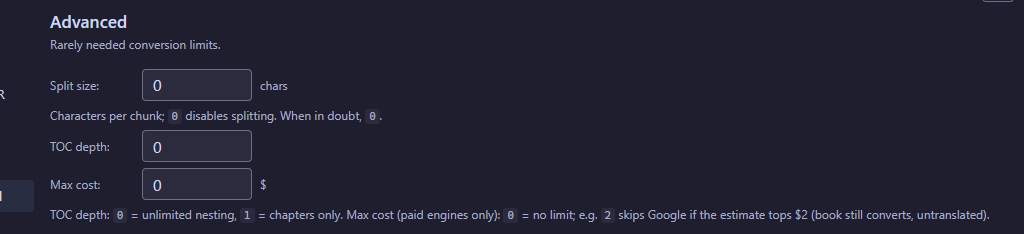
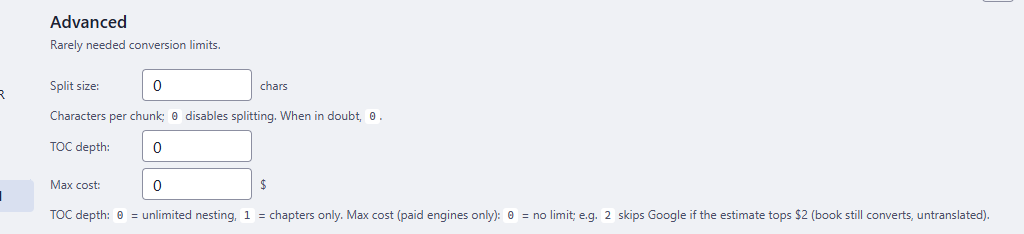
1AdvancedSplitting the book into chunks, the depth of the contents and a cost limit.
- Split size - Characters per chunk;
0disables splitting. When in doubt,0. - TOC depth / Max cost - TOC depth:
0= unlimited nesting,1= chapters only. Max cost (paid engines only):0= no limit; e.g.2skips Google if the estimate tops $2 (book still converts, untranslated).
- Why
- The defaults suit almost every book; change them only when a book is huge, its contents are too deep, or you want a ceiling on a paid translation.
- Next
- A value is used by the next conversion and shows in the command line.
- Undo
- Set the field back to 0.
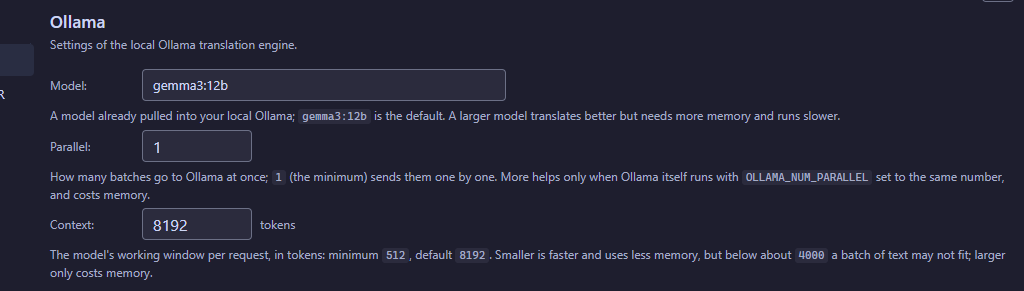
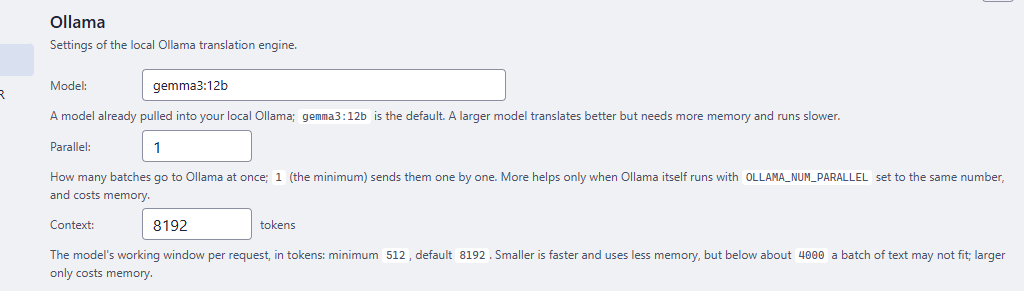
2OllamaThe local model that translates when the engine is Ollama.
- Model - A model already pulled into your local Ollama;
gemma3:12bis the default. A larger model translates better but needs more memory and runs slower. - Parallel - How many batches go to Ollama at once;
1(the minimum) sends them one by one. More helps only when Ollama itself runs withOLLAMA_NUM_PARALLELset to the same number, and costs memory. - Context - The model's working window per request, in tokens: minimum
512, default8192. Smaller is faster and uses less memory, but below about4000a batch of text may not fit; larger only costs memory.
- Why
- These only matter with the Ollama engine; with any other engine they are ignored.
- Next
- The values go into the command line only when Ollama is chosen and differ from the defaults.
- Undo
- Type the default back: gemma3:12b, 1 and 8192.
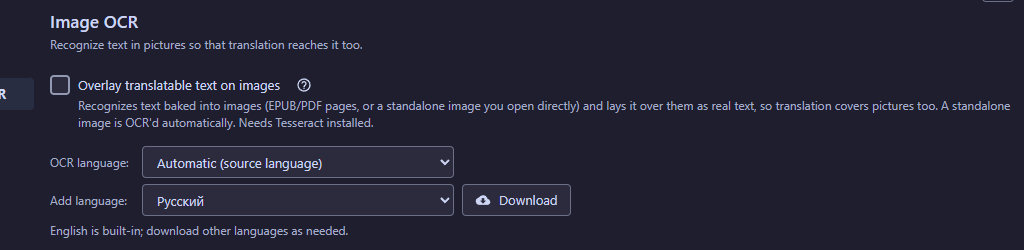
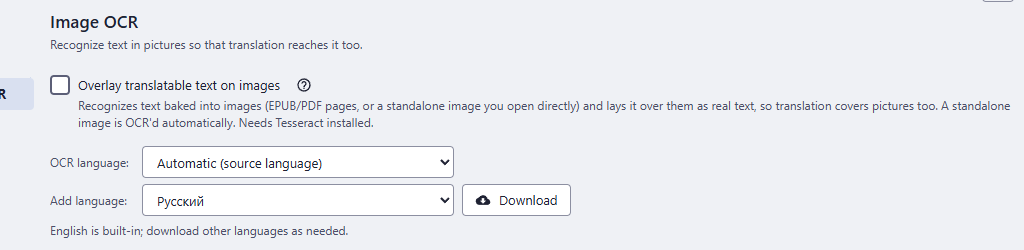
3Image OCRMakes the text inside pictures translatable.
- Overlay translatable text on images - Recognizes text baked into images (EPUB/PDF pages, or a standalone image you open directly) and lays it over them as real text, so translation covers pictures too. A standalone image is OCR'd automatically. Needs Tesseract installed.
- OCR language - Which language the recognizer reads. Automatic follows the source language.
- Add language / Download - English is built-in; download other languages as needed.
- Why
- Scanned pages, comics and pictures have no text to translate until it is recognized.
- Next
- The recognized text is laid over each picture as real text. The question-mark button beside the option explains both states in full. Downloading a language data file is the one thing on this page that needs the internet; the file is checked against its published checksum before it is kept.
- Undo
- Untick the overlay for the next conversion. Existing results keep their text layer until rebuilt.
Careful
The overlay needs Tesseract installed. The status line under the file box tells you when it is missing.
4WindowsOptional links between the app and Windows; both are off until you switch them on.
- Right-click "Convert to HTML" and "Open with" - Optional. Adds a "Convert to HTML" command to the right-click menu of supported files and lists this app under "Open with". Your default apps stay as they are.
- Make this app the default handler for EPUB, PDF, .. - Optional and off by default. Makes double-clicking a document open it with this app (per-user file associations).
- Open Default apps - Opens the Windows page where the final say on default apps belongs to you.
- Why
- They save a step: right-click a book and convert it, or double-click it to open it here.
- Next
- Windows may keep opening a file type with an app you chose earlier; this page then says so, and only you can change it. This page is not shown in the Microsoft Store edition, which registers nothing in Windows itself.
- Undo
- Switch the same entry off again; the app removes what it added.
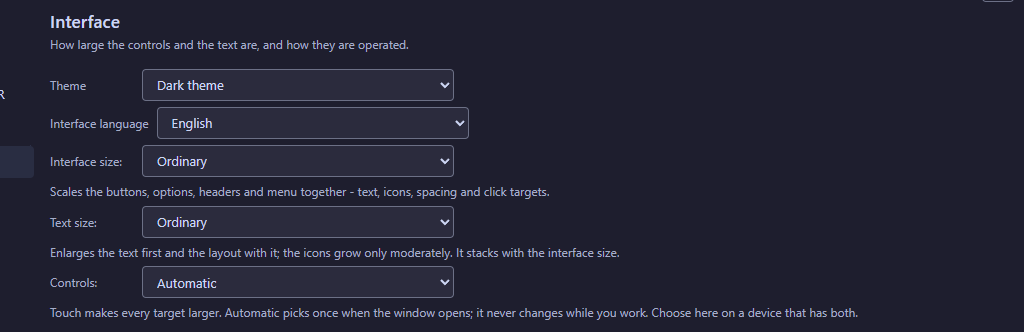
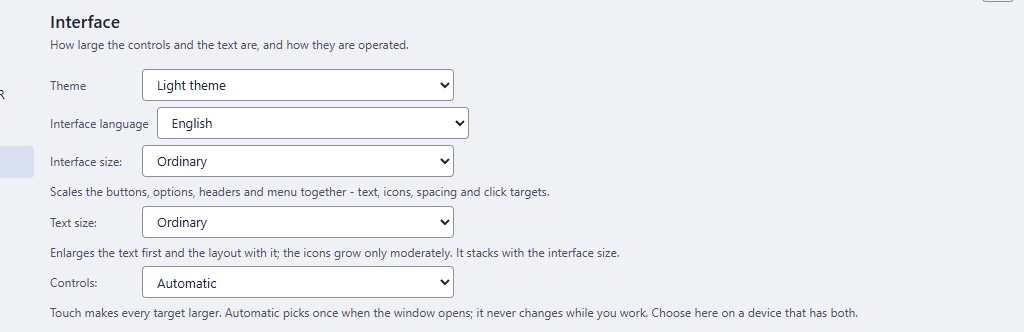
5InterfaceThe theme, the interface language, how large the controls and the text are, and whether the window is made for a mouse or for touch.
- Theme - System theme, Light or Dark. Until you choose, the window follows the system theme.
- Interface language - One of 13 languages; it applies at once. It is also the language of the reader's own buttons in the converted book. Until you choose, the window follows the Windows language.
- Interface size - Scales the buttons, options, headers and menu together - text, icons, spacing and click targets.
- Text size - Enlarges the text first and the layout with it; the icons grow only moderately. It stacks with the interface size.
- Controls - Touch makes every target larger. Automatic picks once when the window opens; it never changes while you work. Choose here on a device that has both.
- Why
- A larger interface makes every button, option, header and menu row bigger together; a larger text size grows the writing first. Pick what you can read and hit comfortably on your screen.
- Next
- A change applies at once and is remembered. Nothing is converted or restarted, and the window does not change its own size.
- Undo
- Pick Ordinary and Automatic again.
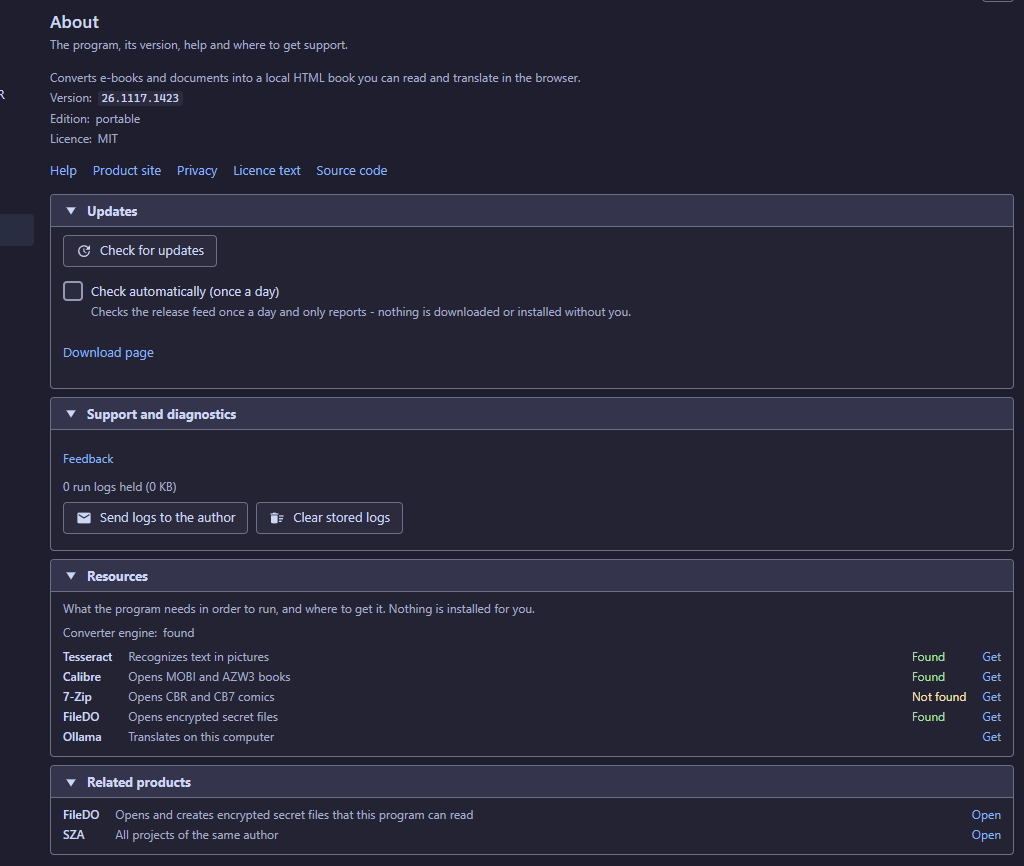
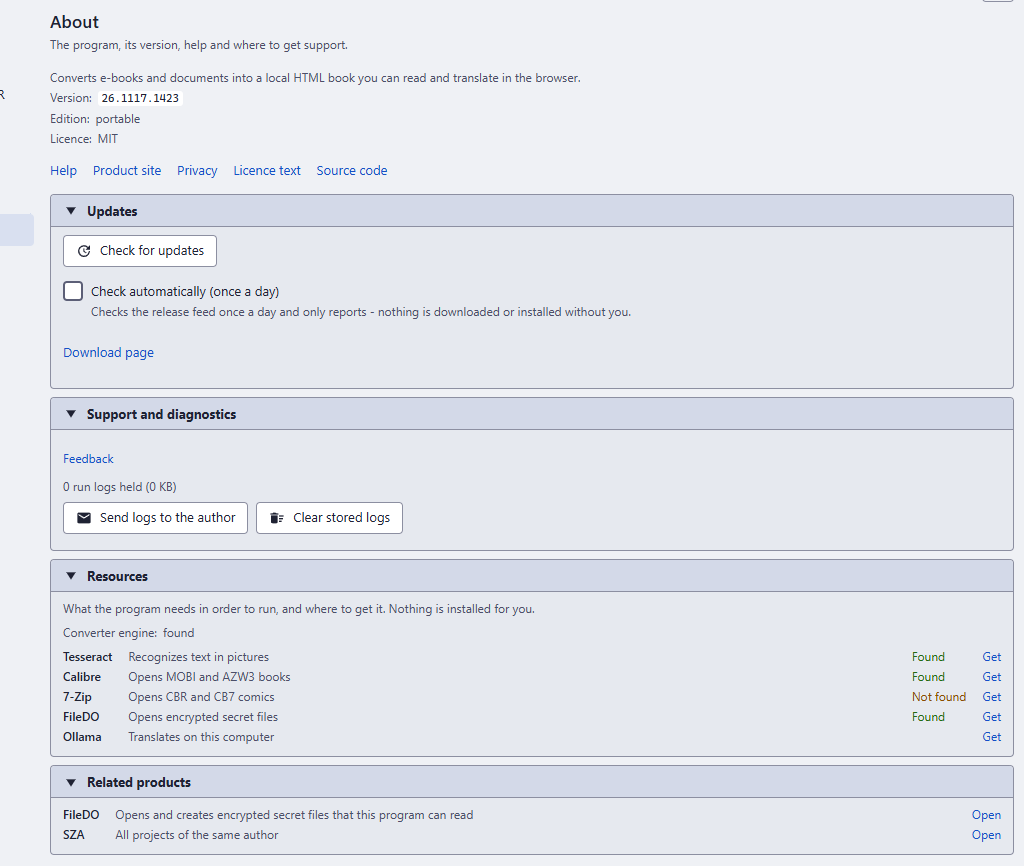
6AboutWhat is installed, updates, the helper programs, related products and the way to ask for help with a problem.
- Version / Edition / Licence - The version, whether this is the portable or the Store edition, and the licence (MIT).
- Help / Product site / Privacy / Licence text / Source code - The help index, the product site, the privacy page, the licence text and the source code.
- Updates / Check for updates / Check automatically (once a day) - Checks the release feed once a day and only reports - nothing is downloaded or installed without you.
- Support and diagnostics / Send logs to the author - The archive is selected in the folder and its path is on the clipboard - attach it to the message before sending.
- Clear stored logs - Deletes the stored run logs, after asking. The count of stored logs is shown above the buttons.
- Resources / Converter engine - What the program needs in order to run, and where to get it. Nothing is installed for you.
- Related products - All projects of the same author
- Why
- When a conversion fails, the logs are what let the author find the cause. Nothing is sent by itself: you attach the archive to a message. Opening this page contacts nothing on the internet.
- Next
- The update check only reports a newer version; nothing is downloaded or installed without you. In the Microsoft Store edition the Store handles updates, and the check is not shown. The Resources group says which helper programs were found on this computer; its Get links open the helpers' own sites.
- Undo
- Clearing the stored logs asks first and cannot be undone; the logs can no longer be sent after that.