Window help
Command
Build a FileDO command by hand: pick an operation, point it at a target, tick the flags, read the command line and run it. The same line works in a terminal. Scripts and other programs can also ask the running FileDO to do things - show a window, report its state, stop its runs, close it - with commands such as filedo status and filedo job stop; the commands guide lists them.
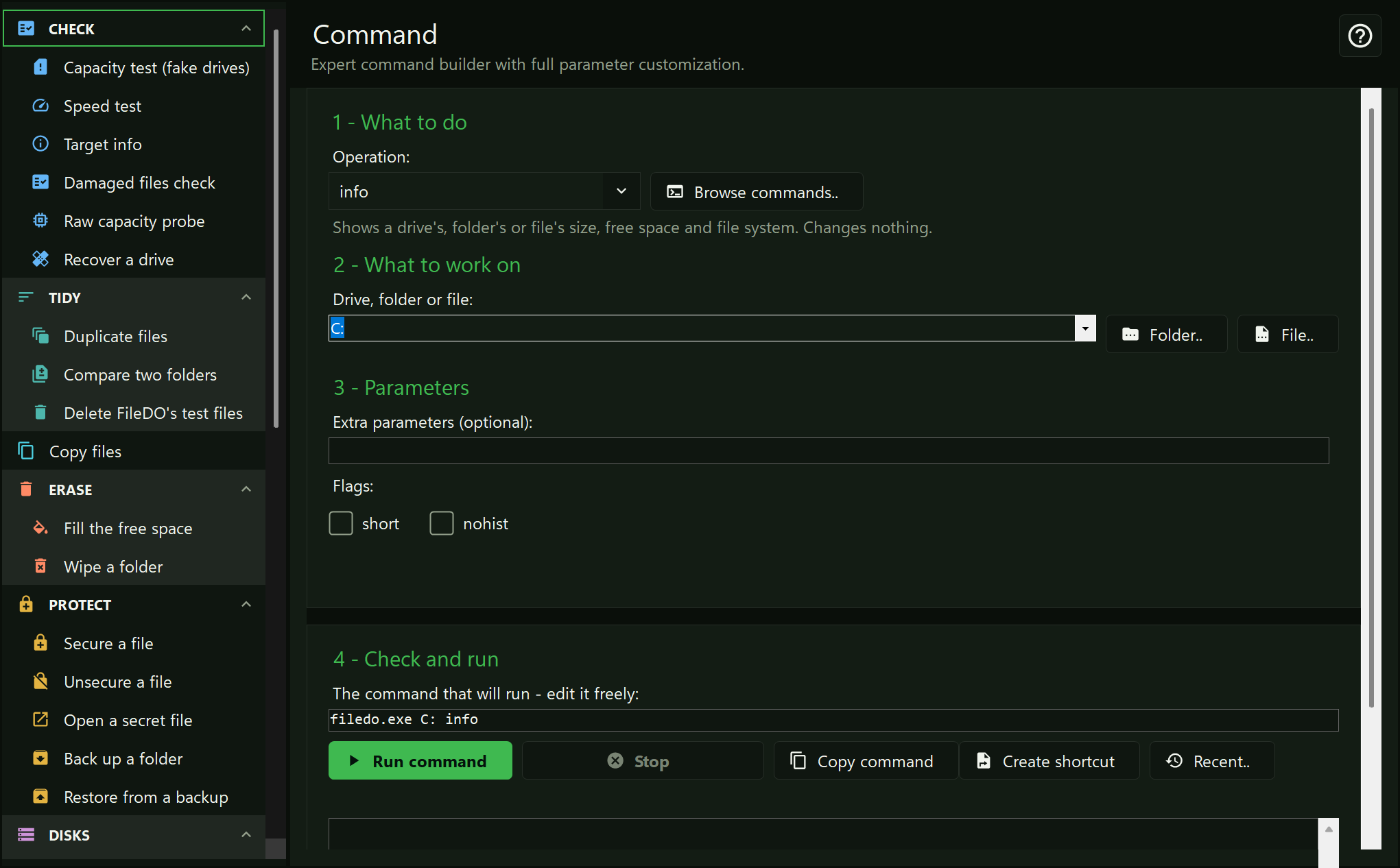
In this order
- Pick the operation 1. The line under the list says what it does.
- Choose the target 2.
- Fill in the parameter 3 if the operation takes one, and tick the flags 4 you need.
- Read the command line 5. It is exactly what will run.
- Press Run 6. Watch the output 10; Stop 7 ends the command.
The elements
1OperationWhich FileDO operation to build.
The list holds every operation of the command line: checks, copies, wipes, secure files, backups and virtual disks. The line under the list says in a sentence what the chosen one does and whether it changes anything.
- Next
- The rest of the page adjusts: only the boxes and flags that apply to this operation are shown.
- Undo
- Choosing an operation changes nothing.
2Drive, folder or fileThe drive, folder or file the operation works on.
Type a full path or use Folder.. and File.. to browse. An operation that needs two places has a second box for the other one.
- Next
- The command line below is rewritten.
- Undo
- Choosing a target changes nothing until you run.
3Extra parameters (optional)An extra value that some operations take.
A destination, a list file or a size, depending on the operation. The box is shown only when the operation takes one.
4FlagsSwitches that change how the operation behaves.
Each flag is an option the command line spells as a word or a dash. Hover over a flag to see what it does. Only the flags that fit the chosen operation are shown.
- Next
- The command line below changes as you tick.
- Undo
- Untick a flag to take it out again.
5The command that will run - edit it freelyThe command that will run.
Built from your choices; you can edit it by hand as well. It is exactly what Run starts, and you can copy it into a terminal. A password you type in its own box is not part of this line.
- Undo
- Editing the line changes nothing until you run it.
6Run commandRuns the command.
Starts the command shown above. A command that wipes or recovers a drive asks you to type a confirmation word first.
- Next
- Progress and the output appear below.
- Undo
- It depends on the operation; the hint under the operation list says. Stop ends the command cleanly at any time.
7StopAsks the command to end cleanly.
The command finishes the piece it is doing and stops. If it does not, a second press offers to end it at once.
- Undo
- Work already done stays done.
8Copy commandPuts the command on the clipboard.
Copies the command line so you can paste it into a terminal, a script or a message. Nothing runs.
9Create shortcutMakes a desktop shortcut that runs this command.
Writes a shortcut file on your desktop that starts the command in a console window. You choose its name and whether the window stays open at the end. A command that may wipe data shows a warning, and the console still asks for confirmation when the shortcut is used.
- Next
- The shortcut appears on the desktop. Uninstalling FileDO does not remove it.
- Undo
- Delete the shortcut file to remove it.
10OutputWhat the command printed, as it runs.
The progress bar and the text of the command, live. When the command ends, a verdict line says whether it passed, failed or could not verify, and the report is added to History.
11HelpOpens the page you are reading.
Every FileDO window has this button in its top-right corner. It opens the help page of the window you are in, with a picture and every part explained, in your language.
- Next
- The page opens in your web browser. FileDO stays open and nothing in it changes.
- Shortcut
- F1