Window help
The job page
Every job in the list on the left - checking a drive, copying files, wiping a folder, protecting a file, managing virtual disks - opens the same page. You choose what to work on, set the options, read what will happen, and press Run.
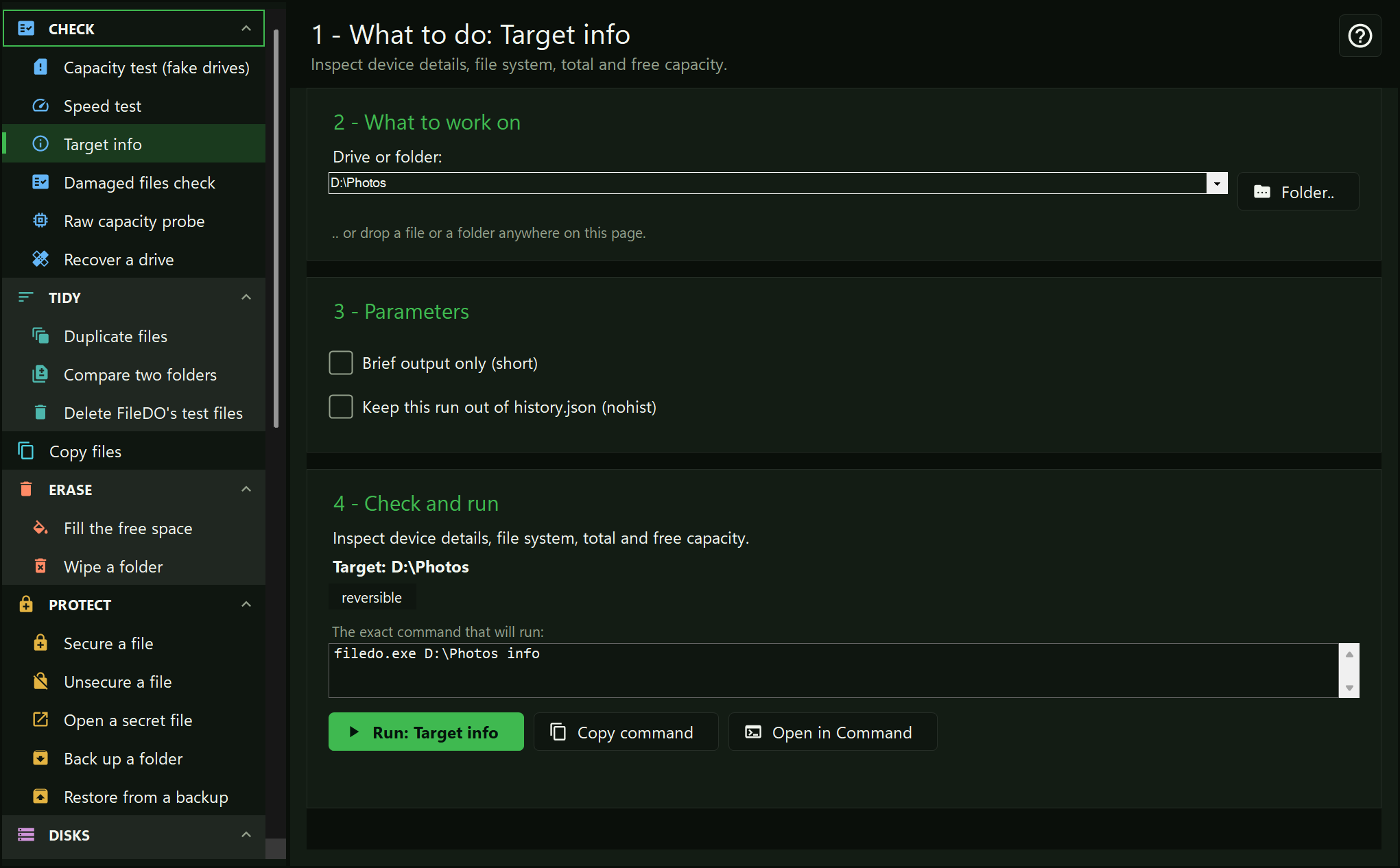
In this order
- Choose the job in the list on the left 1. The header of the page repeats it as step 1.
- Choose what to work on 2: a drive, a folder or a file.
- Set the parameters 3, or keep the defaults.
- Read the plan 4. It says what will be touched and whether it can be undone. The command line 5 is exactly what will run.
- Press Run 8. Nothing has been changed before this point.
- Watch the progress 9 and press Stop 10 if you need to end the job. Then read the result 11.
The elements
1The list of jobsEvery job FileDO can do, in groups.
The groups - Check, Tidy, Copy files, Erase, Protect and Disks - fold and unfold; open one and pick a job. History, Command, Settings and About are in the list as well. While a job is running its row stays selected and the other jobs wait until it ends.
- Next
- The page on the right changes to the job you chose, and the header says what the job is for.
- Undo
- Choosing a job only opens its page. Nothing runs.
22 - What to work onThe drive, folder or file the job works on.
Type or pick a path, or use Folder.. and File.. to browse for one. You can also drop a file or a folder anywhere on the page. A job that needs two places, such as Copy files, asks for the second one right below.
- Next
- The plan below updates at once. The job itself starts only when you press Run.
- Undo
- Choosing a target changes nothing.
33 - ParametersHow the job should run.
The options that belong to this job, with safe defaults already chosen. A job with nothing to choose shows no options. Hover over an option to see what it does.
- Next
- The plan and the command line below change as you choose.
- Undo
- Options change nothing by themselves; set them back at any time.
44 - Check and runWhat will happen, before it happens.
The plan says in plain words what the job will do and which files or drives it touches. Badges say whether it can be undone, whether it destroys data and whether Windows will ask for administrator rights. A job that can destroy data, such as Wipe a folder, also asks you to type a confirmation word before it runs.
- Next
- Run becomes available when the target and the options are complete. If it does not, the page says what is missing.
- Undo
- Reading the plan changes nothing.
5Command lineThe exact command this page runs.
Every job is done by filedo.exe, the same program you can use in a terminal. The line shows the command your choices add up to, so you can see exactly what will happen, run it yourself later, or learn how the options are spelled.
- Next
- Copy it, or open it in the Command page to change it by hand.
- Undo
- Reading it changes nothing.
6Copy commandPuts the command on the clipboard.
Copies the command line above so you can paste it into a terminal, a script or a message. Nothing runs.
7Open in CommandMoves the command to the Command page.
Opens the Command page with this command already filled in, ready to be changed by hand and run there.
- Next
- The window changes to the Command page. Nothing runs yet.
8RunStarts the job.
The only button on this page that does the work. A job that can destroy data, such as Wipe a folder, asks you to type a confirmation word first. While the job runs, the page cannot be switched to another job, so a run is never lost by a stray click.
- Next
- Progress and a Stop button appear. When the job ends, the result appears.
- Undo
- Whether the job can be undone is written in the plan. Stop ends it cleanly at any time; work already done stays done.
9ProgressHow far the job has come.
Shows the current step, a progress bar, the speed and the time. It appears when the job starts and stays until the result takes its place.
Not in the picture: it appears only when the window needs it.
10StopAsks the job to end cleanly.
The job finishes the piece it is doing, cleans up after itself and stops. If it does not stop, a second press offers to end it at once - which skips its own clean-up, so test files may stay until the next run.
- Next
- The result shows what was done before the stop.
- Undo
- Work already done stays done.
Not in the picture: it appears only when the window needs it.
11ResultWhat the job found or did.
A verdict (passed, failed, or could not verify), the numbers, any files left behind and where the report is kept. Buttons offer the next step that fits, for example Clean up test files after a capacity test, Open report folder, or Run again.
- Next
- The report is added to History.
- Undo
- Clean up and Run again act only when you press them.
Not in the picture: it appears only when the window needs it.
12Show raw outputThe text the program printed.
Shows the raw output of the command. It is meant for support and for experts; the result already says what matters. Copy output puts it on the clipboard.
Not in the picture: it appears only when the window needs it.
13HelpOpens the page you are reading.
Every FileDO window has this button in its top-right corner. It opens the help page of the window you are in, with a picture and every part explained, in your language.
- Next
- The page opens in your web browser. FileDO stays open and nothing in it changes.
- Shortcut
- F1