Window help
FileDO - Disk manager
Keep your virtual disks in one list: create a disk, add one you already have, mount it as a drive, open it, save it and unmount it. A virtual disk is one .fdd file that Windows shows as a drive.
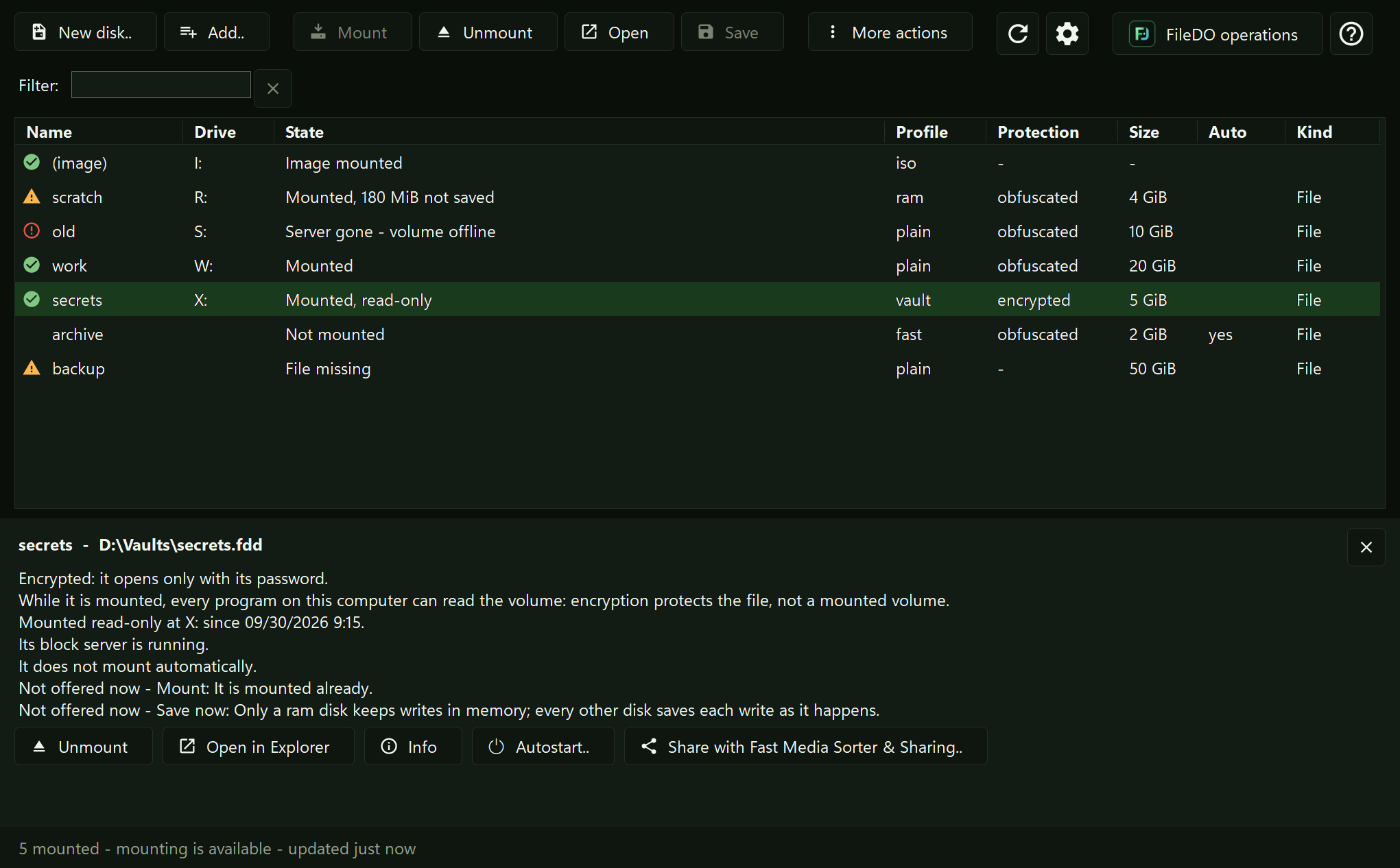
In this order
- Create a disk with New disk 1, or add a .fdd file you already have with Add 2.
- Select it in the list 13. The details 14 say what it is and what can be done with it now.
- Press Mount 3. Windows asks for your consent each time.
- Work in the new drive; Open 5 shows it in Explorer.
- Press Unmount 4 when you are done. A ram disk is saved first, and Save 6 writes it earlier.
The elements
1New disk..Create a new virtual disk: one .fdd file that Windows shows as a drive
Opens the page for creating a disk in the main window, where you choose the file, the size and the kind of disk, including its protection. The disk joins the list when it has been made.
- Next
- You press Run on that page; the Disk Manager stays open and shows the new disk.
- Undo
- Nothing is created until you press Run on that page.
- Shortcut
- Ctrl + N
2Add..Add .fdd containers to the list - or drop them on it
Choose one or more .fdd files, or drop them on the list. The list only remembers where they are: the files are not copied, moved or changed.
- Undo
- Remove a name from the list at any time; that touches no file.
- Shortcut
- Ctrl + O
3MountAttach the selected disks as drives. Windows asks for consent for each
Attaches each selected disk as a drive with its own letter. Windows asks for administrator consent each time, and a disk with a password asks for it. More actions offers Mount read-only, which keeps the disk from being changed.
- Next
- The row shows the drive letter and the state Mounted.
- Undo
- Unmount detaches the drive again; the file keeps everything.
- Shortcut
- Ctrl + M
4UnmountDetach the drives of the selected disks. The files keep everything
Detaches the drives of the selected disks. A ram disk writes what it keeps in memory to its file first.
- Next
- The row goes back to Not mounted, and the drive letter is free again.
- Undo
- Mount brings the disk back, with everything you wrote.
- Shortcut
- Ctrl + U
5OpenOpen the drive of the selected disk in Explorer
Shows the drive of the selected mounted disk in Explorer. A double-click on a mounted row does the same.
- Shortcut
- Ctrl + E
6SaveWrite what a ram disk keeps in memory back to its file now
A ram disk keeps what you write in memory. Save writes it to the file now, so a power cut costs less. Unmounting saves first, so Save is for a safe point in a long session. It is offered for ram disks only.
- Undo
- Saving only writes the file; you can go on working.
- Shortcut
- Ctrl + S
7More actionsEvery operation for the selected disks, and the list's columns
The menu with every operation for the selected disks - verify, compact, grow, format, change the password, share, destroy and more - and the choice of columns of the list. An operation that does not apply now is unavailable, and the details say why.
- Next
- An operation that changes a disk opens its own page in the main window, which asks before it runs.
8RefreshRead the state of the disks again
Reads the state of every disk again. The list also refreshes by itself; use this after you changed something outside FileDO.
- Shortcut
- F5
9SettingsOpens the settings.
Opens Settings: the theme, the language and what FileDO does when Windows starts. They are the same settings as in the main window.
- Undo
- Settings apply at once and can be set back.
10FileDO operationsOpen the FileDO main window with all its operations: checks, copies, secure files, wipes and more
Brings the FileDO main window forward. It holds every operation that is not about disks: checks, copies, secure files and wipes.
- Shortcut
- Ctrl + Shift + O
11HelpOpens the page you are reading.
Every FileDO window has this button in its top-right corner. It opens the help page of the window you are in, with a picture and every part explained, in your language.
- Next
- The page opens in your web browser. FileDO stays open and nothing in it changes.
- Shortcut
- F1
12Filter the disksShow only the disks that match a name, a drive letter, a path or a state
Type part of a name, a drive letter, a path or a state to show only the matching disks. The cross beside the box, or Esc, clears it.
- Shortcut
- Ctrl + F
13The list of disksEvery disk FileDO knows about, one row each.
The disks in your list, the ones mounted now and the disk images FileDO mounted. A row shows the name, the drive letter, the size, the kind of protection and a state. A double-click mounts a disk at rest and opens the drive of a mounted one. The states are listed below.
- Undo
- Removing a name from the list touches no file.
- Mounted
- The drive is there and its block server is running. A double-click opens it in Explorer.
- Mounted, not saved
- A ram disk keeps its writes in memory; the amount shown is not in the file yet. Save now writes it, and unmounting saves first.
- Server gone - volume offline
- The block server behind the drive stopped, so the volume is offline. Unmount the disk to clean up.
- Image mounted
- A disk image (VHD, VHDX or ISO) that FileDO mounted. Unmount it here when you are done.
- Not mounted
- Ready. A double-click mounts it.
- Not closed cleanly
- It was not closed cleanly last time. The next mount reports it, and Windows checks the volume as after a power loss.
- File missing
- The file is not at its path any more. Put it back, or remove the name from the list - that touches no file.
- A different container is at this path
- Another container is at this path now. Remove the old name and add this file again if it is the one you mean.
- Unreadable
- The header of the file cannot be read. The details say why.
- Working..
- An operation you started is running on it, or waits for its turn.
14DetailsWhat the selected disk is, and what can be done now.
Shows the file, the kind, the size and the state of the selected disk, with the buttons for what can be done with it now. An operation that is not offered says why. With several disks selected, the buttons act on all of them, one after another.
- Next
- A button either does its work here or opens the page of that operation in the main window.
15Status stripWhat is running, and what is waiting.
The first line says how many disks are mounted and how fresh the information is. The second shows the operation that is running or how the last one ended. Stop ends the running operation cleanly, and Clear the queue drops the ones that are waiting.
16KeyboardEvery key of this window.
The Disk Manager can be used from the keyboard alone. This is the whole map of its keys; the same table drives the keys, the tooltips and the menus, so it cannot list a key that does not work.
- Ctrl + N
- New disk..
- Ctrl + Shift + O
- FileDO operations
- Ctrl + O
- Add..
- Ctrl + M
- Mount
- Ctrl + Shift + M
- Mount read-only
- Ctrl + U
- Unmount
- Ctrl + E
- Open in Explorer
- Ctrl + S
- Save now
- Ctrl + Shift + S
- Share with Fast Media Sorter & Sharing..
- Ctrl + I
- Info
- Ctrl + Shift + V
- Verify
- Enter
- Mount a disk at rest, or open the drive of a mounted one
- Delete
- Remove from list
- Ctrl + C
- Copy path
- Ctrl + A
- Select every disk in the list
- Menu
- Open the menu of the selected disk, or of the Help button when it has the focus
- Shift + F10
- Open the menu of the selected disk, or of the Help button when it has the focus
- F5
- Refresh
- Ctrl + F
- Go to the filter box
- Esc
- Clear the filter
- F1
- Open this help
- F6
- Move to the next area of the window (Shift: the previous one)
- Shift + F6
- Move to the next area of the window (Shift: the previous one)
Not in the picture: it appears only when the window needs it.