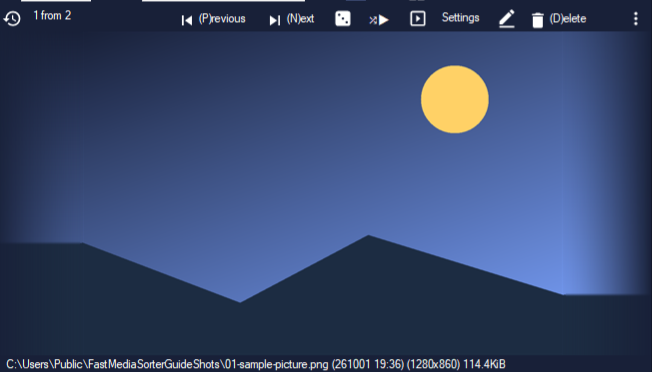
Navigation & slideshow
Step through huge folders instantly. Slideshow and random-view modes, recent files and folders, plus a thumbnail image panel for quick jumps.
File operations
Move, copy, rename and delete without leaving the keyboard. Assign folders to keys and file each item where it belongs in a single press - a digit moves it, Shift + the same digit copies it there instead.
Recycle Bin & undo
DEL sends the file to the Recycle Bin, Shift+DEL deletes past it on purpose, and U walks back through the last 50 operations - moves, copies, F6 renames and deletions, each file returning to its folder and to its place in the list. Where Windows keeps no Recycle Bin at all - a network share, a memory stick, a drive with the bin switched off - the question names which of those it is instead of a flat "are you sure". 64-bit program.
Archives as folders
A ZIP, CBZ, 7z, RAR or CBR opens like an ordinary folder: a comic or a folder of scans browses, slideshows, zooms and translates exactly as loose files do. Nothing is unpacked in advance - each picture is extracted as it is about to be shown, into a private folder that is swept away when you leave the archive, when you close the program, or on the next archive if the program was killed. The archive itself is only ever read, so DEL and the destination folders say so instead of acting. A solid 7z or RAR is read in one pass with a progress figure (Esc cancels it) and then flips instantly. 64-bit program.
Draw, crop, save
An editing window of its own: brush, rectangle and ellipse, outlined or filled, eight colour swatches beside the full picker, thickness in the picture's own pixels, Shift for a square or circle, Ctrl+Z. Cropping is a live frame with eight handles - everything outside it dims, and nothing is cut until you say so. Save writes over the original through a temporary file, so a share that blinks cannot leave half a photo; Save as.. offers PNG, JPEG, BMP, TIFF and WebP. Your EXIF is carried across and the stale embedded thumbnail dropped. 64-bit program.
Animation into video
An animated WEBP, APNG or GIF is a picture file that behaves like a video and loses on every count: no seek bar, no pause, no hardware decoding, and only 256 colours. One button turns it into an ordinary MP4 beside it and replaces the original - which is deleted permanently, so the program says so first, names both files, and warns when transparency is about to be flattened onto black. The encoder (FFmpeg, GPL, about 110 MB) is not bundled: the first conversion asks whether to download it, and a No simply cancels.
64-bit build only
Music has a screen
An MP3, WAV, M4A, WMA or OGG used to travel through the video path and show a black rectangle. Audio is now its own kind of file: the embedded album cover fills the window, and when the file carries none, a wave-and-particle animation stands in for it. Along the bottom sit the title, the artist and the album as the file spells them, with the codec, bitrate, sample rate, length and size underneath. Its own settings section decides what happens when a track ends - next file, stop, or repeat - whether the transport panel stays visible, and a sleep timer of up to three hours. Video and audio can each be left out of paging entirely, so a folder of photographs stays a folder of photographs.
64-bit build only
Slow formats open once
Animated WEBP, AVIF and HEIC have no Windows codec, so the program decodes them itself - seconds of work for a large animation, which is what the "Loading.." badge is about. That work is now kept on disk and reused while the file is unchanged, so the badge appears once per file instead of once per view, and walking a folder forwards fills the cache for the walk back. Settings show how much space it takes, empty it on request and set its limit; 0 switches it off. JPEG, PNG and BMP are never cached - Windows opens those in milliseconds.
64-bit build only
Recipients panel
A narrow floating list of your destination folders over the picture: click a row to move the current file there, the narrow zone beside it to copy it, and the bottom row deletes it. The same actions as the DEL and 0-9 keys, for when your hand is on the mouse. Off by default; switch it on in Settings > Files and system.
Floating panels where you want them
Every floating panel - the toolbar rows, the status strip, the window controls, the destination table and the video controls - has a move handle beside its pin. Drag it, or press F10 and move the panel with the arrow keys. A panel stays whole inside the window at every moment, also when the window shrinks, and returns to your place when it grows again. A click on the handle, or one button in Settings, puts the panels back.
64-bit build only
Zoom & pan
The grey NumPad block does the zooming: + and - zoom at the mouse cursor, / fits the window, * shows actual size (100 %). On a laptop with no numeric block, = (or +) and - on the main row zoom in and out. Ctrl+wheel zooms, Shift+wheel jumps to 100 %, Alt+wheel fits. The plain wheel keeps browsing files - a "Wheel zooms" checkbox in Settings > Viewing switches it to zoom instead. Drag a zoomed picture with the left button to pan around it.
64-bit build only
Perspective background
When a photo doesn't match the shape of the window, the bars beside it are filled with colour taken from the photo's own edges instead of black - a plain average for a flat edge, or each edge row extended outwards for a detailed one. The picture ends up sitting in its own light, the way an Ambilight TV does. On the 64-bit build the "Dynamic perspective" sub-option fades those bars into the background colour the further they get from the photo, so the picture sits in a glow rather than between two solid slabs; its own "Animated" sub-option (on by default) grows that glow out of the photo edge when a new photo opens, over about a third of a second. Dynamic perspective is off by default and needs Perspective on.
Video / LibVLC engine
Every clip plays through the bundled LibVLC engine - AVI, ZMBV, VP9, MKV, WMV and the rest. No external codecs, and no reliance on the retired Internet Explorer component, so video behaves the same even where Windows no longer ships it. The 64-bit build adds a control bar along the bottom - play/pause, seek bar, running time, mute and a volume slider; it appears on mouse-over, slips away after a couple of seconds and stays put while paused. A and V step through audio tracks and subtitles, and a "Tracks" button shows up only when the file really offers a choice - your pick is remembered by language, so the next episode keeps it. Right-click the file-selection button and paste an address to play video over smb://, sftp://, ftp://, http(s)://, nfs:// or rtsp:// without downloading it first. Those three extras are 64-bit only; ordinary \\server\share paths work in both builds.
Mouse menus
The middle button on a picture opens everything you can do to it: rotate either way, fit to window, actual size, translate the text on it (when OCR translation is on), full screen, next or previous file, rename, move to a destination folder, delete, copy the file path. The right button on a picture is unchanged - it still steps to the previous file. On a video, a click pauses and resumes it (double-click still leaves full screen), and the right button opens pause/resume, mute, repeat, audio track, subtitles, full screen, next or previous file, rename, move to folder, delete, open in the default player and "Open URL..". Items that don't apply are simply absent.
64-bit build only
Offline bundles & OCR
Release downloads are offline-ready: VLC runtimes and OCR language packs are already inside. On-image OCR translation overlays text right over the picture (translator of your choice).
OCRLibVLCoffline
Image quality & viewing
Photos auto-rotate by their EXIF tag, large images downscale with high-quality bicubic scaling, and an optional on-image overlay shows the file name and position - handy in full-screen. Animated WEBP is decoded by the app itself, so it opens even where the Windows WebP codec isn't installed. Slideshow interval is configurable.
EXIFbicubic
Default viewer & player
Register the app as your default image viewer and/or video player in one click - per-user, no admin rights needed.
SFTP folder sharing
A built-in SFTP server publishes the folders you pick, so a sorter running elsewhere works on the files where they already live - nothing is uploaded and no cloud account is involved. The case it was built for: the Android app browses this PC over your home LAN or across the internet after a one-time QR pairing. Any other SFTP client (WinSCP, FileZilla, another PC) connects just as well - the address, login, password and host-key fingerprint are shown in Share Manager. Ships switched off, and needs the 64-bit program: the Share Manager that runs it does not exist in the 32-bit build. How the SFTP service works · Publishing your folders
SFTPLANQRAndroid
Shortcuts
Almost everything is a hotkey, and folder shortcuts are customizable. Switch the whole UI between 13 languages on the fly - the viewer and the Share Manager follow the same choice, and the first run takes your Windows display language. Only English, Russian and Ukrainian are proofread by the author; the other ten are machine translations. The grey NumPad zoom keys and the track keys below are 64-bit only.
←→
browse
0–9
move to folder
T
OCR translate
NumPad +-
zoom
NumPad /*
fit / 100 %
AV
audio / subtitles