26.10.15 15:10
Going on air: broadcast from a phone or a watch
A broadcast is a live stream that a device is capturing right now. This page is the sender’s side: what you can put on air, how to start it and how listeners find it. The listeners’ side is on Receiving a broadcast.
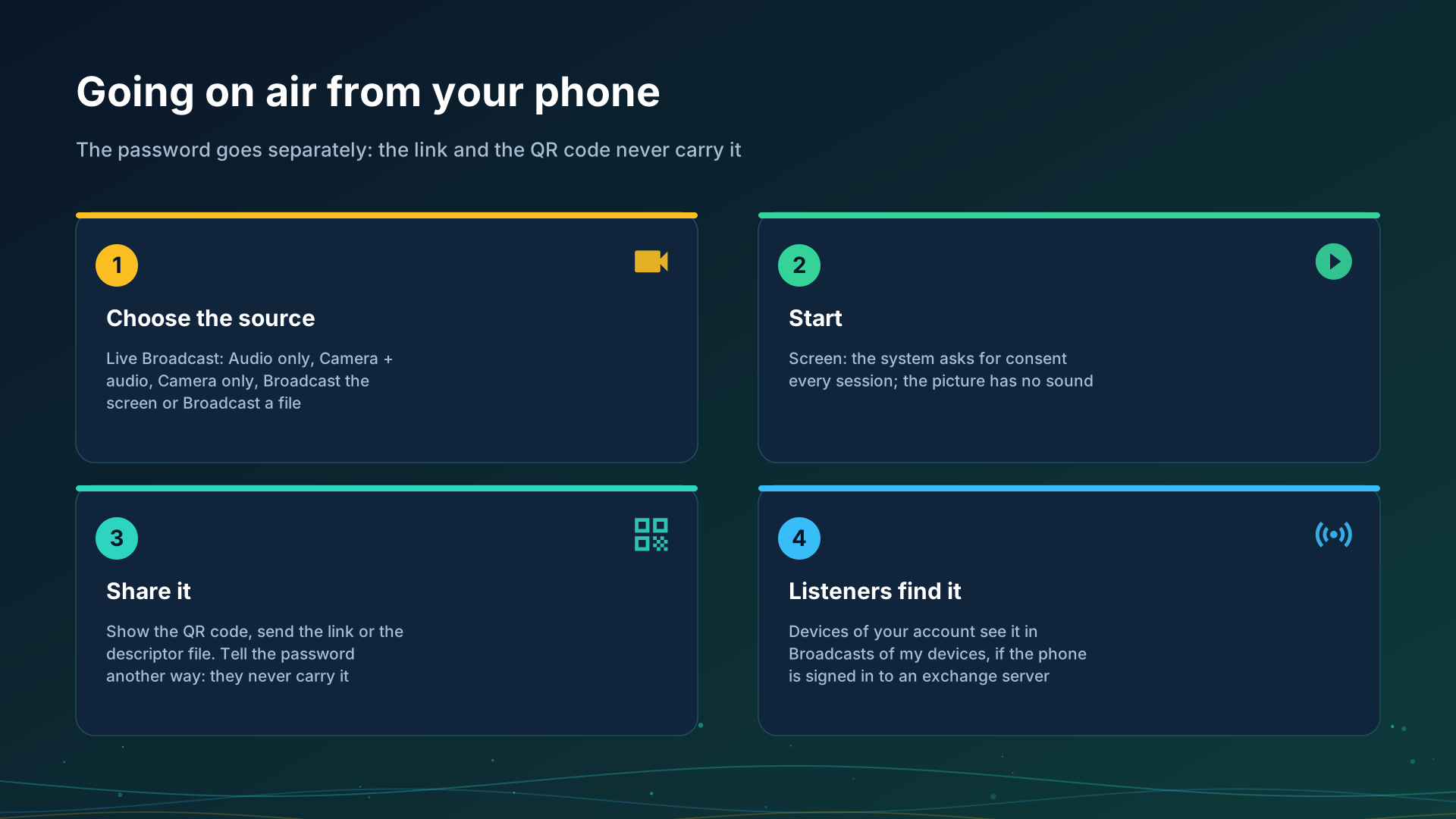
What you can put on air
Open Live Broadcast from the programs menu, the quick-access panel, a launcher shortcut, a home-screen widget or a quick tile. Under Broadcast mode choose one of three, and with a camera choose the lens:
- Audio only - the microphone.
- Camera + audio - video with sound.
- Camera only - video without sound.
- Camera - Back, Front or External; Switch Camera changes the lens while you are on air.
Two more sources sit beside the modes:
- Broadcast the screen - the picture of the phone’s own screen, without sound. The system asks for your consent at the start of every session and the step cannot be skipped.
- Broadcast a file - a stored music file or a film goes out as a live broadcast, so every listener is at the same moment of it.
Going on air from a phone exists in the Standard, noLegal and Legacy editions, see Editions.
Start
Tap Start broadcast. A notification stays up while you are on air, with a Stop button; Stop Broadcast on the control screen ends it too, and the control screen counts the listeners.
- The camera keeps going in the background in the Standard and noLegal editions: Screen Off lets the display sleep while the broadcast runs. The Legacy edition covers the app with a black screen instead and keeps the broadcast running.
- A watch broadcasts sound only. Open Broadcast on the watch, tap Start broadcast, and it serves its microphone to up to four listeners at once, counted together on the local network and through the exchange server. No video ever leaves a watch.
Give it to listeners
The control screen carries the share panel, and Auto-open share screen in the broadcast settings opens it by itself when a broadcast starts. It has three ways to hand the broadcast over:
- The QR code, to scan from the listening device; tap it to see it full screen.
- The link: Copy Link or Send to.
- The descriptor file: Export File, a
.fmsbcastfile that a listening device opens.
Whether devices of your own account find the broadcast without any of these depends on the account, see Receiving a broadcast.
The password goes separately
A broadcast can be protected by a password. The share screen shows it as Password, and the link and the QR code never carry it: tell it another way, by voice or in another messenger. New password makes a fresh one and the old one stops working.
How it reaches the listeners
- On one Wi-Fi network a listener connects to your device directly, with the lowest delay.
- From another network, through your exchange server: when the device is signed in to a server in My devices, it announces the broadcast there and uploads it once, and the server’s relay hands it to every listener, keeping only the last two seconds, so a slow listener skips ahead instead of falling behind. What the server sees of it is on the exchange server page; the picture and the sound are encrypted on your device.
- Via Google Drive a broadcast is only announced; the stream itself never goes through Drive, see Files via Google Drive.
Step-by-step guides
- Chromecast casting and live broadcast
- Listening through the watch and broadcasting from it
- The watch on your account
Back to the portal start page.