Chromecast - Standard, noLegal, Lite and Legacy; Live Broadcast - Standard, noLegal and Legacy
Chromecast Casting and Live Broadcast
Send the video you are watching to a TV with Chromecast, or turn your phone into a small live sound or camera station that others open with a QR code.
Why You'll Love This
A phone screen is great in your hand and small for a room full of people. This recipe covers the two ways FastMediaSorter sends what is on your phone somewhere else.
Chromecast plays the video you are watching on a TV. The phone becomes the remote control. Live Broadcast goes the other way round: your phone's microphone, or its camera and microphone, become a live channel that other people open on their own devices - a baby monitor, a talk in the next room, a view of the garden.
- Chromecast: FastMediaSorter in the Standard, noLegal, Lite or Legacy edition, and a Chromecast or a TV with Chromecast built in on the same Wi-Fi network as the phone.
- Live Broadcast: the Standard, noLegal or Legacy edition. The phone and the people who watch must be on the same Wi-Fi network.
- Live Broadcast asks for access to the microphone, to the camera when you send a picture, and to notifications so the broadcast keeps running while the screen is off. See understanding app permissions.
Play a video on your TV with Chromecast
Open a video in the video player. Open the three-dots menu and tap Cast to... Pick your TV from the list. The video starts on the TV, and the phone keeps the play, pause and position controls.
The phone does not need the internet for this: it hands the file to the Chromecast itself over your home Wi-Fi. That is why videos from your network folders and cloud folders can be cast too.
Video player with the Cast to device chooser open, one Chromecast listed.
A side-by-side 3D film looks like two pictures next to each other on an ordinary TV. With Show 3D content from one eye turned on (Settings, the Player tab), the app sends only one eye's picture, the same one the phone shows. It prepares that picture before casting starts, so playback begins after a short wait. Very long films and live streams are cast whole. More about 3D in subtitles, audio tracks and 3D.
Open Live Broadcast
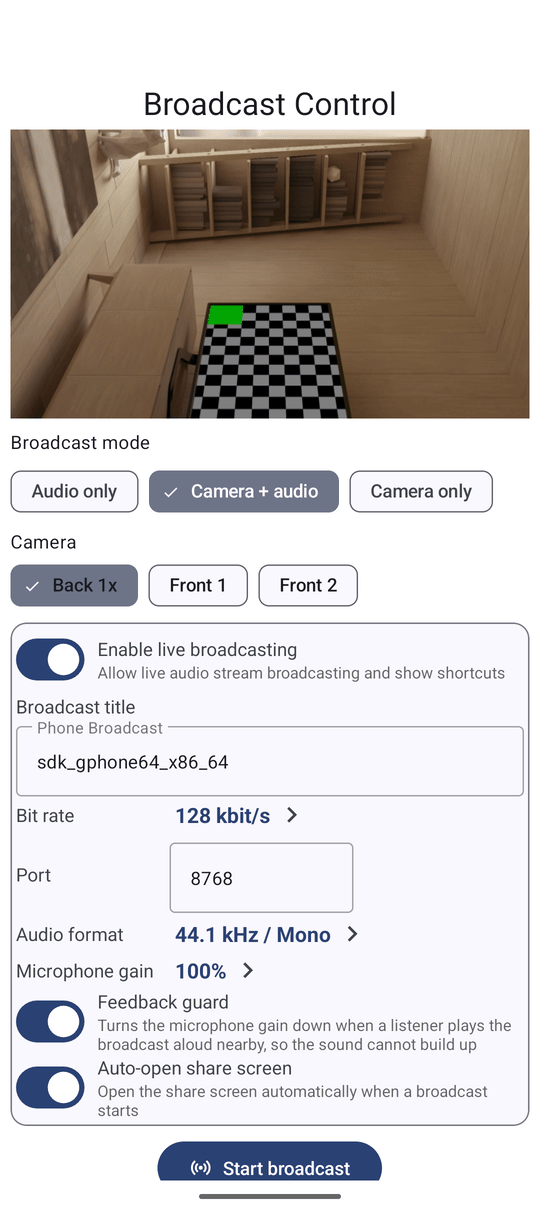
First switch the feature on: Settings, the Media tab, section Broadcast, turn on Enable live broadcasting. It also adds the shortcuts below.
Then open Live Broadcast in any of these ways:
- from the programs panel;
- from the Live Broadcast tile in the Android Quick Settings panel;
- from the Live Broadcast widget on your home screen;
- by touching and holding the app icon and choosing the Broadcast shortcut.
Choose what to send and which camera
The live broadcast screen opens with a live picture from the camera, so you can see what each lens shows before anything goes out. Under Broadcast mode choose:
- Audio only - sound from the microphone, like a small radio station.
- Camera + audio - picture and sound.
- Camera only - picture without sound.
Under Camera pick Back, Front or External. The app remembers your lens for next time; if that camera is gone, it takes the default one. Tap Start broadcast when you are ready.
Invite people to watch or listen
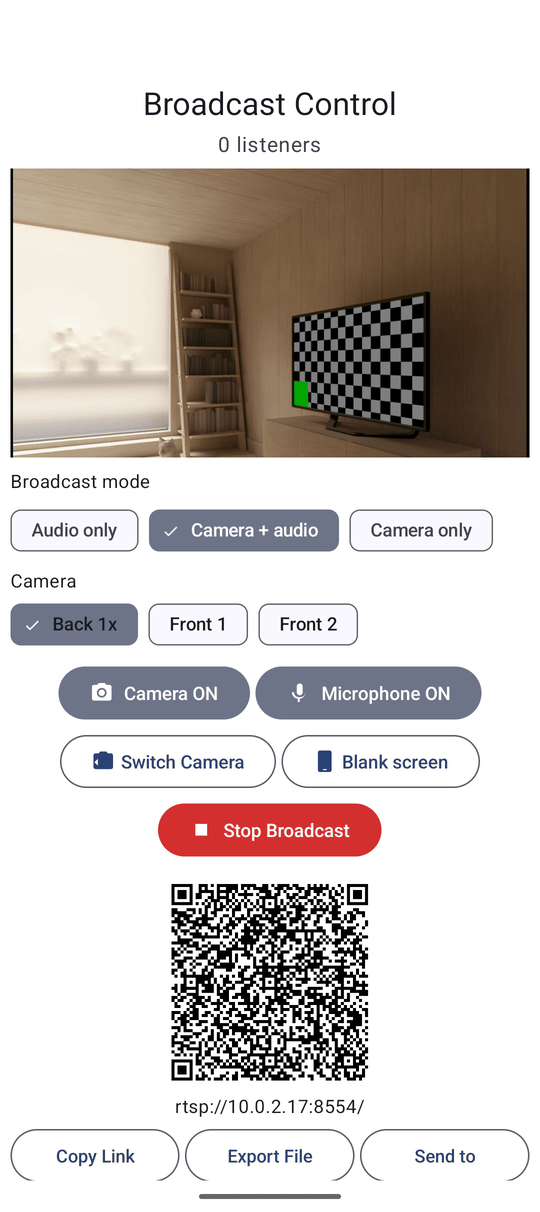
As soon as the broadcast starts, the share panel shows a QR code and three buttons:
- Copy Link - copies the address to paste into a message.
- Export File - saves a small file that describes the broadcast.
- Send to - sends the link through any messenger or mail app.
Another phone with FastMediaSorter scans the QR code to add the broadcast as a channel - see live streams. Send to watch sends it to your paired watch. The How to watch this link opens a page that explains to the other person, in their language, how to open the broadcast on an Android phone, a Wear OS watch or a Windows computer.
The broadcast is published under your phone's name, so listeners know whose it is. You can change it in the broadcast settings with Broadcast title.
While you are live
The screen shows how many listeners are connected. Someone who joins a video broadcast halfway through sees the picture at once, without waiting for the image to build up. The buttons switch the camera and the microphone on and off, change the camera, turn the screen off or cover it with a black screen while the broadcast keeps running, and Stop Broadcast ends it. The broadcast also keeps its own notification with a Stop button.
The settings button on the same screen opens the broadcast settings in place: title, port, bit rate, audio format, microphone gain and Auto-open share screen. The same settings are in Settings, the Media tab, section Broadcast, and a settings backup keeps them - see backing up and restoring settings.
When the sound starts to howl
If someone listens to the broadcast out loud in the same room, their speaker can feed back into your microphone and the sound grows into a howl. FastMediaSorter notices this and turns the microphone down until the howl stops, then slowly gives the volume back. While it holds the sound down, the screen says: "Sound turned down: a listener's speaker is feeding back into the microphone. Move the listening device away or lower its volume." So a quieter broadcast does not mean the microphone is broken.
This protection is called Feedback guard. It is on by default; you can turn it off in the broadcast settings.
What You Get
Your video plays on the big TV with the phone as a remote, or your phone sends a live sound or camera picture that family and friends open on their phones, watches or computers with one scan of a QR code.
Tips and Troubleshooting
- Chromecast not in the list? The phone and the TV must be on the same Wi-Fi network. Guest networks often keep devices apart.
- Nobody can connect to the broadcast? Check that everyone is on the same Wi-Fi. Some routers block devices from talking to each other - look for an option called client or AP isolation.
- Music on a Chromecast works the same way from the audio player - see playing and organizing music files.
- Want to record the screen instead? See recording the screen with audio.
- Want a phone or a watch to go on air for your other devices? The media exchange portal explains the routes between devices and marks what is not available yet.