All editions except Photos; saving frames and color controls in Standard, noLegal, Legacy and VR
Watching Videos - Controls, Gestures and Saving Frames
Play videos full screen or with the command panel, move between them with taps and swipes, zoom in, resume where you stopped, save still frames as pictures and sort your videos while you watch.
Why You'll Love This
Most video players are made for one film on a Friday evening. FastMediaSorter's video player is also made for the other job: a folder with two hundred clips from the phone, a holiday, a dashcam or a security camera, where you want to look at each one for a few seconds, keep the good ones and throw the rest away.
So the player does two things at once. It plays the video with everything you expect - full screen, speed, resume - and it keeps your sorting tools one tap away: next, previous, copy, move, delete.
- FastMediaSorter in the Standard, noLegal, Lite, Legacy, VR or FOSS edition. The Photos edition does not play video.
- A resource with videos, for example the All Videos collection, a folder on the phone or a network folder.
- Optional: a TV box or a car head unit with a remote - everything here works with a D-pad too.
Open a video
Tap a video in the file browser. It opens straight into full screen: the picture fills the display and nothing else is in the way. If you prefer to start with the buttons visible, turn off Open video files in fullscreen mode in Settings, the Media tab, section Video and player settings.
The player handles the usual formats (MP4, MKV, WebM, AVI and more) and also Blu-ray .m2ts files copied from a disc. When the phone's own video decoder cannot handle a file, the player quietly tries a second engine, and for VP9 videos it has a software decoder of its own, so fewer files end with an error.
Switch between full screen and the command panel
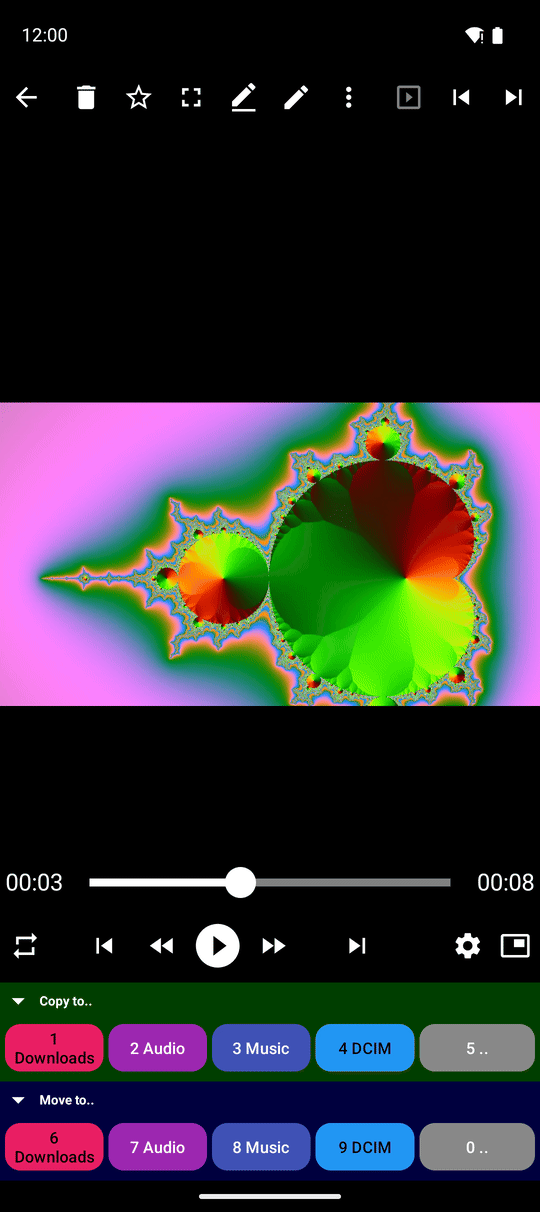
The player has two faces. In full screen only the picture is visible. With the command panel you also see the playback buttons - Play/Pause, Rewind 10 seconds, Forward 10 seconds, Previous file, Next file, Control - and the file buttons such as copy, move and delete.
- To leave full screen, tap the Exit fullscreen button that stays in the corner, or swipe the Android system bars back in from the edge.
- To go full screen again, choose Fullscreen mode in the three-dots menu.
- Turn the phone sideways and the player goes full screen by itself; turn it back upright and the command panel returns. The video keeps playing.
While a video plays, the top buttons hide together with the bottom playback controls. Tap the picture to bring them back. This works in portrait and landscape, both inside the app and when opening a video from another app. Change the embedded player's delay with Player panel auto-hide duration (s) in Settings, the Player tab - anything from 1 to 600 seconds.
A file another app hands over does not open alone: the player reads the folder it lies in, so next, previous, random and the slideshow carry on through the files next to it.
Tap and swipe instead of hunting for buttons
In full screen the picture is divided into nine invisible touch zones, three by three. A tap in each one does something different:
- top left - back to the file list;
- top middle - copy the file to a destination;
- top right - rename;
- middle left - previous file;
- centre - pause or play;
- middle right - next file;
- bottom left - open the command panel;
- bottom middle - delete;
- bottom right - start or stop the slideshow.
Swiping left and right also moves to the next and previous video. To see the grid while you learn it, turn on Always show touch zones overlay in Settings, the Player tab, section Touch zones and on-screen hints.
Nine zones too many? Turn on Disable 9-zone tracking in the same tab. Then the screen has three zones - previous, zoom, next - and a tap on the left edge opens the command panel for file actions. With the command panel open, the picture always works as three zones: left for previous, right for next.
Landscape fullscreen video with the 3x3 touch zones overlay visible.
Zoom, volume and brightness
Put two fingers on the picture and spread them to zoom in, for example to read a number plate in a dashcam video; pinch them together to zoom out. Zoom ranges from 1x to 5x and works while playing or paused, in both players and orientations. Drag with one finger to move the enlarged picture. Opening another video or changing the player size resets the zoom. The buttons and subtitles keep their normal size.
With a keyboard, use + and - to zoom and 0 to reset. With a mouse, hold Ctrl and turn the wheel.
Volume and brightness sit one tap away: tap Control, then Volume or Light. In portrait the sliders stand upright, so you move them with your thumb from bottom to top.
Pick up where you left off
The player remembers how far you watched every video. Open the same video later and it continues from there, with a short message such as "Resumed from 12:40".
It even survives a restart of the phone: with Resume playback on next launch turned on (Settings, the Management tab, section App behavior and operating rules; on by default), the app reopens the last video on start, including a video from a network or cloud folder. If that folder is not reachable any more, the app says "Cannot resume playback - resource unavailable or session expired" instead of waiting forever.
Speed, repeat and the sound
Tap Control to open the Control window: there you set the speed, the volume, the soundtrack, subtitles and colors - all explained in subtitles, audio tracks and 3D. The speed slider includes 0.1x and 0.3x for very slow playback.
To watch one video over and over, tap the Playback order button on the command panel and choose Repeat one. The other choices are Loop list, Play through and Shuffle.
Save a still frame as a picture
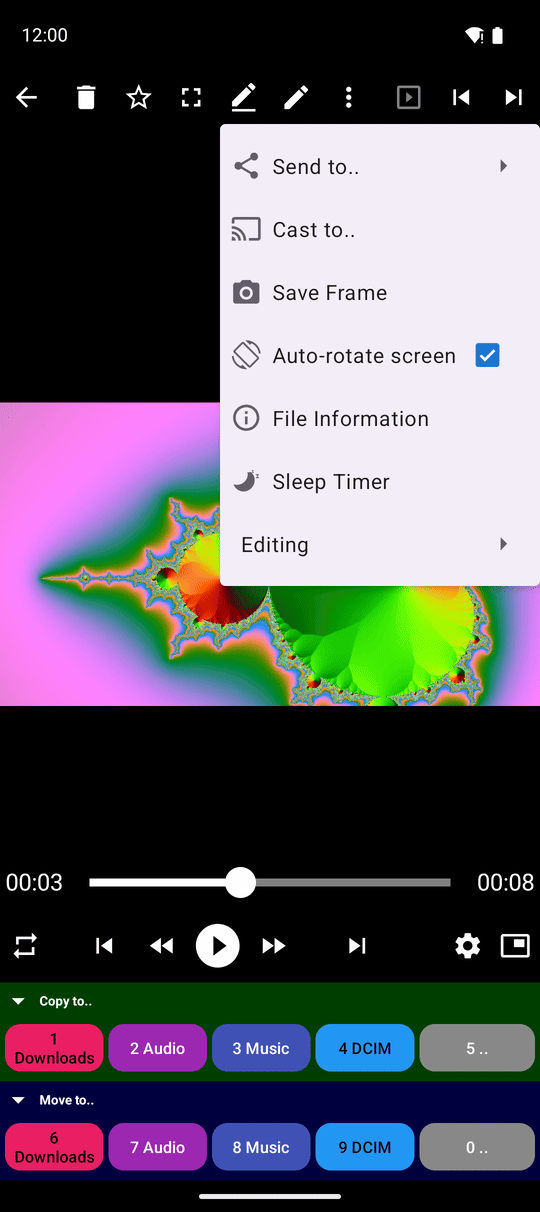
Pause on the moment you like and choose Save Frame in the three-dots menu. The frame is saved as a picture named after the moment you saved it, for example video_frame_260924_203015.jpg for 24 September 2026 at 20:30:15, and a short message tells you where it went.
Where and how it is saved you choose in Settings, the Media tab, section Video and player settings:
- Resource for saving frames - the folder for the pictures. When none is chosen, they go to Downloads.
- Frame file type: - PNG or JPG (the default).
- Save video frames to clipboard - also puts each frame on the clipboard, ready to paste into a chat.
Sort your videos while you watch
The Copy to.. and Move to.. button groups under the command panel, the touch zones and Delete copy, move, rename and delete the video you are watching. A deleted or moved video leaves the list at once, so Previous file takes you to the video before it, not to an error. More in moving, copying and deleting files.
Send to.. in the three-dots menu hands the video to another app or person. It works for videos in network and cloud folders too: the app fetches a temporary copy first.
Keep the screen the way you want
- Keep screen on while player is active (Settings, the Management tab, section Operating system interaction) stops the screen going dark during a film.
- Rotate player screen with OS auto-rotate (Settings, the Player tab) makes the player follow the Android rotation lock; when it is off, the player turns with the phone. On a device without a rotation sensor the option is hidden.
- Show clock and status while dimmed shows a large clock, the date and the battery level when the screen is dimmed during playback. The picture shifts a little now and then so it does not burn into the screen; tap once to bring it back after it fades. You find the switch in the Screens and wallpaper window - see wallpapers and live backgrounds.
Videos opened from other apps
When you open a video from a messenger, a file manager or a download, Android can let FastMediaSorter play it in a separate, simpler player window (not in the Lite edition). It keeps the picture and the sound through a screen rotation, keeps your pause when you switch apps and come back, and continues where it was when the file is renamed.
The same simple window opens pictures, music, documents and text from other apps. Its Copy to and Move to buttons file the item straight into one of your destinations; copying keeps the window open, moving closes it. For pictures it can also Print. Open in FastMediaSorter switches to the full app. To make FastMediaSorter the default player, see first launch and setup.
What You Get
You can watch a whole folder of videos without reaching for tiny buttons: tap or swipe to move on, zoom into the details, save the best moments as pictures, and file each video away as you go - and the player remembers where you stopped.
Tips and Troubleshooting
- The controls are there when you open a video. The player shows its buttons as soon as a video opens, and a tap in the middle of the picture brings them back after they hide.
- Using a TV box or a car screen? Every button can be reached with the arrow keys of a remote. See keyboard, D-pad and TV control.
- Video from a network folder stutters? The player keeps a buffer suited to each kind of connection, and if playback stalls it notices and restarts the stream on its own. A slow Wi-Fi is the usual cause - see offline caching for remote files.
- Network folder switched off? When a type of network connection is disabled in the settings, the player tells you so instead of trying to connect.
- Screen reader users: the player does not flood TalkBack with announcements during playback.
- Want a book read aloud? Read Aloud in the document viewer stops when you leave it - see viewing PDF and EPUB documents.
- Watching on a headset? A VR badge in this same controls row opens stereo and 360° videos in the immersive player - see spatial 3D/360 cinema and video playback and the controls once you are inside.