All editions - install source depends on the edition
Quick Product Tour
From installing FastMediaSorter to the clock on its first splash to a map of which recipe to read next - this is the five-minute tour before the welcome wizard asks you anything.
Why You'll Love This
This page is the short version of the whole documentation site: where to get the app, what you see in the seconds after you tap its icon for the first time, and a map of which recipe to open next depending on what you actually want to do with it. If the welcome wizard is the conversation FastMediaSorter has with you once, this page is the five-minute walk around the building before that conversation starts.
Nothing here requires a decision. It is a look around, not a checklist.
- An Android phone, tablet, TV box, car head unit or headset - FastMediaSorter runs on all of them, in the edition built for that hardware.
- A way to install an app: the Google Play Store, or a downloaded APK file for the editions that are not sold in a store.
- For the Windows-folder step: Fast Media Sorter & Sharing for Windows running on the same network as your phone.
Get the app
The Standard edition is on Google Play, like any other app - search for FastMediaSorter or open its store listing directly and tap Install.
The other editions - noLegal, VR, Lite, Photos and Legacy - carry features a store will not list, so they are not sold there. You install one of these by downloading its APK file directly, either from the project's GitHub Releases page or from the IzzyOnDroid repository, and opening it. Android meets a package it has not seen installed from a store before and shows a one-time warning about it; that warning is about how many times Android has seen the file's signature, not about anything found inside it. Why Android warns about this APK, and exactly what to tap walks through both screens.
The first thing you see - a splash with a clock
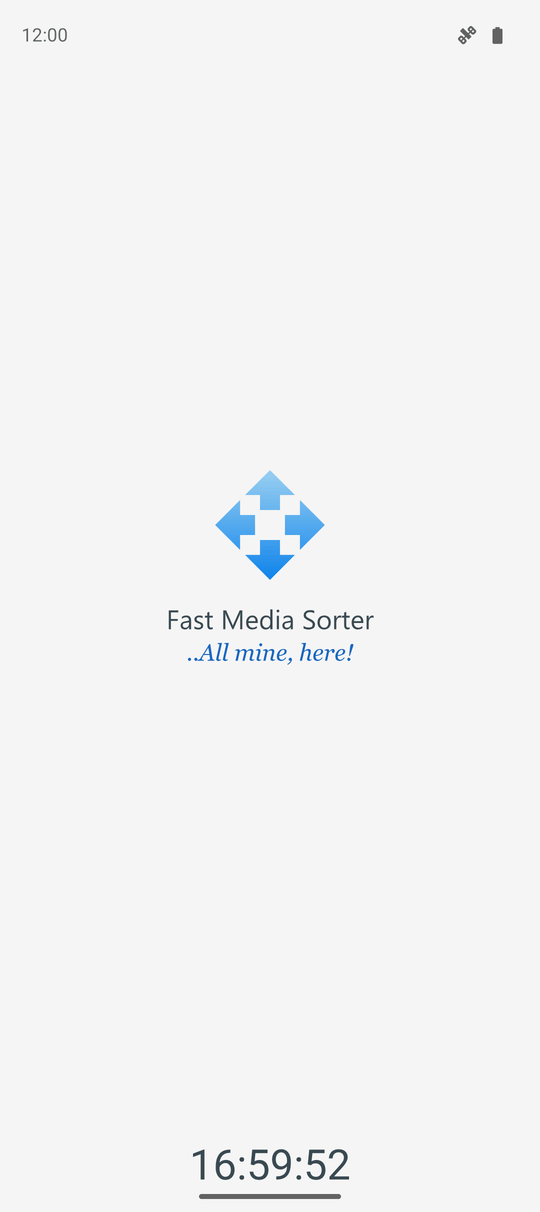
Launching the app opens on its own startup splash instead of a bare window: the four-arrow logo arrives in the same blue as the launcher icon, growing into place rather than fading, with the app name and the line "..All mine, here!" beneath it, in the language of your device.
Underneath the logo, the current time counts by the second, in your device's own 12- or 24-hour style and time zone - so it reads exactly like your system clock, not like a stopwatch the app started on its own. The splash lasts exactly as long as the app takes to start: if it is ready sooner, the splash is gone sooner, and it disappears together with the clock the moment the app opens. On a first launch that goes straight to the welcome wizard, this splash is skipped - there is nothing yet to jump ahead of.
Behind the splash - a fast, honest start
A few things happen while that splash is up, or right after it, that you notice as an absence of problems rather than as a feature: the first thumbnail grid does not stall, because the image loader is built on a background thread instead of on the main thread during your first photo load. The app itself does not stall either, because its file-transfer preferences open on first use instead of while the main screen is still being built.
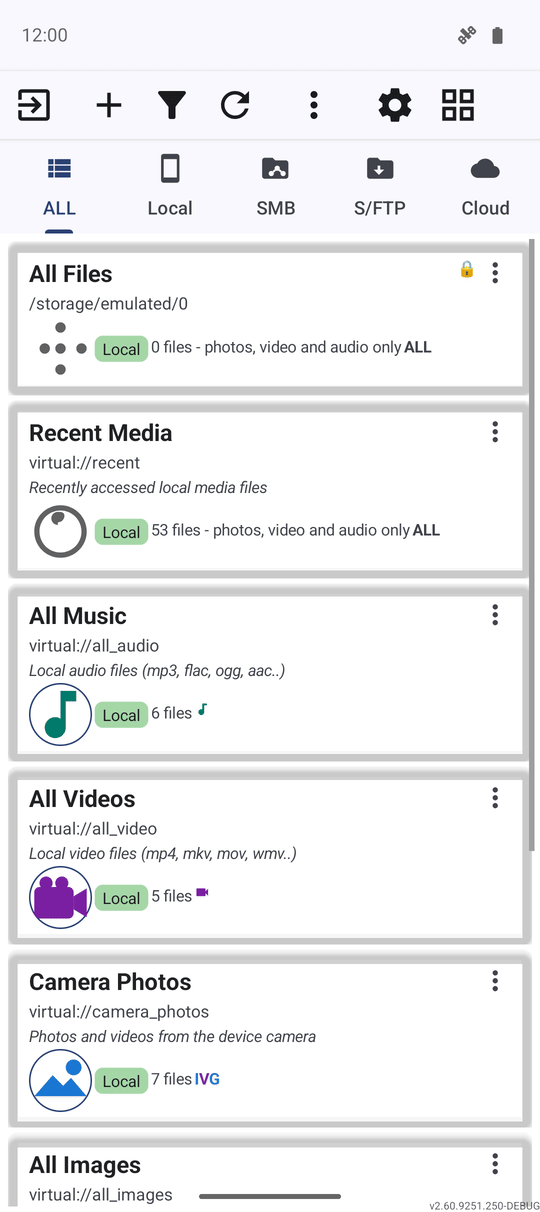
And on a completely fresh install, the built-in collections on the main screen - All Music, All Videos, All Images, Camera Photos and Recent Media - already show their real file counts instead of a row of zeros. FastMediaSorter fills those virtual resource counts in on its own, in the background, at startup, so you do not have to open each one or run a manual rescan just to find out there is anything in it.
A quick look around, by role
Page 1 of the welcome wizard pitches FastMediaSorter as a handful of roles rather than a feature list, and this documentation site is organized the same way. Once you have looked around the main screen, here is where each role's own recipes live:
- File manager - browsing, sorting and file operations start at grid and list views and copy, move and delete.
- Player - photos and GIFs in the image viewer, video in playback controls, and music in playing and organizing.
- Any source - local, network and cloud folders start at storage sources setup and Windows network shares.
- Streams, on the editions that carry it - begins at the channel catalog.
- More - the desktop launcher, the watch app, the VR headset, and the full Settings map all branch off from here, alongside the seven editions compared.
If you pinned an SFTP server's host key on the phone, the watch app enforces that same pin: a server presenting a different key is refused before your password is ever sent. The pin travels with the source, so there is nothing to set up on the watch itself - see watch companion data sync.
Bring in folders from your Windows PC
If you run Fast Media Sorter & Sharing for Windows on the same network, you do not have to type in a server address by hand: scan its QR code, or open the .fmscfg file it hands you, and FastMediaSorter adds those PC folders as SFTP resources in one step.
Import the same file again later - say, after sharing one more folder on the PC - and it does not create duplicates. It recognizes a resource it already has by its server and folder path and updates that one instead, then shows a short toast telling you what happened: "Added:
What You Get
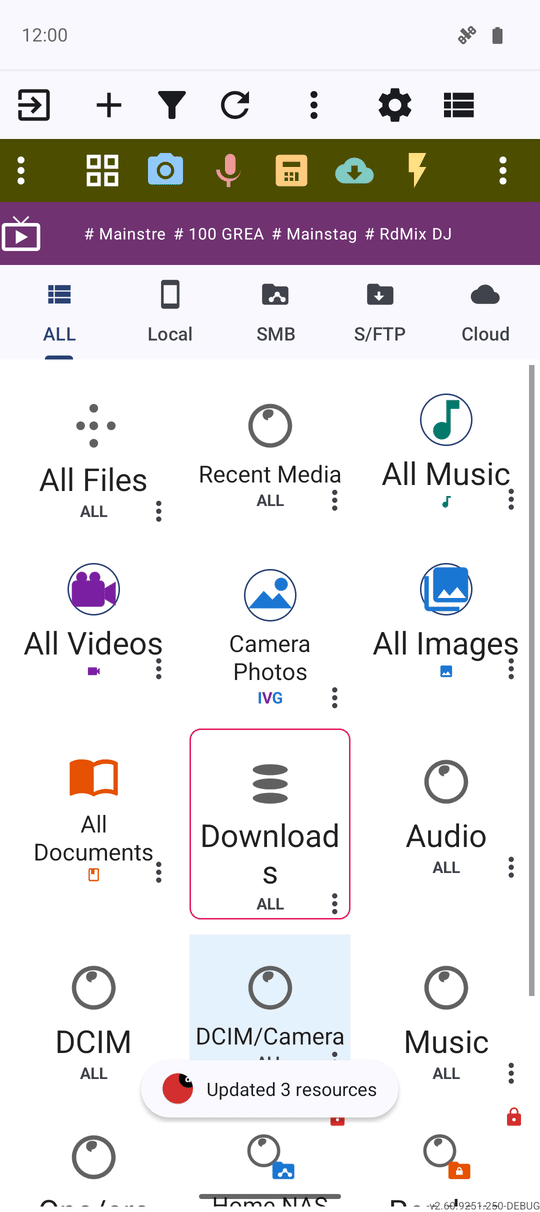
You have the app installed, you know what that first splash is telling you, your built-in collections already show real numbers, and you have a map of which recipe to read next for whatever you actually came here to do - browse files, watch something, or bring in a folder from another machine.
Tips and Troubleshooting
- The splash is honest about timing. It stays up exactly as long as startup actually takes - a faster phone sees it for less time, not a fixed animation length.
- No servers, no analytics. FastMediaSorter has no backend of its own; nothing about how you use the app is sent anywhere without your say-so. See the privacy policy for the specifics.
- Re-importing a companion file is always safe. It only adds or updates the resources that changed - it never leaves you with two copies of the same PC folder.
- Skipped the wizard by accident? It is one tap away from Settings any time - see first launch and setup wizard.