All editions - which pages appear depends on the edition
First Launch and Setup Wizard
The welcome wizard runs once, the first time you open FastMediaSorter, and walks you through language, theme, device profile, network and cloud sources, capabilities, permissions and your default player - or you can skip straight to the end with the Enable all button on its first page. Every choice it makes lives in Settings afterward, so nothing here is a one-way door.
Why You'll Love This
Everyone meets FastMediaSorter for the first time exactly once, and that first minute quietly decides a few things: which language you read it in, whether it can see your network drives, and whether Android starts opening your photos and videos in it from now on. The welcome wizard exists so you make those calls on purpose, in a couple of minutes, instead of finding them out by accident later.
Nothing on these pages is final. Every choice you make here can be changed afterward in Settings, so there is no wrong tap - and if you would rather not answer a wizard's worth of questions at all, one button near the top does almost all of it for you.
- FastMediaSorter freshly installed, in any edition - which wizard pages you see depends on which one you have.
- A few minutes, and if you plan to add network or cloud folders, their addresses or sign-in details close at hand.
- An internet connection if you turn on OCR or translation on the functionality page - both download a small engine the moment you switch them on.
Page 1: meet the app, in your language and your look
The wizard opens the moment you launch FastMediaSorter for the first time and stays open until you finish it or tap Enable all. A row of dots above the bottom buttons shows how many pages there are and where you are; Previous and Next move between them, and Finish takes the place of Next on the last page. Every page answers to a fingertip just as well as to a keyboard, a D-pad or a mouse wheel, so a TV box or a car head unit with no touchscreen sets up the app exactly the same way a phone does.
The first page introduces FastMediaSorter as a short list of roles rather than a list of features: File Manager ("Browse, copy, move and delete files"), a player card titled Media Player or, on an edition without video and audio, Photo Viewer, Any Source, One-Tap Sorting, and a catch-all More card. A build that ships the home-screen launcher leads with a Home screen card instead, and one that ships internet Streams or the watch app gets its own card for each of those too, rather than folding them into More. Every card's second line names only the media types, protocols and services your particular edition can actually open, so nothing pitched here is missing once you look for it.
Two more controls share this page: a language button that names your current language and opens a searchable list when tapped, and an Auto / Light / Dark theme picker. Both take effect immediately, so you see the result before you decide anything else.
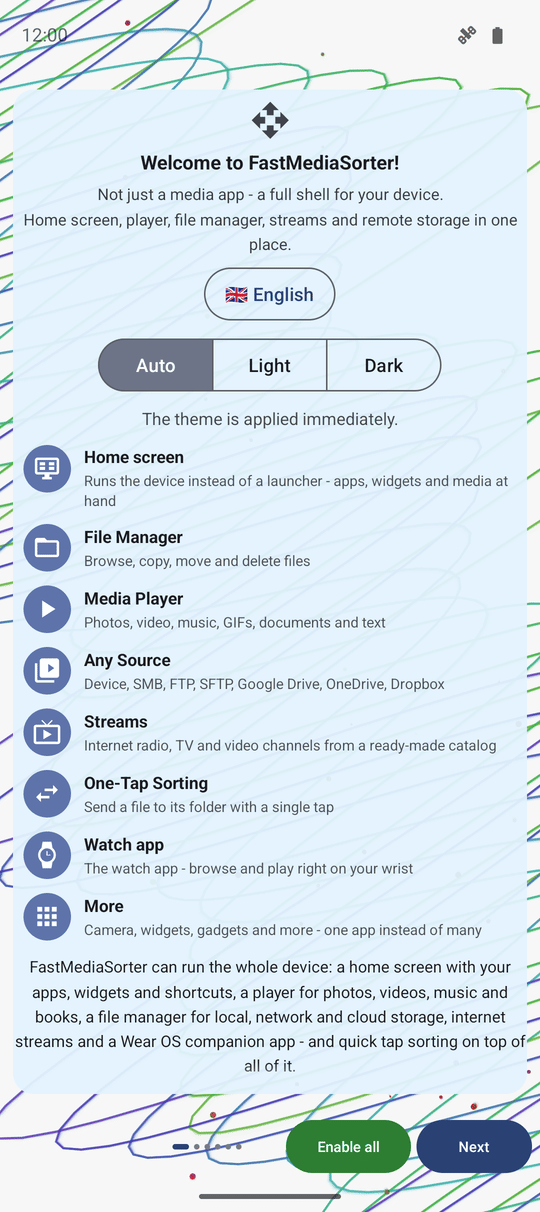
If a build offers to make FastMediaSorter your home screen and you decline, it remembers that - it will not ask again, not here and not the next few times you open Settings.
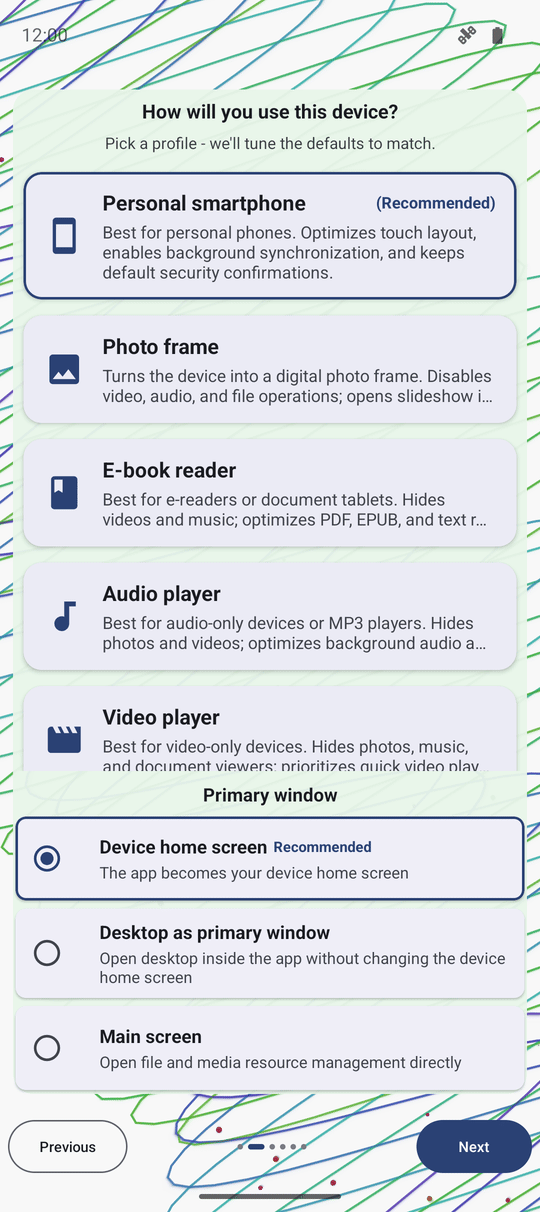
Page 2: tell it what kind of device this is
FastMediaSorter asks "How will you use this device?" and lays out a row of profile tiles: Personal smartphone, Tablet & desktop mode, TV / media box, Car head unit, Audio player, Video player, E-book reader, Media player, Photo frame, VR headset, and Other / Custom. It has already picked one for you, marked (Recommended), based on the hardware it detected - tap a different tile if it guessed wrong.
Whichever tile is selected shows its whole description; every other tile stays clamped to one line, so the page does not turn into a wall of text. Tap the selected tile a second time to confirm it and move straight to the next page - a repeat tap means "this one, go on," the same as tapping Next would.
Moving past this page applies that device profile's whole settings preset, which decides what the pages that follow default to; anything you change afterward on your own still sticks. Picking TV / media box, Car head unit or Photo frame also leaves automatic power saving off, since those devices run on fixed power and a battery threshold would never trigger anyway - and Photo frame additionally turns off left-swipe-to-delete on a file row, to match the fact that this profile does not offer deletion at all.
Page 3: turn on the network and cloud folders you use
On the Standard, Legacy, VR and noLegal editions, a Network resources page follows: "Add media from network shares and remote storage." Three group switches sit underneath, each one turning a whole family of sources on or off at once, with a plain-language example beside it:
- Local network (Ethernet) SMB - "Shared folders on your home network or NAS." For example, a shared folder on a Windows PC, a NAS such as Synology or QNAP, or a USB disk plugged into your router.
- Computer on the internet (S)FTP - "Server folders over FTP and SFTP." For example, a hosting account over FTP, your own home server over SFTP, or a camera that uploads photos to an FTP folder.
- In cloud resources - "Google Drive, OneDrive, Dropbox." For example, sign in to Google Drive once and browse your photo backup like any other folder.
Each switch only permits the group - you still add the actual folder or account afterward, from the main screen. The cloud row disappears on an edition without cloud support, and the whole page is left out on an edition with neither group.
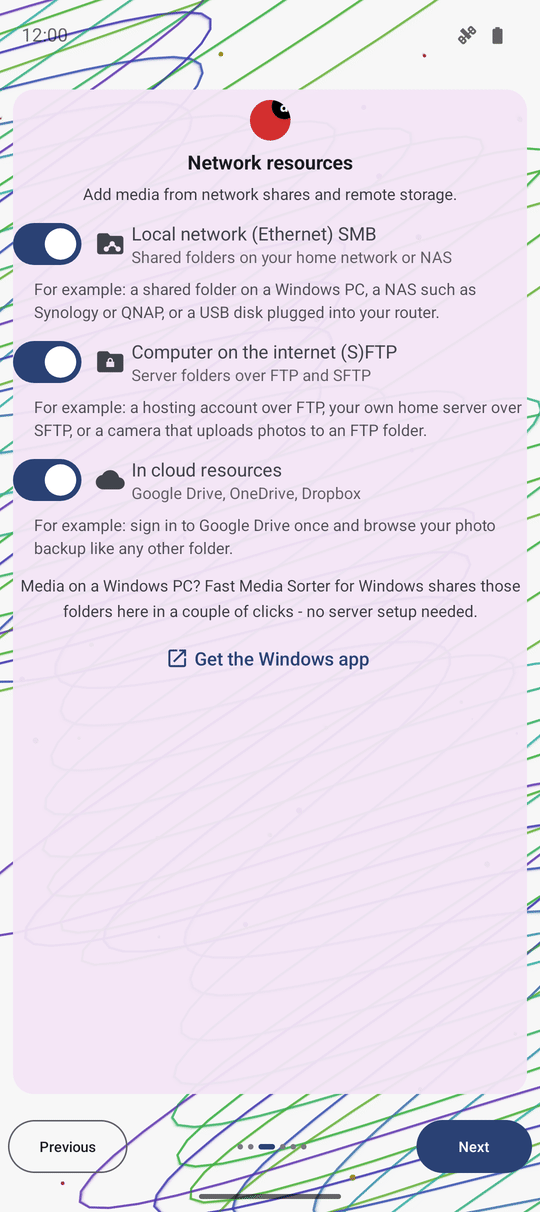
Fast Media Sorter & Sharing for Windows shares chosen PC folders here in a couple of clicks, no server setup needed - this page has a Get the Windows app button for it.
Page 4: choose what the app can do
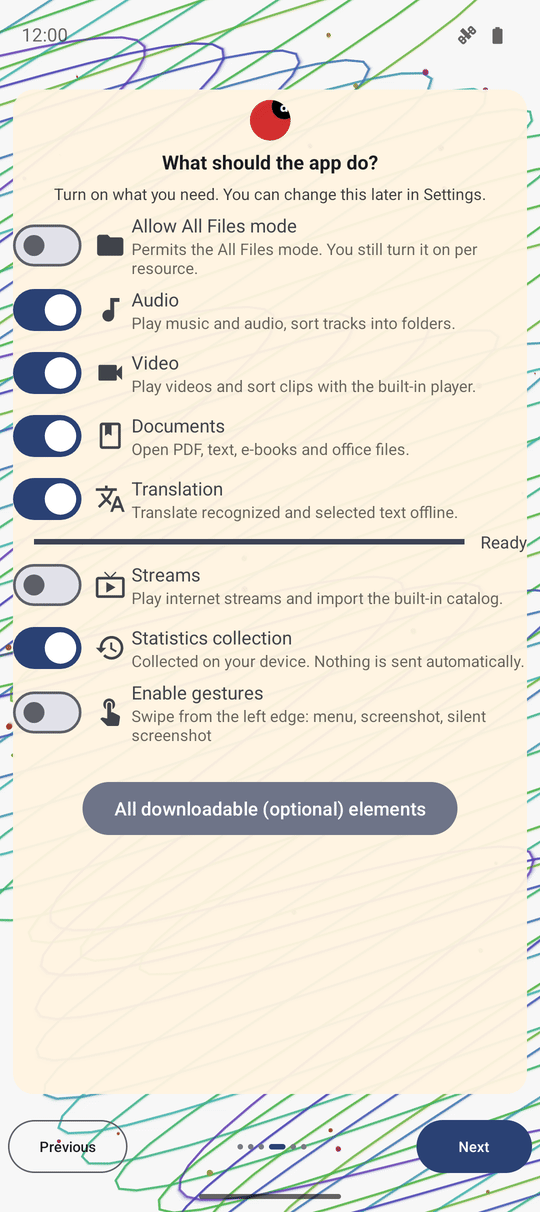
"What should the app do?" Turn on what you need - everything here can be changed later in Settings too. The switches: Allow All Files mode (permits it; you still turn it on per resource), Audio, Video, Documents, Text recognition (OCR), Translation, and, on an edition that carries live Streams, a Streams switch that plays internet stations and channels and can import the built-in catalog.
Turning on OCR or Translation does more than flip a switch: each one queues a small recognition or translation engine to download right there, with a progress line that counts up and turns into "Ready" when it lands, or "Download failed - tap to retry" if it does not. The capability itself switches on only once its engine has installed successfully, so nothing is left half-enabled.
A Statistics collection switch sits lower on the page - on by default, on the Standard, Lite, Photos and Legacy editions - with the note "Collected on your device. Nothing is sent automatically." Below it, on the Standard and noLegal editions, an Enable gestures switch turns on left-edge swipes: up opens the launch menu, right captures a screenshot and opens the editor, down captures one silently with a toast.
Every downloadable extra the app offers, not only OCR and translation, is one tap away too: All downloadable (optional) elements opens the extensions manager right over the wizard, so you can browse and install one without losing your place in setup.
Page 5: grant the permissions it asks for
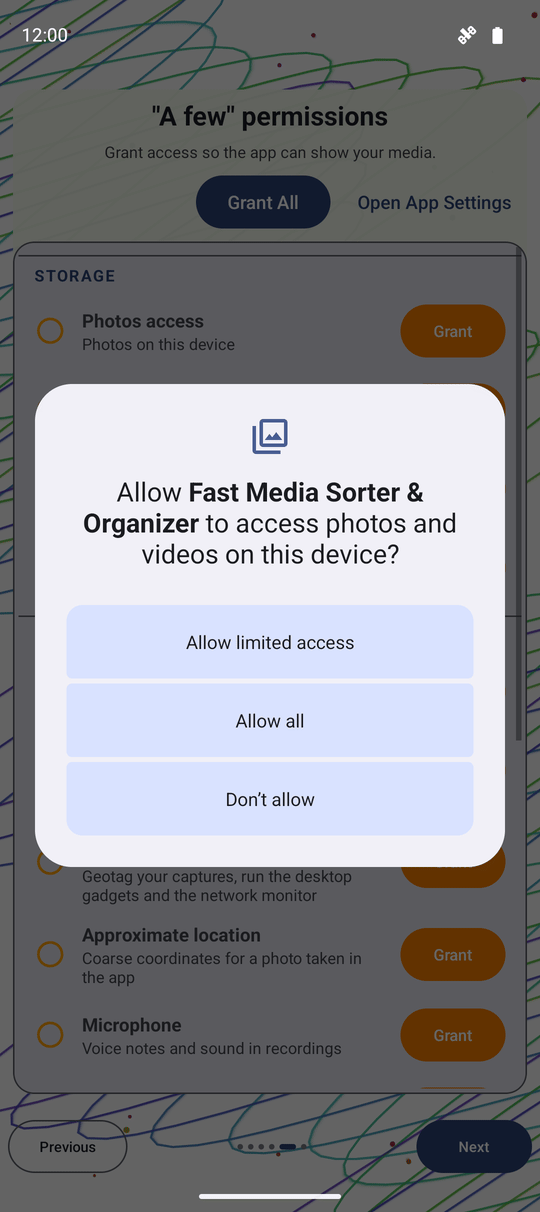
The permissions page lists every access this particular build can ask for, grouped and explained in plain language, with each row showing whether it is already granted. Grant All walks through every regular permission in one batch dialog, then opens each special one - the kind Android insists on its own settings page for - one at a time; Open App Settings jumps straight to the system screen for anything you would rather set by hand.
What the page offers changes with the edition and the Android version on your device, and every permission it can request - including drawing over other apps and installing an app from a file - gets the same explanation wherever the app asks for it again later. The full list, and exactly what each permission unlocks, has its own page: see Storage and system permissions.
Page 6: make it your default player (first run only)
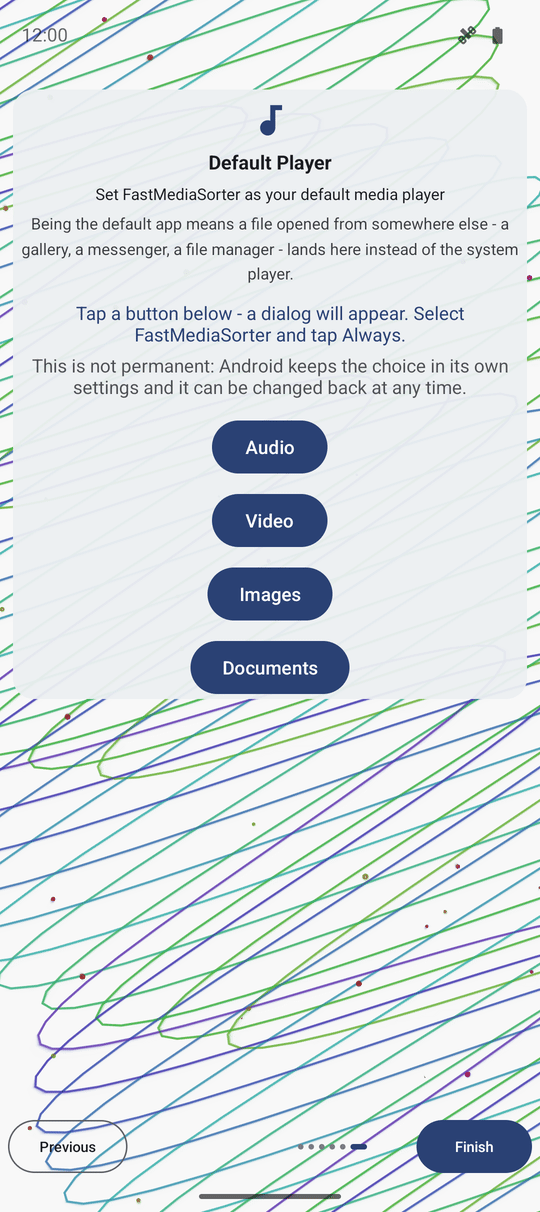
If nothing has claimed the role yet, one more page shows up: Default Player - "Set FastMediaSorter as your default media player." Four buttons, one per type - Audio, Video, Images, Documents - each opens Android's own app chooser. "Tap a button below - a dialog will appear. Select FastMediaSorter and tap Always."
The page explains what that choice actually changes: "Being the default app means a file opened from somewhere else - a gallery, a messenger, a file manager - lands here instead of the system player." And that trying it costs nothing: "This is not permanent: Android keeps the choice in its own settings and it can be changed back at any time." Once you have answered this page, or once FastMediaSorter already is the default for everything it can be, it stops appearing on later runs of the wizard.
Or skip ahead - the Enable all shortcut
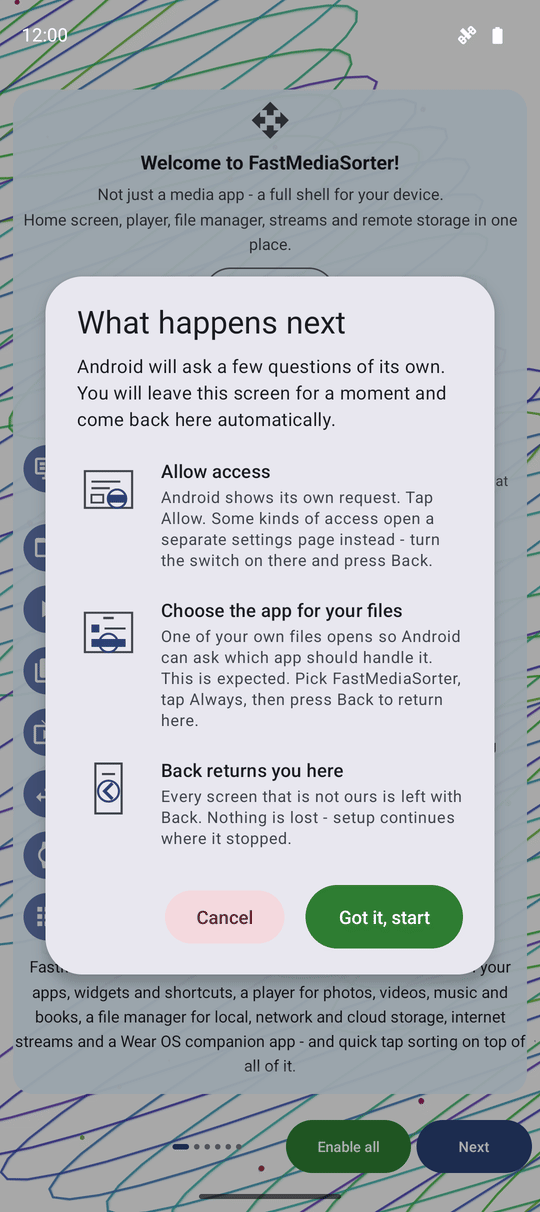
On the Standard, Legacy, VR and noLegal editions, a green Enable all button sits on the first page, next to the page dots. Tap it and a dialog explains "What happens next" first: "Android will ask a few questions of its own. You will leave this screen for a moment and come back here automatically." Three short steps follow it - Allow access ("Android shows its own request. Tap Allow. Some kinds of access open a separate settings page instead - turn the switch on there and press Back."), Choose the app for your files ("One of your own files opens so Android can ask which app should handle it. This is expected. Pick FastMediaSorter, tap Always, then press Back to return here."), and Back returns you here ("Every screen that is not ours is left with Back. Nothing is lost - setup continues where it stopped."). Tap Got it, start to continue, or dismiss the dialog and nothing changes.
Confirming opens the same device-profile picker from page 2 first, so an unlucky auto-detection is still visible and correctable before anything is applied. From there, Enable all switches on every setting that unlocks a capability your edition ships - image and GIF viewing included, plus every feature route compiled into the build - while leaving privacy, destructive, preference and resource-dependent settings untouched. It also brings back every "Send to.." recipient your edition enables by default - the system share sheet, Open with, Print, Email, Google Keep and the watch - even ones you had switched off earlier, though a recipient the edition ships off by default, such as the messengers or Google Lens, stays off, and one you switched on yourself is never touched.
A second reminder appears right before the default-app stage, worded the same way ("One more step: the app for your files.."), with Show me and Skip this buttons. Declining either reminder just leaves that one step unrun - the rest of Enable all still goes ahead.
Finish, and what happens right after
Tap Finish on the last page and the wizard closes. The very first time only, FastMediaSorter opens Settings once on its own, with the main screen waiting behind it - so backing out of Settings lands you on the main screen, not back in the wizard. It never opens Settings uninvited again after that.
Changed your mind about the device profile, or want to turn a whole group of sources on or off again? Reopen this same wizard any time from Settings. It warns you first, since running it again can overwrite settings you have since tuned by hand.
What You Get
The app now speaks your language, looks the way you like, knows what kind of device it is running on, can see the network and cloud folders you turned on, and - if you asked it to - already answers to "Open with" and the system share sheet for the file types it plays. None of this is final: every choice lives in Settings afterward, and the wizard is one tap away if you want to run it again.
Tips and Troubleshooting
- Enable all switches everything on for good. Text recognition and translation stay on even when both of their parts finish installing at the same moment - they no longer switch themselves back off.
- In a hurry? Enable all on page 1 answers almost every later page for you and finishes setup in a few taps - see step 7 above.
- Statistics collection stays on the device. The switch on the functionality page only ever writes to local, anonymous numbers; nothing is sent out automatically.
- Not sure about a permission yet? Skip it here. The permissions guide explains what each one unlocks, and Settings lets you grant it later.
- Which pages you see depends on the edition. The noLegal edition, for example, shows every page in this recipe; a lighter edition may skip the network page or the default-player page entirely.