Viewing Photos, GIFs and Zoom Gestures
The image viewer shows one picture at a time on the whole screen. Swipe to move between photos, pinch to zoom, turn a sideways photo for a moment and pause animated pictures - all without changing your files.
Why You'll Love This
You come back from a trip with four hundred photos and want to look through them quickly, one after another, on the whole screen. Or a friend sends you a funny animated GIF and you want to stop it on the best frame. The image viewer is made for exactly this: one picture at a time, a swipe to the next one, and nothing in the way.
Nothing on this page changes your files. Zooming, turning a photo for a moment and pausing an animation only change what you see right now.
- FastMediaSorter installed. The image viewer is part of every edition: Standard, noLegal, Lite, Photos, Legacy, VR and FOSS.
- At least one resource with pictures in it, for example the All Images collection or a folder you added yourself.
- For HEIC and HEIF photos (the format many phones use for camera shots): Android 9 or newer. For AVIF pictures: Android 12 or newer.
Open a photo full screen
Open a resource on the main screen, then tap any picture in the file browser. The picture opens in the image viewer, filling the screen.
The viewer shows JPG, PNG, WebP, BMP and GIF pictures, animated WebP and APNG, and HEIC, HEIF and AVIF photos. If your Android is too old for HEIC or AVIF, the viewer does not fail silently: it tells you which Android version the picture needs, for example "requires Android 9 (API 28) or newer".
Move to the next or previous photo
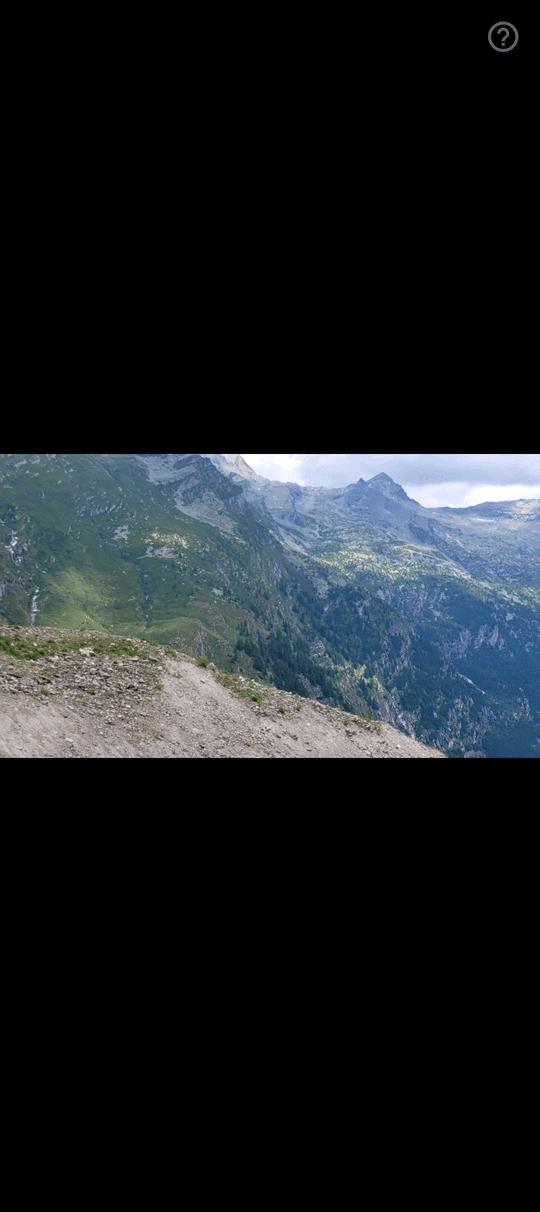
Swipe from right to left to see the next picture in the folder, and from left to right to go back to the previous one. The order is the same as in the file browser, so if you sorted the folder by date, you walk through your photos by date.
You can also tap the screen instead of swiping. The screen is divided into invisible touch zones: a tap on the right side of the middle row opens the next file, a tap on the left side opens the previous one.
On a tablet with a keyboard, or on a TV box with a remote, the left and right arrow keys move between photos too. See keyboard, D-pad and TV navigation.
Zoom in to see the details
Put two fingers on the picture and spread them apart to zoom in; pinch them together to zoom out. While zoomed in, drag with one finger to look around the picture.
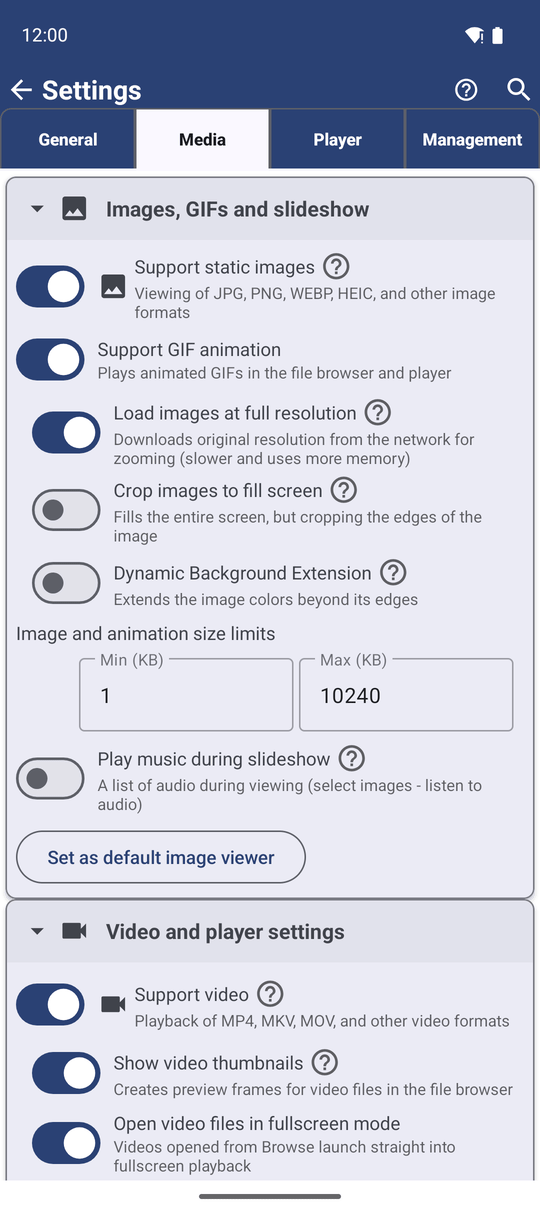
By default the viewer loads a lighter copy of each picture, about 1920 pixels wide, so large photos open quickly. To see every pixel of a 50-megapixel photo when you zoom in - and to zoom while the command panel is open - go to Settings, the Media tab, the Images, GIFs and slideshow section, and turn on Load images at full resolution.
Turn a sideways photo for a moment
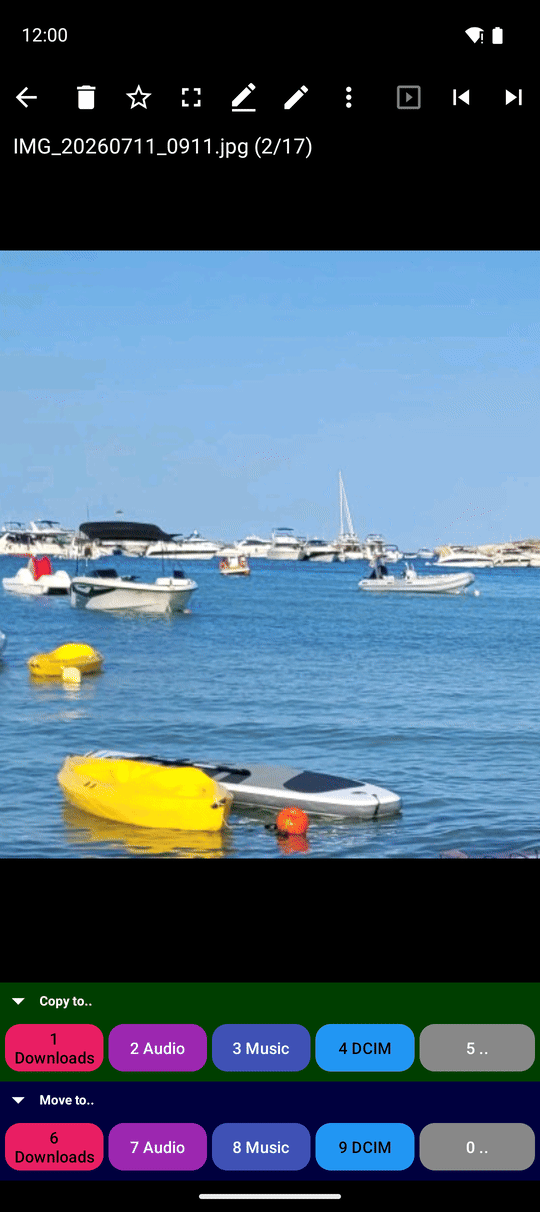
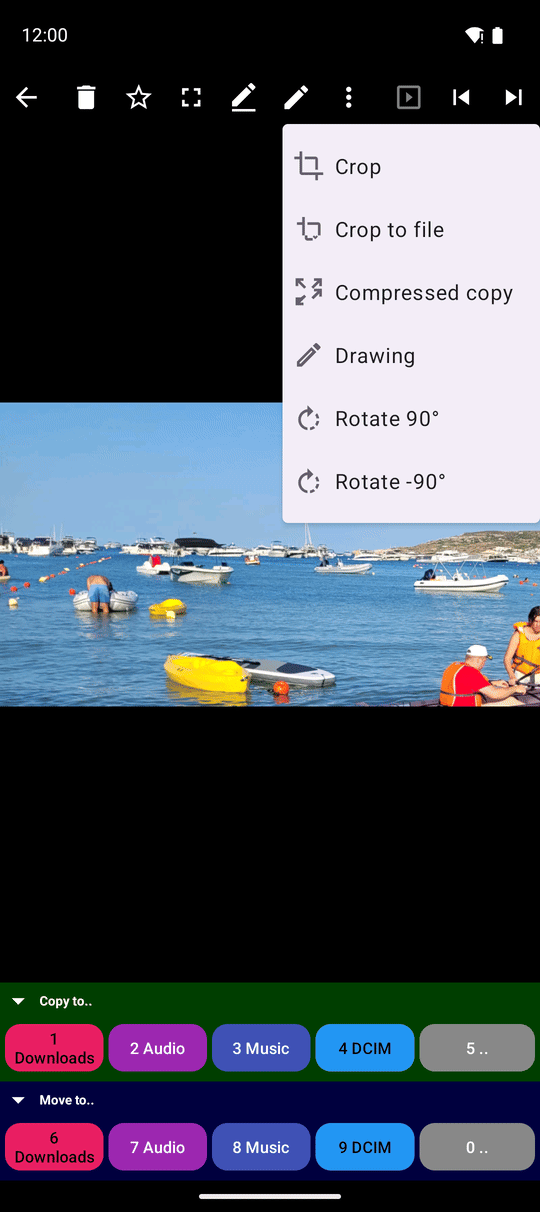
Some photos are shown lying on their side. To look at one upright without changing the file, open the three-dots menu and tap Rotate 90° (turn clockwise) or Rotate -90° (turn counter-clockwise). Each tap turns the picture by a quarter; four taps bring it back.
This turn lasts only while you look at the photo. The file itself stays exactly as it was, and the phone's own screen rotation is not touched. To turn the photo for good, use the editing tools described in Editing photos: rotate, crop, colors and GIF tools.
Play and pause animated GIF, WebP and APNG pictures
Animated pictures start moving as soon as you open them, just like in a messaging app. This works for GIF files and also for animated WebP and APNG pictures.
To stop on a frame, tap the play and pause button on the control bar. Tap it again and the animation continues from where it stopped. When you move to another file and come back, the viewer remembers whether you left this animation playing or paused.
A GIF open in the player, paused, control bar visible with the play button.
Speed an animation up or slow it down, save its first frame as a picture, or cut it into separate frames - all of this is in Editing photos: rotate, crop, colors and GIF tools.
Choose between the whole picture and a full screen
A photo rarely has exactly the shape of your screen. By default the viewer shows the whole picture and leaves thin empty bars at the edges, so nothing is cut off.
If you prefer the picture to cover the entire screen, go to Settings, the Media tab, the Images, GIFs and slideshow section, and turn on Crop images to fill screen. The edges of the picture that do not fit are then hidden. The same choice applies to the slideshow.
What You Get
You can walk through a whole folder of photos with a swipe, zoom into any detail, straighten a sideways shot for a moment and freeze an animation on the frame you like - without changing a single file.
Tips and Troubleshooting
- Zoom looks blurry? Turn on Load images at full resolution in Settings, Media, Images, GIFs and slideshow. The viewer then loads the original picture instead of a lighter copy.
- A HEIC or AVIF photo shows a notice instead of a picture? Your Android version cannot draw that format. The notice names the Android version the picture needs. You can still copy, move and share the file.
- Sort while you look. The same full-screen player can copy, move or delete the photo you are looking at. See Copy, move and delete files.
- Let the photos change by themselves. Start a slideshow and the viewer moves to the next picture on its own.