26.10.15 15:10
A schedule over folders of other devices
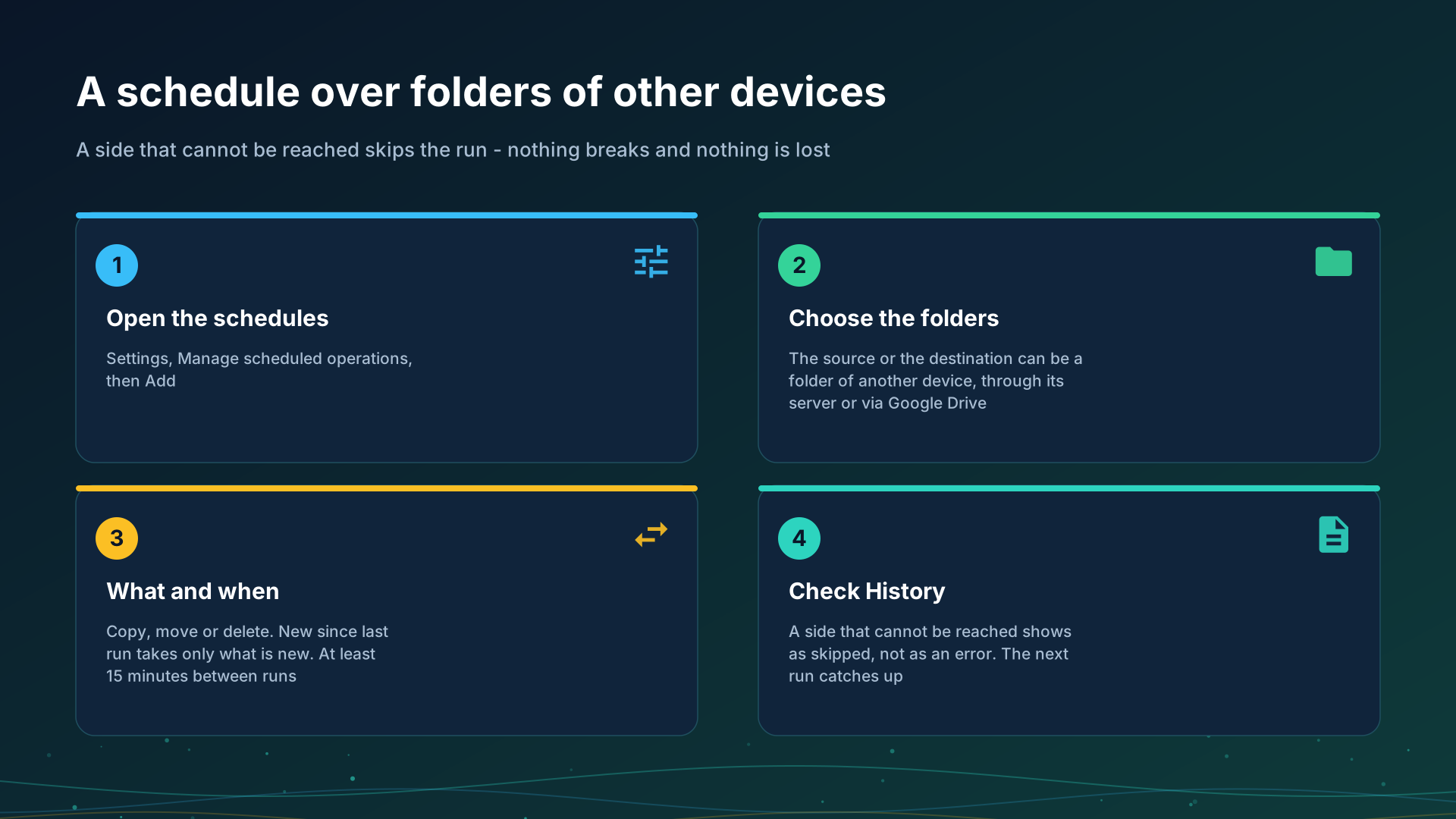
Scheduled operations copy, move or delete files in the background on a timetable you set. The source or the destination can be a folder of another of your devices, reached through the exchange server or via Google Drive, so a phone can fetch every new photo of the other one overnight with nobody touching either.
Set one up
- Open Settings and tap Manage scheduled operations. The switch Use scheduled operations turns all scheduled runs on or off; the operations stay saved when it is off.
- Tap Add.
- Choose the Source and the Destination. A folder of another device is attached first, from Add Resource, From my devices, see Folders through the exchange server.
- Choose the Operation: Copy, Move or Delete.
- Choose which files: All, New in last hour, New in last day or New since last run, and narrow them with the file types and conditions.
- Set Starting at and the interval, and save with Save operation.
New since last run
New since last run takes the files that appeared after the last run that finished well. The mark moves only after a successful run: a run that failed or was skipped leaves it where it was, so the files of that window are picked up by the next run that does succeed.
A side that cannot be reached
When the other device is off, or the network between is down, the run is skipped, not failed:
- nothing is scanned and nothing is transferred, so nothing is half done;
- the schedule’s card shows a warning badge and History lists the run as Skipped, with the reason;
- no notification is posted, and the next slot tries again;
- an error, which does post one notification, is kept for what really went wrong, such as a folder protected with a PIN that refused the stored one.
A folder protected with a PIN is opened with the PIN the app stored when you attached it, without asking anybody at run time.
Copy and move over a remote folder
- A copy is written under a temporary name and renamed when it is whole, so a run cut in the middle leaves no half file under the real name, and the next run finishes it. A name that already exists follows the operation’s setting Overwrite existing files.
- A move removes the original only after its copy is complete.
- A delete follows the same rule as a move when the other device cannot be reached: the run is skipped.
Over Google Drive
When every live path to the other device is down and Files via Google Drive is on, a copy fetches the files changed since its window start through Google Drive and places them in the destination under the same filters. A move and a delete are skipped instead: they would remove something nobody could check. The other device answers when it next looks at its Drive queue: with its app open, or every 15 minutes with Check via Google Drive in the background on; with neither, the run is skipped. See Files via Google Drive.
Via Google Drive, files and the clipboard are kept in your own Google account, like your other files on Google Drive; no exchange server takes part.
Limits
- The interval is at least 15 minutes; a smaller one is corrected to 15.
- Accuracy depends on power saving. Android may delay a background run. Allow the app to run without battery optimization when the dialog Allow background activity asks, and use Run now to test a schedule.
- A run waits for a live network before it starts.
Step-by-step guides
Back to the portal start page.
Windows settings windows
For Windows builds with separate settings windows. Earlier builds keep these pages together under Manager settings. This navigation change does not make an unreleased component available. The availability statements above still apply.
On Windows, open Manager settings, Scheduled file operations, or use the schedule entry in the tray or folder menu. Schedules belong to the signed-in manager and do not require SFTP to be enabled or the local exchange server to be installed. Closing a settings window does not stop scheduled work.