Running File Jobs on a Schedule
Let the app copy, move or delete files by itself on a schedule - for example copy new camera photos to the home computer every night - and read the run history to see what was done.
Why You'll Love This
Every evening you plug in the phone and think: "I should copy today's photos to the computer." And every evening you forget. A scheduled operation does it for you: you describe the job once - what to take, where to put it and how often - and the app runs it in the background, even when it is closed.
Typical jobs: copy new camera photos to a network folder every night, move downloaded videos to the memory card every few hours, or empty a folder of temporary screenshots once a day.
- FastMediaSorter in any edition.
- The source: a resource or any folder on this device.
- For copy and move: a destination, or any folder on this device.
- The phone switched on at the scheduled time. Android decides the exact moment, so a job may start a few minutes late.
Open the scheduled operations screen
There are several doors to the same Scheduled file operations screen:
- Settings, the Management tab, the row Scheduled file operations - "Manage operations and the run history".
- The programs menu and the quick-access panel, where the scheduled operations program sits among the other programs.
- The Scheduled Operations widget on the Android home screen.
- In the file browser: the three-dots menu, Automation.. - the screen opens with the folder you are in already set as the source.
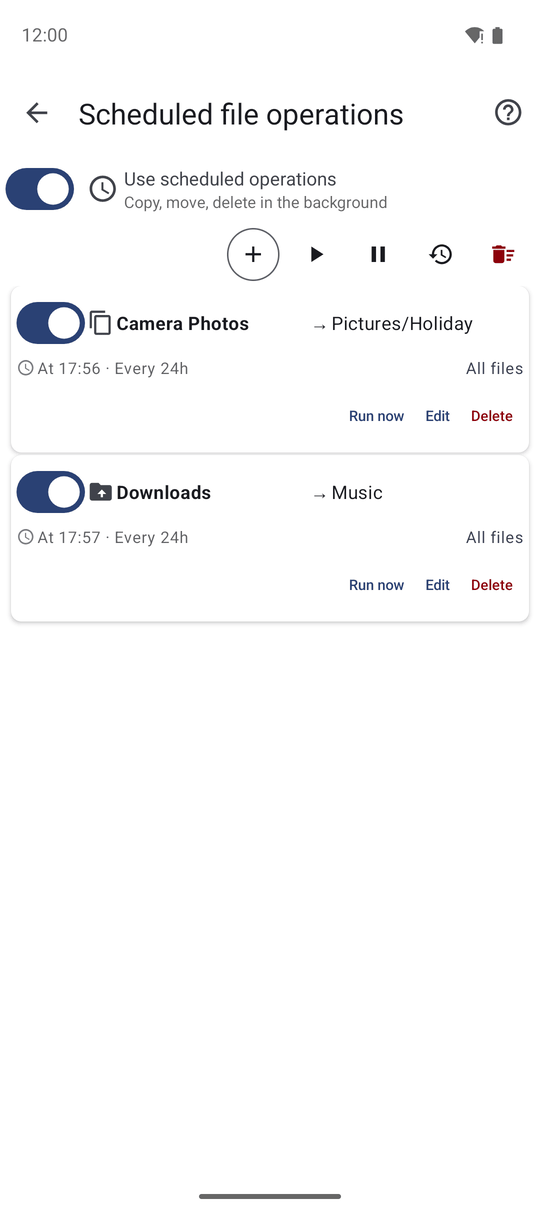
At the top of the screen, Use scheduled operations - "Copy, move, delete in the background" - switches the whole feature on or off.
Say what to take and where to put it
Tap + (Add). In the new operation:
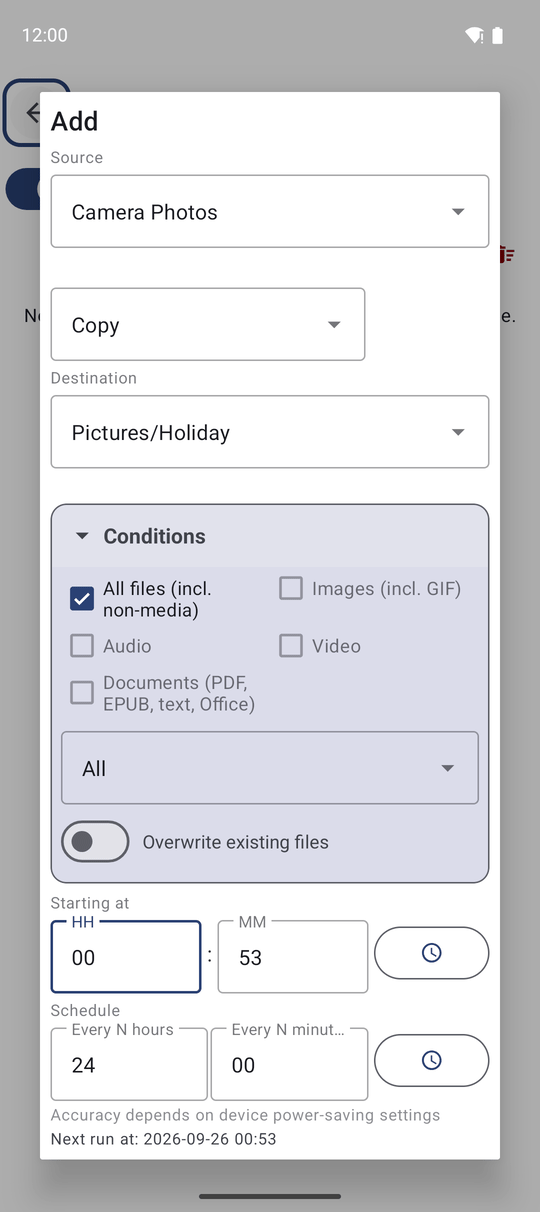
- Source - pick one of your resources, or the first item Local Folder to choose any folder in Android's folder window. Such a folder is used only by this job and does not appear on the main screen.
- Operation - Copy, Move or Delete.
- Destination - for copy and move: one of your destinations, or Local Folder again for any folder on the device. If you have exactly one destination, it is filled in for you.
If the source is read-only, the app allows only Copy and says "Source is read-only".
Choose which files and when
- File types - All files (incl. non-media), Images (incl. GIF), Audio, Video or Documents (PDF, EPUB, text, Office). Ticking All files unticks the others. At least one must stay ticked.
- Time filter - All, New since last run, New in last hour or New in last day. New since last run is the one for "copy only what appeared since yesterday".
- Starting at - the time of the first run.
- Every - how often to repeat, in hours and minutes. The default is every 24 hours. The shortest interval is 15 minutes; a 0-hour, 0-minute interval is corrected to 1 hour.
Below, Next run at: shows when the job will start, updated as you change the time.
Set the last details and save
- Overwrite existing files - when a file with the same name is already at the destination, replace it. Off means such files are skipped.
- Suppress notifications - run quietly, without a notification.
Tap Save operation. The first time, the app may ask to Allow background activity: "On some devices the system may stop background tasks. For reliable scheduled operations, allow this app to run without battery optimization." Tap Open settings and allow it - otherwise some phones stop the job while the screen is off.
To remove the original files after a move or a delete in the background, the app needs access to all files. If it is missing, you get the notification 'Scheduled operation needs permission' - tap it and allow the access.
Pause, run now and read the history
Each operation in the list shows its source, destination and schedule ("At 23:00 · Every 24h") with its own switch to pause it, and Run now to start it at once. For all of them together use Run all now, Pause all and Resume all.
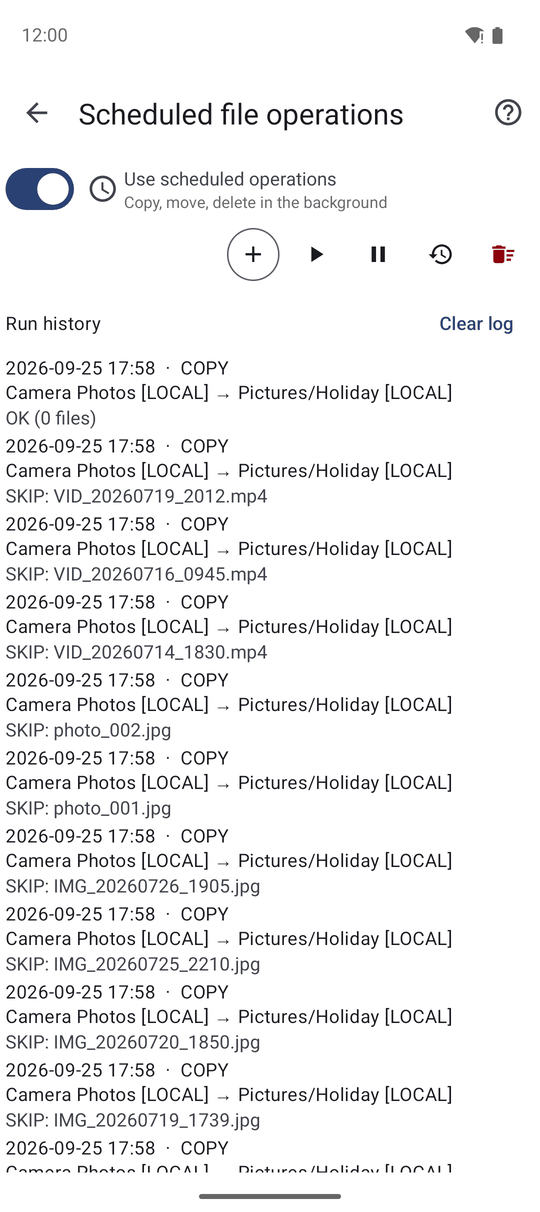
Tap Log to open the Run history: when each job ran, how many files it handled and what went wrong, if anything. An operation whose last run failed is marked - "Last run failed. Tap Log for details." You can clear the history at any time.
The job runs by itself even after the phone restarts. If the folder you are looking at in the file browser was changed by a job in the meantime, the list updates the moment you come back to it - no files that were already moved away are left in view.
What You Get
Your photos land on the home computer every night without you lifting a finger, the downloads folder stays tidy, and the run history tells you in the morning what was done.
Tips and Troubleshooting
- The main switch follows the list. On the Scheduled file operations screen, the switch for scheduled operations turns off by itself when the list is empty and on again as soon as the list has an operation.
- Start with Copy. Try a new job as a copy for a day or two; switch it to Move once you trust it.
- A network destination must be reachable at the scheduled time - for a home computer, choose an hour when it is on.
- Not sure it will work? Tap Run now once and look at the Log.