All editions (details per step)
Background Transfers and Their Progress
What happens while a big copy or move runs in the background - the notification, the thin progress line at the bottom of every screen, files shared into the app, unreachable servers, expired cloud sign-ins, and new files saved on the phone when their destination is out of reach.
Why You'll Love This
Copying two hundred holiday videos to the computer at home can take a while. You do not want to stare at a progress window for that long - you want to keep sorting photos, answer a message, or just put the phone down.
FastMediaSorter runs copies and moves as background tasks that carry on when you leave the screen or close the app. This page shows how to keep an eye on them, and what the app does when something gets in the way.
- FastMediaSorter in any edition. Receiving files shared from other apps: Standard, Lite, Photos and Legacy. Network servers and the cloud: see Copying, moving and deleting files for which editions have them.
- Permission to show notifications, so Android can display the progress while the app is closed.
Send a transfer to the background
Start a copy or move in the file browser, and in the progress window tap Background. The app says "Transfer continues in the background." and you are free: open another folder, sort photos in the player, or leave the app.
Transfers started with Quick Sort in the player run in the background from the start. One transfer runs at a time; if you start another while one is still going, the app says "A file transfer is already running."
Follow it in the notification
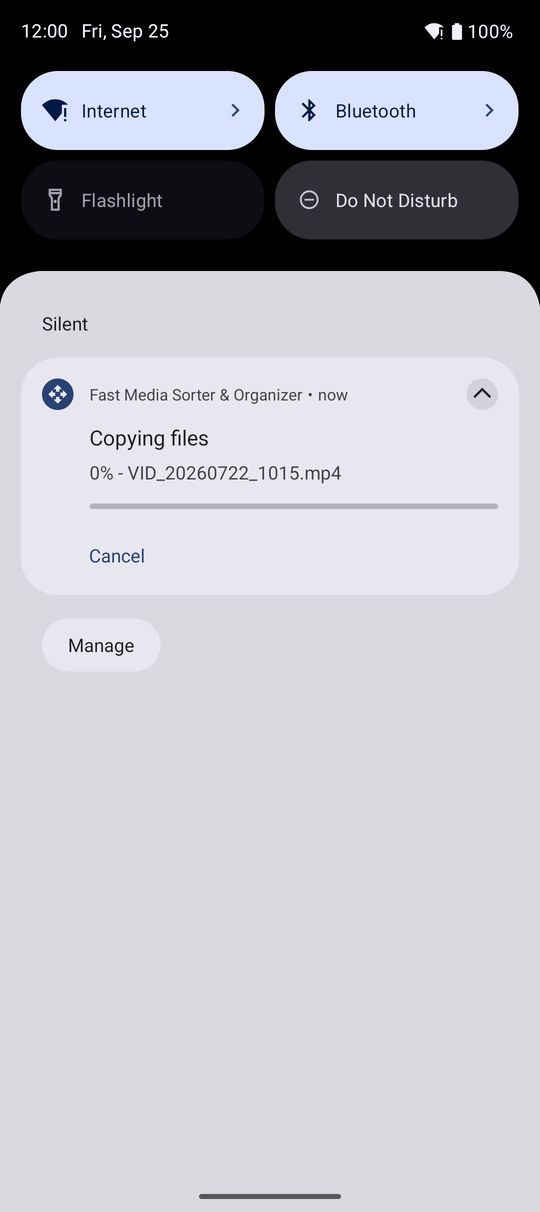
While the transfer runs, the notification shade shows "Copying files" or "Moving files" with the percentage and the current file, and a Cancel button. At the end you get "File transfer complete" with the number of files, and "Folders transferred: 2" if folders were part of it. If something failed, the notification says "File transfer failed" with the reason.
Tap the notification to go back to the folder you started from.
The thin progress line at the bottom of the screen
As long as a transfer runs, a thin line along the very bottom edge of the app fills up from left to right, on every screen - so you always know that something is still being copied. In the file browser it also shows a short text such as "Copying 42% - IMG_2031.jpg". Tap it to open the full progress window again.
Folders stay up to date by themselves
When a background task changes a folder while you are looking at something else - a scheduled operation moved files away, or the watch asked to delete a file - the folder's list catches up the moment you return to it. You do not see files that are no longer there, and you do not have to refresh by hand.
When the server cannot be reached
Before copying to a network folder, the app checks in a couple of seconds whether the computer or NAS answers. If it does not - it is switched off, or the phone left the home Wi-Fi - the transfer stops right away with "Destination server is unreachable - transfer aborted", instead of hanging for minutes. Your files stay where they were. Wake the computer and try again.
When the cloud asks you to sign in again
Cloud services end a sign-in from time to time. If that happens during a copy or move, the app shows Authentication Required - "Cloud authentication required. Please go to Resources and sign in to this Cloud resource." Tap Sign In to sign in to that provider right there, then start the transfer again. In the background the notification says "Sign in required - Open FastMediaSorter to sign in and continue".
A new file is never lost
When the app saves a new file - a photo from its camera, a voice note, a download - into a network folder or the cloud, and that place cannot be reached, it saves the file on the phone instead and tells you where: "Saved to DCIM/Camera - Home PC is unavailable". Photos go to the camera folder, videos to Movies, other files to the matching standard folder. Move them to their place later - see Photos, videos and voice notes into a folder.
What You Get
The two hundred videos arrived on the home computer while you kept sorting photos, the notification told you when they were done, and nothing got lost on the way - not even when the Wi-Fi dropped for a moment.
Tips and Troubleshooting
- Allow notifications. Without them the transfer still runs, but you only see its progress inside the app.
- Big transfers and battery saving. For very long copies, keep the phone on the charger; some phones slow down background work on a low battery.
- A permission is missing? On Android 11 and newer the notification may say 'Permission required' - open the app, allow the access and start again.