26.09.24 18:41
🧹 Download Organizer - Sort Files with One Tap
Level: Beginner • Flavor: Any (Standard, Lite, Photos, Legacy, VR, noLegal)
Quick Sort is FastMediaSorter’s star feature: set up your folders once, then sort hundreds of files by just tapping a number. No drag-and-drop. No menus. Just tap 1, 2, or 3 - and the file is gone to the right place.
Real example: you have 200 files in your Downloads folder - screenshots, work documents, family photos, memes, receipts. With Quick Sort you can sort all 200 in about 5 minutes. Without it - good luck.
What You Will Need
- The app installed (any flavor)
- A folder full of files to organize (e.g. Downloads)
- 2-5 minutes to configure Quick Sort just once
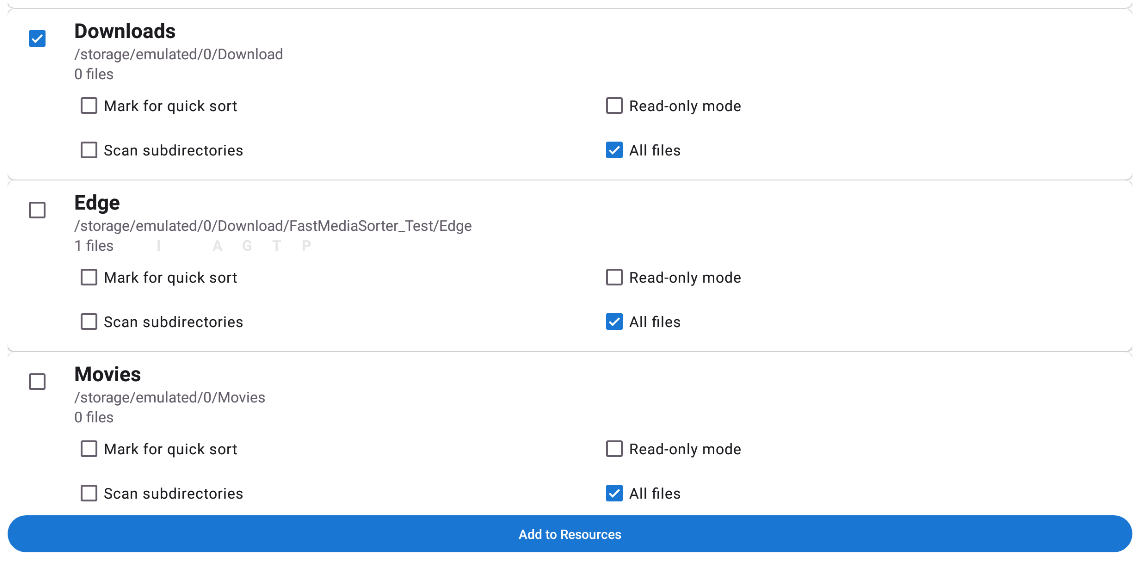
Step 1 - Add Your Downloads Folder
- Open the app
- Tap Add
 in the top toolbar
 - Select “Local Folder”
- Navigate to your Downloads folder - it is usually right there, named
DownloadorDownloads- If you don’t see it: try the path
/sdcard/Download
- If you don’t see it: try the path
- Tap Select (or OK)
The folder appears on the main screen as a card.
The Downloads folder is where your browser, Telegram, WhatsApp and other apps save files. That’s usually the messiest place on any phone.
Step 2 - Decide on Your Categories
Before setting up Quick Sort, decide what folders (categories) you want.
Think of it like physical folders on your desk. Examples:
- Work - documents, spreadsheets, PDFs from colleagues
- Personal - family photos, personal documents
- Keep - things worth saving long-term
- Trash - files to delete after reviewing
You can create these folders right inside FastMediaSorter:
- Open the Downloads resource
- Tap the menu
 button → Create folder
 - Type the folder name → tap OK
Or create the folders in your phone’s regular file manager - they’ll appear automatically in FastMediaSorter.
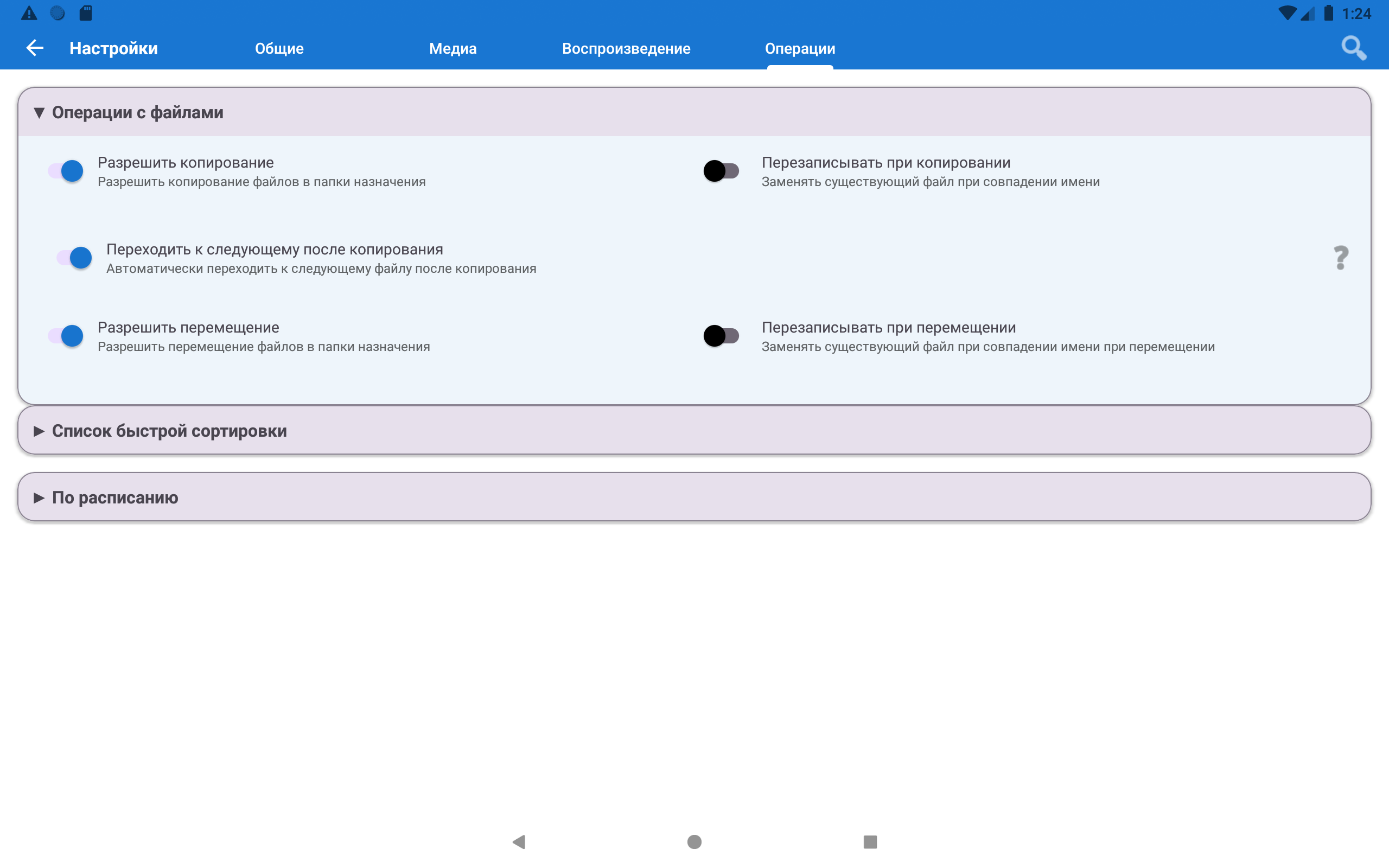
Step 3 - Open Quick Sort Settings
- Tap the Settings icon (⚙ in the toolbar)
- Go to the Management tab
- Scroll to the “Quick Sort destinations” section
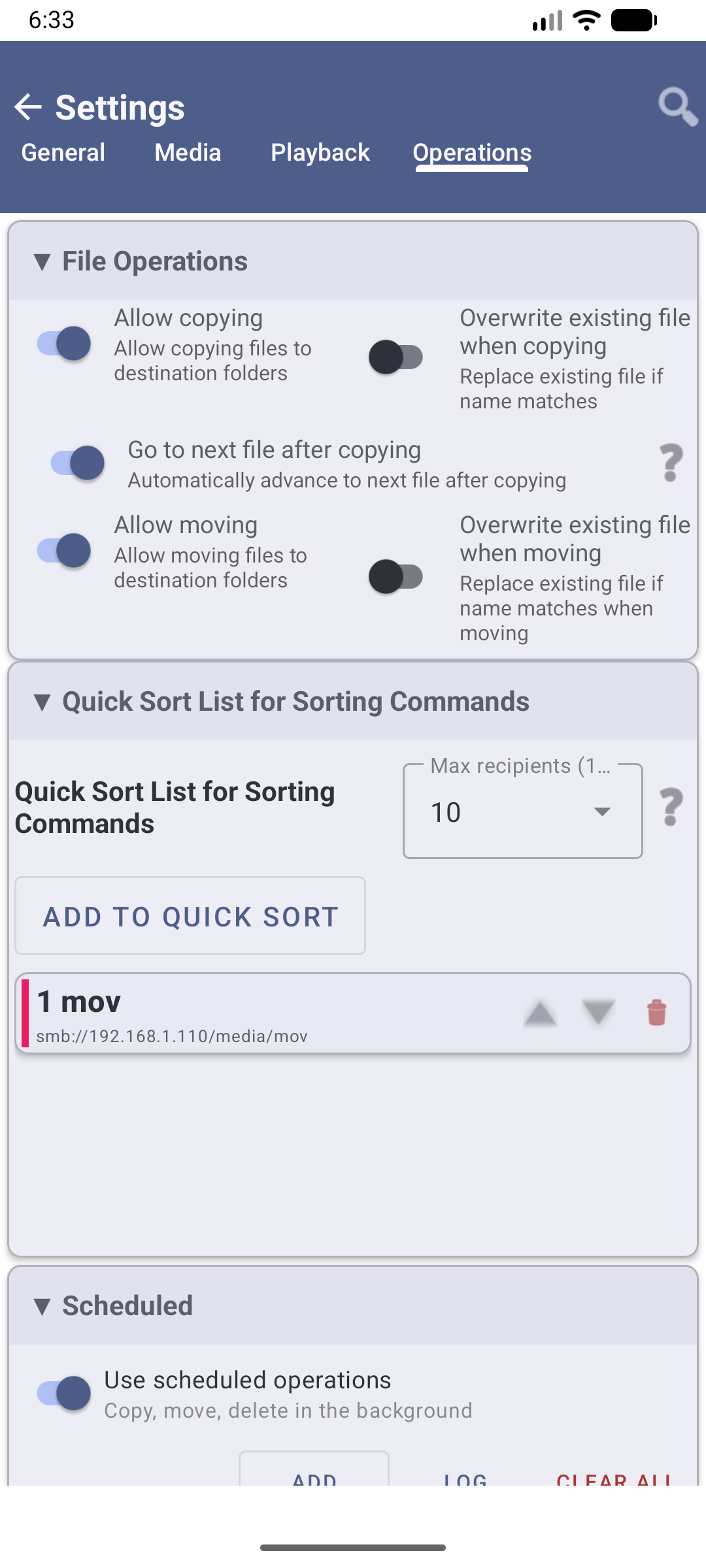
Step 4 - Add Your Destination Folders to Quick Sort
- A destination is a resource, so first add each category folder on the main screen: Add → “Local Folder” → pick the folder (e.g.
Work) - Back in Quick Sort destinations, tap ”+ Add”
- Pick the folder from the list of your resources
- The folder gets a number badge (1) and a color automatically
- Repeat for each folder - you can add up to 30 folders
The numbers matter! During sorting, you tap “1” to send a file to the first folder, “2” for the second, and so on. Put your most-used folder first.
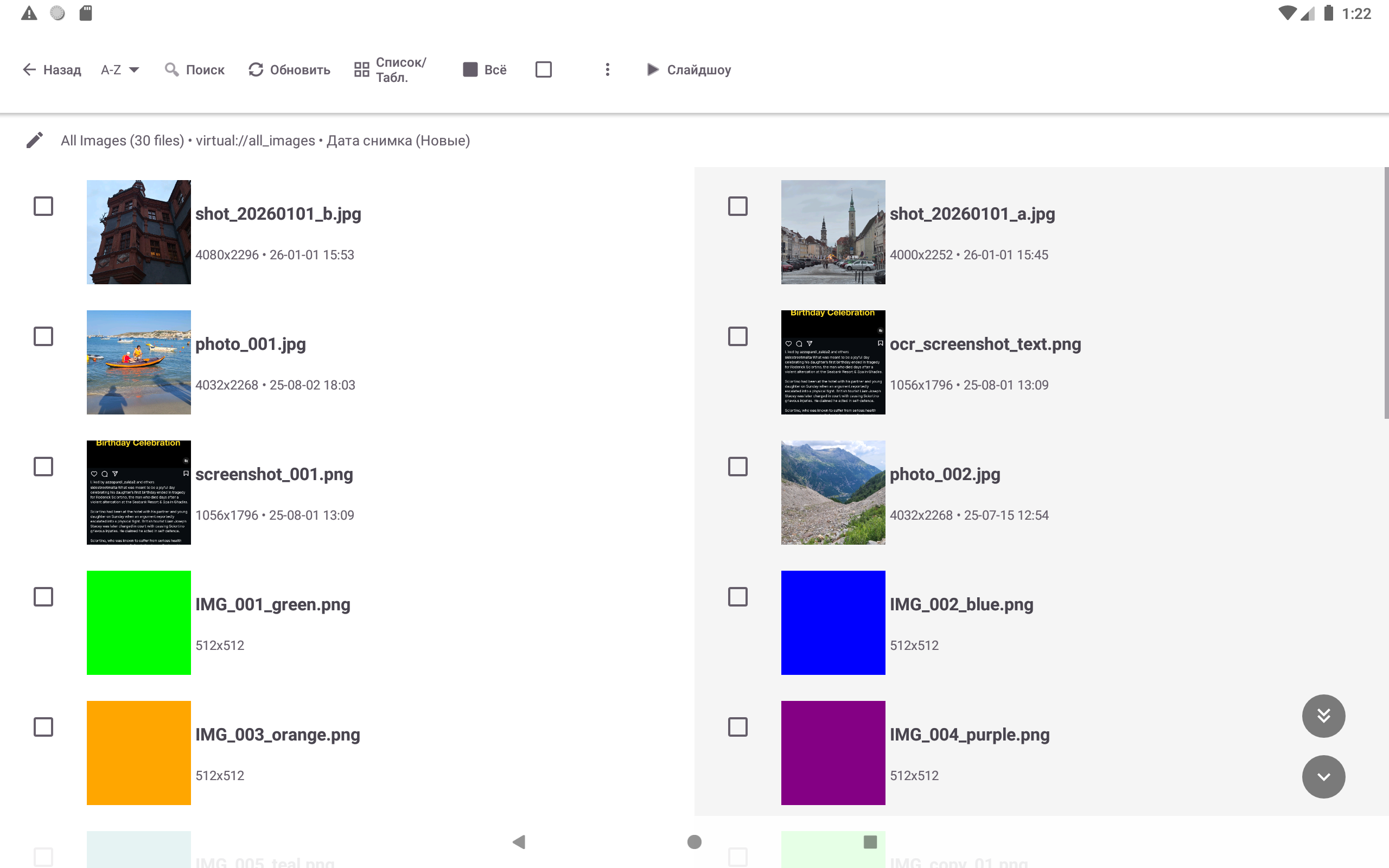
Step 5 - Open a File to Sort
- On the main screen, tap your Downloads resource
- Files appear as a list - you see the file names and previews
- Tap any file to open it full-screen
Step 6 - Sort It with One Tap
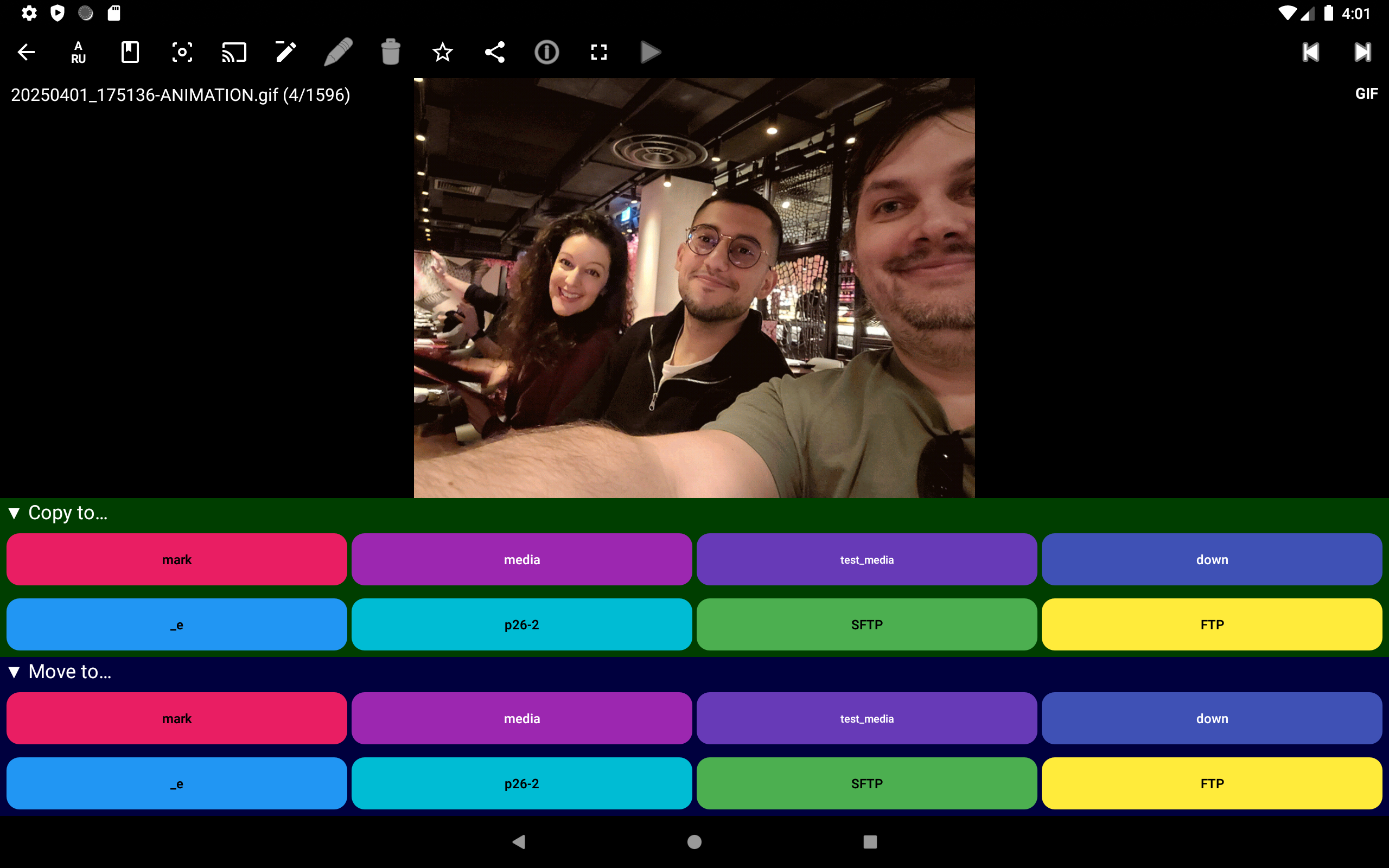
When a file is open full-screen, look at the bottom of the screen - you’ll see a row of numbered colored buttons. Each button = one of your Quick Sort folders.
To COPY a file to folder #1:
- Tap the “1” button in the button row
To MOVE a file to folder #1 (removes it from Downloads):
- Long-press the “1” button → select “Move”
- OR tap the center zone of the screen
The file is instantly sent to that folder - and the app automatically jumps to the next file. No need to go back. Just keep tapping numbers.
Copy vs. Move: “Copy” keeps the original in Downloads AND puts a copy in the folder. “Move” sends the file to the folder and removes it from Downloads. For sorting/cleaning, “Move” is usually what you want.
Step 7 - Turn On the Touch Zone Overlay (Recommended for Beginners)
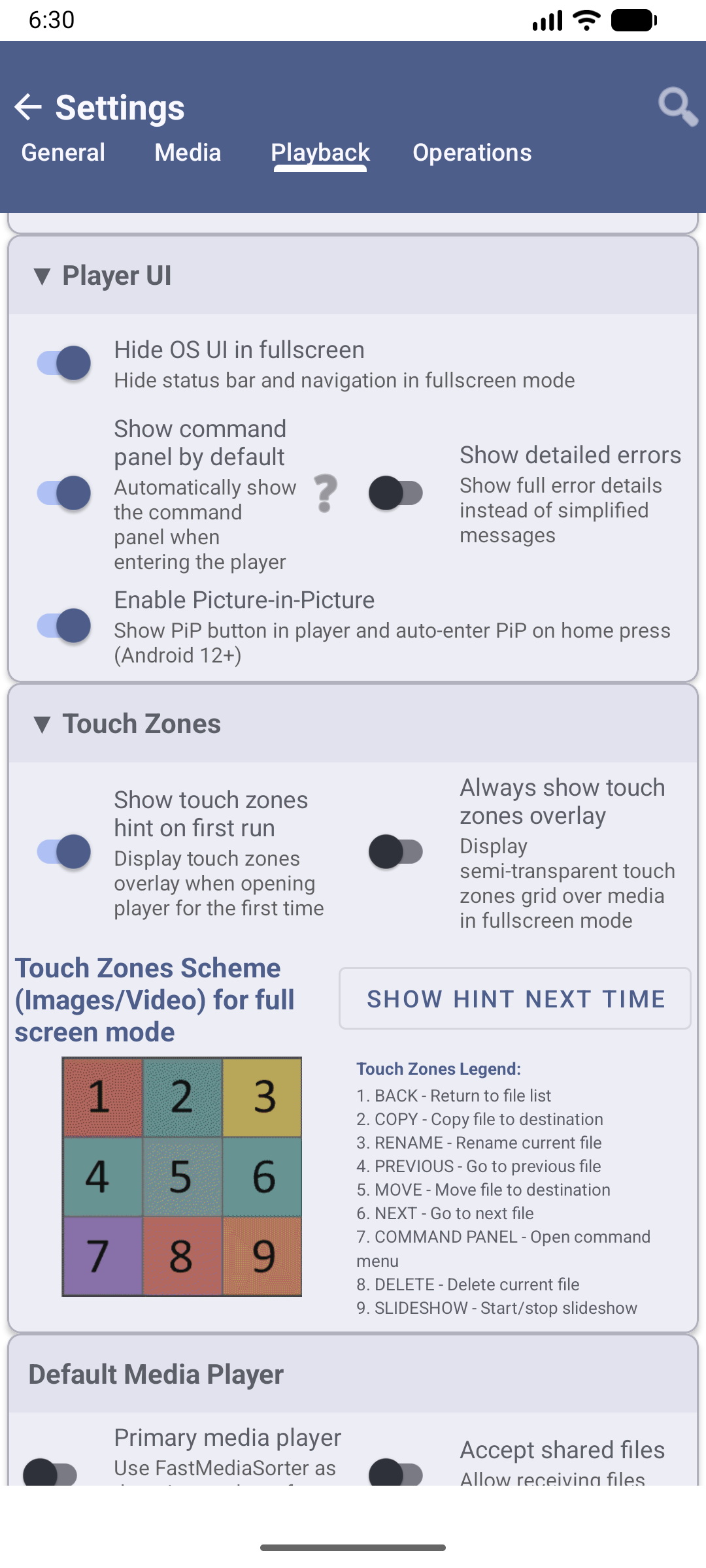
The screen is divided into invisible zones - each zone performs a different action when tapped. To see where the zones are:
- Go to Settings → Player tab → Touch zones and on-screen hints
- Enable “Always show touch zones overlay”
Now a semi-transparent 3×3 grid appears over your files - you can always see exactly which zone you’re tapping. Very helpful until you learn the layout by feel.
Step 8 - Enable Auto-Next (Makes Sorting Even Faster)
After each file you sort, the app can automatically open the next one - no extra taps:
Go to Settings → Management → Go to next file after copying and turn it on.
Now the workflow is: look at file → tap a number → next file appears. You can process a folder of 50 files in under 2 minutes.
Done! Keep Going
As you sort, tap the number button for each file:
- Tap 1 → file goes to Work
- Tap 2 → file goes to Personal
- Tap 3 → file goes to Keep
- Swipe down → file goes to Trash (recoverable - it’s not permanently deleted)
Tips
Made a mistake? Tap the Undo button (bottom-right of the command panel) within 5 seconds to reverse the last action.
Empty trash when done: Settings → Management → File deletion and trash → Use trash folder (.trash) - tap the trash-can button “Delete all in trash” next to it to permanently delete files you sent to Trash.
Works for any folder, not just Downloads. You can use Quick Sort to organize photos, music, documents - anything.
Troubleshooting
| Problem | What to try |
|---|---|
| Don’t see the numbered buttons | Check Settings → Management → Quick Sort destinations - folders must be added there first |
| File was sent to the wrong folder | Tap Undo immediately (within 5 seconds) |
| Want to move files instead of copying | Make sure “Allow moving” is on in Settings → Management, then long-press a number button or use the Move touch zone |
| My files don’t show up in Downloads | Check Settings → Media - make sure the file types you want to see are not filtered out |