26.09.24 18:41
🍿 Home Cinema & VR Streaming
Level: Beginner • Time: ~15 minutes • Flavor: Standard, Legacy, VR, noLegal (Lite has no network sources, Photos has no video)
Watch your series collection directly from your home PC - on your phone, tablet, or Android-based VR headset (Meta Quest, Pico). No copying files. No USB cables. Just press play.
How does this work? Your phone and PC are on the same home Wi-Fi. The app connects to your PC’s shared folder and streams the video directly - just like Netflix streams from their servers, but using your own home network. The video file never gets downloaded to your phone; it plays on-the-fly.
What You Will Need
- Phone / tablet / VR headset on the same home Wi-Fi network as your PC
- Videos on your PC or NAS (your router box with storage)
- FastMediaSorter installed
Step 1 - Share Your Video Folder on the PC
First, make the video folder reachable over your home network.
On Windows:
- Open File Explorer, navigate to your video folder (e.g.
D:\Series) - Right-click the folder → Properties → Sharing tab → click Share..
- In the dropdown choose Everyone (or your username) → click Add → click Share
- Note the IP address of your PC - you’ll need it in Step 2
How to find your PC’s IP: press Win + R, type
cmd, press Enter. Typeipconfigand press Enter. Find the IPv4 Address line under your Wi-Fi adapter. Example:192.168.1.100.
Step 2 - Add the Video Folder in FastMediaSorter
- Open the app → tap Add
 → “Network folder (SMB)”
 - Tap “Scan Network” - the app scans your home network for available PCs
- When your PC appears in the list, tap it - the address fills in automatically
- Enter the share name (the video folder name), username and Windows password
- Tap Test Connection → Save
Didn’t find your PC via scan? Enter the address manually:
\\192.168.1.100\Series(replace with your IP and folder name). See the full SMB Setup Guide for all connection scenarios.
Step 3 - Open the Video Folder
Tap your newly added resource on the main screen.
Your series folders and video files appear as a grid with thumbnails - just like browsing locally.
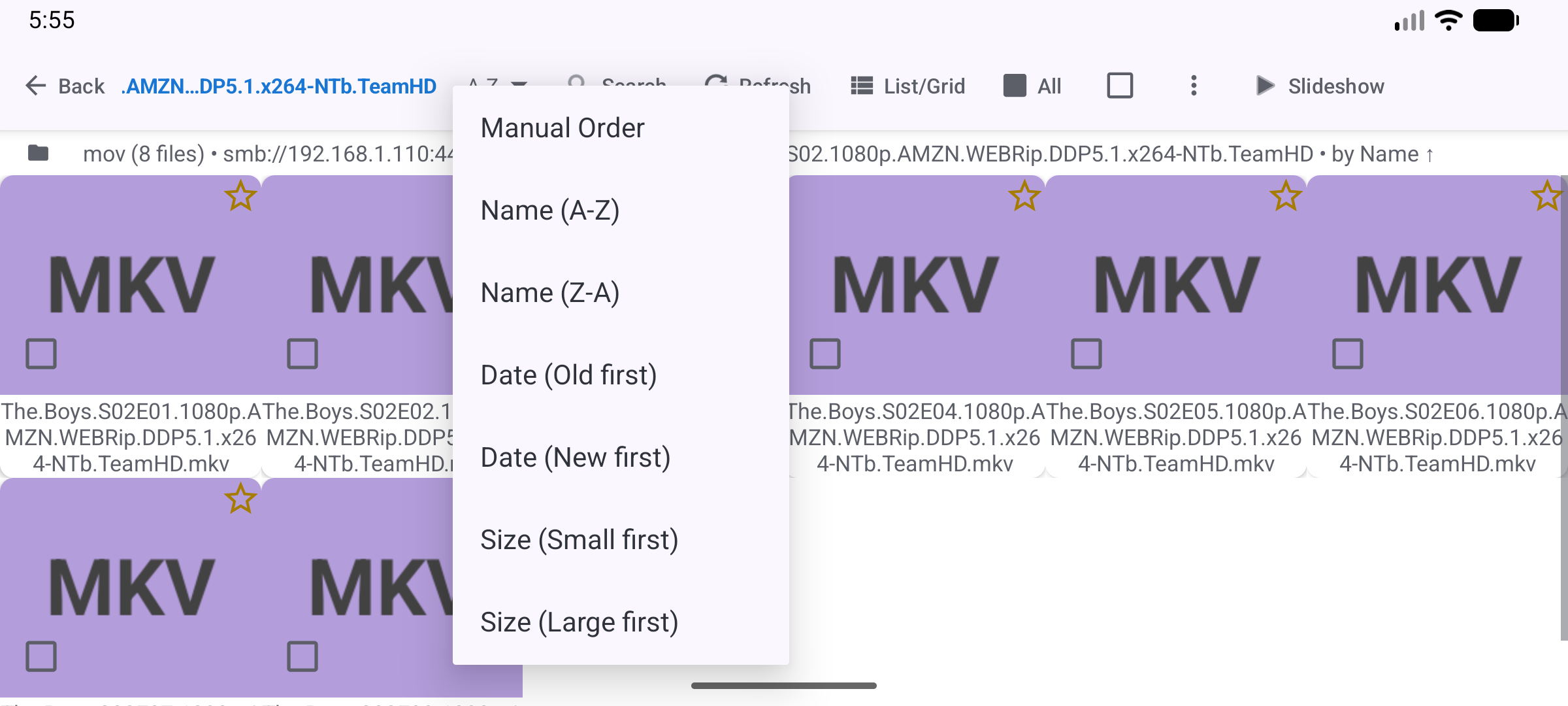
Step 4 - Set Up Auto-Next Episode
So the next episode starts automatically when one ends - no need to pick the next one manually:
- Go back to the main screen → long-press your video resource → tap Edit
- Set Supported Types → Video only (hides non-video files)
- Set Sort mode → Name (A→Z) - this ensures episodes play in order (Episode 1, 2, 3..)
- Tap Save
Then start the slideshow in the player (the Slideshow command) and turn on Settings → Player → Play video/audio in slideshow to end - each episode then plays to its end before the next one starts.
Why sort by name? Episode files are usually named
S01E01,S01E02, etc. Sorting by name puts them in the correct episode order automatically.
Step 5 - Start Watching
- Open the folder, navigate into the series subfolder
- Tap Episode 1 - the video player opens immediately and starts streaming
- The video plays over Wi-Fi - no waiting for downloads
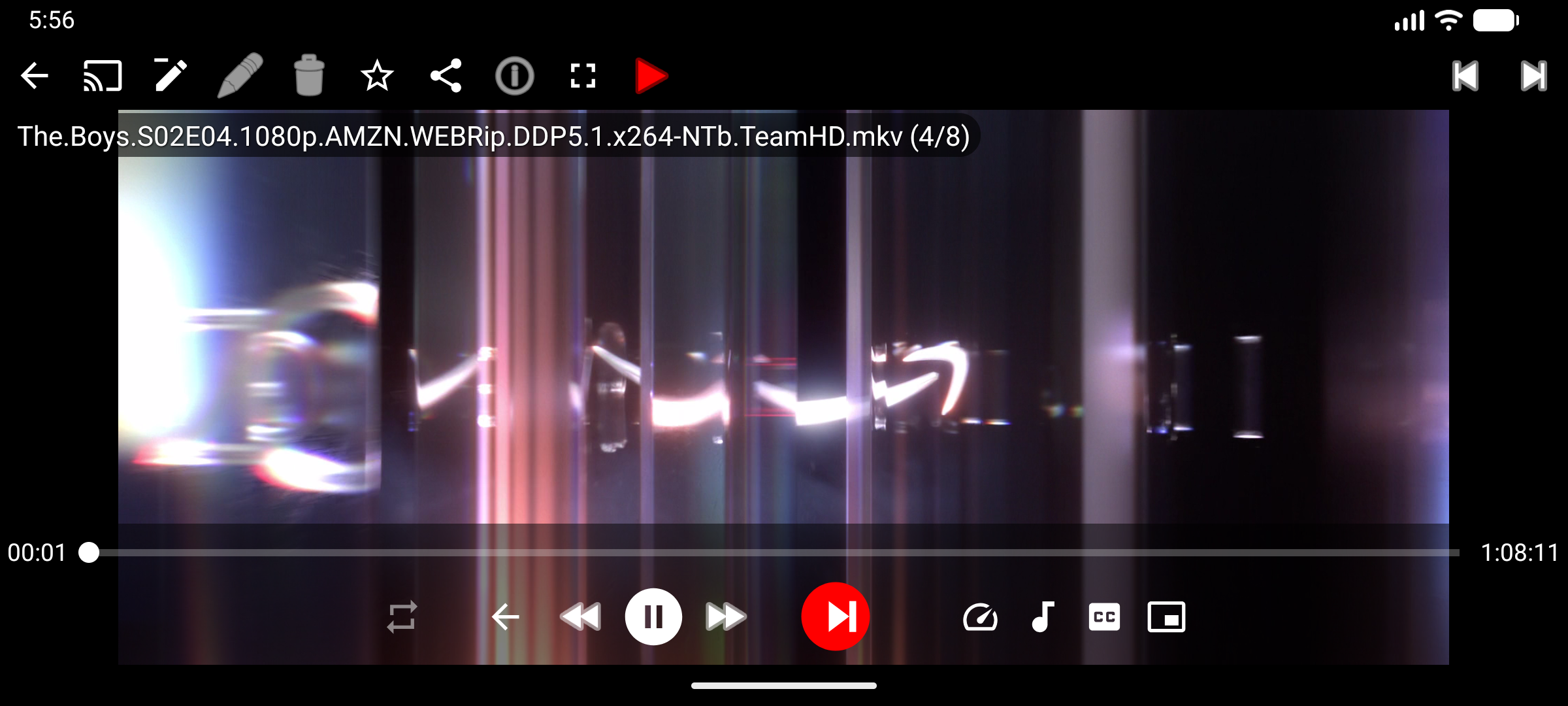
Step 6 - Controls While Watching
Touch gestures during playback:
- Swipe left → skip to next episode
- Swipe right → go back to previous episode
- Tap screen → show / hide controls
- Pinch → zoom in or out (useful for widescreen films on a portrait phone)
- Double-tap left / right edge → rewind / fast-forward 10 seconds
When “Auto-next” is enabled, the next episode starts automatically when the current one ends - just like Netflix.
Step 7 - For VR Headsets (Meta Quest, Pico)
This section is for people with a VR headset (like Meta Quest 2/3 or Pico 4). If you don’t have one, skip this step.
Android-based VR headsets can run FastMediaSorter. Install it via sideloading:
- Download the APK from the Downloads page
- On your headset, enable “Install from unknown sources” in Developer settings
- Install the APK using SideQuest or directly via ADB
Once installed, the video player works exactly the same:
- The video fills the virtual flat screen inside the headset
- Use the controller trigger to tap buttons
- Use thumbstick to swipe between episodes (if your headset maps media buttons)
- For regular 2D movies and series - works immediately, no extra setup
For VR cinema experience: you can use a dedicated VR cinema app as a launcher, and then choose “Open with FastMediaSorter” for file management. FastMediaSorter handles the file browsing; the VR cinema app handles immersive 360° display.
Done! What to Try Next
- Add a Google Drive or Dropbox resource for movies stored in the cloud - works the same way
- Use Favorites (tap the star button
 while watching) to bookmark your “currently watching” series - jump back to it any time
 - Subtitles: if your video folder has matching
.srtsubtitle files next to the video files, tap the CC / subtitle button in the player toolbar to enable them - Internet radio or live streams: if you also want to add internet radio stations or RTSP/HLS sources, see the Internet Radio & Streams guide - no NAS or PC required, just a network connection.
Troubleshooting
| Problem | What to try |
|---|---|
| Video stutters or buffers | Run a Speed Test: long-press the resource → Edit → Speed Test. If speed is below 5 Mbps, try switching your phone to the 5 GHz Wi-Fi band (faster, but shorter range) |
| Video won’t play (format error) | In the player, tap Options  → switch Decoder from Hardware to Software (slower but more compatible) → switch Decoder from Hardware to Software (slower but more compatible) |
| Episodes play in wrong order | Make sure Sort mode is set to Name (A→Z) in folder Edit settings |
| Auto-next doesn’t start | Make sure the slideshow is running and Settings → Player → Play video/audio in slideshow to end is on |
| VR headset can’t install the APK | Open the headset’s Developer settings and enable “Allow installs from unknown sources” |