All editions except Photos; background listening not in Lite
Playback Order, Sleep Timer and Listening in the Background
Decide in which order the tracks of a folder play, let the sleep timer stop the music gently, and keep listening while you use other apps - with controls in the notification, a Quick Settings tile and the Now Playing bar.
Why You'll Love This
Music rarely has your full attention. You listen while you cook, walk, read the news or fall asleep. This recipe covers everything that happens around the tracks: in which order they play, how to stop the music by itself after half an hour, and how to keep it going while you do something else.
There is no separate playlist to build. The queue is simply the audio files of the folder you opened, in the order the folder is sorted. To change what plays, open a different folder or sort this one differently.
- FastMediaSorter in the Standard, noLegal, Lite, Legacy, VR or FOSS edition. The Photos edition does not play audio.
- Listening in the background, the notification controls and the Quick Settings tile: Standard, noLegal, Legacy, VR and FOSS. In the Lite edition the music stops when you leave the player.
- A folder with a few tracks, opened in the audio player as described in Playing and organizing music files.
Choose the playback order
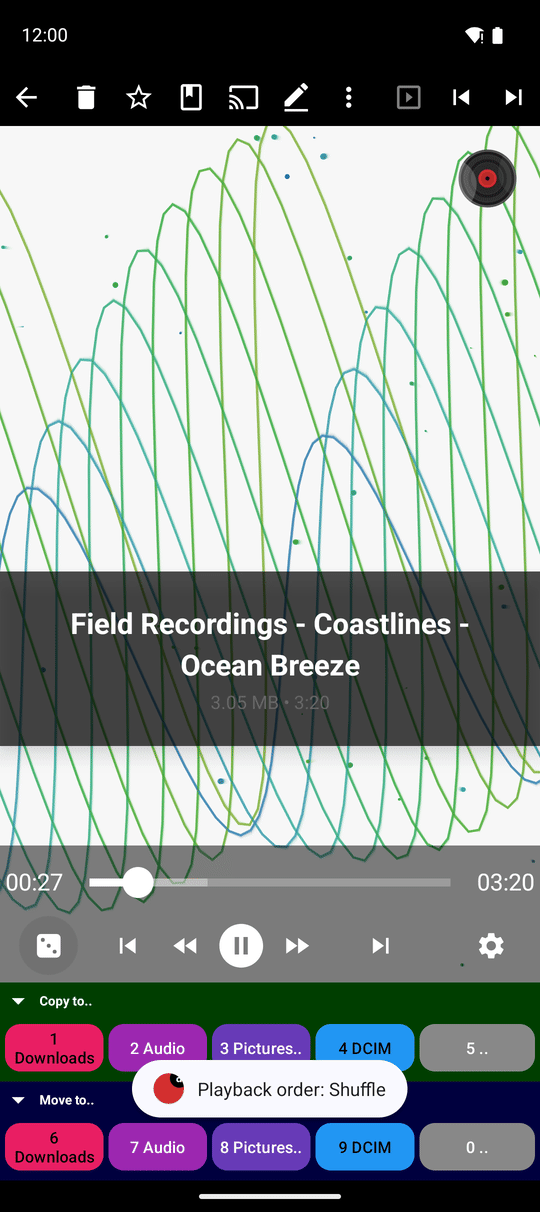
Tap the repeat button at the left of the playback buttons. Each tap switches to the next mode, and a short message confirms it, for example "Playback order: Shuffle":
- Loop list - plays the folder from top to bottom, then starts again.
- Play through - plays the folder once and stops at the end.
- Shuffle - plays the tracks of the folder in random order.
- Repeat one - plays the current track again and again.
After Repeat one the next tap brings you back to Loop list.
Fall asleep to music with the sleep timer
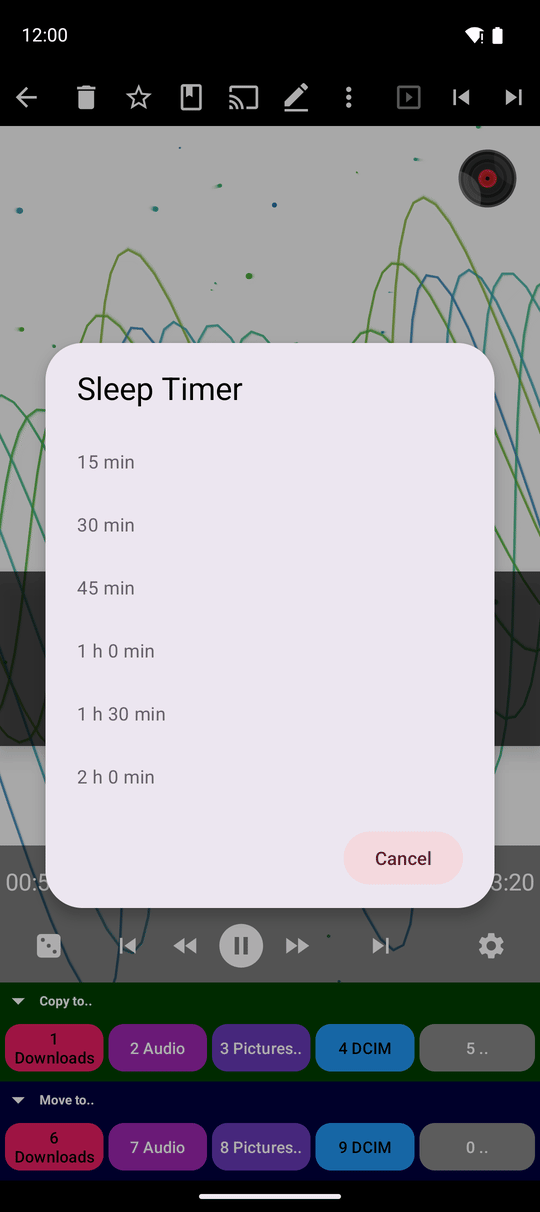
Open the three-dots menu and tap Sleep Timer. Choose 15, 30, 45, 60, 90 or 120 minutes. A small badge in the player shows how much time is left, for example "25m" or "1h 10m".
When the time runs out, the music does not stop abruptly: it fades out gently over ten seconds and then pauses. To cancel a running timer, open Sleep Timer again and choose Off.
Keep listening while you use other apps
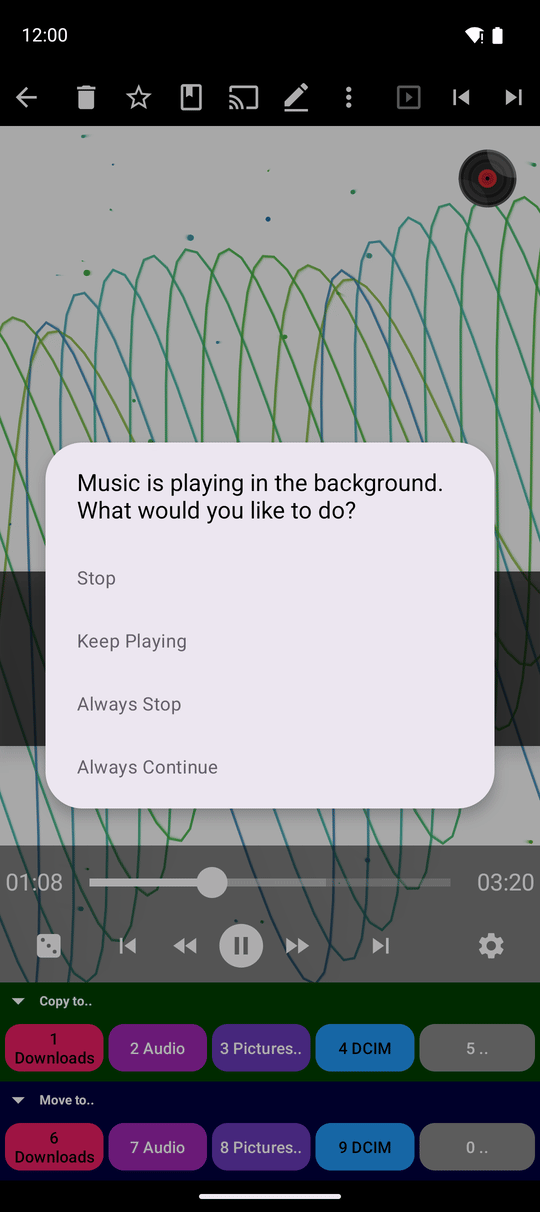
Leave the player with the Back button while a track plays. The first time, the app asks "Music is playing in the background. What would you like to do?" - tap Keep Playing to go on listening, or Stop. The same window offers Always Continue and Always Stop if you do not want to be asked again.
You can change that choice later in Settings, the Player tab: When leaving player or streams offers Ask every time (default), Always stop and Always keep playing.
Control the music from anywhere
While music plays in the background you have several remote controls:
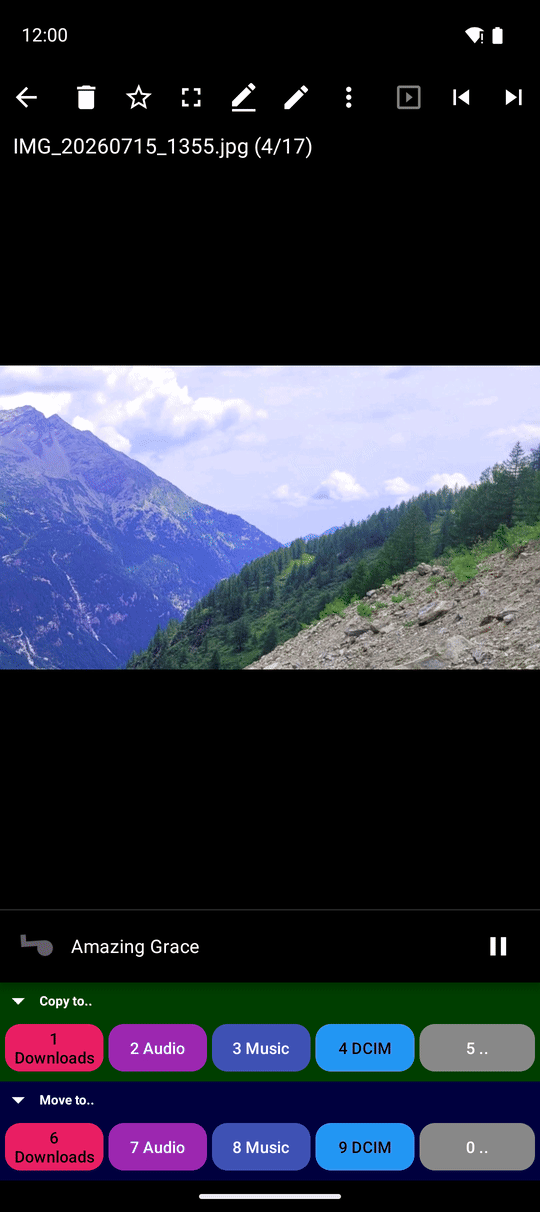
- The Now Playing bar - a small bar at the bottom of the other screens of the app, for example while you look at photos. It shows the track name and its cover; a slowly turning music note replaces the cover when there is none, and it stops turning when you pause. Tap the bar to open Now Playing with the full controls. The bar can be switched off with Show now-playing panel in Settings, the Player tab.
- The notification - pull down the Android notification shade to see the track and the play, pause and skip buttons. The same controls appear on the lock screen and work with Bluetooth headphones.
- The Quick Settings tile - add the FMS Audio tile to your Quick Settings panel (pull the shade down twice, tap the pencil and drag the tile in). One tap pauses or resumes; when nothing is playing it starts your music.
Calls and other apps
When a call comes in or another app starts playing sound, FastMediaSorter pauses the music at once. It does not start again by itself when the call ends - press play when you are ready. If another music app takes over for good, the player stops.
On a Wear OS watch
The watch app has its own audio player. The current volume is always shown as a bar along the left edge of the screen; it brightens while you turn the bezel to change the volume and dims afterwards. In the Actions menu, the playback mode entry switches between Sequential playback, Shuffle playback and Loop playback with each tap, without closing the menu. More in music on the watch.
Wear round screen, audio player playing, volume bar bright after a bezel turn.
What You Get
Your tracks play in the order you like, the music fades out by itself when you fall asleep, and you can leave the player, answer a call or use other apps while keeping the music under control from the notification, the Now Playing bar, the Quick Settings tile or your watch.
Tips and Troubleshooting
- Want a specific set of songs? Put them in one folder (or copy them there with Copy to..) and open that folder. Sort it by name to choose the order.
- Music stops when you leave the player? Check When leaving player or streams in Settings, Player. In the Lite edition background listening is not available.
- Music did not resume after a call? That is intentional - press play. It avoids music starting loudly at a bad moment.
- Playlists of online radio stations are a different thing - see custom M3U playlists.