Import by file - Standard, noLegal, Photos, Legacy, VR (not Lite, not FOSS). Import by QR scan and the in-app setup guide - the same list minus VR, since scanning needs a camera. Following the PC between networks, finding it on the local network by itself, and importing a folder as writable - Standard only.
Sharing PC Folders with Fast Media Sorter & Sharing for Windows
Fast Media Sorter & Sharing for Windows publishes PC folders so this app opens them with no server address to type - bring them in with a file or a QR scan, and the connection follows the phone off the home network and back.
Why You'll Love This
Family videos live on the PC under the TV, not on the phone, and setting up a shared folder by hand - server address, username, password, port - is exactly the kind of chore you'd rather skip. Fast Media Sorter & Sharing for Windows is a small program for that PC: point it at a folder, and this app opens that folder with nothing more to type in.
This page covers the companion side of things: bringing a shared folder in, keeping the connection working as you leave the house, and what the app tells you when it cannot reach the PC. Setting up a server folder by hand instead is Connecting SFTP and FTP servers; the reverse direction - sharing folders from this phone instead - is Turning the phone into an SFTP server.
- This app in any edition except Lite and FOSS - see the narrower notes on each step below.
- Fast Media Sorter & Sharing for Windows installed on the PC, with at least one folder already shared from it.
- Either the config file it saved, or its QR code and a phone with a camera.
- To reach the folder away from home: the PC's owner has already set up port forwarding on the router, or turned on the companion program's own internet access.
Meet Fast Media Sorter & Sharing for Windows
Fast Media Sorter & Sharing for Windows is a program for the PC, not for the phone: its whole job is picking a folder or two and publishing them so this app can open them, no NAS and no typing a server address by hand. The first-time welcome wizard's Network sources page already mentions it, with a short note - "Media on a Windows PC? Fast Media Sorter & Sharing for Windows shares those folders here in a couple of clicks - no server setup needed." - next to a Get the Windows app button that opens its site.
Whatever it shares arrives here as an ordinary SFTP resource, read-only or writable, sitting on the main screen next to everything else - there is no separate "companion folder" type to learn.
Bring in a shared config with one tap
On the main screen tap Add to open Add Resource. Two buttons sit above the four resource-type cards, and the same pair repeats inside the SFTP / FTP card's own header: Import from file and Import by barcode.
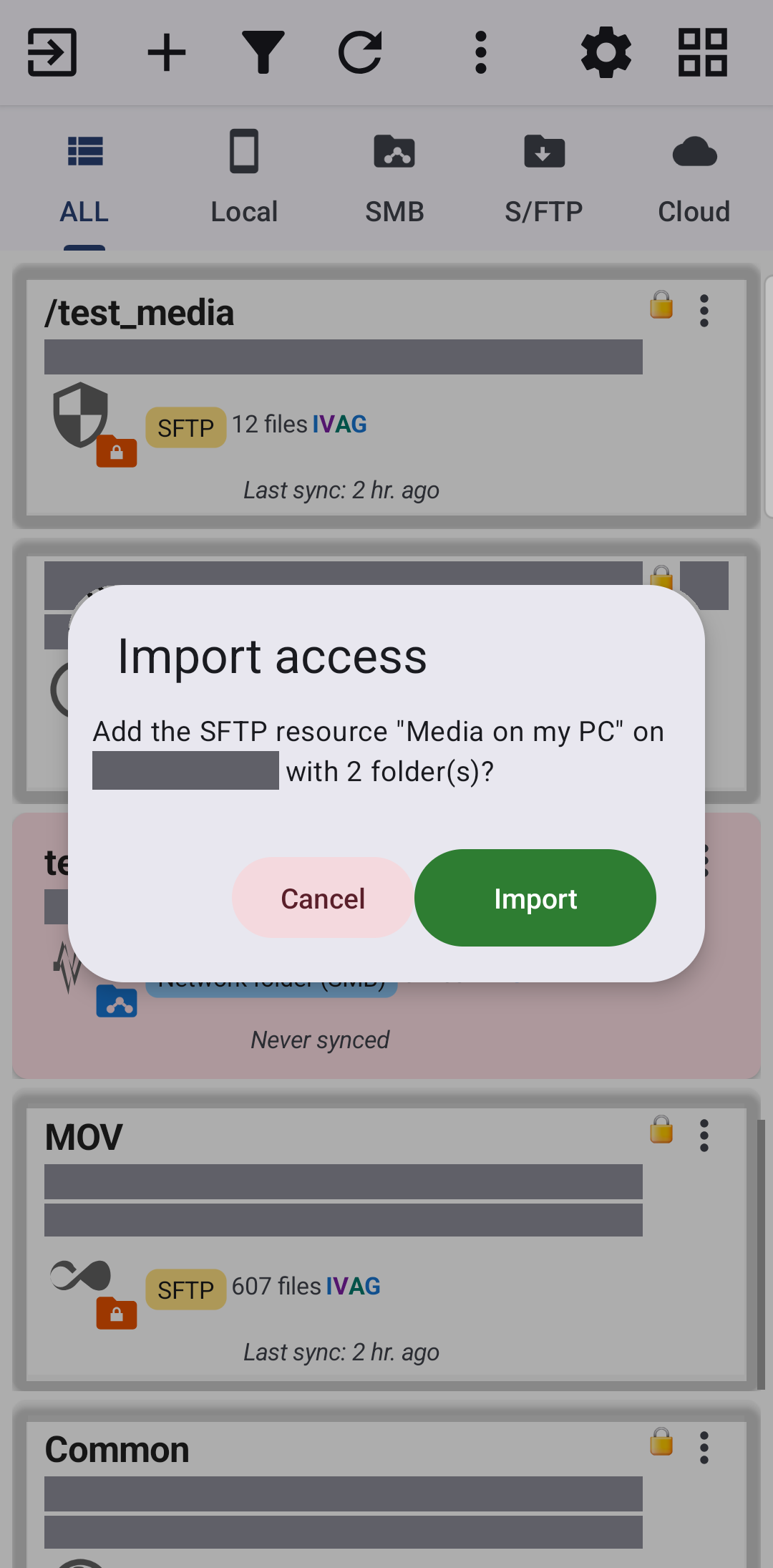
Tap Import from file and pick the config the companion program saved on the PC (send it to the phone however suits you - a cable, a chat message, a cloud folder). The Import access dialog asks to confirm, for example "Add the SFTP resource "Living Room PC" on 192.168.1.20 with 2 folder(s)?", and if the config carries no password it asks for one first ("Password for this server"). The first time a given PC is imported, and it has not been verified yet, the dialog also warns "This server has not been verified - connect only if you trust the sender." - connect only if you recognize where the file came from.
Tap Import and a message confirms what changed: "Added: Family Photos" for one new folder, "Added 2 resources" for several at once, or "Resources already up to date" when you import the same file again and nothing was different.
Scan the pairing QR code instead
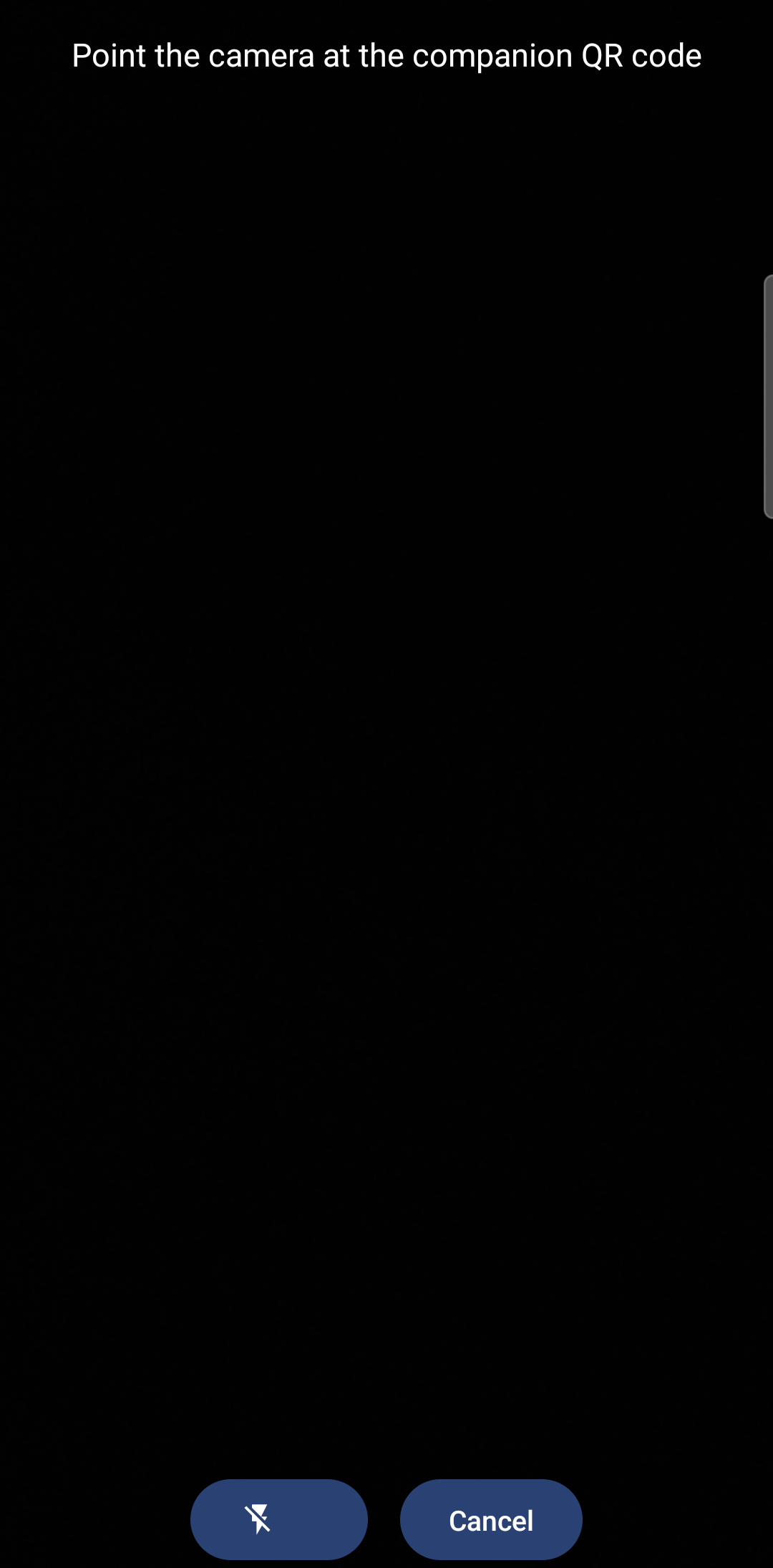
No file at hand? Tap Import by barcode in the same places as Import from file. The camera opens with the hint "Point the camera at the companion QR code" and a Flash button for a dim room; point it at the QR code the companion program shows on the PC screen. The result is the same Import access dialog as the file, since both roads end at the same import.
Scanning needs the camera, so the app only asks for it here: "Scanning a companion QR code needs the camera." This button is hidden on devices with no camera and on the VR edition - a headset has none CameraX can use - and on those, Import from file is the only route in.
Read the PC-side setup guide, right from the phone
Nothing shared yet, or not sure the PC side is set up right? Tap How to publish PC folders to Android - it sits right in the SFTP / FTP form's header on Add Resource, and again in Settings, so it is just as reachable when there is nothing to import yet. Both open the companion program's own setup guide in your browser.
This link shows up on the Standard, noLegal, Photos and Legacy editions. Where it is missing, the two import buttons above still work once the PC side is set up.
Why the folder keeps opening, wherever you are
A companion folder remembers more than one way to reach the PC - the address on your home Wi-Fi, and, once the PC's owner set up port forwarding or the companion program's own internet access, an address that works from anywhere. The app always tries the nearby one first and only reaches further when it has to, so the same folder keeps opening as the phone moves between home Wi-Fi and mobile data - no re-adding it, no rescanning a code.
*Standard edition.* The phone also listens for the companion program announcing itself on the local network. If the PC changed address, or the QR code you scanned was out of date, the app still finds it - matched by the same host key it already trusts, not by an address that may have moved.
When you can add and delete too, not just look
*Standard edition.* A folder can be shared from the companion program as writable. When it is, this app can upload into it, rename things, delete them and move files into it, exactly like any other network resource. A folder shared without that flag, or shared by an older version of the companion program, stays view-only, as before.
If the shared folder cannot be reached
When a companion or network SFTP folder cannot be reached, the message you see reflects the connection right now, not a note written down back when the folder was first shared - available on every edition that can hold a network or SFTP resource (all except Lite).
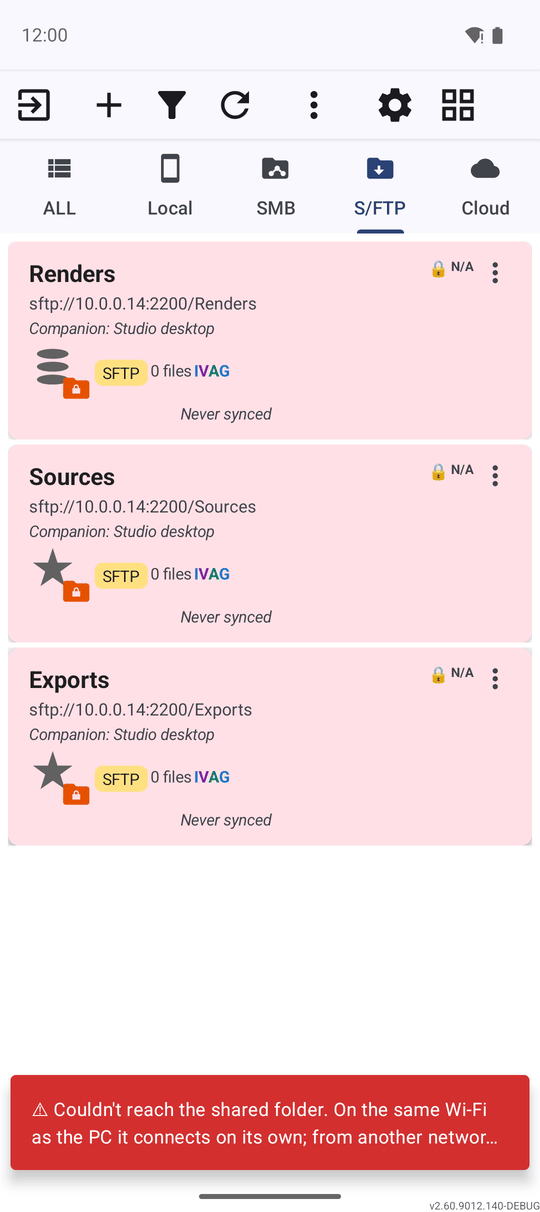
*Standard edition.* The message spells out what to try: "Couldn't reach the shared folder. On the same Wi-Fi as the PC it connects on its own; from another network the PC must allow access - set up port forwarding on the router or the internet access in the companion app."
What You Get
PC folders sit on the main screen next to everything else, added by picking a file or scanning a code instead of typing a server address, and they keep opening whether you are on the home Wi-Fi or out with mobile data. When one cannot be reached, the app says why instead of just timing out.
Tips and Troubleshooting
- Setting a server up by hand instead? Connecting SFTP and FTP servers covers entering a host, username and SSH key yourself.
- Want to share from the phone instead? Turning the phone into an SFTP server covers the other direction - this phone as the one being connected to.
- A companion folder is still a network resource underneath. The overview in Adding network folders and cloud storage as sources covers the caches and thumbnails that keep any network place quick.
- Sharing a PC's folders with your phone? The media exchange portal says what the Windows program does for exchange and how a phone pairs with it.