All editions (details per step)
Sharing and Backing Up Your Resources
Pack your resources into a file for another phone, import them back, bring in a ready configuration from the Windows companion, keep a full backup in Google Drive, and know what happens if the app's database ever has to be reset.
Why You'll Love This
You spent an evening adding the shared folders of the home computer, the NAS and the cloud, with all their passwords. Now your partner wants the same list on their phone, or you are getting a new phone yourself. Typing everything again is the last thing you want.
FastMediaSorter can pack your resources into a file, read them back on another phone, and keep a full backup of resources, Favorites and settings in your Google Drive.
- Exporting and importing resources to a file, and the Google Drive backup: the Standard, noLegal, Photos, Legacy and VR editions.
- Importing a ready configuration from the Windows companion: the Standard edition.
- For the Google Drive backup: a Google account connected in the app.
Find the backup card in Settings
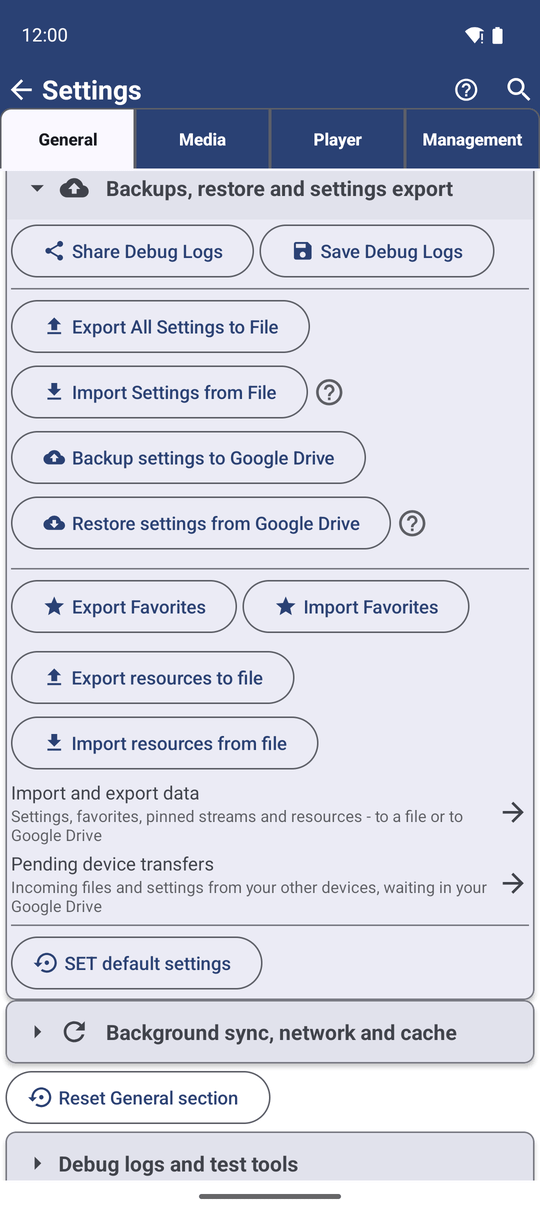
Open Settings, the General tab, and expand the card Backups, restore and settings export. Everything on this page, except the Windows companion import, starts here.
Anyone who gets the file can open your shared folders and servers. Send it directly to the person who needs it, and delete it afterwards.
Give your resources to another phone
Tap Export resources to file, choose which resources to include, then choose where to save the file.
Before saving, the app warns: "This file will contain access passwords in plain text. Share it only with people you trust." The file carries each resource with its address, user name, password and PIN, so the other phone can open the places straight away.
When it is done you see how many resources were exported and how many were skipped. An SFTP resource that signs in with an SSH key stored inside the app is always skipped, because such a key cannot move to another device.
Bring resources in from a file
On the other phone open the same card and tap Import resources from file, then pick the file. The app first shows what will happen, for example "3 new resource(s) will be added and 1 existing will be overwritten." Tap Import to go ahead.
At the end you see "Created 3, updated 1, skipped 0." A file that was not made by this function is refused with "This file is not a valid resources file." - nothing changes in that case.
Import a ready configuration from the Windows companion
*Standard edition only.*
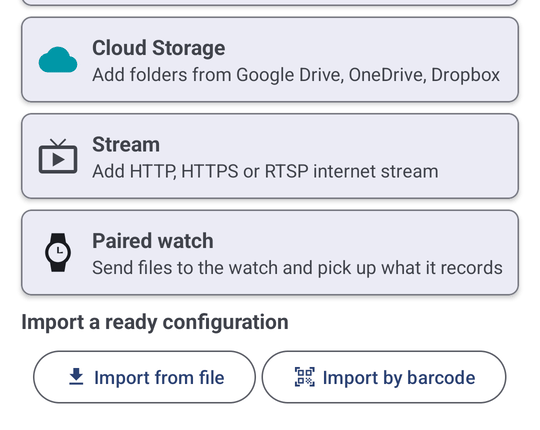
The FastMediaSorter Windows companion can prepare a complete resource on your computer - the shared folder, the account, the kinds of files, even a PIN - and hand it to the phone as a small .fmscfg file or as a barcode on the screen.
On the phone tap Add on the main screen. Under Import a ready configuration tap Import from file and pick the .fmscfg file, or tap Import by barcode and point the camera at the barcode on the computer screen. The resource arrives fully set up. Files from older versions of the companion still import; a file from a newer version than the app understands is refused, and nothing changes.
Keep a full backup in Google Drive
Tap Backup settings to Google Drive. The app saves all settings, every resource with its network passwords and saved site sign-ins, your Favorites, your scheduled operations and your launcher desktop into your Google Drive, and reports, for example, "Backed up 12 resources, 40 favorites and all settings to you@gmail.com". The card shows the date of the last backup and the account.
To bring it back, tap Restore settings from Google Drive. The app shows where the backup came from and what will happen:
- Settings are replaced.
- Resources and Favorites are added to the ones you already have; exact duplicates are skipped.
Confirm, and you see how many resources and Favorites were added and how many were already there.
Move just one kind of data
Sometimes you want only the Favorites, or only the settings. Tap Import and export data - "Settings, favorites, pinned streams and resources - to a file or to Google Drive". In the window that opens choose:
- What: Settings, Favorites, Pinned streams or Resources.
- Which way: Export or Import.
- Where: Device file ("Pick a file on this device") or Google Drive ("Use the file in the connected Google Drive account").
A file that holds another kind of data, or comes from a newer version of the app, is refused with a clear message, and nothing is changed.
If the app ever has to reset its database
*In the Standard, Lite, Photos and Legacy editions.*
Very rarely - for example after a failed update - the app cannot open the small database where it keeps your resources and Favorites. Instead of stopping or quietly starting empty, it saves a copy of the old database, starts with a fresh one and tells you so in a Database reset window: what happened, the reason, and the folder where the copy of the previous database was saved.
Your media files are not touched by this. Restore your resources and Favorites from the Google Drive backup or from an exported file, and keep the saved copy - it can help if you ask for support.
What You Get
Your list of places travels to another phone in one file, or comes back from Google Drive after a reset, with passwords and PINs in place. You spend the evening looking at photos instead of typing server addresses.
Tips and Troubleshooting
- Back up before a big change. A backup takes a few seconds; do one before you reset the phone or move to a new one.
- Cloud sign-ins move by themselves with Android's phone-to-phone transfer - see Adding network folders and cloud storage.
- All settings in one place: the full list of backup and export options is described in Backing up and restoring settings.