All editions except Lite; needs Android 8.0 or newer.
Turning the Phone into an SFTP Server
Share folders straight from this phone over SFTP - pick them with the folder picker, sign in with a password or an SSH key, and pair another FastMediaSorter in one scan instead of typing an address.
Why You'll Love This
Usually this app reaches out to a folder somewhere else - a PC, a NAS, a cloud account. Sometimes it is the other way around: the photos worth sharing are on the phone, and it is another device that should reach in and get them. Turn on the phone's own SFTP server, pick the folders to share, and any device that speaks SFTP - including another phone running this app - can open them.
- This app in any edition except Lite, on Android 8.0 (Oreo) or newer.
- The folders you want to share, picked through the system's own folder picker.
- Either a password (the app can generate one) or the public half of an SSH key from whoever will connect.
- For pairing another FastMediaSorter with a scan: a camera on the connecting device.
Turn the server on
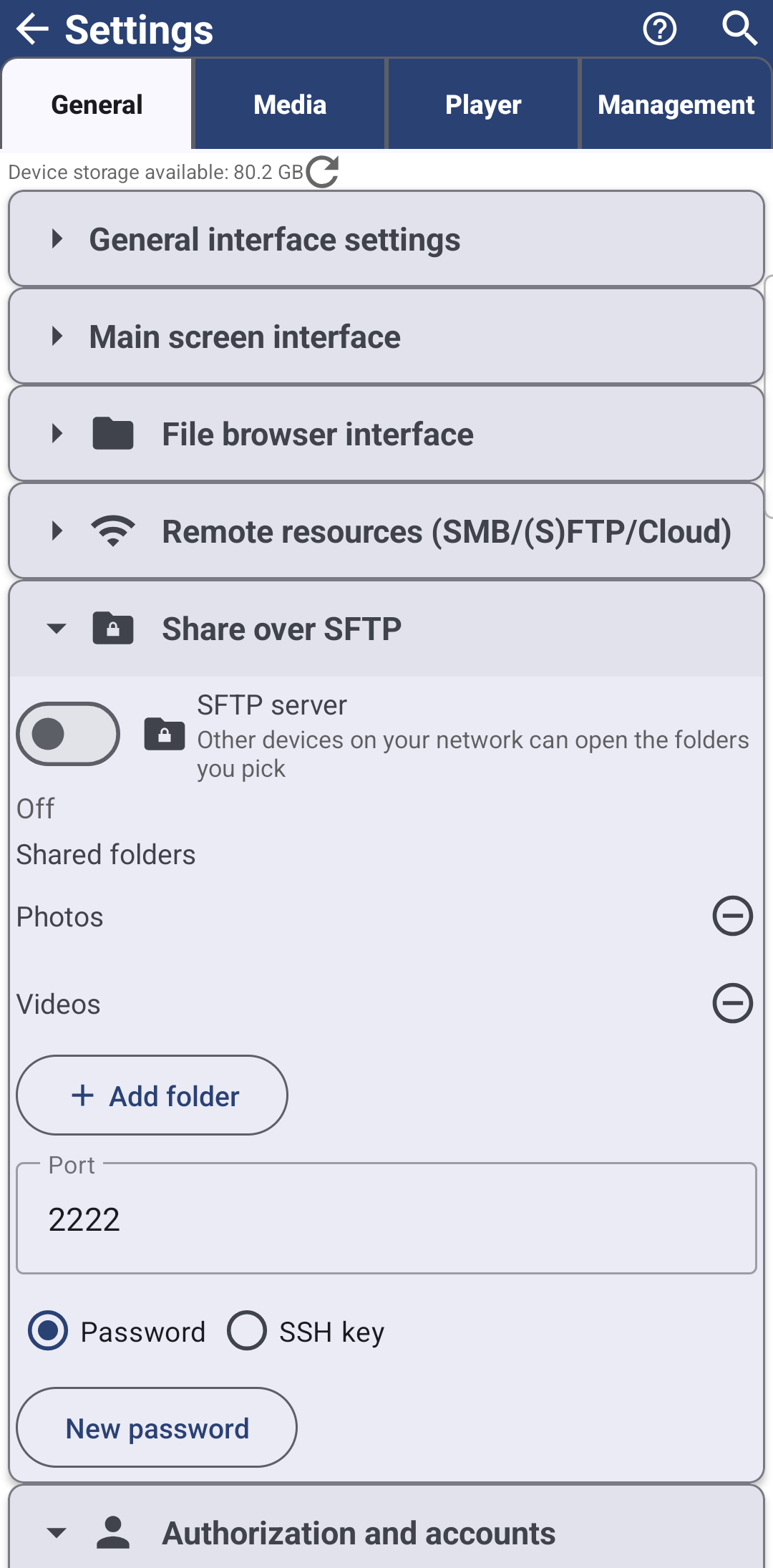
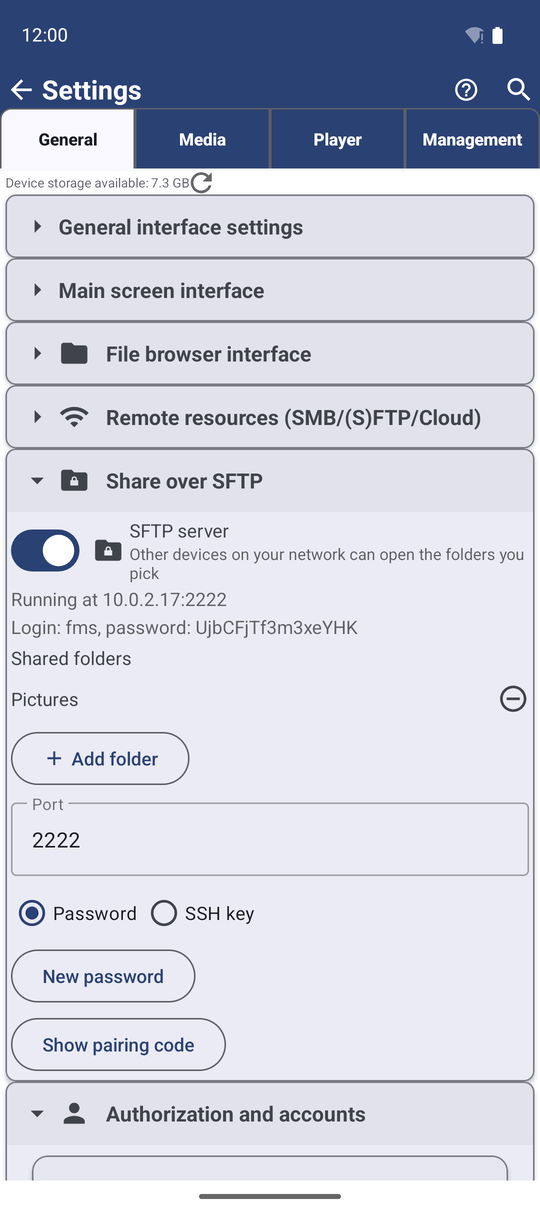
Open Settings, the General tab, and find the Share over SFTP card. Switch on SFTP server - "Other devices on your network can open the folders you pick" - and the status line below moves from Off to Starting.. and then to Running at 192.168.1.42:2222, its address and port. Turning it on with nothing shared yet, or with no way to sign in configured, is caught before it starts: "Add at least one folder to share, then turn the server on" or "Add a public key or switch to password login, then turn the server on."
A phone with no Wi-Fi connection can still switch the server on, but it says so plainly: "Running, but the phone is not on Wi-Fi - other devices cannot reach it yet." A foreground notification, "SFTP server is on", stays up the whole time with the address to connect to and a one-tap Stop button.
Choose which folders to share
Under Shared folders, tap Add folder to open the system's own folder picker and choose a folder on the phone or its memory card. Until you add one, the section simply reads "No folders yet - add one to share it." Each folder you add gets its own row with a remove button next to it, and the grant survives a restart, so the same folders are still shared after the phone reboots.
A folder you add while the server is already running joins it immediately - no need to turn the server off and on again for a new folder.
Decide how people sign in
Right below the folder list, choose Password or SSH key. With Password, the app already generated one; tap New password any time to replace it. With SSH key, paste the public keys of whoever should connect into Public keys, one per line - the phone never needs their private key, only what proves it.
While the server is running, the current sign-in details are shown right there: "Login: fms, password: 7f3kQ2mN" or "Login: fms, sign in with your SSH key" - so you can read them off to whoever is connecting without hunting for them elsewhere. The login name itself is fixed; only the password or the accepted keys change.
Change a setting without losing the connection
The Port field defaults to a free one and can be changed - a port already used by another app is refused, for example "Port 2222 is taken by another app - choose another port", and a value outside the allowed range with "Use a port from 1024 to 65535." Changing the port, the sign-in mode or the keys while the server is already running does not restart it on its own: "Turn the server off and on again to apply the change" - so a client already connected is not dropped by a setting you are still adjusting.
Pair another FastMediaSorter with a scan
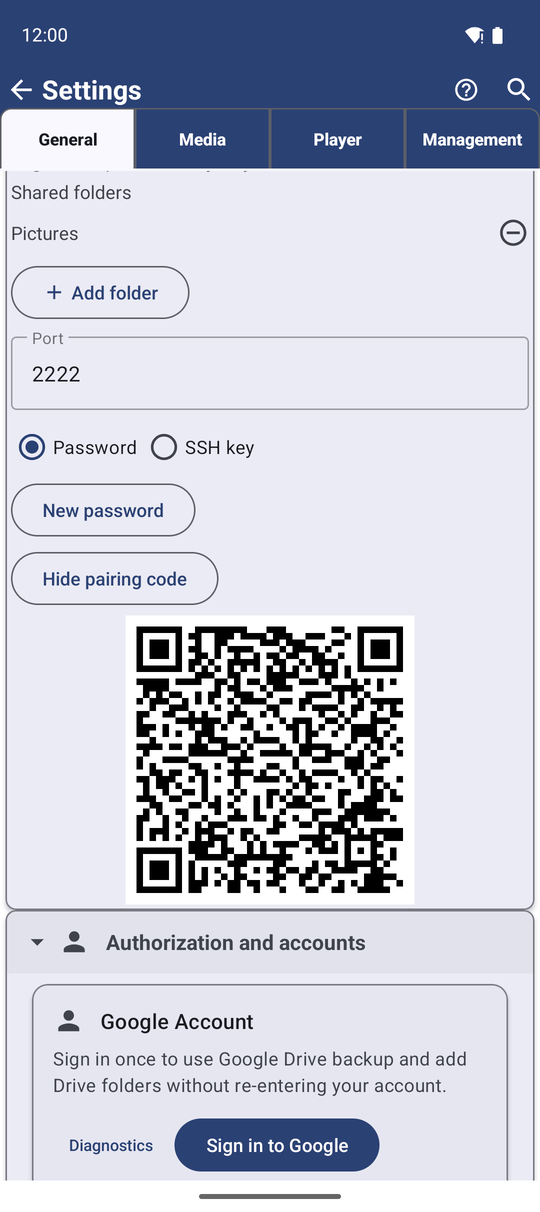
While the server is running, tap Show pairing code to reveal a QR code - "Pairing code: scan it in FastMediaSorter on another device" - and Hide pairing code to put it away again. The code is rebuilt fresh every time you show it, so it always carries the server's current address and password.
On the other device, open Add Resource, the SFTP / FTP card, and tap Import by barcode - the same scanner that reads a Windows companion code also recognizes this one. A message confirms the form was filled in: "Connection details filled in from the pairing code - check them and save," with the host, port, username, password or key and the server's host key already in place, suggested as "Device server 192.168.1.42." Review it and save - the host key is pinned from that first scan, so a later attempt from a different machine using the same address is refused rather than silently accepted. A damaged or incomplete code is called out too: "This code is not a complete FastMediaSorter pairing code - show it again on the server phone and rescan."
Reach the phone from another network
In the same card, the Access from anywhere section can register the phone's server on an exchange server, so devices on any network reach it without a VPN or port forwarding. Switch on Exchange server - "Reach this server from any network through your exchange server" - fill in the Exchange server address, the Exchange server port and the Exchange server password (at least 10 characters with upper- and lower-case Latin letters and digits), and tap Save server. The status line moves from "Only reachable on the local network" to "Reachable from anywhere through" and the server's name once the exchange server accepts the phone. The section is off by default.
A pairing code shown afterwards carries the exchange server too: a phone that scans it falls back to the relayed connection when no direct address answers, still checking the same host key. New access link makes every code shared earlier stop opening this server. No public exchange server is running yet; what works today instead is on the media exchange portal.
Signed in to Google Drive on both devices? Switch on Share access through Google Drive in the same card - it is off by default. While the server runs, the phone then keeps its current address and sign-in details in the app's private space of your Drive, so another device on the same Google account opens the paired share at its new address after a network change, without scanning the code again - as long as it can reach the phone at all.
What You Get
The phone shares exactly the folders you picked, with everyone else needing either a password or an accepted SSH key to get in, and pairing another FastMediaSorter takes one scan instead of typing an address by hand. A tap on Stop, in the app or the notification, ends it.
Tips and Troubleshooting
- Bringing in a PC's folders instead? Sharing PC folders with Fast Media Sorter & Sharing for Windows covers the same pairing idea from the other side.
- Setting up a server by typing its address yourself? Connecting SFTP and FTP servers covers that manual route, on either end of the connection.
- New to SSH keys? The OpenSSH project's own documentation explains how a key pair works if the wording here is unfamiliar.
- Want to reach your own storage from outside your home? The media exchange portal walks through the home network way step by step and says what works today.