All editions - the set of widgets differs, see step 2
FastMediaSorter Widgets for Your Home Screen - Camera, Photo Frame, Music, Recorder and More
FastMediaSorter offers a set of widgets for the Android home screen: one-tap buttons for the camera, the recorder, random music and your folders, and larger windows for a photo frame, the player and your scheduled jobs. This page shows what each one does, in which editions it is available, and how to add and set it up.
Why You'll Love This
Some things you do many times a day: snap a receipt into the right folder, play something random while cooking, see a new family photo, pick up the book where you stopped. A widget puts that one action on your home screen, one tap away, without opening the app first.
The widgets work with any home screen - the one that came with your phone, or the FastMediaSorter launcher.
- FastMediaSorter in any edition. Which widgets each edition has is listed in step 2 - see also The seven editions of FastMediaSorter.
- A home screen with a free spot.
- For the photo frame, the music and the folder widgets: at least one resource added in the app - see Adding folders from your phone, memory card and USB drive.
Add a widget to the home screen
There are two ways:
- From the app. Open Settings, the Management tab, and tap Add widget to the Android home screen... Pick a widget in Choose a widget, and confirm when Android asks where to put it.
- From the home screen. Touch and hold an empty spot on your home screen, tap Widgets, scroll to FastMediaSorter and drag the widget you want to its place. The exact words differ a little between phone makers - see Add apps, shortcuts and widgets to your home screens.
If the widget is already there, the app tells you: Widget already added to home screen.
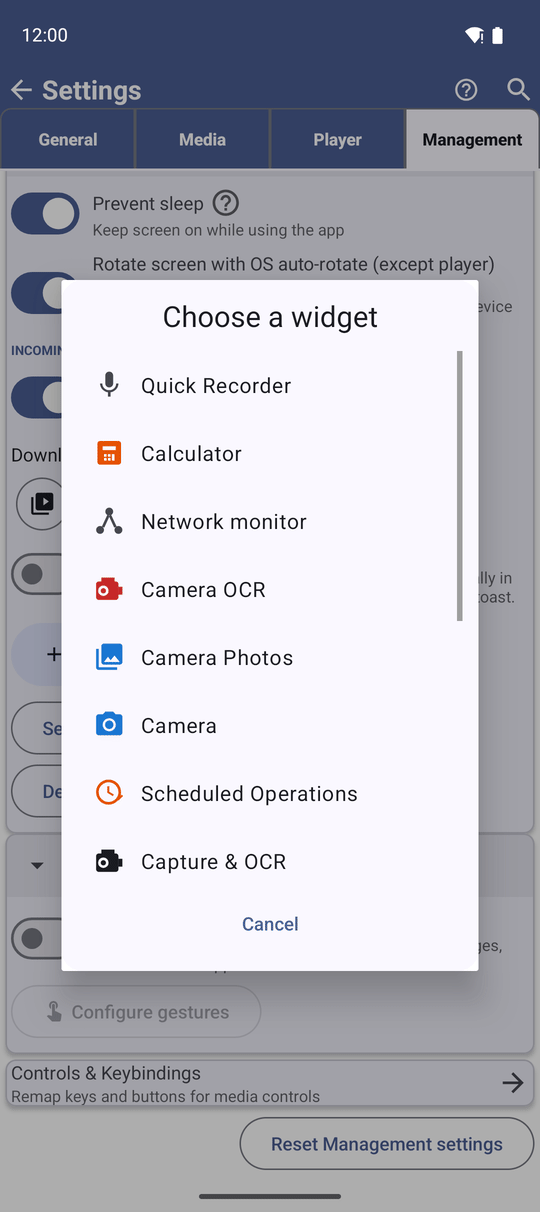
Pick the widget for the job
One-tap widgets - a small square with an icon and its name written under it, like an app shortcut, so you always know which is which:
- Camera - opens the app's camera to take a photo or record a video; the pictures go to the usual photo folders of the device. All editions.
- Quick capture - takes a photo or records a video straight into a folder or resource you choose when you add it. It is hidden while capturing is switched off in the app. All editions.
- Camera Photos - opens your camera photos in the app. All editions.
- Camera OCR - points the camera at text, reads it and translates it - see Extracting text with offline OCR. Standard, noLegal, Legacy and VR editions.
- Quick Recorder - one tap starts a voice recording, a second tap stops and saves it. Standard, noLegal, Legacy and VR editions.
- Random Music - plays a random track from the resource you chose. Every edition except Photos.
- Resource Launch - opens one resource folder you chose. You can also add it from the resource itself: open the resource's three-dots menu on the main screen, or the resource editor. All editions.
- Calculator - opens the app's calculator. All editions.
Larger widgets - you can stretch these on the home screen:
- Random Photo Frame - shows a random photo from the resource you chose and changes it from time to time; stretch it in every direction. All editions.
- Continue Reading - picks up the slideshow where you last left it. All editions.
- Audio Now Playing - the track playing in the background, with play and pause, previous, next and a button to add it to favorites. Every edition except Lite and Photos.
- Capture & OCR - one panel with both Camera Photos and Camera OCR. Standard, noLegal, Legacy and VR editions.
- Favorites - a scrolling list of your favorite folders. Shown while favorites are switched on in the app. All editions.
- Scheduled Operations - the state of your scheduled operations with Run All, Pause All and Resume All. Shown while scheduling is switched on - see Running file jobs on a schedule. All editions.
Stock Android home screen with six FastMediaSorter widgets, portrait.
Set up a widget that needs a choice
Random Photo Frame, Random Music, Resource Launch and Quick capture need to know where to look or where to save. A setup screen opens as soon as you place one: pick the resource or folder and confirm. Until it is set up, the widget says Tap to configure.
Each copy of a widget keeps its own choice - put two photo frames next to each other and let one show the holidays and the other the garden.
Use it
Tap a one-tap widget to do its job. On Quick Recorder, tap once to start and once more to stop and save. On Audio Now Playing, use the buttons as on a small player - see Playing and organizing music. On Scheduled Operations, the buttons act on all jobs at once.
What You Get
The actions you use most sit on your home screen - a photo into the right folder, a random song, a new family picture, the book where you stopped - each one tap away.
Tips and Troubleshooting
- Using the FastMediaSorter launcher? The same widgets can sit on its desktop too - see Placing, resizing and styling gadgets and widgets. There they keep settings of their own, separate from the copy on another home screen.
- Looking for a widget that is not here? The stream, stopwatch, flashlight, tourist, game and broadcast widgets are described with the features they belong to - for example Shortcuts, the stream widget and the streams panel, Built-in programs, The calculator and the stopwatch and The mini-game.
- A widget vanished from the list? Favorites, Scheduled Operations and Quick capture are offered only while their feature is switched on in the app.
- The Voice recorder widget is gone. Earlier versions had a separate voice recorder widget; Quick Recorder does the same job with one tap to start and one to stop.