Reading EPUB Books and Office Documents
Read EPUB books with the font, size, colors and margins you like, jump between chapters, search a whole book, listen to it or translate it - and open Word, Excel and PowerPoint files with one tap, in the way your edition offers.
Why You'll Love This
E-books from a library or a bookshop often come as EPUB files, and letters, reports and presentations as Word, Excel or PowerPoint files. FastMediaSorter keeps them next to your photos and music: tap a book and it opens in the built-in reader, set up the way you like to read - large letters, a dark page at night, wide or narrow margins.
For Office files the app picks the best way your edition offers: it either shows the document itself or passes it to an office app you already have.
- FastMediaSorter in an edition with the reader: Standard, noLegal, Legacy, VR or FOSS. The Lite and Photos editions do not open documents.
- An EPUB book without copy protection. Books locked by a shop's copy protection (DRM) open only in that shop's app.
- Support EPUB e-books and Support Office documents switched on in Settings, the Media tab, Documents.
- For Office files in Standard, Legacy and VR: an office app installed on the phone.
- For translation: an edition with translation (all of the above except FOSS) and Enable Translation switched on in Settings.
Open a book
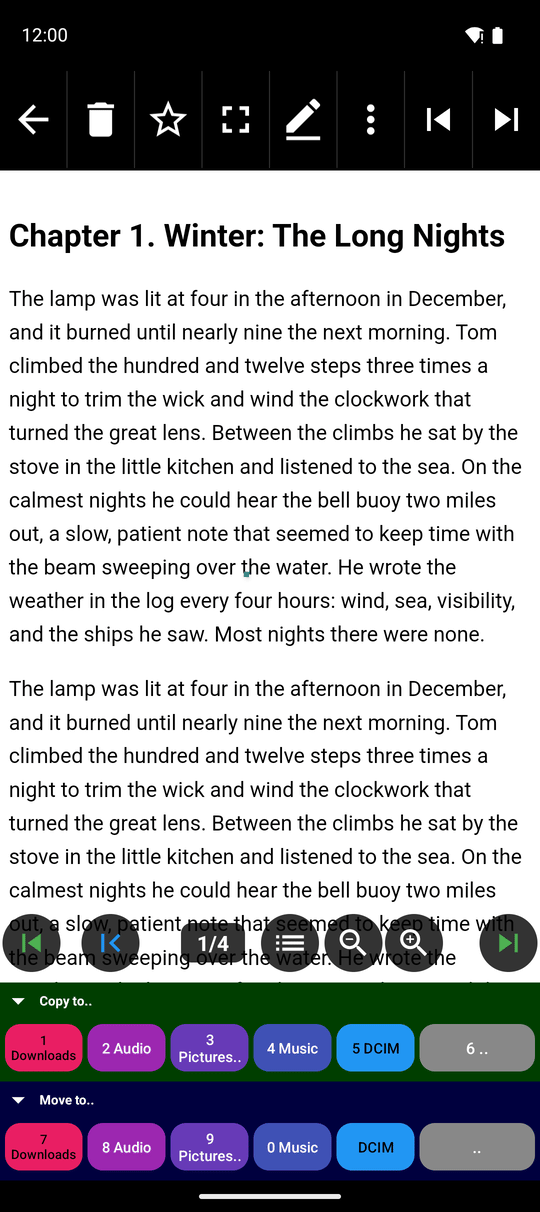
In the file browser tap the EPUB file. EPUB books show their cover in the file browser, so a shelf of books is easy to recognize. The book opens in the reader at the chapter where you stopped last time.
Books from a network folder or cloud storage are downloaded first and then open the same way. To collect all your books, PDFs and notes in one list, add the All Documents resource on the main screen.
If a book is protected, you will see "This file is protected and cannot be opened inside the app." - open it in the app of the shop you bought it from.
A picture missing from the book, or one that cannot be read, shows as a picture sign with the book's own description of it instead of a broken box.
Make the page comfortable to read
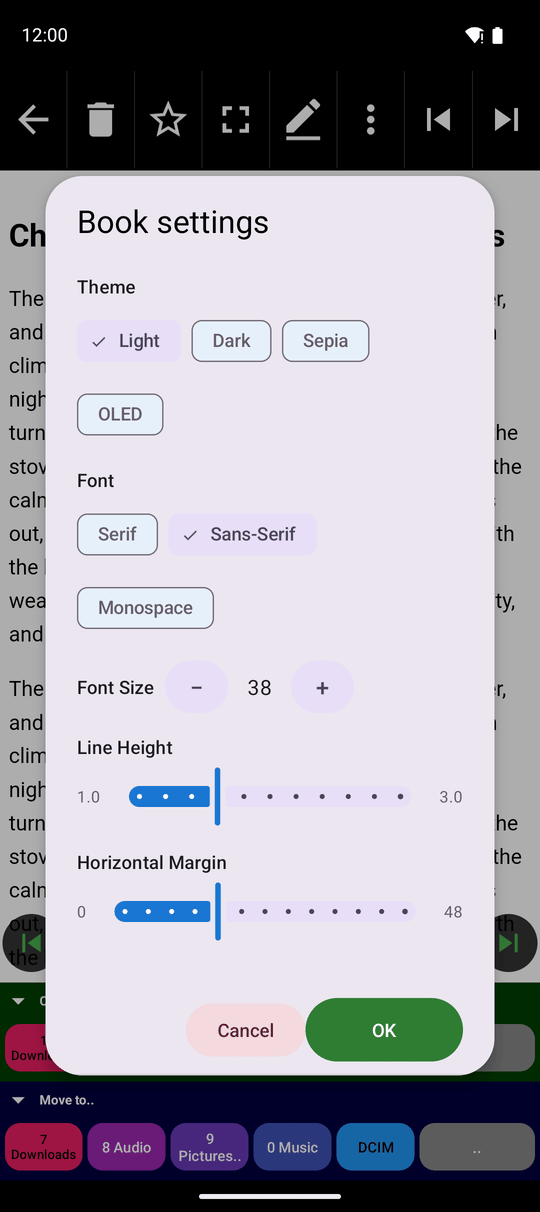
Open the three-dots menu and tap Reader Settings. The window has everything that changes how the text looks:
- Theme - Light, Dark, Sepia (warm paper tone) or OLED (pure black, which saves battery on phones with an OLED screen).
- Font - Serif (letters with small feet, like a printed book), Sans-Serif (plain letters) or Monospace (every letter the same width).
- Font Size - tap - and + to make the letters smaller or larger, in small steps, from tiny to very large.
- Line Height - move the slider to put more or less space between lines, from tight (1.0) to very airy (3.0).
- Horizontal Margin - move the slider to widen or narrow the empty border at the left and right of the text.
You see the change on the page at once. The reader keeps your settings for every book.
Move between chapters
Scroll down to read a chapter. At its end tap Next chapter at the bottom of the screen, or swipe to the side; Previous chapter takes you back. A book with only one chapter shows no chapter buttons.
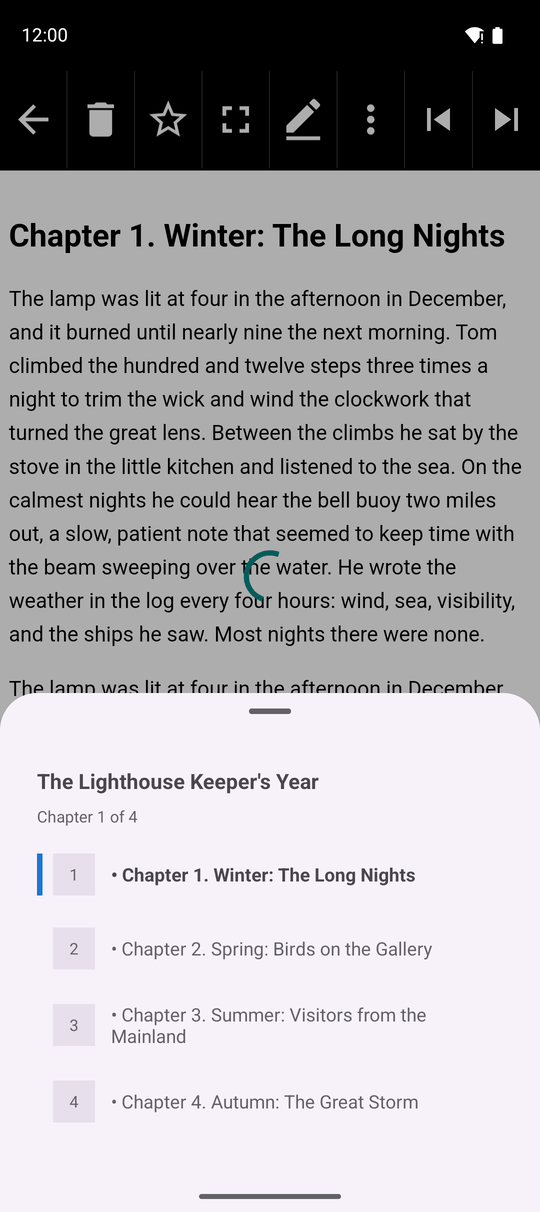
To jump further, open the three-dots menu and tap Table of Contents. A list of all chapters slides up - tap one to open it. If the book has no table of contents of its own, the list shows its chapters in order.
When you come back to the book later, it opens on the chapter you were reading.
Search the chapter or the whole book
- In this chapter - tap Search on the bar and type a word. The matches on the page are highlighted and you can step from one to the next.
- In the whole book - open the three-dots menu and tap Search All Chapters. Type a word; after "Searching.." you see how many results were found and in how many chapters, each with a short piece of the text around it. Tap a result to open that chapter with the word highlighted.
A search in the whole book lists up to 500 results - for a very common word, add a second word to narrow it down.
Select text, listen to a chapter, or translate it
Touch and hold a word to select it and drag the handles to select more. The selection menu lets you Copy the text, Read Aloud just that piece, Translate it, or open it in the calculator to work out a sum written in the text.
To listen to the whole chapter, open the three-dots menu and tap Read Aloud; your phone's own speech voice reads the chapter. Tap Read Aloud again to stop.
To read a chapter in your language, tap Translate in the three-dots menu. The translation appears in a panel over the text and is made on the phone itself, without the internet. The panel has its own text size, separate from the book's. See translating text on screen for languages and options.
Open a Word, Excel or PowerPoint file
Office files show a DOC badge in the file browser instead of a preview. What happens when you tap one depends on your edition:
- Standard, Legacy and VR - Word and text-document files (
.doc,.docx,.rtf,.odt) are recognized as documents. Tap one and FastMediaSorter passes it to an office app on your phone, such as Word or Google Docs. If no such app is installed, you see "No app available to open this file" - install any office app from the Play Store and try again. - noLegal - available only in the sideload version (see the noLegal edition). It also recognizes Excel and PowerPoint files and their OpenDocument cousins (
.xlsx,.xls,.pptx,.ppt,.ods,.odp), and it shows.docx,.xlsx,.pptx,.odt,.ods,.odpand.rtffiles right inside the app as a read-only preview. The preview shows the text, tables and slides in a simple form - it is for reading, not for exact print layout. Older.doc,.xlsand.pptfiles open the window This document can't be shown here: choose Open in another app or Share. - FOSS - Office files are not recognized; open them from another file manager.
While a document is open in the reader, Text Settings in the three-dots menu opens the options for text recognition and translation, the same as for PDFs and books.
noLegal debug build, a two-page DOCX with a heading and a table open in the internal Office preview.
The Google Play editions have no built-in office engine and pass Office files to an app that does this job well. The sideload noLegal edition carries a small preview of its own. Compare the editions in editions compared.
What You Get
Your books open on the chapter where you stopped, in the letters, colors and spacing that suit your eyes. You can find any word in a whole book, listen to a chapter on the go and read a foreign book in your own language. Office files open with one tap - in the app itself or in your favorite office app.
Tips and Troubleshooting
- Reading in bed? The OLED theme with a larger Font Size is the gentlest on the eyes in the dark.
- Hide the formats you do not use. Switch off Support EPUB e-books or Support Office documents in Settings, the Media tab, Documents, and those files disappear from the file browser.
- Opening books from another app? Choose FastMediaSorter in the Open with list; the book opens in a separate reader window. You can move from one book, PDF or Office file to the next there as long as you like.
- Need to write rather than read? Text and Markdown files open in an editor - see the text and Markdown editor.