Chromecast - Standard, noLegal and Legacy; watch - Standard and noLegal; VR player - noLegal and VR; Live Broadcast - Standard, noLegal and Legacy
Streams on a TV, a Watch or a VR Headset, and Tuning In to a Live Broadcast
Take a live channel to the TV with Chromecast, to your watch or into a VR headset, and add a friend's Live Broadcast to your Streams with a QR code, a link or a file.
Why You'll Love This
A football match deserves the big TV, the morning radio fits on your wrist during a run, and a nature webcam looks best all around you in a headset. A live stream in FastMediaSorter can go to each of them.
It works the other way round, too: when a friend or a family member starts a Live Broadcast on their phone - a baby monitor, a talk in the next room, a view of the garden - you add it to your Streams like any other channel and open it whenever it is on air.
- FastMediaSorter with Streams turned on. Each step names the editions it needs; see the edition list at the top of this page.
- For the TV: a Chromecast or a TV with Chromecast built in, on the same Wi-Fi as the phone.
- For the watch: a Wear OS watch paired with the phone, with the watch app installed, and the Wear companion turned on - see installing the watch app and pairing.
- For VR: a VR headset such as Meta Quest with the noLegal or VR edition installed.
- For a Live Broadcast: the other phone and yours on the same Wi-Fi network.
Show a live channel on the TV
Editions: Standard, noLegal and Legacy.
Open a video channel so it plays full screen, tap the picture to show the controls and tap the Chromecast button (Cast to..). Pick your TV. The channel starts on the TV right away: FastMediaSorter hands the channel's address to the Chromecast, which then plays the live broadcast by itself. Nothing is downloaded first, and the phone is free again.
This works for the common TV formats (HLS, DASH and ordinary web video). RTSP cameras cannot be cast; the app then says This stream can't be cast to Chromecast. Casting files works the same way - see Chromecast casting and live broadcast.
Full-screen player on a live HLS channel, the Chromecast chooser open with one TV listed.
Send a channel to your watch
Editions: Standard and noLegal.
The watch gets its own list of channels from the catalog. A channel that you added yourself can join it: in Streams, open the channel's menu and choose Send to watch. The item is there while the Wear companion is turned on (Settings, the Management tab, section Wear Companion).
The phone tells you how it went: Stream sent to the watch, Stream updated on the watch if it was there already, or Watch is not reachable - stream not sent if the watch is out of range. Your channel stays on the watch even when the watch refreshes its catalog.
Start a channel on the watch from the phone
Editions: Standard and noLegal.
Choose Open on watch in the channel's menu. The watch saves the channel and, if the watch app is on its screen, starts playing it: the phone says Playing on the watch.
If the watch app is closed, the phone says so honestly: Saved to the watch - open the watch app to play it. Android does not let a phone wake an app on the watch, so open the watch app and the channel is waiting there. The watch then shows the logo of the channel you played last on its stream shortcut. Listening on the watch itself is described in streaming radio on your wrist.
Streams list after Open on watch, confirmation message at the bottom of the screen.
Open a live video channel in VR
Editions: noLegal and VR, on a VR headset.
On a headset with 3D VR playback turned on, the menu of a video channel has Open in VR, and the player shows a VR badge you can tap as well. The channel opens in the immersive VR player - see VR cinema playback. Because it is live, the controls in the headset leave out the seek bar and the previous and next buttons.
A few kinds of channels cannot open in the VR player yet. The app then says: This channel uses a transport the VR player cannot open yet. It still plays in the normal player.
Tune in to someone's Live Broadcast
Editions: Standard, noLegal and Legacy.
When someone starts a Live Broadcast on their phone, their screen shows a QR code with the broadcast's address printed under it. Add it to your Streams in whichever way is easiest:
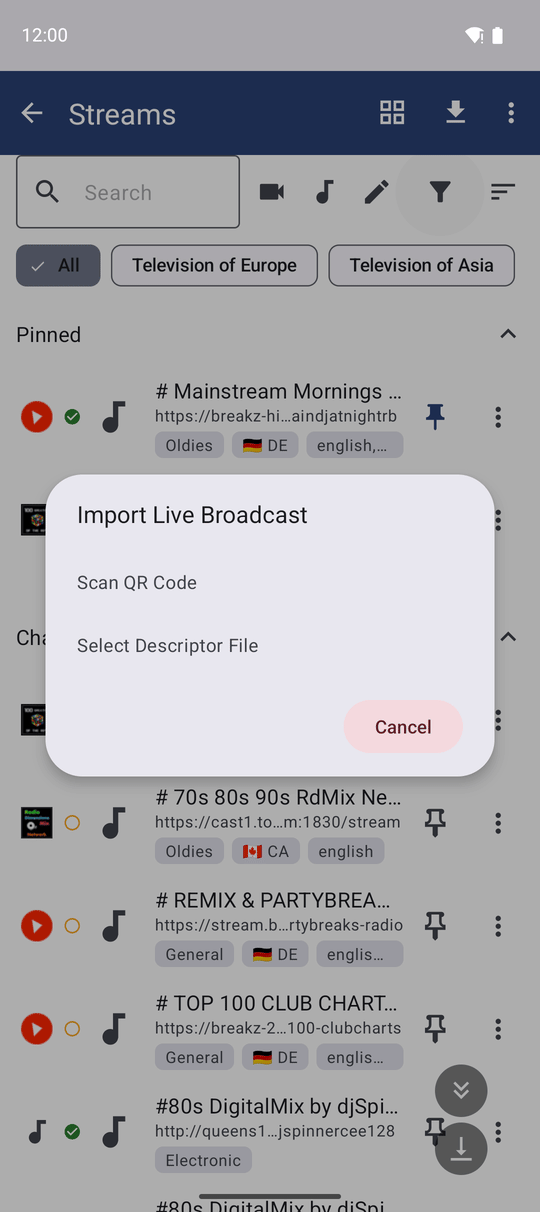
- Scan it: in Streams, open the three-dots menu, choose Import Broadcast (QR / File) and then Scan QR Code, and point the camera at their screen.
- Tap a link: if they sent you the link, tap it - FastMediaSorter opens straight into the Streams import. On a phone without the app, the link opens a web page that offers to install it and to open the broadcast afterwards.
- Open a file: if they sent a broadcast file (it ends in .fmsbcast), tap it in any file manager, or choose Select Descriptor File in the same menu.
- Type it: a phone without a camera can add the address printed under the QR code by hand, as described in adding your own streams.
You see Broadcast channel added, and the broadcast appears in your list. It is marked as live, and the player keeps close to the live moment, so what you hear is what is happening now. If the broadcasting phone later gets a new address on the network, adding it again updates the same channel: Broadcast updated with its new address.
Start your own broadcast
Editions: Standard, noLegal and Legacy.
Your phone can be the station too. How to start a Live Broadcast is a recipe of its own: Chromecast casting and live broadcast. A few things there help the people who tune in:
- The share screen prints the address under the QR code, labeled and selectable, so you can read it out to someone whose device has no camera. It stays there even if the QR code cannot be drawn.
- You choose the camera lens before you start and can switch it while you are on air. Turning the camera off keeps your listeners connected, and Stop in the notification ends the broadcast.
- The settings button on the broadcast screen opens title, port, bit rate, audio format, microphone gain and Auto-open share screen in place, without leaving the screen.
- Send to watch on the broadcast screen sends the running broadcast to your paired watch and asks it to start playing at once (Standard and noLegal editions).
- While you broadcast, the live mark on the main screen counts the time from the moment you started, even after you come back to the main screen from somewhere else.
What You Get
A live channel plays on the TV, on your wrist or all around you in a headset, and a friend's broadcast sits in your Streams list, ready to open whenever they go on air.
Tips and Troubleshooting
- Chromecast not in the list? The phone and the TV must be on the same Wi-Fi network; guest networks often keep devices apart.
- Send to watch and Open on watch are missing? Turn on the Wear companion, and check that your edition is Standard or noLegal.
- A broadcast does not play? You and the broadcasting phone must be on the same Wi-Fi. Some routers keep devices apart - look for an option called client or AP isolation.
- Open in VR is missing? It appears only on a headset with 3D VR playback turned on and only for video channels. Headset setup is described in setting up the headset.
- Want a phone or a watch to go on air for your other devices? The media exchange portal explains the routes between devices and marks what is not available yet.