Adding Folders from Your Phone, Memory Card and USB Drive
Add a folder from the phone, a memory card or a USB drive as a resource, meet the ready-made collections the app creates for you, and let a folder show every kind of file with Reconnect resource.
Why You'll Love This
Your photos from the last holiday sit in the camera folder, the music you copied years ago lives on the memory card, and a USB stick from a friend is plugged into the phone. FastMediaSorter shows none of them until you tell it where to look. Every place you add becomes a resource - one row or tile on the main screen that opens straight into that folder.
Adding a local folder takes a minute and changes nothing in your files. Removing the resource later removes only the app's entry; the folder and everything in it stay where they are.
- FastMediaSorter in any edition: Standard, noLegal, Lite, Photos, Legacy, VR or FOSS. Adding a folder from the device works in all of them.
- The permission to read your media. The app asks for it on first launch; see Understanding app permissions if you said no.
- For a memory card or a USB drive: the card inserted or the drive connected (a USB drive usually needs a small USB-C or OTG adapter).
Look at what is already there
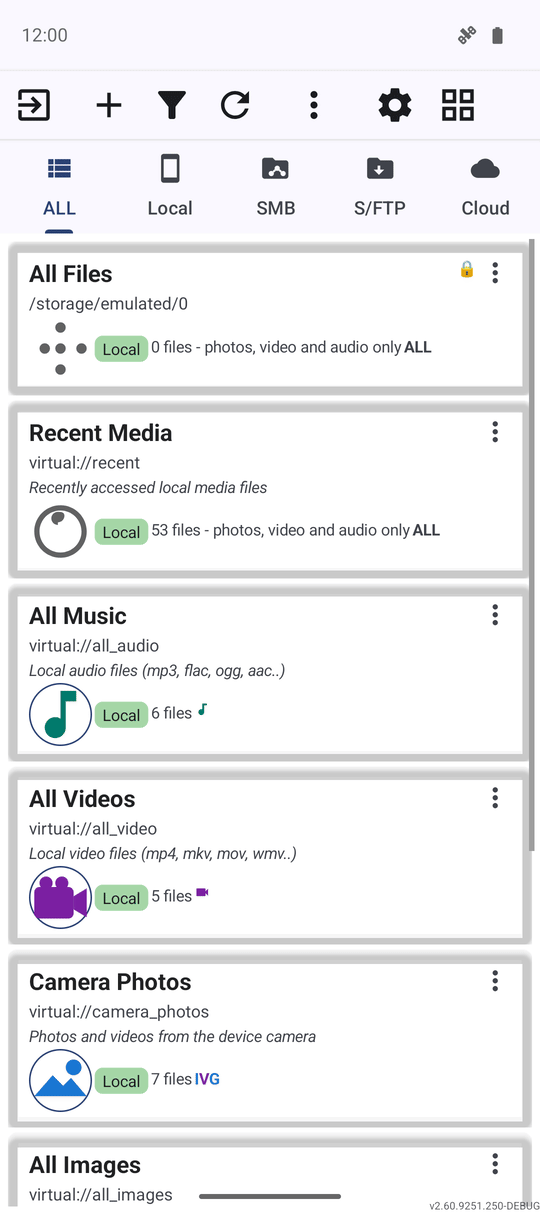
You do not have to add anything to get started. On first launch the app creates a few ready-made virtual resources that collect files of one kind from all over the device:
- Recent Media - the media files you opened lately.
- All Music, All Videos and All Images - every song, video or picture on the device, whatever folder it is in.
- Camera Photos - the photos and videos from the camera, newest first, shown as tiles.
- All Documents - PDF, e-book and text files, in the editions that open documents.
A collection appears only when your edition supports that kind of file. If you deleted one by mistake, it comes back by itself the next time the app starts.
Open the Add Resource screen
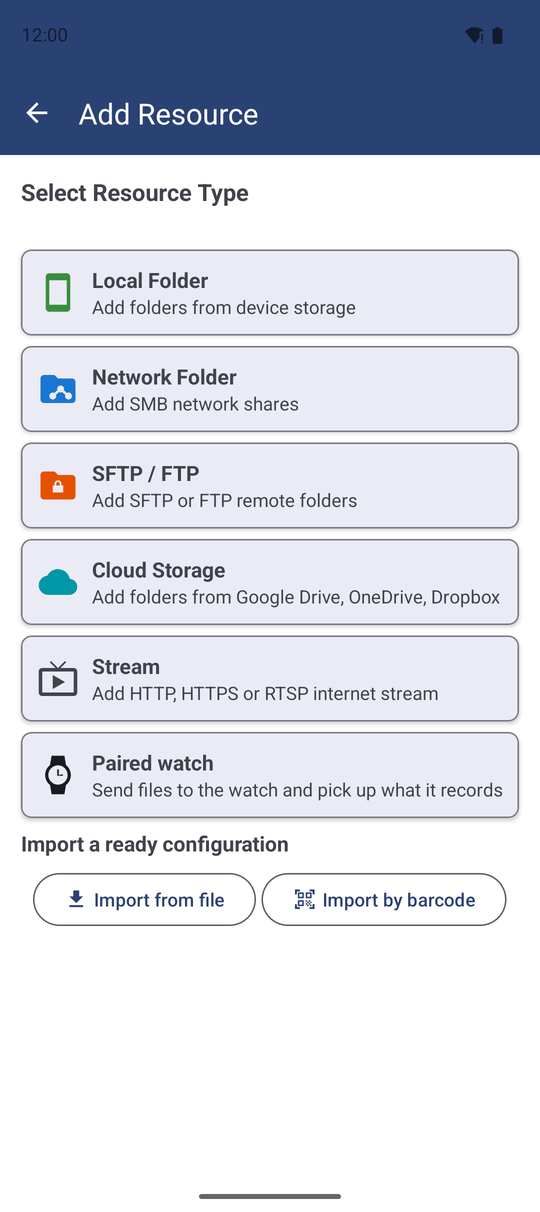
On the main screen tap Add on the command bar. The Add Resource screen opens with the heading Select Resource Type and a card for each kind of place: Local Folder, Network Folder, SFTP / FTP, Cloud Storage and Stream, as far as your edition has them.
Tap Local Folder - "Add folders from device storage". In the editions where no network or cloud places exist, or when you have switched them all off, the app skips this choice and opens the local folder screen straight away.
Pick the folder
The Add Local Folder screen offers two ways:
- Scan Local - the app searches the device for folders that hold media and lists them. Tick the ones you want.
- Add Manually - opens the Select Folder window, where you choose one folder yourself.
In the Select Folder window you find:
- Quick buttons for the ready-made collections, grayed out when they are already added.
- Quick buttons for well-known folders: the root of the internal storage, DCIM, Pictures, Download, Documents and the media folders of WhatsApp, Telegram and Instagram.
- One button for each memory card or USB drive that is connected right now, with its name and free space.
- Browse with System Picker - opens Android's own folder window, where you can walk to any folder and tap Use this folder.
Select Folder dialog open, an SD card inserted so its volume button shows.
Tap the button with the card's or drive's name. If Android has not yet given the app access to it, the app explains why it needs access and then opens Android's folder window on that card - just tap Use this folder there. A USB drive disappears from the list when you unplug it, and its resource shows as unavailable until you plug it in again.
Choose how the folder is read
Before you confirm, look at the options under the folder:
- Scan subdirectories (on by default) - also shows the files inside every folder within this one. Turn it off to see only the files that lie directly in the chosen folder.
- Add to Quick Sort - makes this folder a destination, so you can later copy or move files into it with one tap (see Sorting files into destinations).
Confirm, and the new resource appears in the resource list. The app counts its files in the background and shows the number on the resource.
Later you can change everything - the name, the kinds of files shown, a PIN - by long-pressing the resource and choosing Edit. With All Files mode on for a resource, the editor also offers Show Hidden Files for files whose names start with a dot.
When a folder shows only photos, video and audio
Since Android 11 an app sees every kind of file in a folder only if it holds the special "access to all files" permission, or if you picked the folder yourself in Android's folder window. Some editions never ask for "access to all files", and in the others you may have said no, so a folder added by its path shows only photos, video and audio. The app tells you so instead of pretending the folder is complete:
- The file count on the resource reads, for example, "124 - photos, video and audio only". The All Documents collection shows "Documents cannot be read" instead of a zero.
- The first time you open such a folder, a note at the top explains how to see the documents too.
- The filter does not offer document types that the folder cannot return.
Reconnect a folder to see every file
To let the app see documents and other files in that folder, give it the folder through Android's folder window:
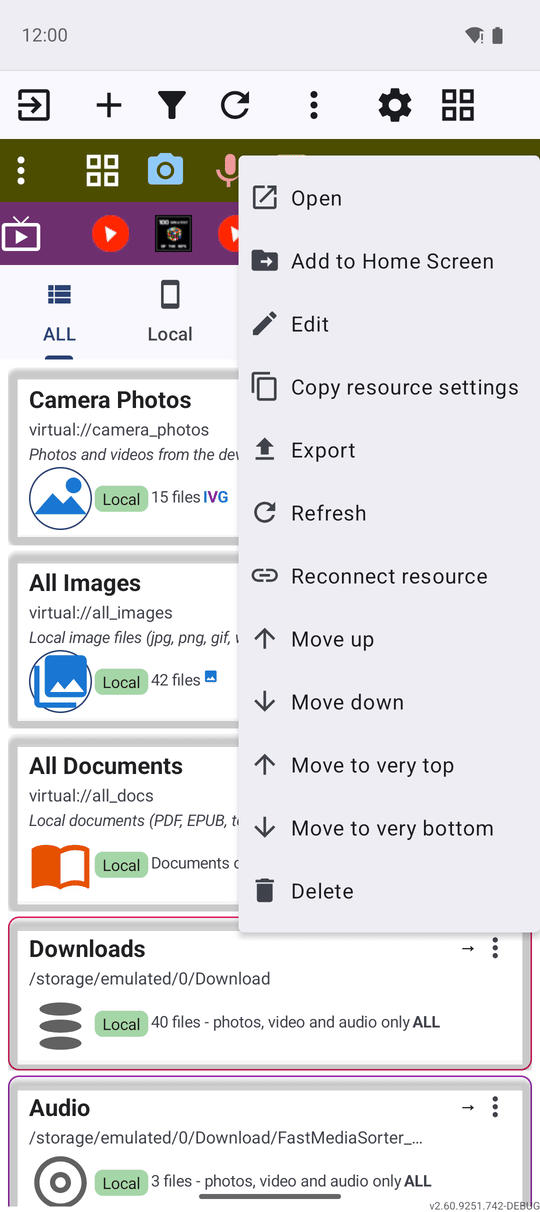
- On the main screen tap the three-dots menu on the folder's row.
- Tap Reconnect resource.
- Android's folder window opens. Walk to the same folder and tap Use this folder.
The resource keeps its name, its Favorites, its place in Quick Sort and its scheduled operations - only the way the app reaches the folder changes. Reconnect resource appears only for folders that need it, and only on Android 11 or newer.
What You Get
Your camera roll, your music folder, the memory card and the USB stick each have their own resource on the main screen. One tap opens any of them in the file browser, and the ready-made collections keep gathering new files by themselves.
Tips and Troubleshooting
- One Resource Profile dialog. Choosing a resource profile opens the same Resource Profile dialog when you add a resource and when you edit it; the File Manager profile keeps the switches for the kinds of files visible, and each preset sets the same kinds of files wherever you pick it.
- Removing a resource never deletes files. Long-press it and remove it: only the app's entry goes away.
- Too many folders from one scan? Untick the ones you do not need before you confirm - you can always add a folder later.
- Folders on another computer or in the cloud are added from the same Add Resource screen - see Adding network folders and cloud storage.
- Keep a folder private with a PIN - see Protecting files with a PIN and encryption.