The Seven Editions of FastMediaSorter
FastMediaSorter comes in seven editions. They look and work the same, but each one is made for a certain kind of device or store. This page shows what each edition is for, which features it has, where to get it and how to move between them.
Why You'll Love This
FastMediaSorter is published in seven editions. They share the same look and the same way of working, but each one is made for a certain kind of device or store. A phone, an old tablet, a VR headset and a phone without Google services each get the edition that fits them best.
This page helps you pick the right edition before you install it, and tells you what to do if you later want a different one. If you already have the app and only want to know which edition it is, jump to step 3.
- An Android phone, tablet, TV box, car head unit or VR headset.
- Its Android version. You find it in the phone's own Settings, usually under About phone or Software information. Most editions need Android 8 or newer; the Legacy and FOSS editions also run on Android 6 and 7; the VR edition needs Android 10 or newer.
- About 100 MB of free space for the app itself, and more for your media.
Meet the seven editions
Here is what each edition is for, in one sentence each.
- Standard edition - the recommended full edition for phones, tablets, TVs and car head units. If you are not sure, take this one.
- Lite edition - a lighter edition that plays local photos, videos and music only, without network folders, cloud storage, documents or Streams.
- Photos edition - for pictures only, with network folders and cloud storage but without video, audio, documents or Streams.
- Legacy edition - for older Android devices, starting from Android 6, with most Standard features but without the launcher and the watch companion.
- FOSS edition - the open-source edition published in F-Droid, built without any closed-source parts.
- VR edition - for VR headsets such as Meta Quest, with the full media set and immersive mode for 3D and 360-degree files.
- noLegal edition - a sideload-only edition, installed from an APK file outside the app stores. It has everything the Standard edition has, plus a few extras that stores do not allow.
The Standard edition has the widest set of features and the easiest updates through Google Play. You can always move to another edition later without losing your settings - see step 5.
See what each edition can and cannot do
Every edition shows pictures and lets you browse, copy, move and sort files. The differences are in the extras. The list below is taken from the edition table that is generated from the app itself, so it is always exact.
- Video and music - in every edition except Photos.
- Network folders (SMB, FTP and SFTP) - in every edition except Lite.
- Cloud storage (Google Drive, Dropbox, OneDrive) - in Standard, noLegal, Photos, Legacy and VR. Not in Lite and FOSS.
- Documents and e-books (PDF, EPUB and text files) - in Standard, noLegal, Legacy, VR and FOSS. Not in Lite and Photos.
- Streams (internet radio and TV channels) and recording from the microphone - in Standard, noLegal, Legacy and VR. Not in Lite, Photos and FOSS.
- Text translation - in Standard, noLegal, Legacy and VR. Not in Lite, Photos and FOSS.
- Playing music in the background after you leave the player - in every edition except Lite and Photos.
- Chromecast, sending a video or photo to your TV - in Standard, noLegal, Lite, Photos and Legacy. Not in VR and FOSS.
- The launcher (FastMediaSorter as your home screen), the Network Monitor and the watch companion - in Standard and noLegal only.
- Live Broadcast of your camera or microphone to other devices - in Standard, noLegal and Legacy.
- Immersive VR playback of 3D and 360-degree video - in the VR and noLegal editions.
- Opening files from other apps (FastMediaSorter as the default player) - in every edition except Lite.
A feature that an edition does not have is not hidden behind a lock or a payment. It simply is not there: no menu item, no button and no setting for it.
Find out which edition you have
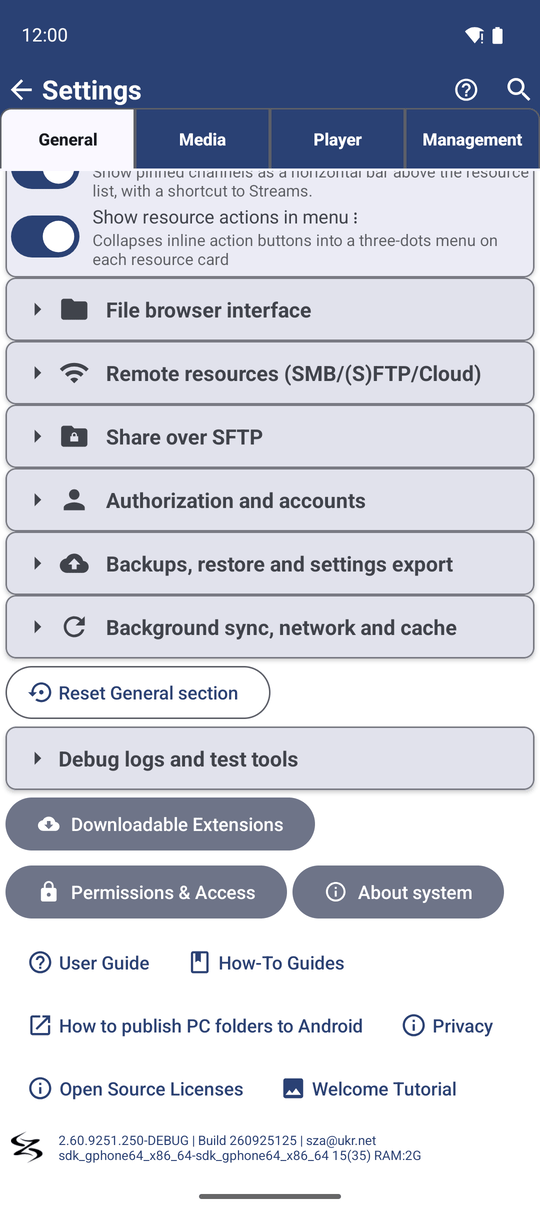
Open Settings and stay on the General tab. Scroll to the very bottom. The last line shows the version, the build number and the support address, for example 2.5.0-Lite | Build 250 | ... (your numbers will differ).
The end of the version tells you the edition:
- nothing after the number - Standard edition;
-Lite,-Photos,-Legacy,-FOSS,-VRor-NoLegal- the edition with that name.
The same information is in Settings, General, Statistics: the technical part of the report has an Edition row and an App version row. The Edition row uses the short internal name, such as standard, photos or noLegal.
The Lite, Photos, Legacy and FOSS editions are separate apps: each has its own icon and can live next to the Standard edition on the same phone. The Standard, VR and noLegal editions are the same app to Android, so installing one of them over another replaces it. Your files are never touched, and your settings usually stay, but a backup first costs nothing - see step 5.
Get the edition you want
Each edition has its own place to download it from.
- Standard - Google Play, or the APK file from the latest GitHub release.
- Lite, Photos and Legacy - the APK files from the latest GitHub release. The same files are also kept in a Google Drive mirror as ZIP archives, for networks that block APK downloads.
- VR - the APK file from the same GitHub release, installed on the headset.
- FOSS - the F-Droid catalog.
- noLegal - its own download page on the FastMediaSorter website. It is never published in a store.
When you install an APK file yourself, Android asks whether you trust the source. That is normal for every app that does not come from a store: allow it once for the browser or file manager you are installing from. The Android help page on unknown apps explains this screen. If Android shows a warning about the package, this page explains why and what to tap.
Move your settings to another edition
Before you switch, save your settings to a file, then load that file in the new edition.
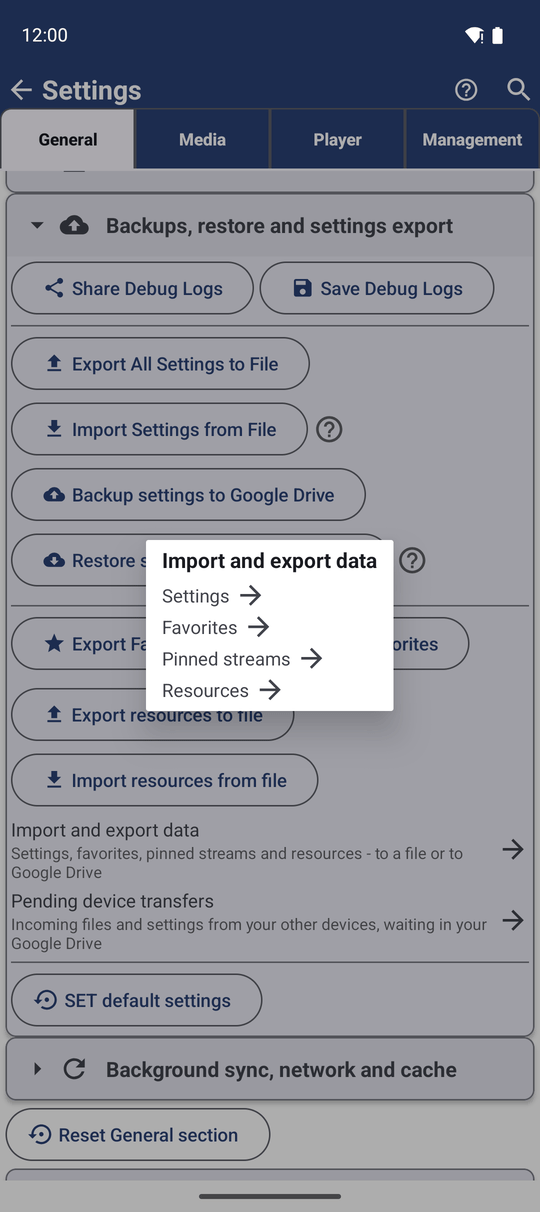
- In the edition you have now, open Settings, the General tab, and tap Import and export data.
- Tap the kind of data to take with you: Settings, Favorites, Pinned streams or Resources. One kind moves at a time, so repeat these steps for each one you need.
- Tap Export - Device file or Export - Google Drive, and save.
- Install the new edition and open it.
- In the new edition, go to the same place, Import and export data, tap the same kind, then Import - Device file or Import - Google Drive, and pick the file you saved.
Everything the new edition also supports comes back: your resources, your favorites, your chosen units and the rest of your settings. What the new edition does not have - for example cloud resources in the Lite edition - is simply skipped. The full guide is in Backing up and restoring settings.
What You Get
You know which edition fits your device, where to get it, which features it brings, how to check which one is installed, and how to carry your settings over when you change your mind.
Tips and Troubleshooting
- The FOSS edition from F-Droid is built from source without any closed-source library. It keeps local media, network folders (SMB, FTP, SFTP), documents, EPUB, animations, background audio and the default player, and it has no cloud storage, casting, watch pairing, translation or text recognition - those leave no button, row or widget behind. It installs next to a copy from Google Play or a sideloaded copy instead of replacing it.
- No install prompt in the VR edition. Opening 3D content in the VR edition plays it straight away - the app no longer asks you to install the VR edition you are already running.
- An old tablet refuses to install the app? If it runs Android 6 or 7, take the Legacy or the FOSS edition instead - they are made for exactly that.
- A feature from another page is missing on your phone? Check step 2. Every page of this guide also names the editions each feature is in, near the top.
- Some features need a download. Text recognition, extra audio formats and a few other parts are downloaded only when you want them. See Downloadable extensions.
- The app is in the wrong language? See Choosing the app language and units.