Recording the Screen, Video and Sound
Start a screen recording with sound from the Programs menu or a single edge-swipe, control it from a corner pill, its notification, or by repeating the gesture - and use the same gesture family for a quick camera video or a quick voice note.
Why You'll Love This
Showing someone how to do something on your phone is easier with a video than with words - a bug report, a game clip, a walkthrough for a relative. Screen recording captures everything on your screen with your voice over it, and starts the same way as taking a screenshot: from the Programs menu or with an edge gesture.
The same gesture family also gets you a plain camera video or a quick voice note in one move, without opening the camera app or a recorder screen first.
- FastMediaSorter in the Standard or noLegal edition. Screen recording is not part of the Lite, Photos, Legacy, VR or FOSS editions.
- The microphone permission for the sound track, and Android's own screen-recording consent at the start of every recording - this step can never be skipped, on either edition.
- On Android 13 and newer, the notifications permission, so the recording's controls have somewhere to live.
Turn on screen video recording
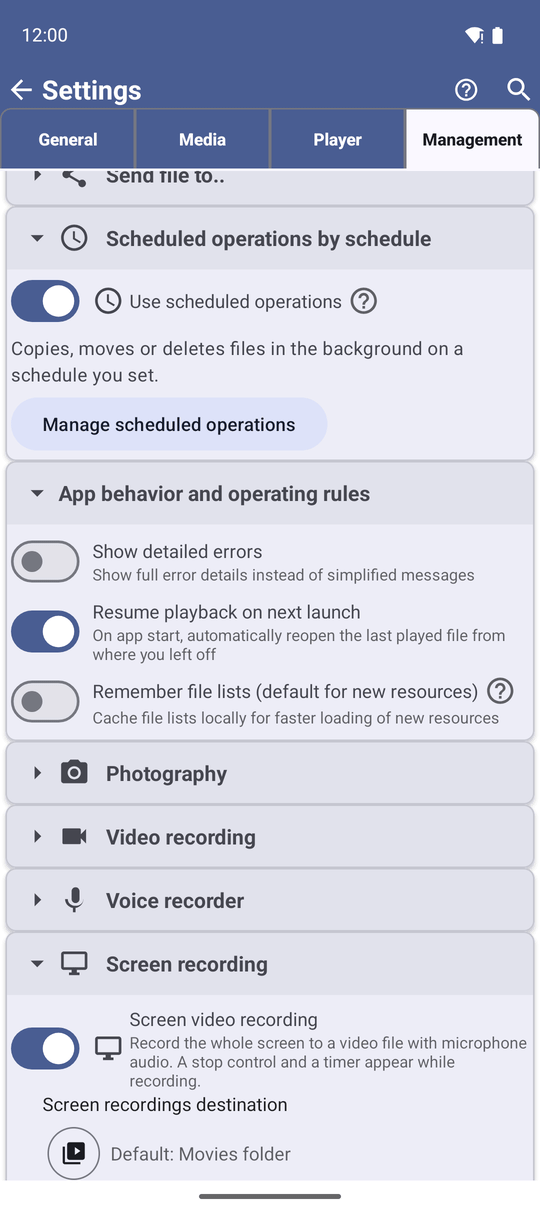
Open Settings, the Management tab, and turn on Screen video recording - "Record the whole screen to a video file with microphone audio. A stop control and a timer appear while recording." This adds Screen video recording to the main window's Programs menu, alongside your other programs.
Start recording from the Programs menu
Open the Programs menu and tap Screen video recording. A one-time notice, "Screen video recording", explains what is about to happen: "FastMediaSorter will record everything shown on your screen, including other apps, to a video file with microphone audio until you stop it. Recording continues in the background." Tap Start recording, then choose what to share with Android's own screen-recording prompt - this step cannot be skipped, and it appears at the start of every recording, not only the first.
Screen video recording disclosure dialog, Start recording button visible.
Pause, resume or stop
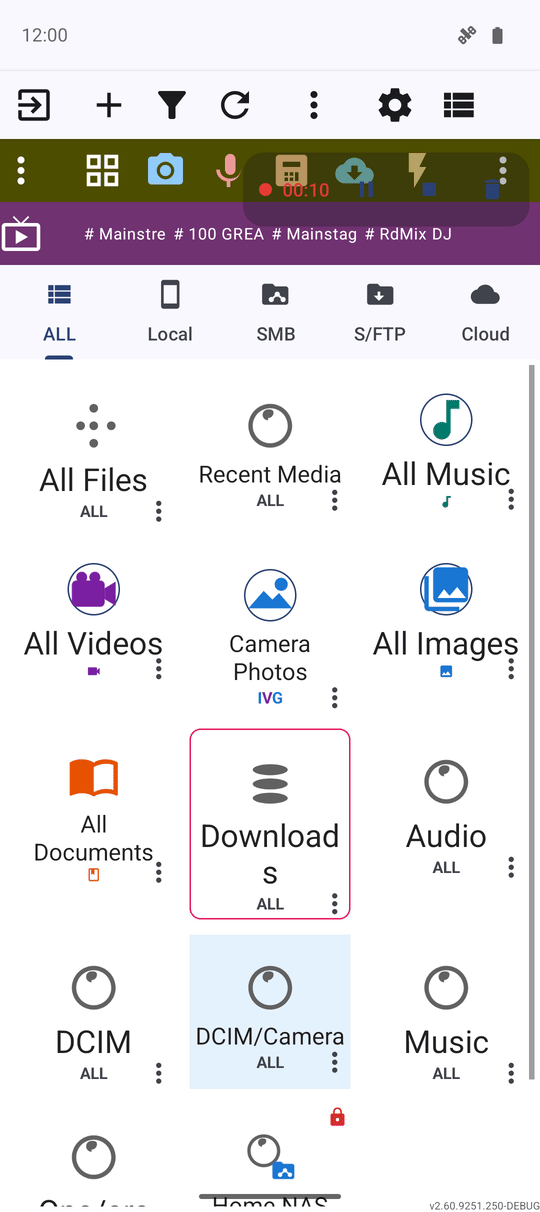
While FastMediaSorter is the app in front, a small pill sits in the corner of the screen with a running timer, a pause/resume button and a stop button. Switch to another app and the pill disappears - the recording keeps running in the background - and control moves to the "Recording screen" notification, which carries its own Pause recording / Resume recording and Stop actions. Either way finishes and saves the same file.
Start (and stop) with an edge gesture
Assign Start screen recording to a band and direction in Configure gestures - see Screen-edge gestures and the quick-access panel for how the bands work - and that one swipe both starts and stops the recording: swipe once to begin, then repeat the exact same gesture to stop and save. The notification's Pause, Resume and Stop controls still work in between.
Want a plain video instead of the screen? Open the camera in video mode
Start video recording is a different gesture action, for a different job: it opens the in-app camera already switched to video mode, ready for you to press record. The finished clip saves to the phone's public Movies folder, the same as recording from the camera directly. It is a fast way into camera video, not a screen recording - the two look similar in the gesture list but capture completely different things.
A quick voice note, the same way
Start audio recording toggles the quick voice recorder on and off with one gesture, no screen to open. While it runs, a small floating pill with a timer and a Stop button sits on top of whatever app is in front, so you never lose track of it - stop it from that pill, from its notification, or by repeating the gesture. This floating pill belongs to the quick voice recorder only: screen recording, above, always shows its controls in the corner card while FastMediaSorter is in front, or in its notification once you switch away.
Another app open in the foreground, the quick recorder's floating pill visible in the corner.
What You Get
A screen recording with your voice over it, started from the Programs menu or a single swipe, controllable from a corner pill, its notification, or by repeating the gesture - plus a one-swipe camera video and a one-swipe voice note for everything short of the whole screen.
Tips and Troubleshooting
- The consent step is not a bug. Android requires its own prompt at the start of every screen recording, in every app that offers the feature - FastMediaSorter cannot remove or shorten it.
- One card, two jobs. The corner card with pause/resume/stop is shared between screen recording and the in-app Voice recording menu item; only the widget- or gesture-started quick voice recorder gets the floating pill that follows you between apps.
- One tap from the home screen. The Quick Recorder widget starts the same quick voice recording without opening the app at all - see Taking photos, videos and voice notes straight into a folder.