Reading PDF Documents - Pages, Search, Night Mode and Export
Open a PDF with one tap, turn pages by swiping, find a page by its picture, read at night in dark colors, copy, search, listen to and translate the text, and save the pages as pictures or print them - all in the built-in reader.
Why You'll Love This
A bank statement, a user manual, a train ticket, a school handout - so many things arrive as PDF files. You do not need a separate PDF app for them: tap the file in FastMediaSorter and it opens in the built-in reader, page by page, sharp enough to zoom into the small print.
The reader remembers where you stopped, can show a whole document as one long scroll, dims the page for reading at night, finds a word on the page, reads the text aloud and even translates it without the internet. When you need the pages somewhere else, it saves them as pictures or sends the document to a printer.
- FastMediaSorter in an edition with the reader: Standard, noLegal, Legacy, VR or FOSS. The Lite and Photos editions do not open documents.
- A PDF file - on this device, in a network folder or in cloud storage. Files from a network or the cloud are downloaded first, so the first page may take a moment.
- Support PDF documents switched on in Settings, the Media tab, Documents. It is on from the start.
- For tapping links inside a PDF and for picking the exact word under your finger: Android 15 or newer.
- For translation: an edition with translation (all of the above except FOSS) and Enable Translation switched on in Settings.
Open a PDF
In the file browser tap the PDF file. It opens in the reader on the page where you stopped last time - or on the first page, if you have never opened it before. PDF files in the file browser show a small picture of their first page, so you can tell them apart before opening.
You can also open a PDF that another app hands over, for example an attachment in your e-mail: choose FastMediaSorter in the Open with list. It opens in a separate reader window with the same tools. To have every PDF open in FastMediaSorter straight away, switch on Set as default document viewer in Settings, the Media tab, Documents.
To see all your PDFs, books and text files in one list, add the All Documents resource on the main screen.
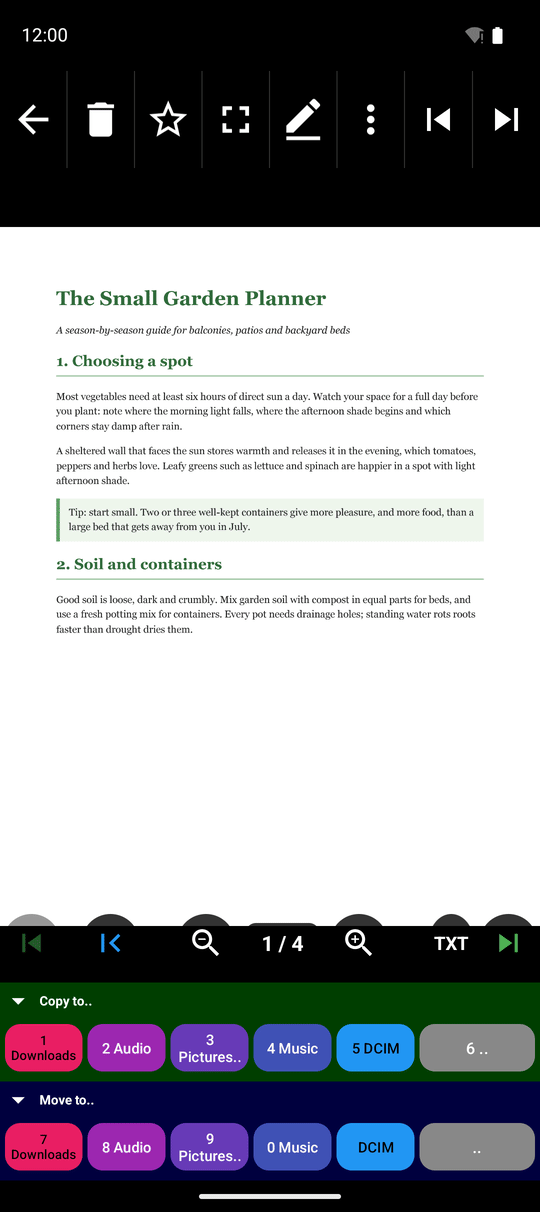
Turn pages and jump to any page
There are several ways to move through a document - use whichever is handier:
- Tap the arrows at the bottom of the screen for the previous or the next page.
- Swipe the page up for the next page and down for the previous one. A slow, calm drag with one finger is enough - no quick flick needed.
- When you have zoomed in, swipe up or down with two fingers together. Spreading or pinching the fingers still zooms and does not turn the page.
- Tap the page counter, for example 3 / 12. In the Go to page window type the page number and tap Go.
- Use the buttons at the edges of the bar to jump to the first or the last page. The jump-to-start button sits a little apart from the back arrow, so you will not lose your place by a slip of the finger.
- With the app in Arabic or Urdu, the page arrows point the other way, because the next page of a right-to-left document lies to the left. The same goes for the chapter arrows of the EPUB reader and the page arrows of the text viewer.
Zoom in with two fingers as in any photo. When you turn the page, the reader keeps the same zoom and position, so a narrow column of small print stays readable page after page.
A PDF with only one page shows no arrows and no page counter - there is nowhere to turn.
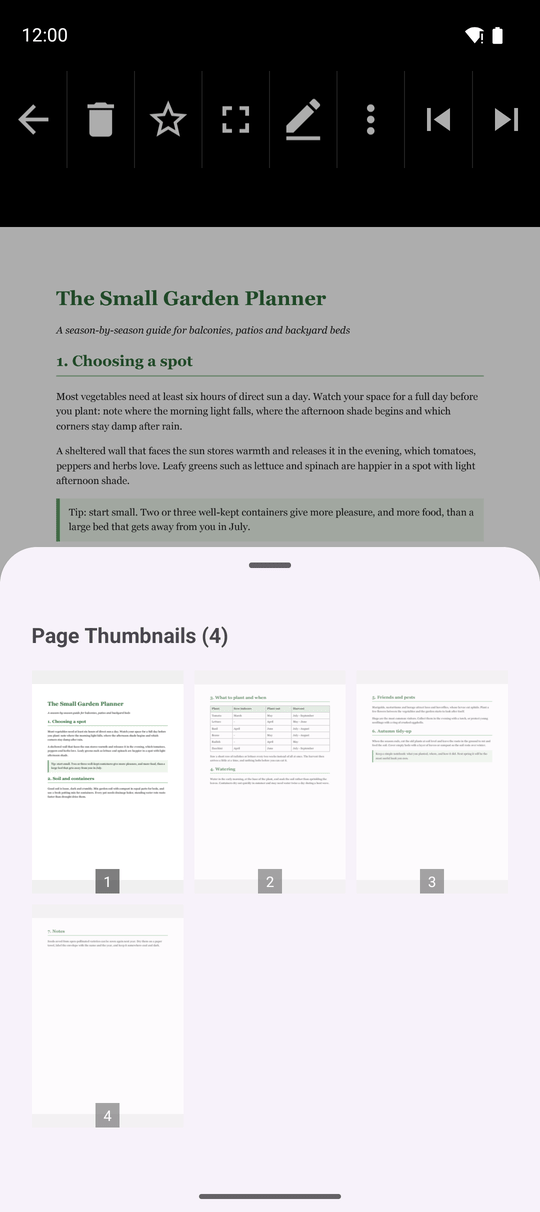
Find a page by its picture
In a long document it is often quicker to find a page by its look - a table, a diagram, the start of a chapter. Open the three-dots menu and tap Page Thumbnails. A panel slides up with small pictures of all pages; its title shows how many there are. Tap a picture to open that page.
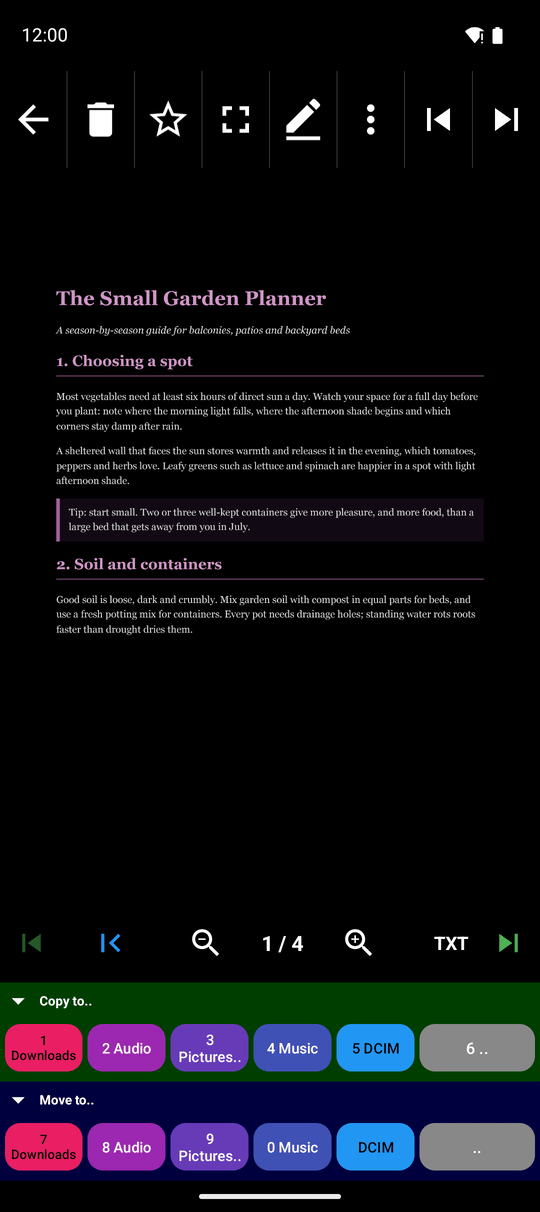
Read in one long scroll, or in night and sepia colors
Open the three-dots menu and tap Scroll Mode. The pages now follow one another in a single long strip, like a web page - just scroll with your finger. Tap Scroll Mode again to go back to one page at a time. The reader remembers your choice for every PDF.
For reading in the dark, tap Night Mode in the same menu. Each tap switches to the next look:
- Night - white pages turn dark and the text turns light, which is easy on the eyes in a dark room.
- Sepia - a warm, yellowish paper tone for long reading.
- Normal - the original colors of the document.
The chosen colors work in both page mode and scroll mode and are kept for the next time.
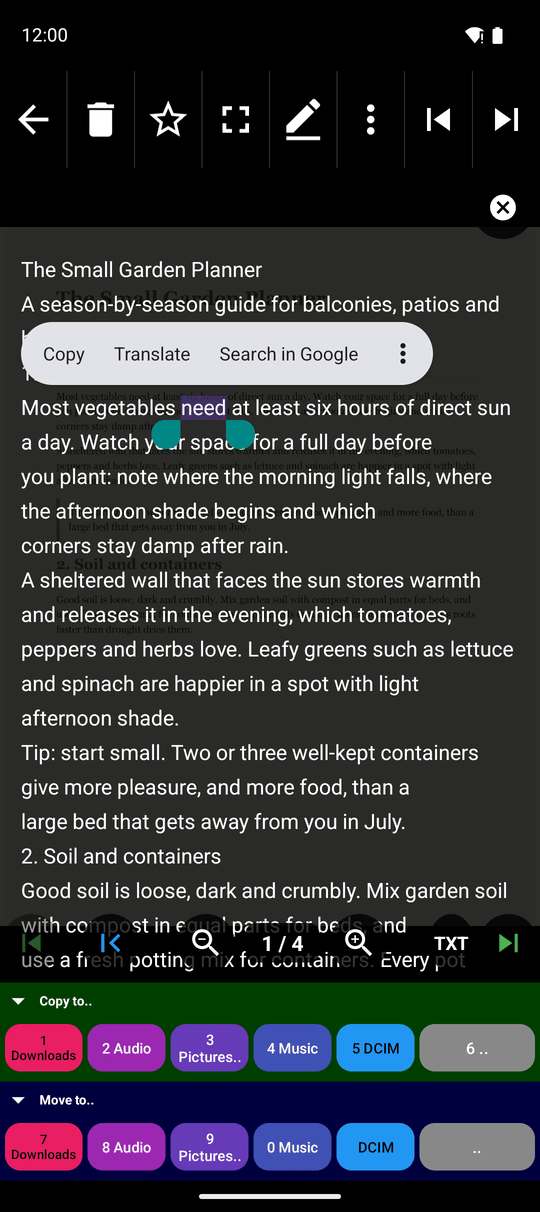
Select and copy text from a page
Touch and hold a word on the page. The text of the page opens in a selection layer with that word already marked; drag the handles to take more, then tap Copy. You can also tap the Text selection button in the bottom bar to open the same layer without a word marked.
On Android 15 or newer the reader reads the text straight from the PDF, instantly, and marks exactly the word you pressed, even if the same word appears several times on the page. On older Android versions it first recognizes the text on the page (you will see "Extracting text.."), and when a word repeats, the first one on the page is marked - just drag the handles to the one you need.
The selection menu also offers Translate and Read Aloud for just the marked piece.
If the page is a photo of paper with no text inside, you will see "No text found on this page". For such pages use text recognition - see recognizing text on pictures.
Find a word on the page
Open the three-dots menu and tap Search (in landscape the search button sits right on the bar). Type the word. The matches on the current page are highlighted and the counter shows, for example, 2/5; use the arrows to go from one match to the next.
The search looks only at the page you are on, and it does not care about capital letters. To search a whole book, open it as an EPUB - see reading EPUB books.
Open a link from the document
Many PDFs contain web links - a website address, a "read more" line. On Android 15 or newer, tap the link on the page and it opens in your web browser. This works in page mode; switch Scroll Mode off first if a link does not react. If the browser cannot open the address, you will see "Could not open that link."
Have the page read aloud
Open the three-dots menu and tap Read Aloud. Your phone's own speech voice reads the text of the current page. Tap Read Aloud again to stop. Reading stops when you leave the reader.
The voice and its language are the ones set in Android: Settings, Accessibility or System, Text-to-speech output (the exact place depends on the phone).
Translate a page without the internet
Open the three-dots menu and tap Translate (in landscape the button is on the bar). After "Translation started.." a card with the translated text appears over the page. Everything happens on the phone itself, so it works offline and the text never leaves the device.
Tap the card to switch it between a small card in the corner and the full screen. The cross on the card closes it. A word translated from the selected text opens in the same card.
If you switch on Translation result in blocks in the On-screen translation settings, the translation is laid over the original lines instead, and the buttons on the bar make that text smaller or larger. More about languages and options: translating text on screen.
PDF page in a foreign language with the offline translation card open in compact size.
Save pages as pictures, send a page to Google Lens, or print
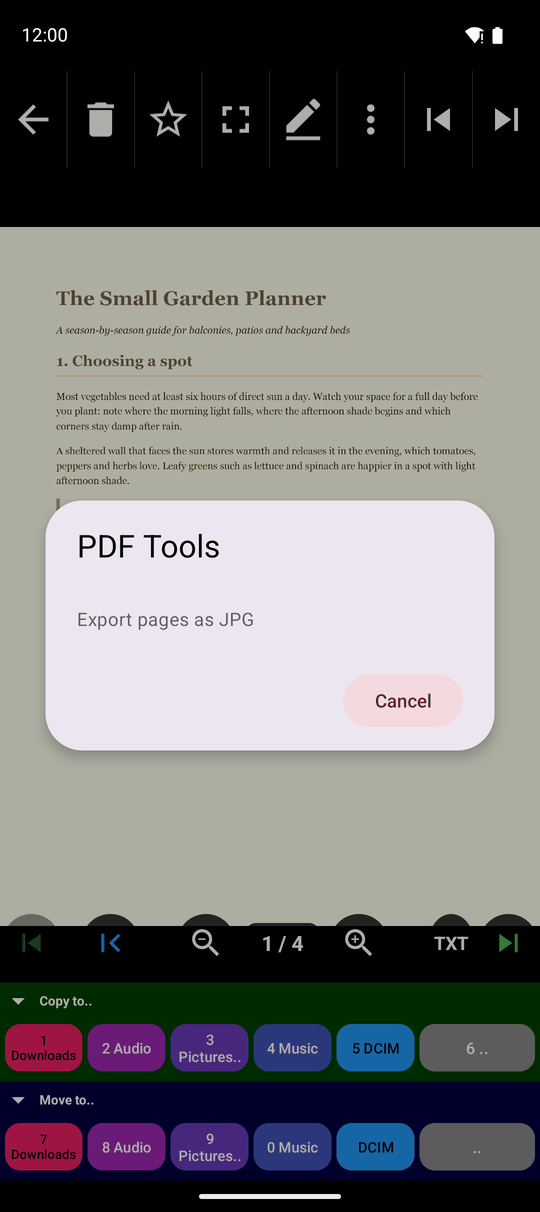
- Save every page as a picture. Open the three-dots menu, tap PDF Tools and then Export pages as JPG. After "Exporting pages.." every page is saved as a JPG picture in your Downloads folder, inside FastMediaSorter_Exports and a folder named after the document - for example
Downloads/FastMediaSorter_Exports/manual/manual_page_1.jpg. At the end you see how many pages were saved. This works for PDFs in network folders and cloud storage too. - Look up a page in Google Lens. Tap Google Lens in the three-dots menu to send the current page to Google Lens, which can find similar pictures, copy the text or translate it. The item is there only when Allow sending to Google Lens is switched on in the settings - see sharing and exporting files.
- Print. Tap Print in the three-dots menu and pick a printer, or save the document as a new PDF. Printing also works in the separate reader window you get from Open with in another app, so an e-mail attachment can go to the printer without being saved first.
What You Get
Your PDFs open in the same app as your photos and videos, right on the page where you stopped. You can read them in comfortable colors, find and copy the words you need, listen to them, understand a document in another language, and turn its pages into pictures or paper when you need to.
Tips and Troubleshooting
- Links and text inside a PDF. In the PDF viewer opened from another app, tap a link in the document to open it, and long-press to select text on the page; in the older viewer, swipe up and down to turn the pages.
- Paging through many documents from another app? The separate reader window lets you move from one PDF, book or Office file to the next as long as you like - it cleans up after each document, so it stays quick.
- Previews for very large PDFs. Switch on Large PDF Thumbnails (slow) in Settings, the Media tab, Documents to get page pictures for big PDF files in the file browser too. They take a little longer to appear.
- Copy text from a picture instead of a PDF? Use recognizing text on pictures.
- Want the reader to hide PDF files? Switch off Support PDF documents in the Documents settings; PDF files then no longer show up in the file browser.