All editions except Photos; background listening not in Lite; watch controls in Standard and noLegal
Picture-in-Picture and Background Play
Keep a video going in a small floating window, choose what happens to the sound when you leave the player, and decide how the phone player and your watch work together.
Why You'll Love This
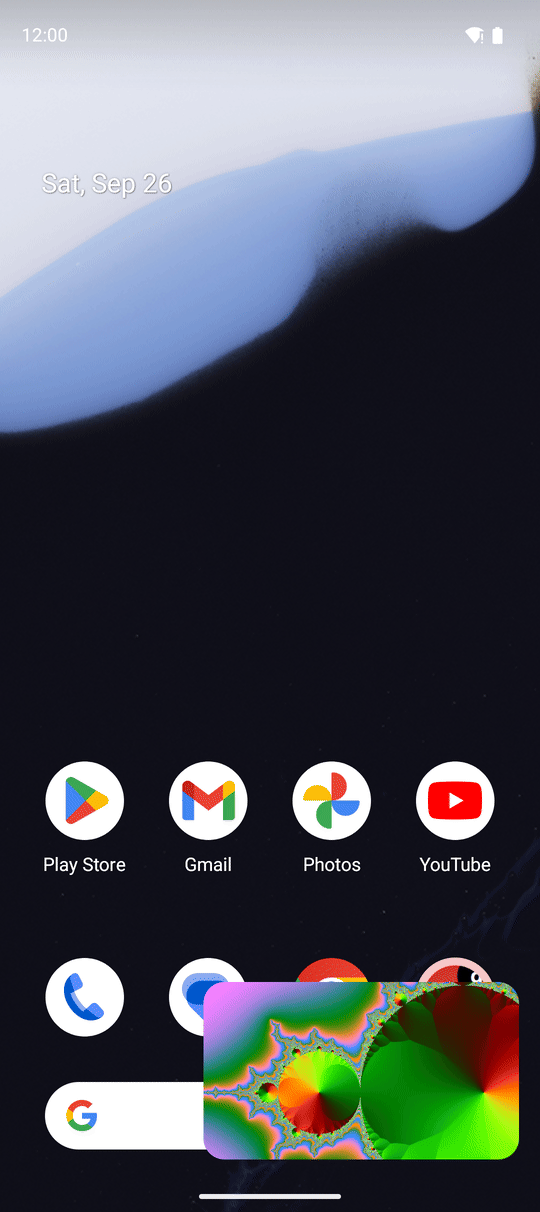
A message arrives in the middle of a film. You want to answer it without losing your place, and ideally without stopping the picture. Picture-in-picture shrinks the video into a small window that floats over everything else, so you can reply, check a map or look up the actor and keep watching.
The same page explains what happens to the sound when you leave the player, and how FastMediaSorter shares the stage with other apps that want to play sound.
- FastMediaSorter in any edition that plays video: Standard, noLegal, Lite, Legacy, VR or FOSS.
- For picture-in-picture: Android 12 or newer, and a phone or tablet whose maker allows floating windows.
- For the watch step: a Wear OS watch paired with the phone, and the Standard or noLegal edition.
Switch picture-in-picture on
Go to Settings, the Player tab, section Player interface and commands, and turn on Enable Picture-in-Picture. From now on the video player shows a Picture in Picture button, and pressing the Home button during a video moves it into the floating window by itself.
Keep watching in a small window
While a video plays, tap the Picture in Picture button or simply press Home. The video shrinks into a small window in the corner of the screen. You can:
- drag the window to another corner;
- tap it once to see Play and Pause;
- tap the expand icon in the window to return to the full player - the buttons and panels come back exactly as you left them.
Picture-in-picture works for videos opened from your resources, for streams opened from the launcher home screen, and for videos another app asked FastMediaSorter to play. If your phone refuses a floating window here, the app says "Picture-in-picture is not available here" instead of doing nothing.
Decide what happens to the sound when you leave
Leave the player with the Back button while a video or a track plays, and the app asks whether to keep the sound going or stop it. To answer once and for all, go to Settings, the Player tab, section Background audio playback:
- Background Playback keeps the sound playing when you leave the app or lock the screen.
- When leaving player or streams offers Ask every time (default), Always stop and Always keep playing.
The details, and the controls in the notification and the Now Playing bar, are in playback order, sleep timer and listening in the background. The Lite edition stops the sound when you leave the player.
Share the sound with other apps
FastMediaSorter behaves politely when another app needs the speaker. A navigation voice or a short notification makes it quieter for a moment; a phone call or another music app pauses it. This applies everywhere the app plays sound: the player, music during a slideshow, sounds in the file browser and streams. It also keeps playing when you use two apps side by side in split screen and close the other one - see split-screen and foldable devices.
The phone player and your watch
When the phone plays a video or music, Wear OS normally shows its own media-control screen on the watch. If you would rather keep your watch face, go to Settings, the Management tab, section Wear Companion, and turn on Suppress media control on watch.
The watch app also has its own player for files on the watch and on the phone:
- The controls fit the round screen and scroll into view, so none of them is cut off. Favorite and the screen-off button share the second row.
- Turning the bezel moves through the current track; in the audio player it changes the volume with a short readout on screen, and a position bar you can drag shows where you are.
- Shuffle is remembered after the watch restarts.
- The screen-off button blanks the display while the sound keeps playing.
- A track without its own cover shows a picture downloaded from the internet when Album art is on in the watch settings, otherwise the app's waves-and-particles background. The play button takes the color of the media type.
More in music on the watch.
Wear round screen, media player with playback row and secondary row visible.
What You Get
Your video keeps going in a small window while you do something else, the sound behaves the way you chose when you leave the player, other apps get a quiet moment when they need it, and your watch shows either its own player or nothing at all - your choice.
Tips and Troubleshooting
- No Picture in Picture button? Check Enable Picture-in-Picture in Settings, Player. On Android 11 and older the button does not appear.
- Opened a video from another app? Picture-in-picture works there too, and the small window shows the video itself, not a black box.
- Want a clock on a dimmed screen while music plays? See the dim-screen clock in watching videos - controls and gestures.