Launcher Settings - Finding Your Way Around and Starting Fresh
Fourteen-odd rows of launcher settings are easier to use folded into a few groups than laid out in one long list, and a single Reset launcher settings button undoes an experiment without touching anything outside the launcher. This page covers both, plus how a fresh desktop is seeded and how its sections and icons stay readable.
Why You'll Love This
A dozen-odd settings are a lot to hunt through one at a time. Folded into a few groups they are quick to scan, and when the desktop stops feeling right - too many test shortcuts, an experiment that went wrong - one button puts it back exactly where it started, without touching your resources or favorites.
- FastMediaSorter in the Standard edition or the noLegal edition, with the launcher desktop open - see Your launcher desktop.
Find your way around the launcher settings
Open Launcher settings from the long-press menu, the Start menu, or Settings, General, System launcher settings. Its rows sit under collapsible groups - Taskbar, Top bar, Desktop and System, plus Gestures, Appearance and System tray for the more specialized rows - and whichever groups you leave open stay open the next time you visit.
System launcher settings dialog, several groups expanded and collapsed, scroll position near the top.
Start the desktop over
In the System group, tap the labeled Reset launcher settings button. After a confirmation, the desktop layout, the taskbar pins, the recent-apps history, every launcher setting and the wallpaper return to the state they had right after installation. Your resources, favorites and the app's general settings are never touched.
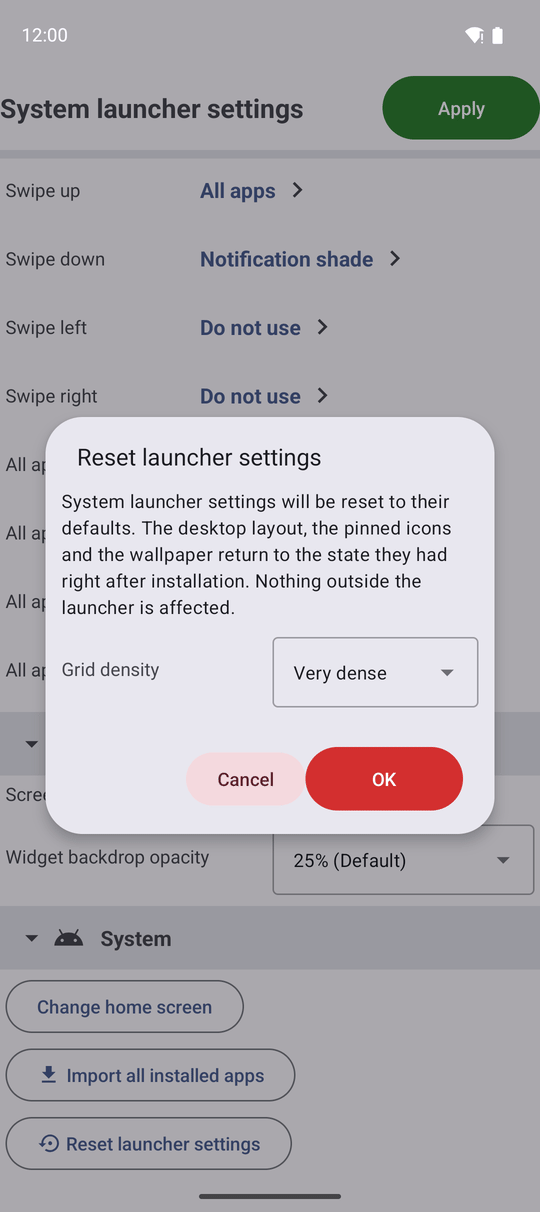
What comes back on its own
A shortcut another app pinned to your desktop - through its own "Add to home screen" - reappears by itself after a reset, laid out after the starter set in both orientations, instead of you pinning it again one app at a time. A shortcut whose app is gone, or which no longer offers pinning, is simply left out. More on bringing in outside shortcuts is in Your launcher desktop.
How a fresh desktop is seeded for your device
The first desktop - and every reset - is laid out for the device profile FastMediaSorter detected: a car head unit, a tablet, a TV, a phone or a photo frame each get their own section order and item count, and a third-party app only gets a cell when it is actually installed. A fresh smartphone starts at icon density 1.5, a two-row taskbar and the top status strip on; other profiles start dense on a phone, sparse on a car head unit, tablet or TV, and standard elsewhere, and every section is auto-sorted right after the re-seed. Only a feature that is both built into your build and switched on gets a cell at first seed - turn one on later and its cell appears by itself, without another reset. On a device with Google Play services, a Google section carries the installed apps from an approved list - Play Store, Chrome, Gmail, Search, Photos, Drive, Maps, YouTube, YouTube Music, Calendar - placed after your content and before App functions; without Play services, no section appears at all. The very first group of widgets opens with one cell chosen for your device - an interactive Google Maps frame for a car head unit, or YouTube in its own group on a tablet.
Launcher desktop right after a reset, phone profile, Google section and signature widget visible, portrait.
Sections stay tidy as they collapse
A section heading now takes up two grid cells instead of a whole row, so its own shortcuts can start in the same row right after it; collapsing it hides only the cells that shared its row and the rows below. Several collapsed sections in a row pack their headers together into one shared row instead of one each, shortening the desktop - a header is never split across rows, and a section still showing its content always ends the chain. While you are arranging the desktop, sections stay unpacked so a drop lands exactly where it looks like it will. Titles keep their own outline so they stay readable over a light wallpaper too.
Launcher desktop, multiple sections collapsed and packed into one row, one section expanded below, portrait.
Move a whole section at once
While arranging the desktop, dragging a section heading moves the section and every cell under it together, one orientation at a time. The same Section Actions menu that offers Rename Section, Re-sort Section and Delete Section also carries Move up and Move down, for a keyboard, a D-pad or a screen reader. More on arranging sections is in Arranging the desktop.
Icons and surfaces that stay legible
Desktop icons, the gadget picker and the feature chooser keep their own light and dark versions, so nothing turns invisible when you switch the app's color theme. One Widget backdrop opacity setting, in the Appearance group, sets how see-through the card behind widgets, labels, section headers and the Start panel is - from 0% (Transparent) to 100% (Opaque), defaulting to 25% (Default). Switching the system theme while you are arranging the desktop no longer interrupts you - edit mode stays exactly where you left it.
A guided tour online
An in-app link in the launcher settings opens an online walkthrough of the desktop, in your own language, with screenshots and - on a car head unit or a tablet - a tour built for that device.
What You Get
The launcher settings are a few taps to scan instead of a long list, a reset puts the desktop back to day one without touching your resources or favorites, and a fresh desktop already looks right for the device it is running on.
Tips and Troubleshooting
- Reset removed a shortcut you added by hand? Only automatic and pinned shortcuts come back on their own - add your own squares again the way you did the first time. See Your launcher desktop.
- Section heading hard to read? Titles are already drawn to stay legible over a light wallpaper; if a custom photo still fights with it, try a different Widget backdrop opacity.
- Using a keyboard or a TV remote? See Keyboard, D-pad and Android TV control.