Drawing and Writing on Pictures
Open the drawing editor on any picture or a blank page, draw, write, erase, crop without leaving the session, save in place or as a new file, and send the result straight into the Send to.. menu.
Why You'll Love This
Blocking out a phone number in a screenshot, circling the thing you mean in a photo, adding an arrow and a short note before you send a picture along - these are two-second jobs that do not deserve a separate app. The drawing editor opens straight over the picture you are already looking at, with the same picture underneath while you work.
It also opens on an empty page, so a screenshot, a sketch or a diagram can start from nothing at all.
- FastMediaSorter in any edition: Standard, noLegal, Lite, Photos, Legacy, VR or FOSS.
- An image open in the image viewer, or a folder you are allowed to write to for a blank canvas.
Start a drawing
On a photo already open in the image viewer, open the three-dots menu and tap Drawing. The picture stays visible underneath while a toolbar appears at the bottom.
To start from nothing, go to the file browser, open the three-dots menu and tap Create drawing (on a wide screen the button sits right on the bar). A blank white page opens straight in the drawing editor - you name it later, when you save.
Drawing editor opened from Create drawing, empty canvas, toolbar visible at the bottom, no strokes yet.
Pick a tool and a color
Tap the tool icon on the left of the toolbar to choose Brush, Rectangle, Oval, Eraser, Text or Crop.
Next to it are four color swatches: black, white and red are always there, and the fourth opens a color grid so you can pick any color you like - your choice becomes the new fourth swatch. The color and the tool you used last are remembered the next time you open the drawing editor.
Tool selector popup open over a photo in draw mode, six tools listed, red swatch active.
Draw, write and erase
- Brush - drag your finger to draw a freehand line in the chosen color.
- Rectangle and Oval - drag from one corner to draw the shape; you see it grow as you drag.
- Text - tap where you want it and type; the text lands at that spot in the chosen color.
- Eraser - drag over a stroke to clear it, at twice the width of the current brush so mistakes are easy to catch.
Everything you add stays a separate stroke or shape until you save, so a bad line does not ruin the ones before it - see Undo in step 6.
Crop without leaving the drawing
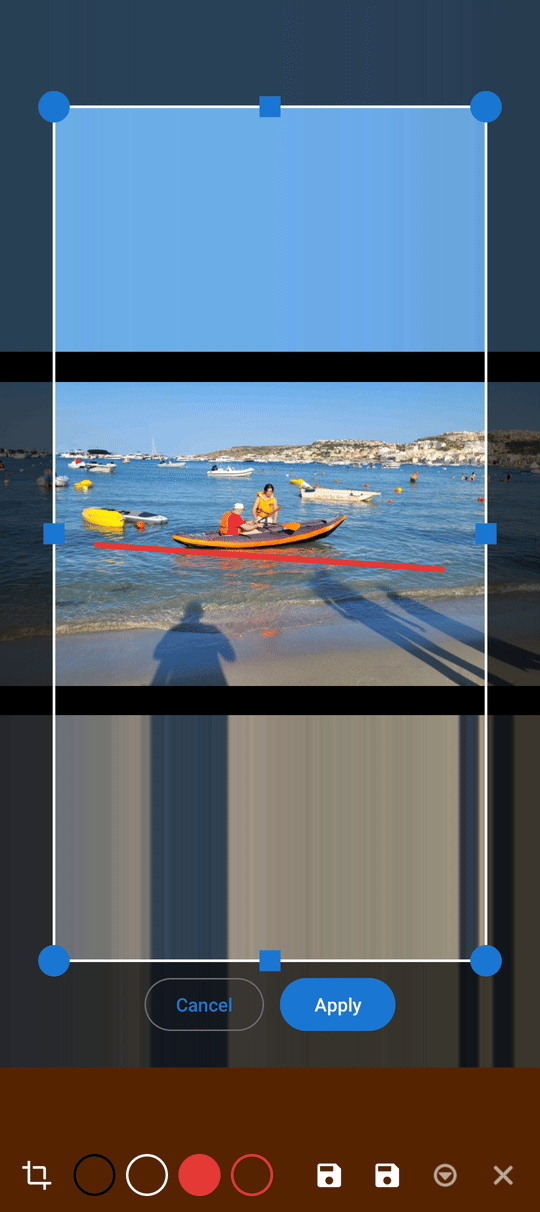
Pick Crop from the tool popup and a frame with corner handles appears over the picture, the same frame as the crop tool in the image viewer. Drag it to the part you want to keep and confirm.
The picture is cut down to that frame right there in the drawing session, so you can keep drawing on the cropped result before you save or send it - no need to crop first, save, and come back to draw.
Adjust brush size, opacity and text size
Open the overflow button  and tap Settings to open Draw settings: sliders for Brush size and Opacity, and a Text size choice of Small, Medium or Large. These, like your last color, are remembered for next time.
Draw settings dialog open over the drawing editor, brush size slider near the middle.
Save your work
- Save - writes your drawing into the picture you started from (or, for a blank canvas, saves it for the first time) and keeps the editor open. The toolbar tints itself while there is anything unsaved, so you can see at a glance that you still have work to save.
- Save & close - the same, then takes you back to the picture.
- Save as.. - in the overflow menu, asks for a file name (the suggested one is the original name plus
_draw-and the date and time, for examplebeach_draw-260924-1530.jpg) and keeps the original picture untouched. - Cancel
 - leaves without saving; nothing changes.
Drawing on an image in a network folder or cloud storage works the same way - the app saves the result back to the same place. If it cannot reach the folder you see "Couldn't reach the folder. Your drawing stayed on this device - try saving again.", and nothing is lost.
Undo, delete or send the result
The overflow button also holds:
- Undo last and Undo all - step back through your strokes, or clear every one of them at once.
- Delete file - removes the picture you started from. Only shown when you opened an existing file, never for a blank canvas.
- Send to.. - merges your drawing into the picture and hands the result to the same Send to.. menu used everywhere else in the app, so it can go straight to Google Keep, a messenger or any other receiver you have turned on.
What You Get
A photo, a screenshot or a blank page carries your brush strokes, shapes, text and crops, saved in place or as a new file, with your favorite color, brush size and text size waiting for you next time - and ready to send on without a detour through another app.
Tips and Troubleshooting
- Every saved copy has a proper file type. Save as.. always writes a real file extension, so a saved screenshot, frame or edit opens in any other app too.
- Just want to turn or trim the whole photo, no drawing? That is the image viewer's own tools - see Editing photos.
- Want to know exactly who a Send to.. receiver reaches and how to turn one on or off? See Sending files with the Send to.. menu.
- Working on a screenshot? The screen-capture shortcut on Standard can open it straight in the drawing editor after you take it.