All editions (containers in the cloud - all except Lite and FOSS)
Protecting Files with a PIN and Encryption
Lock a resource with a PIN, and turn a single file into a password-protected .fd-sec container that you can view without unpacking and unpack again - on the phone, on a network folder or in the cloud.
Why You'll Love This
Your children borrow the phone to watch cartoons, and you would rather they did not wander into the folder with scanned passports. Or you keep a copy of a contract on the home computer and want it unreadable to anyone who opens that computer.
FastMediaSorter has two locks for this. A PIN closes a whole resource inside the app. An encrypted container turns one file into a sealed .fd-sec file that nobody can open without the password - not in this app, not on a computer.
- FastMediaSorter in any edition. Containers next to files in cloud storage work in the editions that have cloud storage: Standard, noLegal, Photos, Legacy and VR.
- For containers: a file in a folder the app can write to.
- Optional: the FileDO program for Windows, which opens the same
.fd-seccontainers on a computer.
The app cannot recover a forgotten PIN. If you forget it, remove the resource and add the folder again - your files are not affected. A PIN protects the resource inside FastMediaSorter only; other apps and a computer still see the folder.
Lock a resource with a PIN
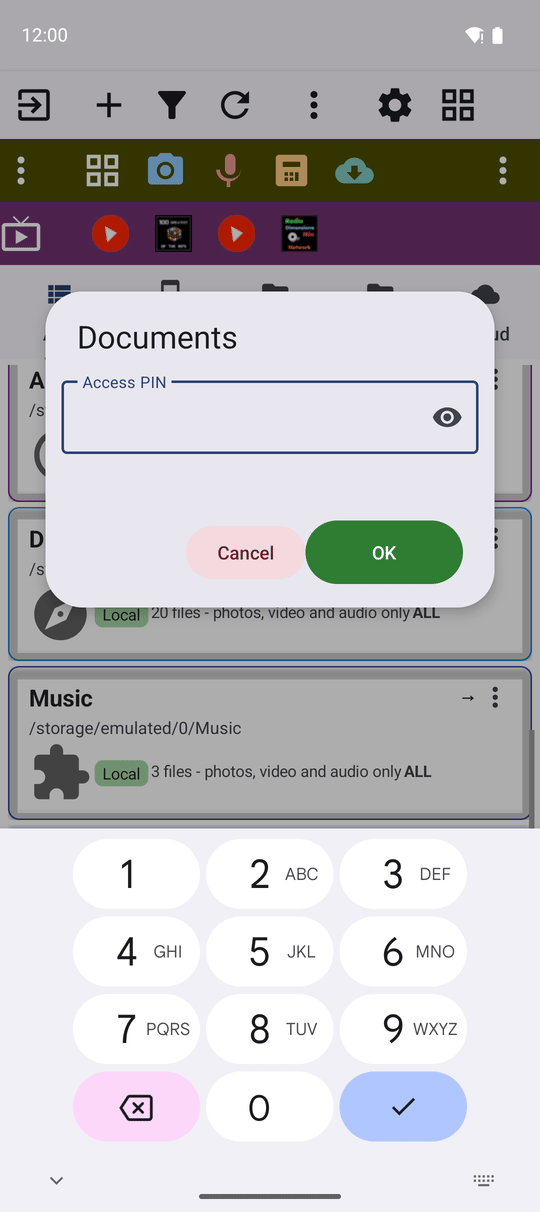
On the main screen long-press the resource and choose Edit. In the field PIN Code (Optional) - "4-6 digits to protect this resource" - type a code of 4 to 6 digits and save.
From now on, opening the resource, starting its slideshow or opening its settings first asks for the PIN in a small window titled with the resource's name. A wrong code shows "Incorrect PIN" and nothing opens. To remove the PIN, open Edit (you will be asked for the current PIN), clear the field and save.
Switch on the encryption commands
Open Settings, the Management tab, and turn on FileDO encryption operations. It adds Encrypt with FileDO and Decrypt with FileDO to the operations menu of every file. Opening an existing .fd-sec file works even with this switch off.
The original file stays where it was, readable as before. Once you have checked that the container opens, delete the original if it should be secret. And remember the password: 'There is no way to recover a forgotten password.'
Seal a file into a container
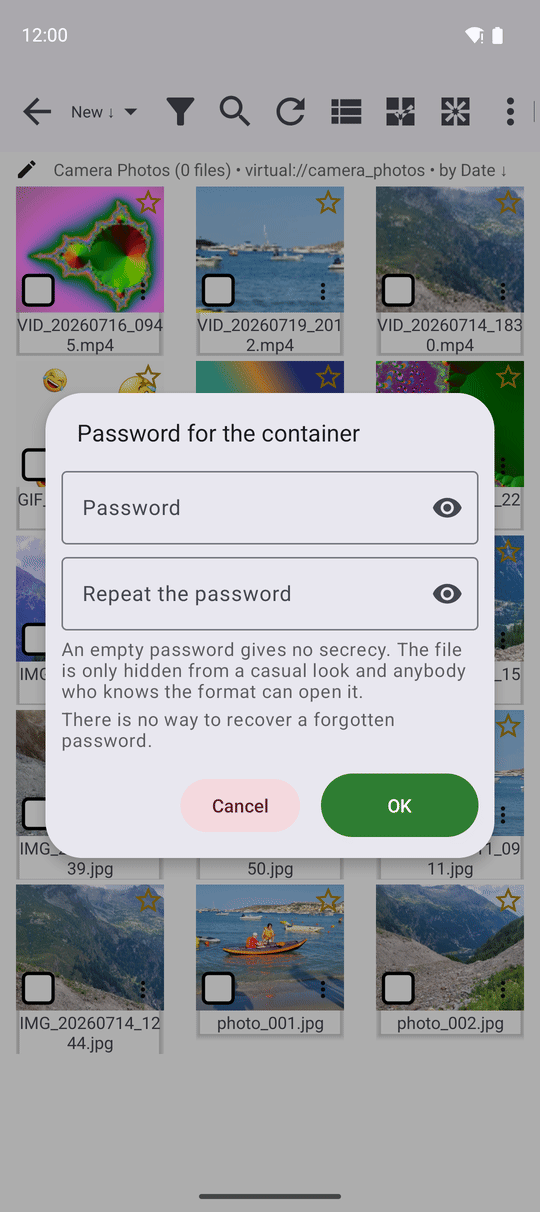
In the file browser open the three-dots menu of a file and tap Encrypt with FileDO. In the window Password for the container type the password twice. If the two do not match, the app says "The two passwords differ".
The app writes a new file next to the original: passport.jpg becomes passport.fd-sec. If that name is taken, the new one is called passport-1.fd-sec - nothing is ever overwritten. You see "Container written. The original is untouched."
A word about an empty password
You may leave the password empty, and the app says honestly what that means: "An empty password gives no secrecy. The file is only hidden from a casual look and anybody who knows the format can open it." Use it only to keep a file out of photo galleries, never for real secrets.
Look at a container without unpacking it
A .fd-sec file is shown in the file browser when the resource shows all files (All Files mode). Tap it and type its password. The app unpacks it into a private place only it can reach, opens it in the right viewer, and deletes that copy as soon as you close the viewer.
Tick Remember the password and try it on every .fd-sec file if you use one password for all your containers. Next time the app tries it by itself and opens the file without asking. If the saved password does not fit a container, the app forgets it and tells you: "The saved password did not open this file and was forgotten. Enter the password for this file." The password is kept in the phone's protected key store.
Unpack a container for good
Open the three-dots menu of the .fd-sec file and tap Decrypt with FileDO, then type the password. The original file comes back next to the container under its original name, and you see "File restored."
Containers on a network folder or in the cloud
Encrypt with FileDO and Decrypt with FileDO work on files in a network folder, on an FTP or SFTP server, and in Google Drive, Dropbox or OneDrive too. The app downloads the file into its private space, seals or unseals it there, uploads the result next to the original, reads it back to check that every byte arrived, and only then gives it its final name. The original in the cloud is never changed.
If a container does not open
- "Could not open the file: the password is wrong, the file was never a container, or it has been tampered with. These three cannot be told apart." - try the password again, carefully.
- "The container is damaged: it is truncated or its contents do not match what it seals." - the file was cut short or changed, for example by an interrupted copy. Use another copy.
- "This container uses a format version this app does not read." - update the app.
- "This container holds a program or a script. It is not opened." - for your safety the app never starts programs or scripts that come out of a container.
What You Get
The children's cartoons are one tap away, while the passports folder asks for a PIN. Your contract sits on the home computer as a sealed .fd-sec file that opens only with your password - in this app on the phone, and in FileDO on the computer.
Tips and Troubleshooting
- Same format on the computer. Containers made here open in the FileDO program for Windows, and the other way round.
- A PIN travels with the resource when you export your resources to a file - see Sharing and backing up your resources.
- Other privacy settings, such as a lock for the whole app, are described in Privacy controls, passcodes and network security.