Editing Photos - Rotate, Crop, Colors and GIF Tools
Turn, mirror and crop a photo, make a small copy to send, brighten a dark picture or give it a black-and-white look, and change the speed of an animated GIF - right in the image viewer, without a separate editor.
Why You'll Love This
A photo of a receipt came out sideways, a holiday picture has a stranger at the edge, an old scan is too dark, or you want a tiny copy of a big photo to send by message. You do not need a separate photo editor for these everyday fixes: the image viewer has them built in, one tap away from the picture you are looking at.
The same place also holds a few tools for animated GIF, WebP and APNG pictures: make an animation faster or slower, keep its first frame as a normal picture, or take it apart frame by frame.
- FastMediaSorter in any edition: Standard, noLegal, Lite, Photos, Legacy, VR or FOSS.
- A picture you are allowed to change. Pictures in a folder the app can only read are saved as a new file in your Downloads folder instead.
- Pictures in a network folder can be edited too, in the editions that can open network folders (all except Lite).
- For cutting animated WebP or APNG pictures into frames: Android 9 or newer. GIF files work on any Android version.
Every button in the Image Edit window changes the original picture at once - there is no separate Save step and no confirmation. If you want to keep the original, copy the file first (see Copy, move and delete files) or use Crop to file and Compressed copy, which always make a new file.
Open the editing tools
Open the photo in the image viewer. Then either tap the pencil button Adjust on the command panel, or open the three-dots menu and tap Adjust.
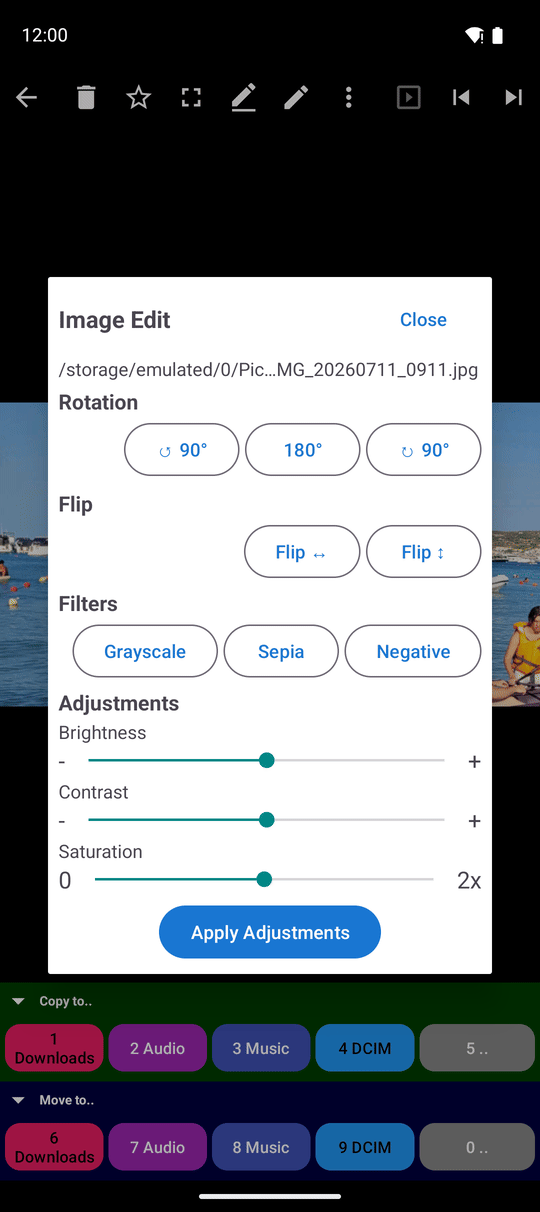
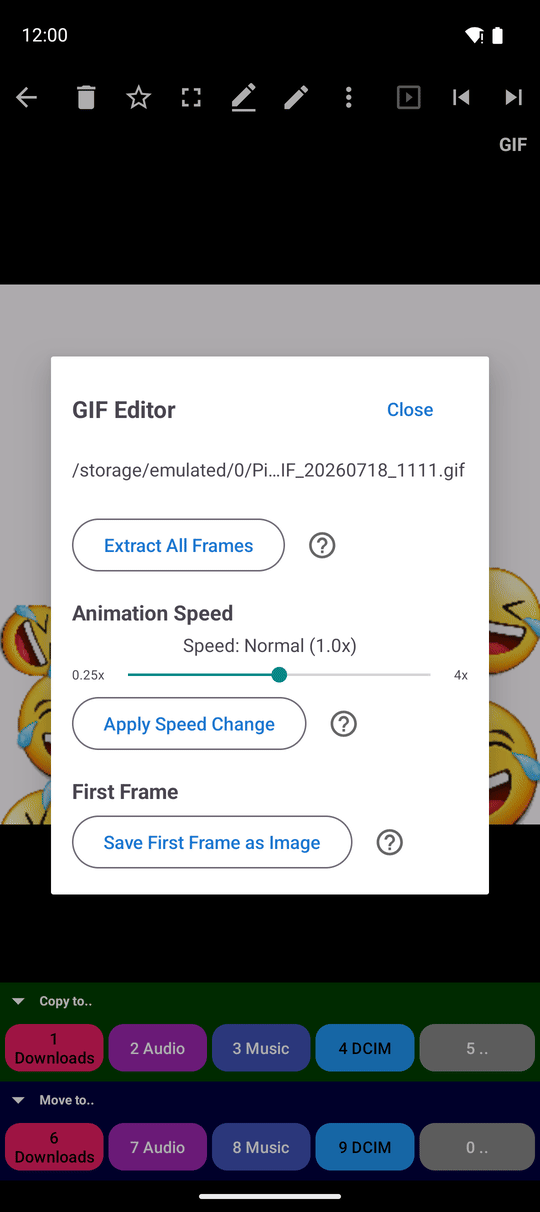
For an ordinary photo this opens the Image Edit window with four groups: Rotation, Flip, Filters and Adjustments. For an animated GIF, WebP or APNG picture it opens the GIF Editor instead (see step 6).
Turn or mirror a photo for good
In the Rotation group tap ↺ 90° to turn the photo a quarter to the left, ↻ 90° to turn it a quarter to the right, or 180° to turn it upside down. In the Flip group tap Flip ↔ to mirror it left to right or Flip ↕ to mirror it top to bottom.
The photo is rewritten on the spot while "Rotating image.." is shown. Its date, camera details and other information stored inside the file are kept, and the turn is stored in the picture itself, so it looks right in every other app too.
Crop away what you do not want
Open the three-dots menu and choose one of two commands:
- Crop - cuts the photo and replaces the original file.
- Crop to file - keeps the original and saves the cut part as a new file.
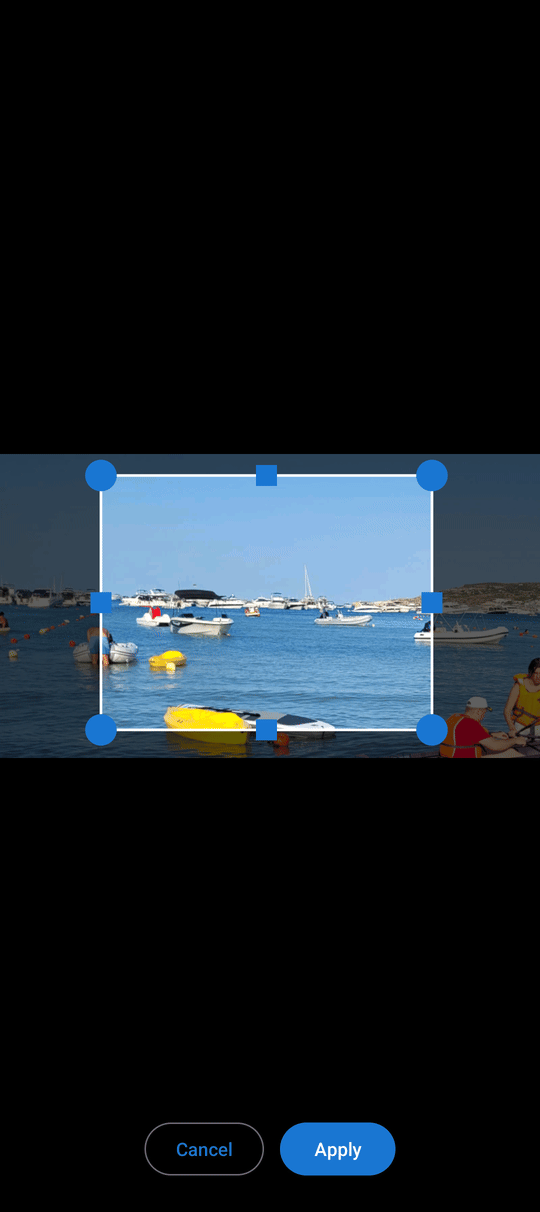
A frame with handles appears over the photo. Drag the corners and edges until the frame holds only the part you want to keep, then confirm with OK. For Crop to file you are asked for a file name; the suggested one is the original name plus _crop- and the date and time, for example beach_crop-260924-1530.jpg. The new file goes into the same folder, or into Downloads when the folder cannot be written to.
Save a smaller copy to send
Open the three-dots menu and tap Compressed copy. The app saves a lighter JPEG copy of the photo next to the original (or in Downloads, if that folder is read-only), named like beach_compress-260924-1530.jpg. The original is not touched.
A compressed copy is handy when a messenger or an e-mail refuses a large photo. The copy looks the same on a phone screen but takes much less space.
Fix brightness and colors, or add a filter
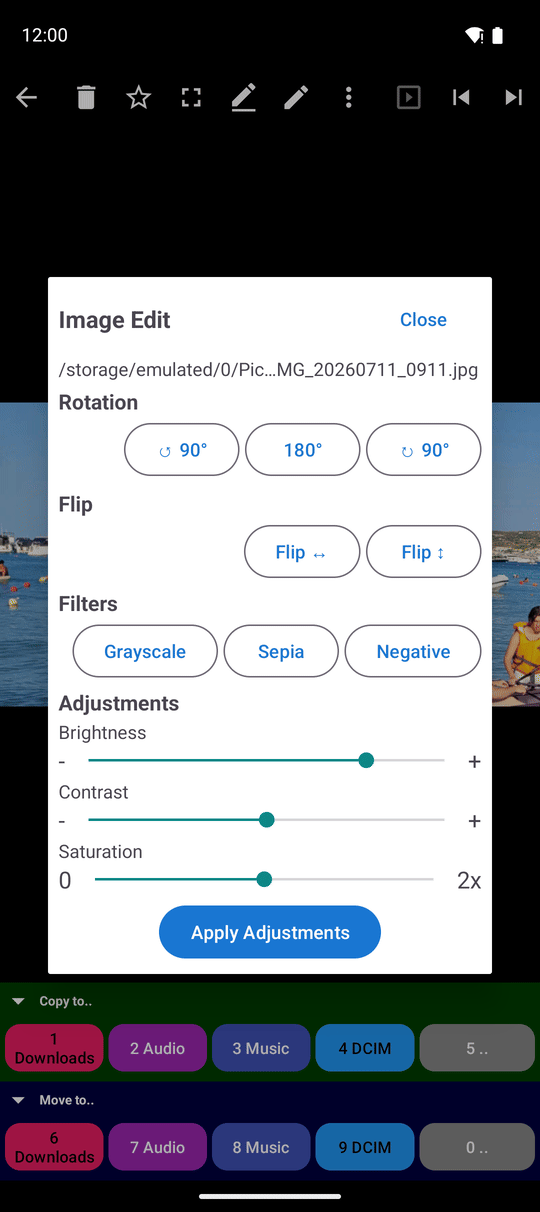
In the Adjustments group move the sliders:
- Brightness - from -100 (much darker) to +100 (much lighter); 0 leaves it as it is.
- Contrast - from 0x (flat and gray) to 2x (strong); 1x leaves it as it is.
- Saturation - from 0x (black and white) to 2x (vivid colors); 1x leaves it as it is.
Tap Apply Adjustments to save the result into the photo.
The Filters group changes the whole picture with one tap: Grayscale makes it black and white, Sepia gives it the warm brown look of an old print, and Negative swaps every color for its opposite.
When the photo is in a network folder, for example a shared folder on your home computer (see Windows network shares), the app downloads it, makes the change and uploads it back to the same place. It takes a little longer, but you do not have to copy anything by hand.
Change the speed of a GIF, keep its first frame, or cut it into frames
Open an animated picture and tap Adjust. The GIF Editor window offers three tools:
- Animation Speed - move the slider between 0.25x (four times slower) and 4x (four times faster), then tap Apply Speed Change. For a GIF on this device the original file is rewritten with the new speed; for a GIF in a network folder a new file such as
party_speed_2_0x.gifis saved to Downloads. - Save First Frame as Image - saves the first picture of the animation as a still PNG in Downloads, named like
party_first_frame.png. - Extract All Frames - saves every frame as a separate PNG picture:
party_frame_001.png,party_frame_002.pngand so on. For a file on this device they go into the same folder; for a file in a network folder, into Downloads.
Edit in a separate window on a large screen
On a Chromebook, a tablet or a headset the player can open a picture in its own window beside other apps: open the three-dots menu and tap Open in new window. If you do not see this item, turn on Allow new windows in Settings, the General tab, Interface (see multi-window and foldables).
In the separate window the three-dots menu groups every editing command under one Editing section: Adjust, Crop, Crop to file, Compressed copy, Drawing, Rotate 90° and Rotate -90°. The same menu also lets you rename the file and switch Screen autorotate on or off.
What You Get
Sideways photos stand upright in every app, unwanted edges are gone, dark pictures are brighter, and you have small copies ready to send. Animated pictures play at the speed you like, and any frame of them can become an ordinary picture.
Tips and Troubleshooting
- Keep the original. Crop, rotate, flip, filters and adjustments overwrite the file. Only Crop to file, Compressed copy, Save First Frame as Image and Extract All Frames always create new files.
- Just want to look at a sideways photo? Use Rotate 90° in the three-dots menu of the viewer. It turns the picture on screen only and leaves the file alone - see Viewing photos, GIFs and zoom gestures.
- Want to draw or write on a photo? That is a separate tool - see drawing and image markup.
- A new file landed in Downloads? That happens when the photo's folder cannot be written to, for example a folder the app may only read. Move the file where you want it afterwards.