Pinned and Favorite Channels
Keep your everyday channels within reach two ways: pin them to the top of Streams in the order you choose, and star the ones you want in the shared Favorites list. This page covers pinning, reordering, the pinned-only filter, and adding a channel to Favorites.
Why You'll Love This
Once you have more than a handful of channels, the ones you actually check every day get buried among the rest. FastMediaSorter gives you two separate ways to keep track of them: pinning, which is local to the Streams screen and puts a channel at the top of your own list in whatever order you choose, and Favorites, the star-marked list shared across the whole app. Neither changes what a channel plays - both are just faster ways back to it.
- FastMediaSorter installed in the Standard, noLegal, Legacy or VR edition. Streams and everything on this page is absent from Lite, Photos and FOSS.
- The Streams screen open, with some channels in it - your own or from the catalog. See Browsing internet stream channels for how the catalog fills the list.
- For the Favorites steps: Favorites turned on in Settings (Enable Favorites).
Pin a channel to the top of your list
Long-press a channel's row or tile, or tap the small pin icon on a list row, and the channel jumps to a Pinned section at the top of Streams. The pin icon fills in and changes color once a channel is pinned, so you can tell pinned channels apart from the rest at a glance. Long-press again, or tap the same pin icon, to unpin it.
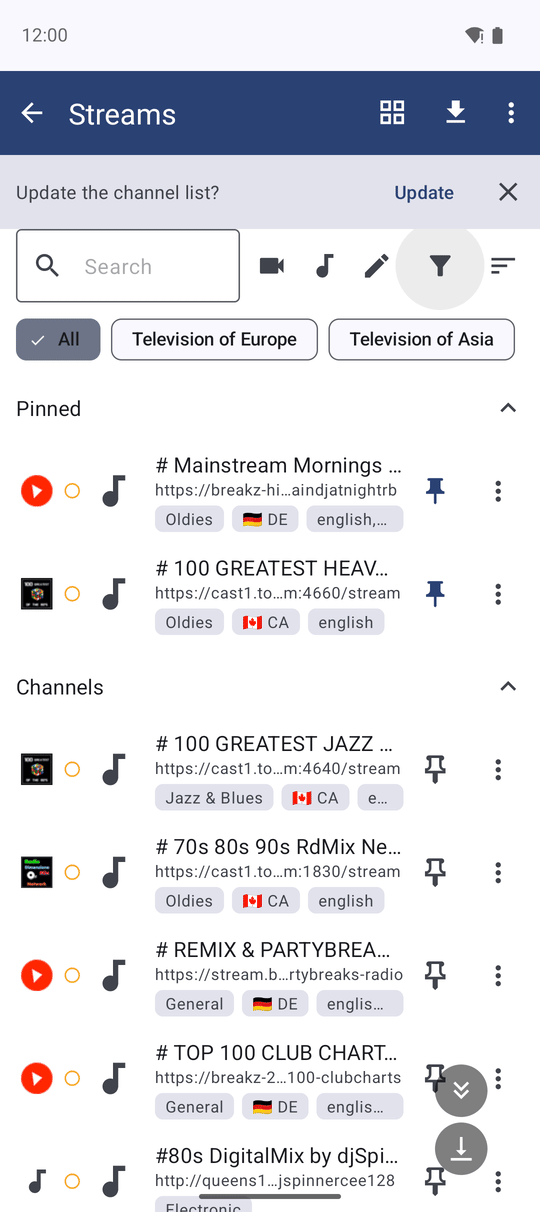
Spot a pinned channel in grid view
Switch to grid view and a pinned channel carries a small red Pinned badge in the top-left corner of its tile. The badge itself is not tappable - you pin or unpin a tile from its ⋮ menu, which leads with Pin or Unpin depending on the channel's current state.
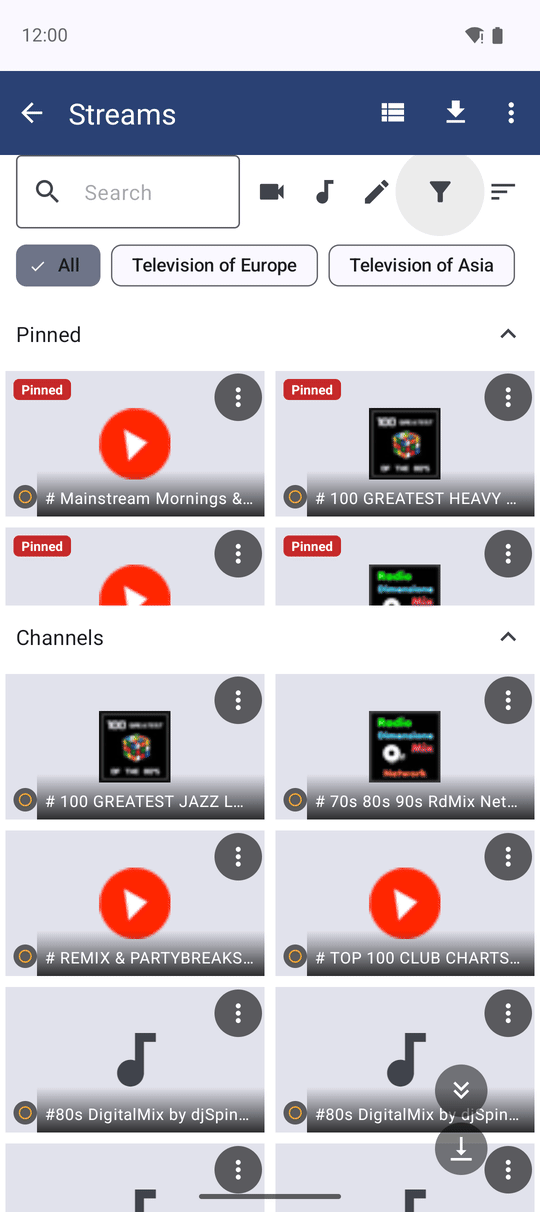
Pinned and everything else, as two sections
As soon as you pin your first channel, Streams splits into two independently scrolling sections: Pinned on top, Channels below, each with its own header. Tap a header to collapse that section and give the other the room - collapsing Pinned expands Channels and the other way round, so one of the two always stays visible. Unpin your last channel and the split goes away on its own.
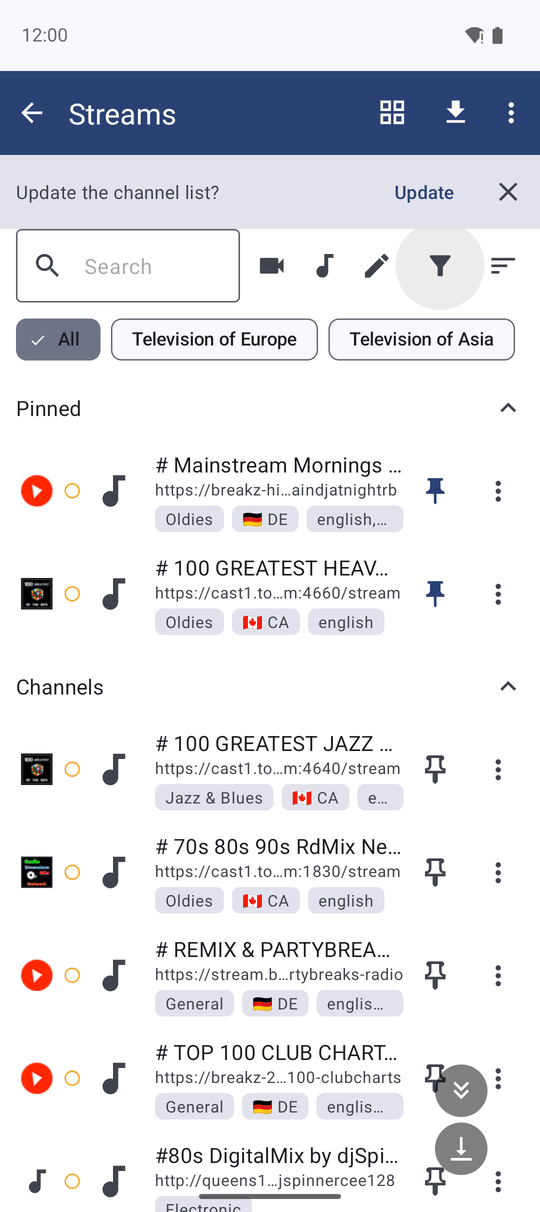
Put your pinned channels in the order you want
With two or more channels pinned, each one's ⋮ menu gains three extra rows: Move up, Move down and Move to top. They move a channel only within the pinned block, and gray out at the ends - Move up and Move to top on the first pinned channel, Move down on the last - so there is never a row to tap that would not do anything. The order you set here is the same order the streams panel on the main screen plays your pinned channels in.
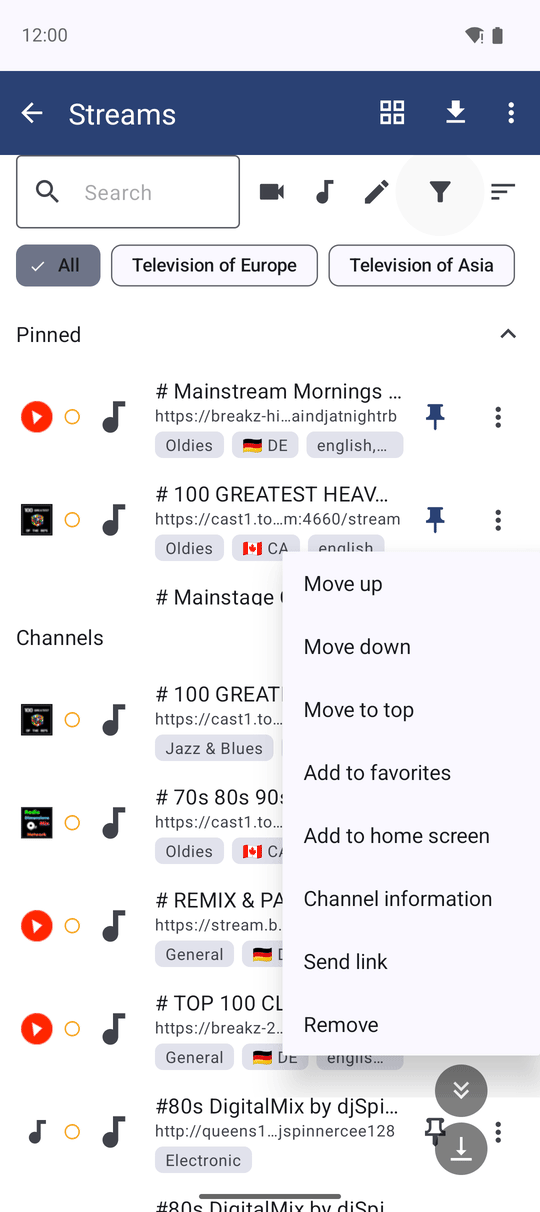
Show just your pinned channels
Tap Filter on the Streams screen and turn on Pinned only to hide everything else and see just the channels you pinned - handy once your list has grown past the ones you actually check every day. Turn the same switch off to see the whole list again.
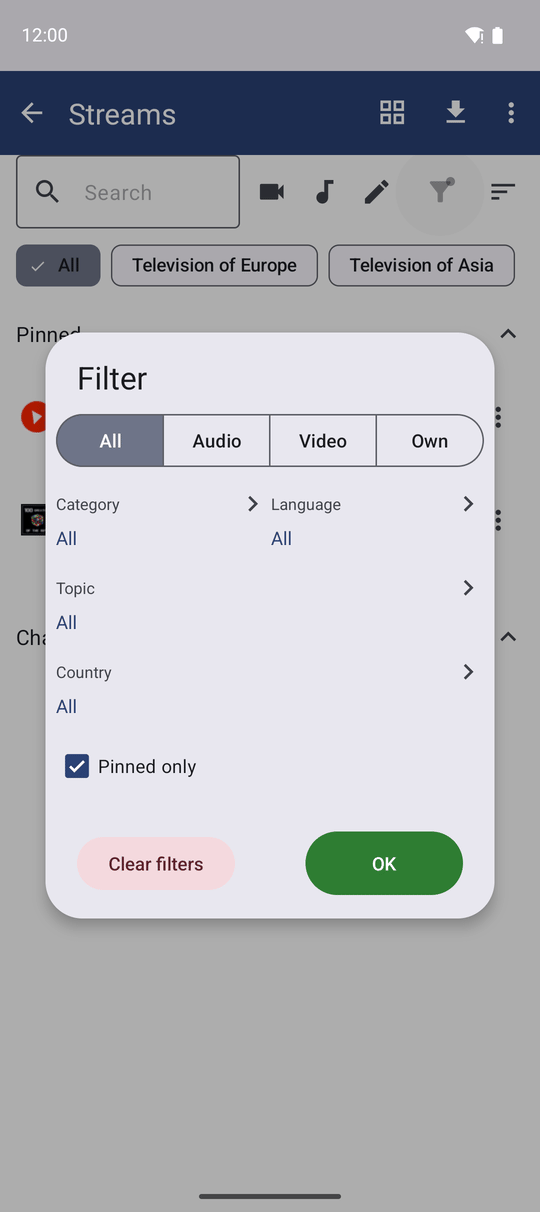
Star a channel into Favorites
Pinning only affects Streams; Favorites is the star-marked list shared across the whole app. Open a channel's ⋮ menu and tap Add to favorites and the channel joins Favorites by name, reachable from the Favorites tab exactly like a favorited file - independent of whether that channel is also pinned. Tap Remove from favorites the same way to take it off again.
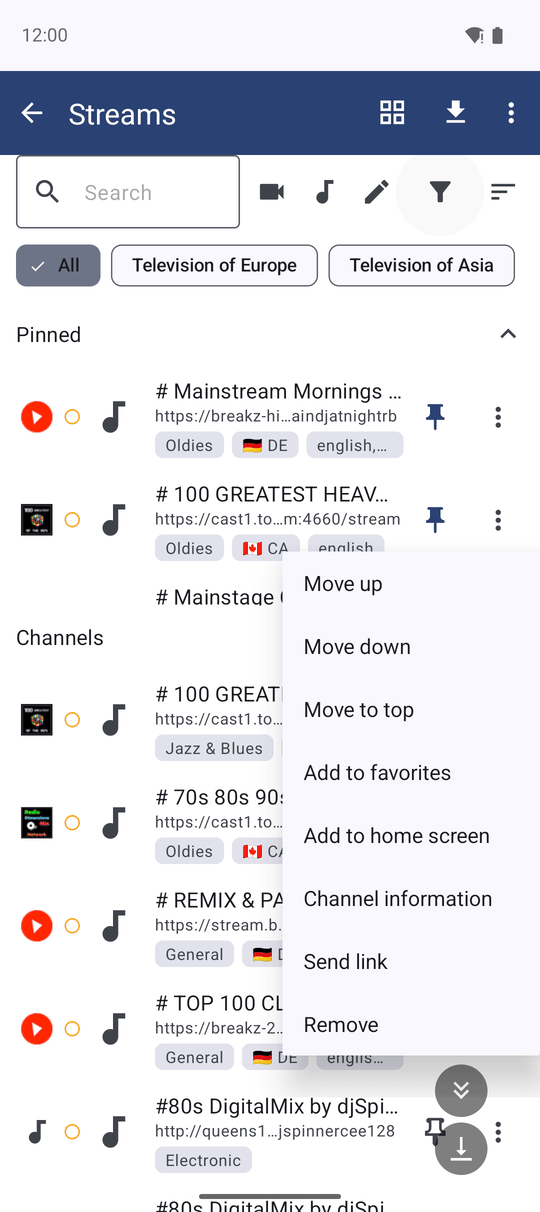
What You Get
You can pin the channels you check every day to the top of Streams in the order you want, tell a pinned channel apart at a glance in either view, narrow the list down to pinned-only, and keep a separate, shared shortlist of favorite channels alongside your favorite files.
Tips and Troubleshooting
- A channel's pin, its place in the pinned order, its favorite star and its play history all survive small address changes. When the catalog republishes a channel under a cosmetically different address - https instead of http, a trailing slash added, the port spelled out - FastMediaSorter still recognizes it as the same channel, so none of that resets.
- Tapping the favorite star again never creates a second entry. It always toggles the one Favorites entry you already have for that channel, even after an address like the above changes underneath it.
- Favorites row missing from a channel's menu? Turn on Enable Favorites in Settings first - the row only appears once Favorites itself is on.
- Want to know why a tile looks the way it does? Pinning and favouriting never touch a channel's picture - see Channel Pictures, Logos and Badges.