Adding Your Own Streams and M3U Playlists
Bring your own channels into Streams: type a web address for a single stream, or import a whole station list from a remote M3U playlist. This page covers adding, importing, editing and the duplicate-address check that keeps one address from ending up in your list twice.
Why You'll Love This
The built-in channel catalog covers a lot of ground, but it will never have everything - your favorite small radio station, a work IPTV feed, or a camera link someone sent you. FastMediaSorter lets you add any of these yourself: one channel at a time by its web address, or a whole station list at once by importing a playlist.
An M3U playlist is a plain text file that lists stream web addresses one after another, usually with a name next to each one - it is one of the oldest and most common ways radio and IPTV providers publish their channel lists. See M3U on Wikipedia for the full format. FastMediaSorter downloads and reads the file for you; you never need to open or edit it yourself.
- FastMediaSorter installed in the Standard, noLegal, Legacy or VR edition. Streams and everything on this page is absent from Lite, Photos and FOSS.
- The Streams screen open.
- The web address of the stream, or of the M3U playlist, you want to add - copy it from wherever you found it.
- Browsing the built-in catalog instead of adding your own? See Browsing internet stream channels.
Add a stream by its web address
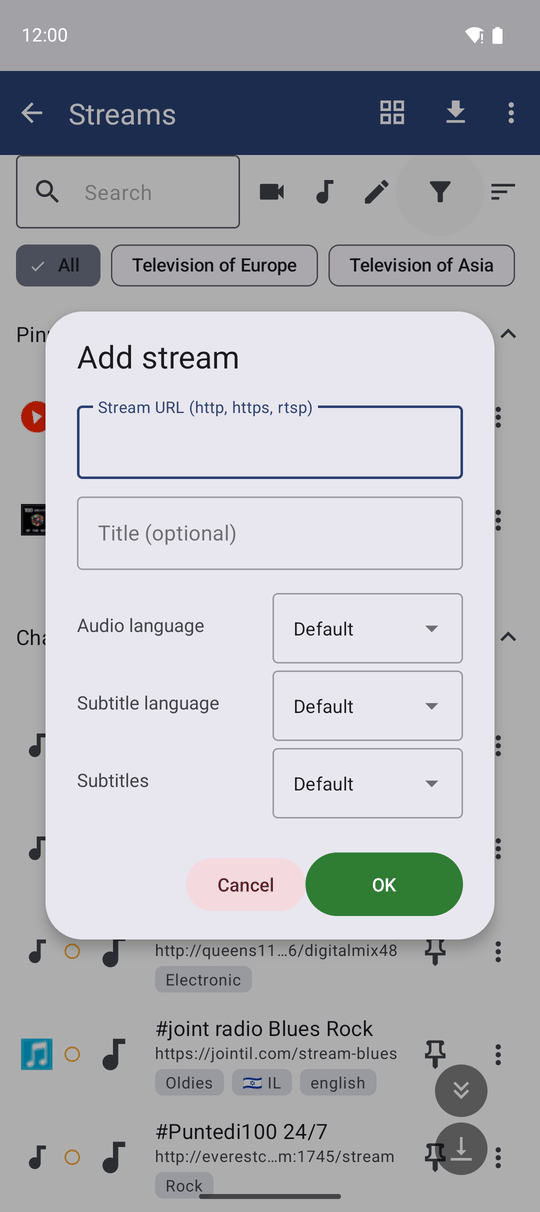
Open the Streams screen's overflow menu  and tap Add stream. Type the address into Stream URL (http, https, rtsp) - a plain http or https link, or an rtsp:// address for a camera or IPTV feed - and, if you like, a Title (optional) so the channel shows the name you chose instead of whatever the stream itself reports. Tap OK and the channel appears in your list right away.
Import a whole playlist from its web address
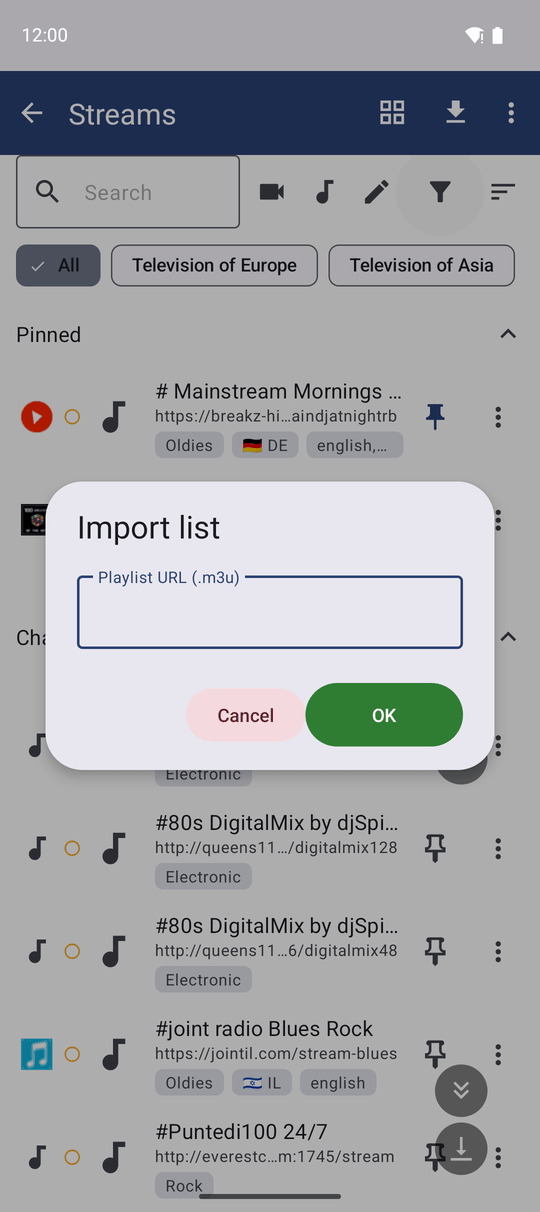
To bring in a whole station list at once, open the overflow menu and tap Import from URL. Paste the playlist's address into Playlist URL (.m3u) and tap OK. FastMediaSorter downloads the file and adds every channel it finds in it as its own entry in your list.
This is different from Update catalog, the toolbar button next to it - that one refreshes FastMediaSorter's own built-in channel list, not anything of yours. See Browsing internet stream channels for that side of Streams.
Importing the same playlist again only adds what is new
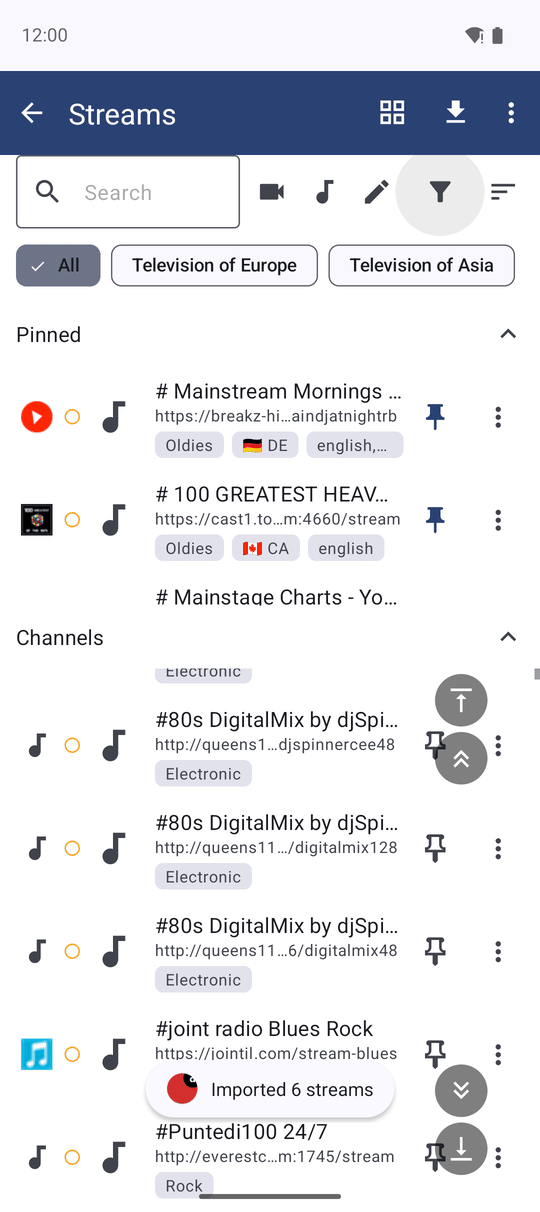
A moment after an import finishes, FastMediaSorter tells you how many channels it actually added - Imported n streams. Run the same import again later, after the station has updated its list, and only the new entries come in: anything already in your list is quietly left alone rather than added a second time. If every channel in the playlist is already there, you will simply see Imported 0 streams.
Adding a stream you already have
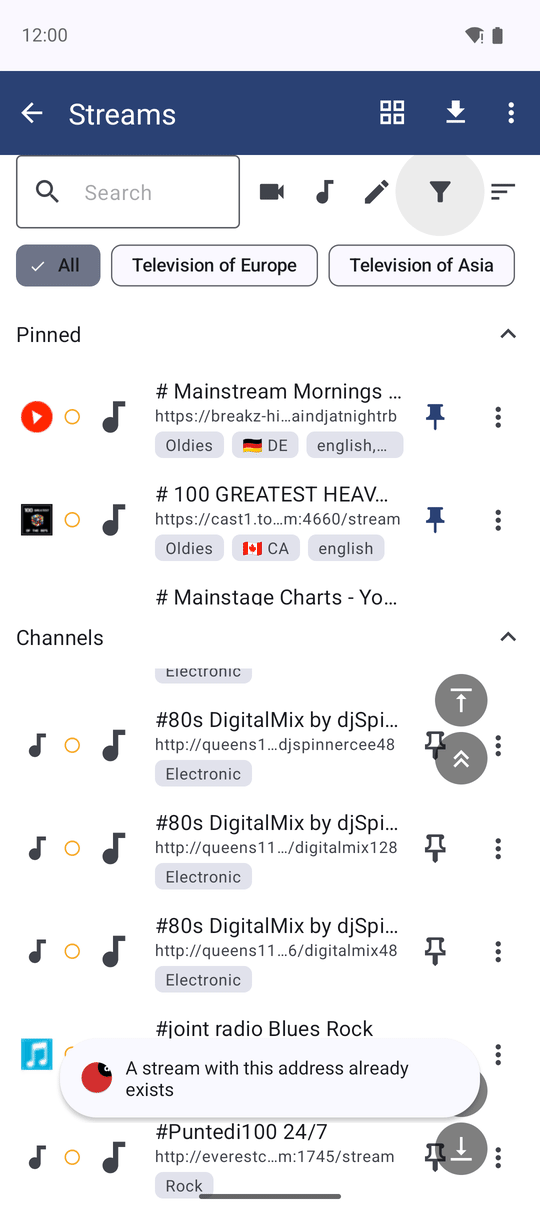
Try to add a stream by hand whose web address is already in your list, and FastMediaSorter stops before it makes a copy: it shows A stream with this address already exists instead of adding the channel twice. Fix the address, or tap Cancel if you meant to open the existing one instead.
Edit a channel, and pin down its type
A channel you added by hand or brought in through an import can be edited afterwards - open its ⋮ menu, on the row or the tile, and tap Edit. The Edit channel dialog reopens with the same URL and title fields, plus a Type row with Auto, Audio and Video choices that settle how FastMediaSorter treats the stream when the address alone does not make it obvious.
Pick Audio or Video yourself if Auto guesses wrong, and FastMediaSorter remembers it: open Edit again later and your choice, not Auto, is what is still selected. Catalog channels do not offer Edit, since you did not set their address in the first place.
Edit channel dialog open, URL and Title fields filled in, Type row with Video selected.
What You Get
You can add any stream by hand, bring in a whole station list from an M3U playlist without doubling up what you already have, fix a wrong address or title afterwards, and lock in whether a channel plays as audio or video when FastMediaSorter would otherwise have to guess.
Tips and Troubleshooting
- Addresses with a user name and password inside - such as
http://user:password@host/stream- sign in to the stream correctly instead of being reported as unreachable. - Not sure whether an address is http, https or rtsp? Copy it exactly as the station or camera gave it to you - FastMediaSorter accepts all three in the same field.
- Only channels you added yourself can be edited. A channel from the built-in catalog keeps Edit off its menu; if you want a different title or type for one of those, add it again by hand with the address you want.
- Want to keep your own channels within reach? Pinning and Favorites work the same for a channel you added as for one from the catalog - see Pinned and favorite channels.