Playing Live Streams and Radio
Tap a channel and it plays: radio inside the list with the current song in view, TV and video full screen with only the controls that make sense for a live picture, and music that keeps going when you leave the app.
Why You'll Love This
Some things are never saved as a file: the morning show on your favorite radio station, the news channel, a webcam looking at a harbor. A stream is that kind of live feed, and FastMediaSorter plays it straight from its web address.
This recipe is about the moment after you have found a channel: tapping it, listening while you do something else, watching a video channel full screen, and knowing what the app is doing when the sound goes quiet. Radio plays right inside the Streams list, so you can keep scrolling and pick the next station while the current one plays.
- FastMediaSorter in the Standard, noLegal, Legacy or VR edition. Streams do not exist in the Lite, Photos or FOSS editions.
- Streams turned on: Settings, the Media tab, section Streams, switch Enable Streams. A device profile chosen in the welcome wizard may have turned it on already, and the wizard has its own Streams page. The list of catalog sources can also be downloaded from the Extensions screen.
- At least one channel in the list - from the catalog or added by you. See browsing the channel catalog and adding your own streams.
- An internet connection: Wi-Fi or mobile data.
- For listening with the screen off: permission to show notifications. See understanding app permissions.
Open Streams
When Streams is turned on, a Streams item appears in the main menu of the main screen, and the welcome wizard offers it too. Turning Enable Streams off hides the item again; your channels stay stored and come back when you turn it on.
You can also open Streams from the streams panel above the resource list - see streams on the home screen and the main screen.
Listen to a radio station without leaving the list
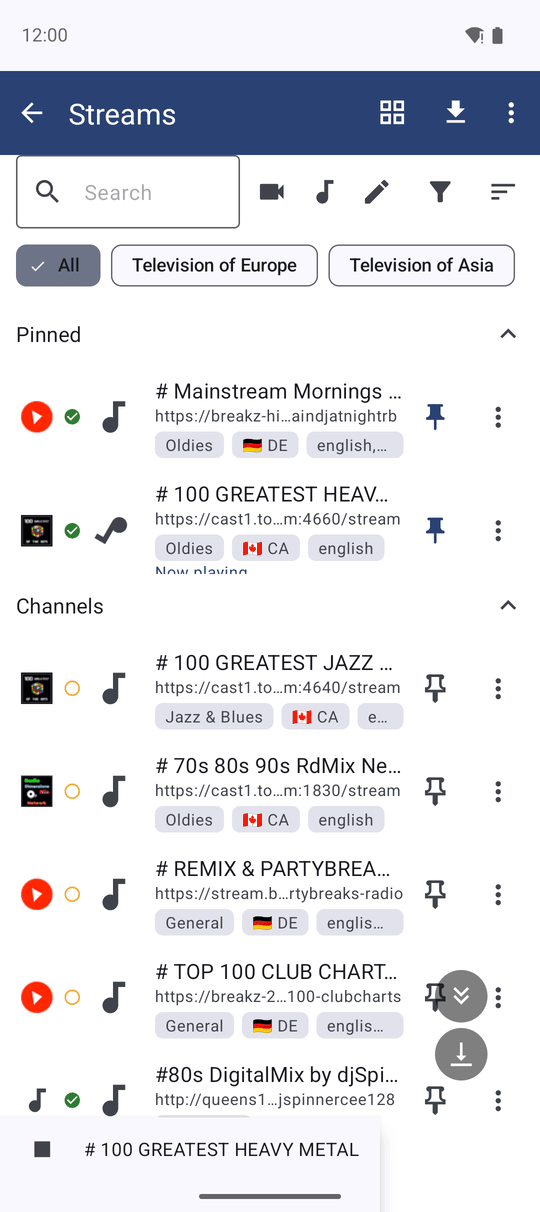
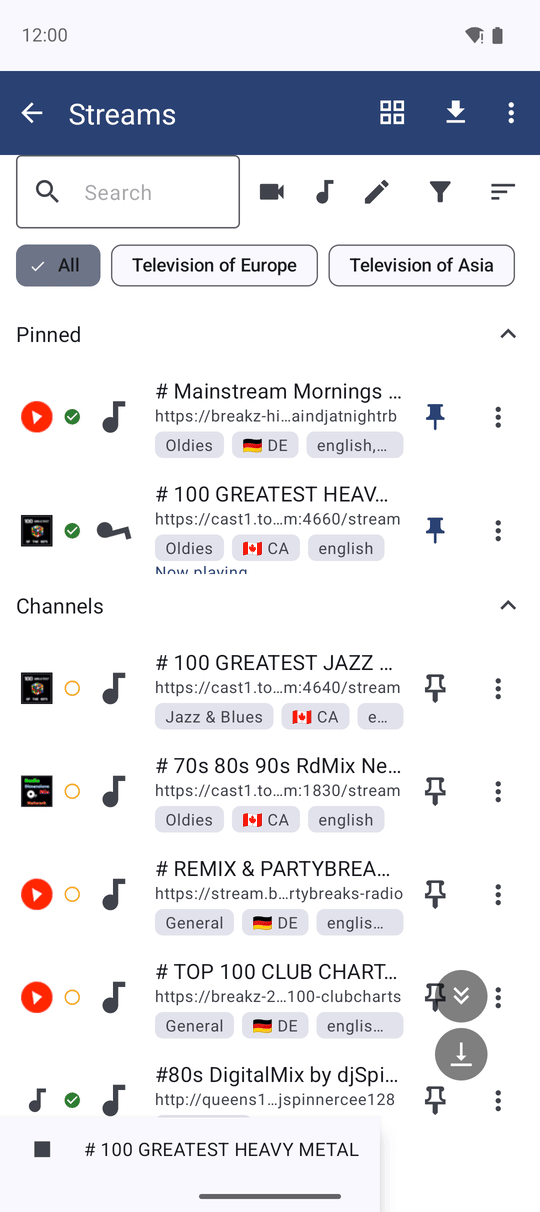
Tap an audio channel. It starts playing at once, and a small bar appears at the bottom of the screen: Now playing, the channel name, the song that is on air right now and a Stop button. The list stays in view, so you can keep scrolling, searching and filtering while you listen.
To stop, tap Stop - or simply tap the same channel again. One tap starts it, the next tap stops it, even if you tap twice quickly while the station is still connecting.
Many stations send the artist and title of the song that is playing. FastMediaSorter shows it in the bottom bar, in the notification, on the lock screen and on the channel's tile while it plays. This is the now-playing information.
Read the small mark on each channel
Each channel row carries a small mark that tells you how it went the last time you played it on this phone:
- a green check - Verified online: it really played here;
- a red exclamation mark - Last playback failed: the last attempt did not start, for example because the address is gone or the server refused;
- a hollow amber circle - Not played yet: you have never tried it on this device.
The marks differ in shape, not only in color, and a screen reader says them aloud. They are kept after a restart. To start with a clean slate, use Settings, the Media tab, section Streams, Clear play marks; the channels themselves stay.
Watch a TV or video channel full screen
Tap a video channel. It opens straight into the full-screen video player, with nothing on top of the picture. Tap the picture once to show the controls; they hide again by themselves after a few seconds, together with the close button in the top-right corner.
A live channel has no beginning and no end, so the player shows only what makes sense for it: play and pause, the video control window, picture-in-picture, full screen, rotation, saving the current frame, file information, Chromecast and Send to. Actions meant for files - delete, rename, edit, copy, move, slideshow, favorites, sleep timer, the seek bar and next or previous file - are hidden. Ordinary video and music files keep all their controls.
Send to shares the channel's web address as text, so you can paste it into any messenger, mail or SMS. The live picture itself is not downloaded.
When the channel sends the name of the show that is on air, the player shows it over the picture.
Full-screen player on an HLS video channel, controls visible after a tap, show name shown, no seek bar.
The whole Streams screen works without touching it. On a TV remote or a keyboard, the D-pad moves between the search field, the filter and sort buttons, the list and the Stop button; Enter confirms a dialog and Escape closes it. With a mouse, a right click on a channel opens its menu. More in keyboard, D-pad and Android TV control.
Turn radio into a full-screen music show
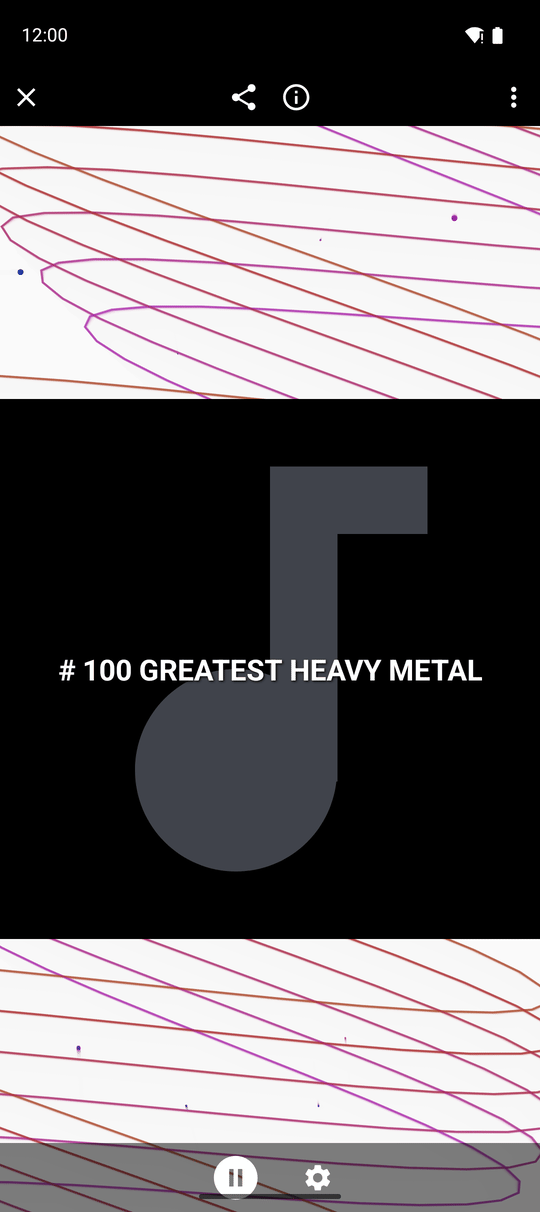
If you like to watch something while you listen, switch on Settings, the Media tab, section Streams, Visualize audio streams as music. Now a tap on a radio station opens a full-screen player instead of the bottom bar.
The player draws moving waves and particles to the music and shows the current song. From there you can open the song's lyrics, which refresh by themselves when the next song starts, open About this channel to see the address, format and the speed of the connection, set a sleep timer, and share the channel's link. The sleep timer works the same way as for music files - see playback order, sleep timer and background listening.
Keep listening when you leave the app
Radio does not have to stop when you switch to another app or lock the screen. This is controlled by Settings, the Player tab, group Background audio playback, switch Background Playback. In the Standard and noLegal editions it is on from the start.
- On: the station keeps playing and you control it from the notification and the lock screen. The notification shows the song that is on air.
- Off: the station stops as soon as you leave or minimize Streams.
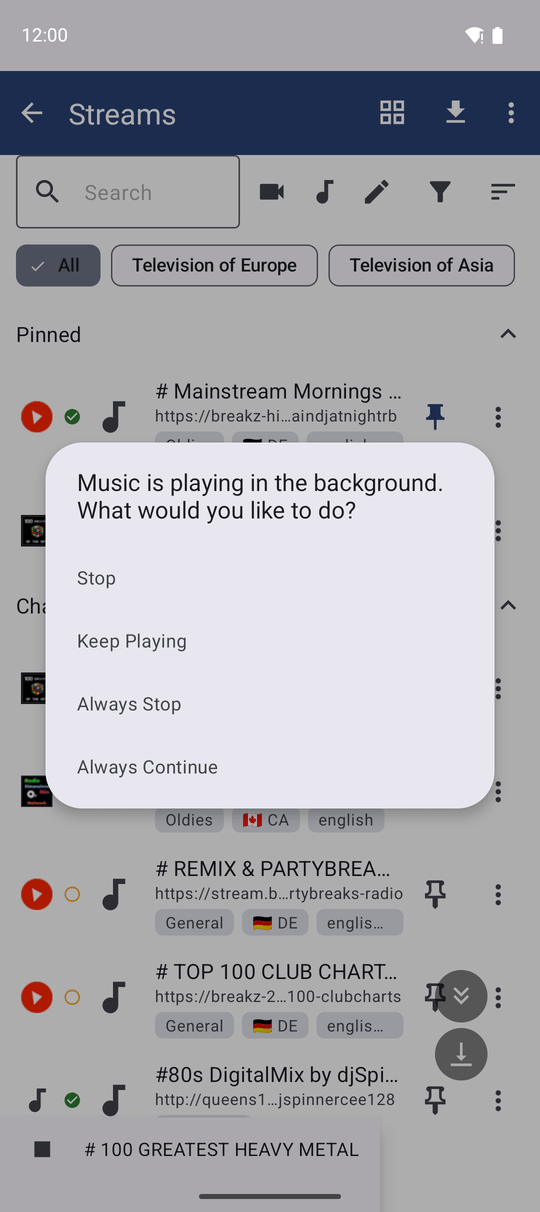
When you go back from Streams while a station plays, the app asks: Music is playing in the background. What would you like to do? - Stop, Keep Playing, Always Stop or Always Continue. The last two remember your answer. You can change that answer later in the same group, row When leaving player or streams: Ask every time (default), Always stop or Always keep playing. It is the same question the music player asks - see picture-in-picture and background play.
While a station plays in the background, a slim bar on the main screen shows what is on and has a Stop button in its left corner.
Pick up where you left off
If a radio station was playing when you closed the app, it starts again the next time you open FastMediaSorter - handy for a station you listen to every morning. A video channel, or a Streams screen with nothing playing, leaves nothing to resume.
What You Get
Radio plays inside the list with the current song in view, video channels fill the screen with only the controls that make sense for live TV, and the music carries on in your pocket until you stop it.
Tips and Troubleshooting
- Nothing happens and a message says there is no network? FastMediaSorter checks the connection before it starts a stream. With no Wi-Fi and no mobile data it says so at once instead of spinning. Connect and tap the channel again.
- The station stops when the screen turns off? Check that Background Playback is on and that the app may show notifications. Some phones also stop background apps to save battery; allow FastMediaSorter to run without battery restrictions in the Android settings.
- A channel keeps spinning or shows a failure dialog? See when the connection is weak for what the app does by itself and what the dialogs mean.
- Want the details of a channel? Its menu has About this channel: the address, where the channel came from, when it last played and, while it plays, the picture size, codecs and the incoming speed. Copy all copies it as text.
- A channel from an old playlist with an unusual type is played according to its address, so it behaves the same everywhere in the app.
- Want a phone or a watch to go on air for your other devices? The media exchange portal explains the routes between devices and marks what is not available yet.