Built-in Text and Markdown Editor
Read text, Markdown and log files comfortably, fix them on the spot, find and replace words, create new text notes in any folder, and pass the text on to Google Keep, the calculator, a speech voice or a translator - without a separate editor app.
Why You'll Love This
A shopping list, a note with a Wi-Fi password, a README from a download, a log file from a router - plain text files are everywhere. In FastMediaSorter you can open them with one tap, read them comfortably and fix a line or two without looking for another app.
The same place is a small notebook: create a text note right in a folder, write it, save it - on the phone, on your home computer or in the cloud.
- FastMediaSorter in an edition with the reader: Standard, noLegal, Legacy, VR or FOSS. The Lite and Photos editions do not open text files.
- Support text files (.txt, .md, .log, .json, .xml) switched on in Settings, the Media tab, Documents.
- A text file up to 100 MB:
.txt,.md,.log,.json,.xml,.csv,.conf,.ini,.properties,.ymlor.yaml- on this device, in a network folder or in cloud storage. - To change a file: a folder you are allowed to write to.
- For translation: an edition with translation (all of the above except FOSS) and Enable Translation switched on in Settings. For Send to Keep: the Google Keep app.
Open a text file
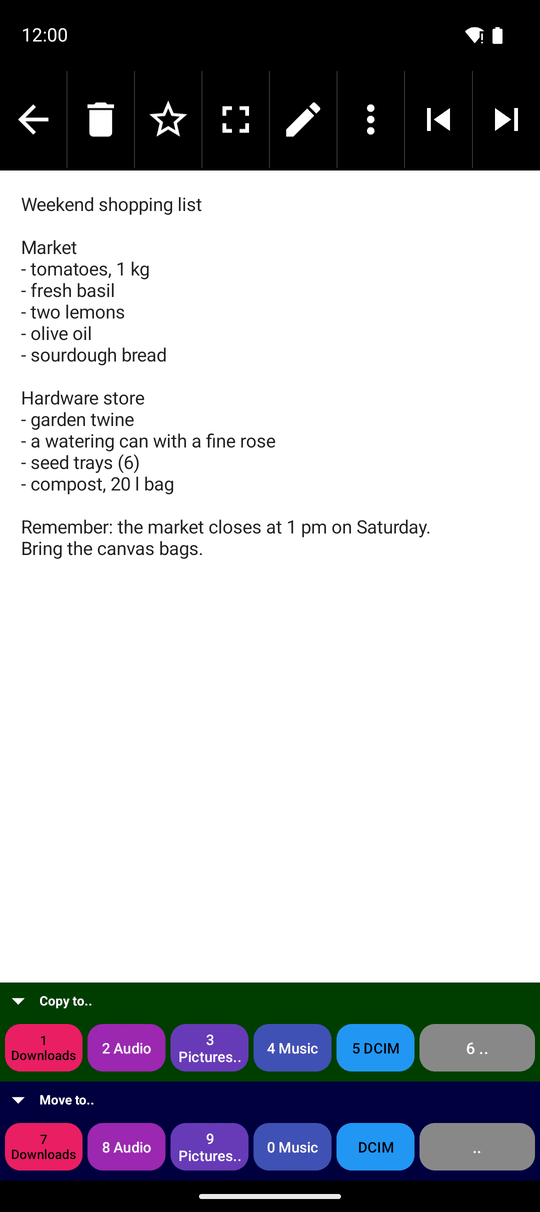
In the file browser tap the text file. It opens in the reader as plain, easy-to-read text. A very long file is shown in parts: swipe up and down on the text to go to the next or the previous part.
Text files from other apps open too: choose FastMediaSorter in the Open with list, and the file opens in a separate window with the same tools. A file handed over by another app can be read there, but only a file stored in an ordinary folder you can write to can also be changed.
Make it easy to read
- Letter size - swipe left or right across the text to make the letters smaller or larger.
- Colors - open the three-dots menu, tap Reader Settings and pick Light, Dark or Sepia. Until you pick one, the text follows the app's own theme.
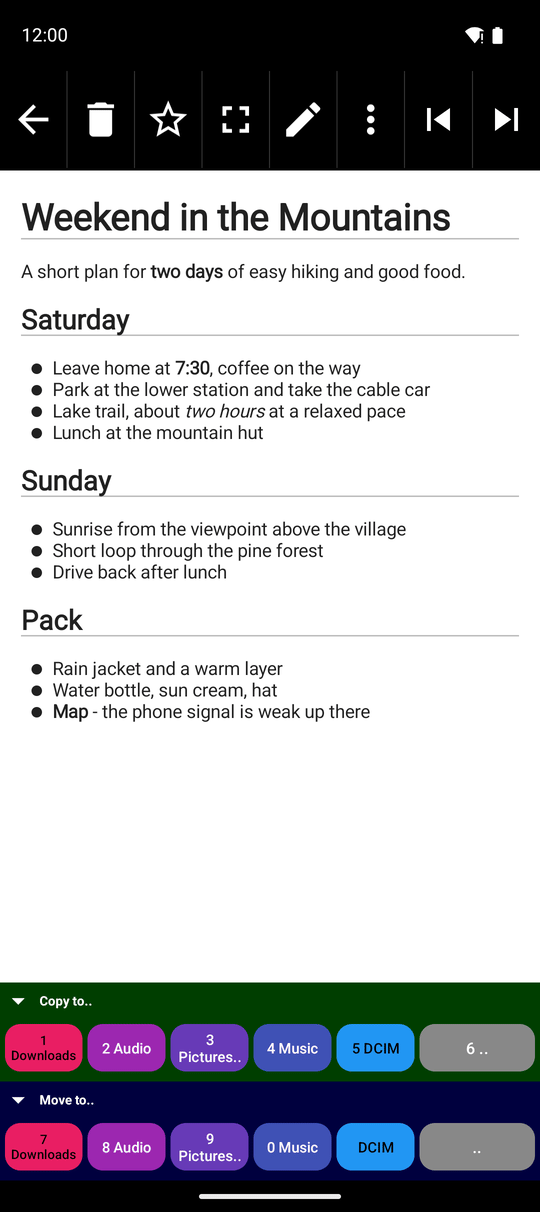
- Markdown - a
.mdfile is shown nicely formatted: headings, bold text, lists and links. Tap Toggle Markdown in the three-dots menu to see the plain source and tap it again to go back. JSON and XML files get colored keys and values so they are easier to follow. - Line numbers - switch on Number lines in Settings, the Media tab, Documents to see a number in front of every line - handy when someone says "look at line 42".
- Strange letters? If the text shows question marks or odd symbols instead of letters, the file was saved in a different encoding. Open the three-dots menu, tap Re-open with Encoding.. and choose another one in the Select Encoding window - for old Russian or Ukrainian text, for example, try Windows-1251 (Cyrillic) or KOI8-R (Russian); there are also choices for Western, Japanese, Chinese and Korean text. The app guesses the right encoding by itself in most cases.
A file that the reader shows in several parts cannot be edited - you will see "Editing is not available for files with multiple pages". Short and medium files, which is almost every note, can be edited.
Edit a file and save it
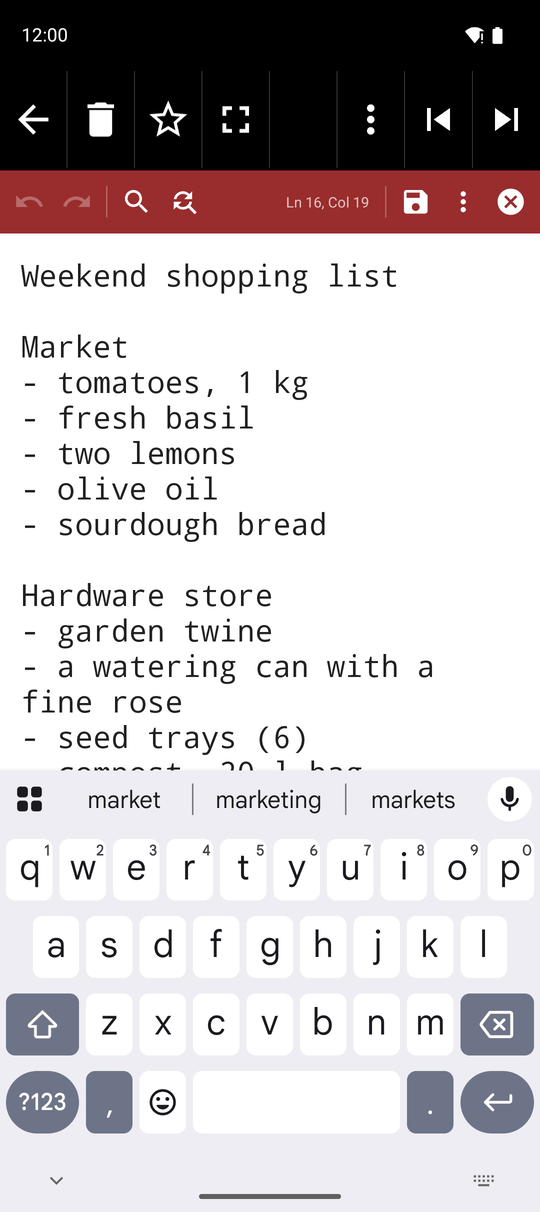
Tap Edit (the pencil) in the bottom bar. The text becomes editable and the keyboard opens. While you type, the line and column of the cursor are shown, for example Ln 12, Col 5.
When you are done, tap one of the buttons of the editor:
- Save - saves the changes and keeps the editor open.
- Save & close - saves and goes back to reading.
- Save & send - saves and opens the send menu, so you can pass the file to another app or person.
- Cancel - leaves the editor without saving.
Before saving, the Save note window shows the File name, so you can keep it or give the file a new name. A file in a network folder or cloud storage is saved on the phone first and then uploaded back; if the upload fails, you see "Saved on this device, but couldn't upload the file back to the server." and your text is not lost.
Undo mistakes, find and replace words
- Undo and Redo in the editor bar take your last changes back or bring them again - up to 50 steps.
- Find looks for a word in the text: type it in the Find.. field, and the counter shows, for example, 2 / 7; use the arrows to go from one match to the next. Capital letters do not matter.
- Find and Replace adds a Replace with.. field: tap Replace to change the current match or Replace All to change every one at once. You then see how many places were replaced.
If a word is not in the text, you see "No results. The search came back empty-handed."
Find and Replace panel open in edit mode, query found 3 times, counter "1 / 3".
Do not lose your text
While you edit, the app quietly keeps a draft of your text every 15 seconds when something has changed. If the app is closed before you save - the battery runs out, a call comes in, Android closes the app in the background - open the same file and tap Edit again: you see "Draft restored. Tap Save to keep changes." Tap Save to keep what you had written.
The draft is only a safety net. Leaving with Cancel or the back button does not ask for confirmation, so save before you leave.
Create a new text note
Open the folder where the note should live, open the three-dots menu of the file browser and tap Create text note. On a wide screen the button is right on the bar. An empty note opens straight in the editor.
Write your text and tap Save. The suggested file name is the date and time, for example 26-09-24_15-30.txt; change it if you like. If you leave out the ending, .txt is added for you. The file appears in the folder only when you save it for the first time.
Notes can be created in any folder you may write to - on the phone, in a network folder or in cloud storage. In the All Documents list a new note goes into the phone's Documents folder. If the folder cannot take a new file, you see "Couldn't create the note here. Please try a different folder."
Send the text to Keep, calculate, listen or translate
- Send to Keep - in the editor, this button sends the text to Google Keep as a new note, so you have it on all your devices. It is shown only when Google Keep is installed.
- Calculator - in the editor, select a sum written in the text, for example
12*7+5, and tap Calculator in the selection menu. The calculator opens with it; the result is put back into the text where the cursor was. - Read Aloud - in the reader, tap Read Aloud in the three-dots menu, and your phone's speech voice reads the part of the text on the screen. Tap it again to stop. You can also select a piece of text and choose Read Aloud from the selection menu.
- Translate - in the reader, tap the Translate button to see the text in your language in a side panel, made on the phone without the internet. Swipe left or right on the panel to change its letter size. Selected text can be translated from the selection menu too. More in translating text on screen.
What You Get
Any text file opens with one tap and reads comfortably - in large letters, dark colors, with formatting or with line numbers. You can fix it on the spot, find and replace words, start new notes in any folder, and send the text on to Keep, the calculator, a voice or a translator.
Tips and Troubleshooting
- Keep a copy of important files. Saving replaces the old text. To keep the original, copy the file first - see copying, moving and deleting files.
- Working with notes on your computer? Create and edit them in a network folder on your home computer - see Windows network shares.
- Need a PDF instead? See reading PDF documents.
- Only want to read, never edit? Just do not tap Edit - nothing in the file changes while you read, swipe or search.