Standard, noLegal, Legacy and VR (Quick Recorder widget - Standard and Legacy)
Taking Photos, Videos and Voice Notes Straight into a Folder
Take a photo or a video, or record a voice note, from inside a folder so it is saved right there - on the phone, on a network folder or in the cloud - and use the Quick Recorder widget and the clipboard for even faster notes.
Why You'll Love This
You are sorting receipts into a "Taxes 2026" folder and one receipt is still on paper. Normally you would take a photo with the camera app, find it in the camera roll and move it. Here you take the photo from inside the folder, and it lands exactly there - even when the folder is on the computer at home or in your Google Drive.
The same works for short videos and for voice notes, and a home-screen widget records a voice note with one tap without opening the app at all.
- FastMediaSorter in the Standard, noLegal, Legacy or VR edition. The Quick Recorder widget exists in the Standard and Legacy editions.
- Permission to use the camera, and for voice notes the microphone. The app asks when you first use them.
- A resource you can write to, or nothing at all - without a chosen place, photos go to the phone's camera folder and voice notes to Downloads.
Switch the commands on
Open Settings, the Management tab:
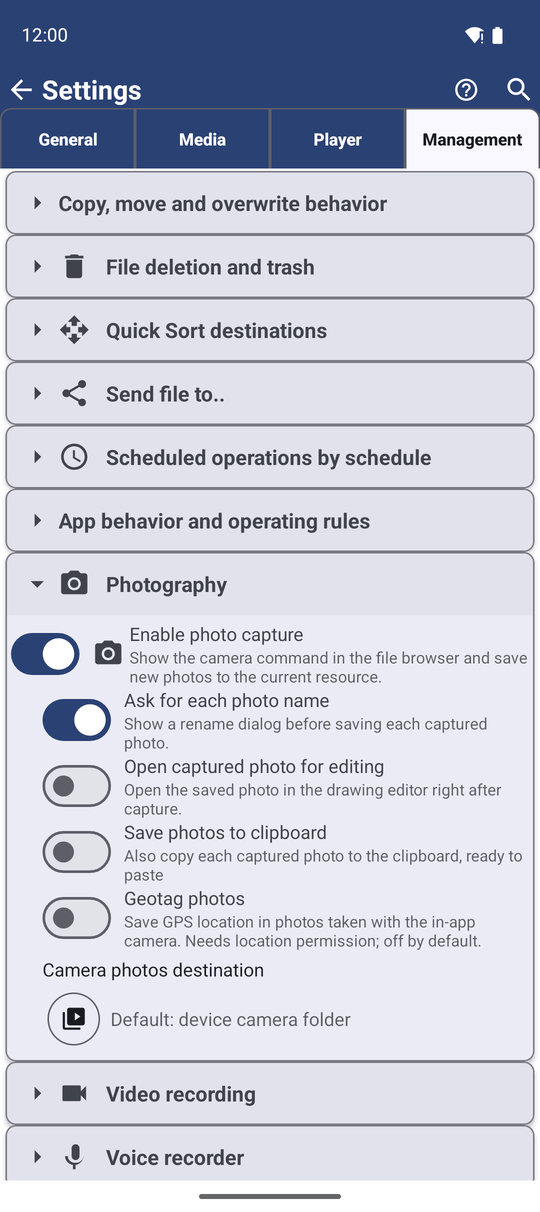
- Under Photography turn on Enable photo capture - "Show the camera command in the file browser and save new photos to the current resource."
- Under Video recording turn on Enable video recording.
- Under Voice recorder turn on Enable microphone recording. If the app has no microphone permission yet, Android asks for it first.
Each group also has a Select resource.. button. The place you choose there is used when there is no folder to save into - for example for the Quick Recorder widget.
Take a photo into the folder you are in
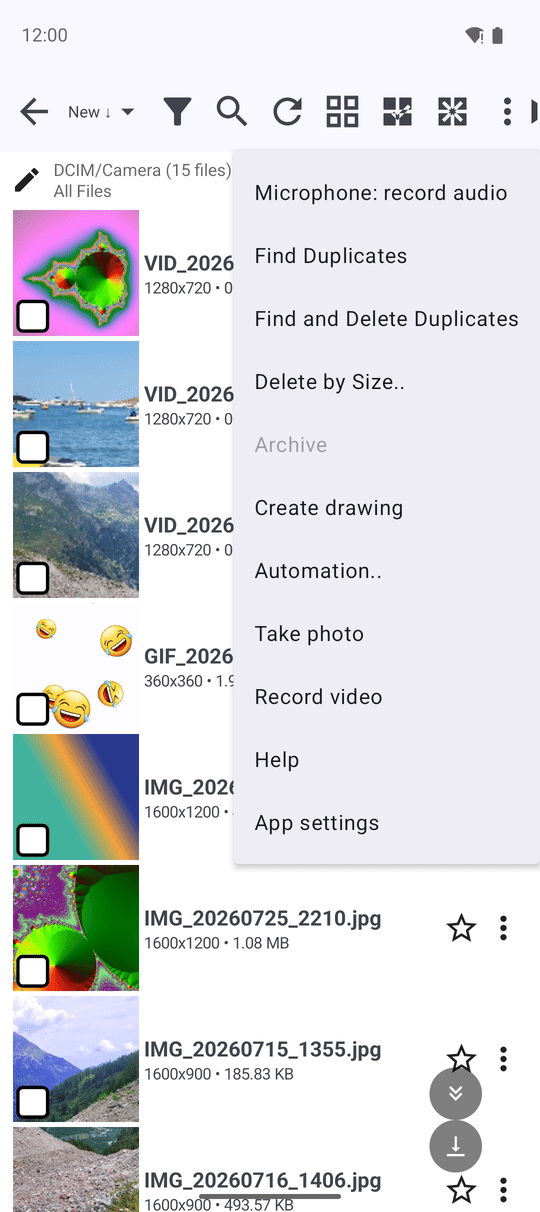
Open the folder in the file browser, open the three-dots menu and tap Take photo. Take the photo. It is saved in this folder:
- In a folder on the phone - directly into it.
- In a network folder or in cloud storage - it is uploaded there.
- In a ready-made collection such as Camera Photos or All Images - into the phone's camera folder.
With Ask for each photo name on, you name the photo before it is saved. With Open captured photo for editing on, the photo opens in the drawing editor right away, so you can circle the important part. Geotag photos stores where the photo was taken; it needs the location permission and is off by default.
Record a video the same way
In the same menu tap Record video. The finished video is saved into the folder you are in, following the same rules as photos. With Open recorded video in player on, it starts playing right after recording, so you can check it at once.
Record a voice note
In the file browser press and hold the microphone button (Record audio, "Hold to record") and speak. Let go to stop. If the button does not fit on a narrow screen, it moves into the three-dots menu as Record audio - there one tap starts recording.
With Ask for filename on, the Save Recording window lets you name the note first. You then see "Recording saved: ..". The note is saved as an .m4a file into the place chosen under Voice recorder, or into the folder you are in, or into Downloads.
A hold that was too short is not saved - you see "Recording canceled". A phone call or another app taking over the sound also stops the recording.
One tap from the home screen - the Quick Recorder widget
*Standard and Legacy editions.*
Add the Quick Recorder widget to your Android home screen: long-press an empty spot, choose Widgets, find FastMediaSorter and drag Quick Recorder out. Its description says it all: "Tap to start a voice recording; tap again to stop and save".
While it records, a notification "Recording.." with a Stop button stays at the top of the screen. Stop from the widget or from the notification. The note is saved into the place chosen under Voice recorder in Settings, or into the phone's audio folder, and you see "Recording saved to ..".
Home screen with the Quick Recorder widget placed, a recording running.
Paste a new photo straight into a message
Turn on Save photos to clipboard under Photography - "Also copy each captured photo to the clipboard, ready to paste". Every photo you take with the app's camera is then also put on the clipboard, in full quality. Switch to your messenger, long-press the text field and choose Paste - the photo is attached. The photo is still saved in its folder as usual.
When the folder cannot be reached
A photo, a video or a voice note is never lost because the network folder or the cloud is out of reach. If the upload fails, the app saves the file on the phone instead - photos in the camera folder, videos in Movies, voice notes in the audio folder - and tells you where: "Saved to DCIM/Camera - Home PC is unavailable". While the app is open you see a short message; in the background it is a notification. Copy the file to its intended place later, when the connection is back.
What You Get
The receipt photo sits in "Taxes 2026", the video of the leaking tap is in the "Flat repairs" folder on the home computer, and the idea you had while walking is a voice note in your notes folder - without a single trip through the camera roll.
Tips and Troubleshooting
- Sort as you shoot. Open the target folder first, then capture - you will never have to find and move the file later.
- The camera app has more to it - modes, a timer and text recognition are described in Taking quick photos and video snaps.
- A copy on the clipboard is not a backup. The clipboard holds only the last photo; the saved file is the one that stays.