Your Stations One Tap Away - Shortcuts, the Stream Widget and the Streams Panel
Your everyday stations, one tap away: a shortcut or the Stream widget on the Android home screen, or the streams panel with your pinned channels on the FastMediaSorter main screen.
Why You'll Love This
You probably come back to the same two or three stations every day. Opening the app, finding Streams and scrolling to the station each time is three steps too many.
FastMediaSorter gives you three ways to skip them. A shortcut or a widget on the Android home screen starts a station without opening any screen at all. The streams panel puts your pinned channels right on the app's main screen, above your resources.
- FastMediaSorter in the Standard, noLegal, Legacy or VR edition, with Streams turned on.
- The channels you want at hand. For the streams panel they must be pinned - see pinned and favorite channels.
- For shortcuts and widgets: a home screen app that supports them. Almost every Android home screen does.
Put a station on the home screen
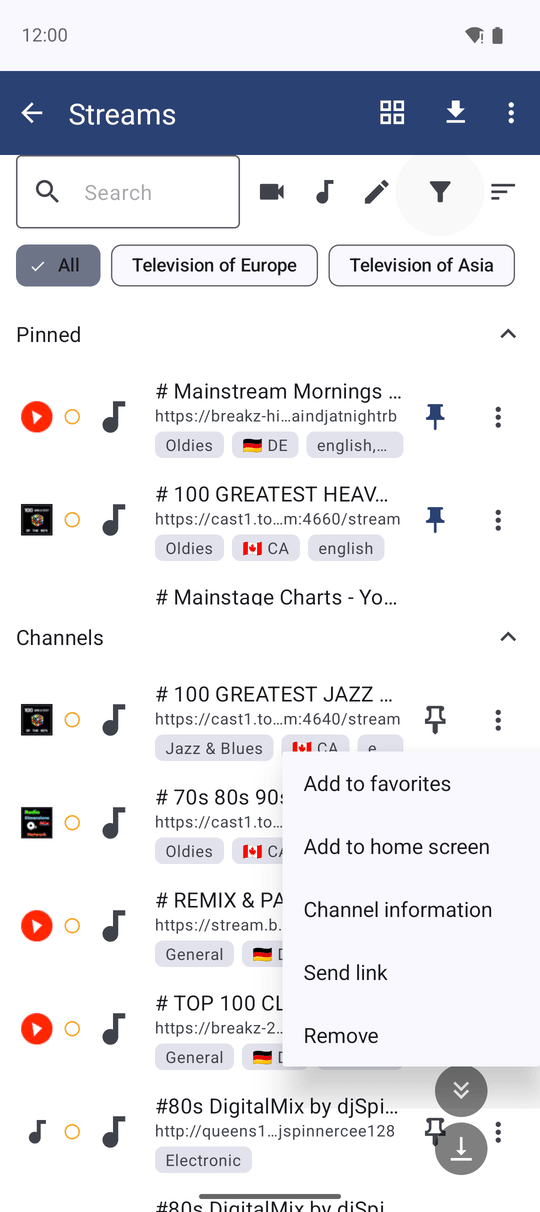
In Streams, open the menu of the channel - touch and hold it, or tap its More actions button - and choose Add to home screen. Android asks where to place the icon; confirm, and a shortcut with the channel's name appears on your home screen.
If your home screen cannot hold shortcuts, the app tells you: Your launcher does not support home-screen shortcuts.
Tap the shortcut to play, tap again to stop
Tap the shortcut of a radio station, and it simply starts playing - no screen opens, you stay on your home screen. The ordinary media notification shows that it plays and lets you control it. Tap the same shortcut again to stop the station.
The Streams screen opens instead when:
- the channel is a video channel - a picture needs a screen;
- background playback is switched off (Settings, the Player tab, Background Playback);
- there is no network, so the screen can tell you so.
If the channel has been removed from your list meanwhile, you see This stream is no longer in your list. Shortcuts made with an older version of the app are brought up to date by themselves on the next start.
Add the Stream widget
A widget does the same job and lets you pick the channel right on the home screen:
- Touch and hold an empty spot of the home screen and choose Widgets.
- Find FastMediaSorter and drag the Stream widget - Open a saved channel from the home screen - onto the screen.
- A picker opens. Type a few letters of the channel name; radio and video channels are listed separately. Tap the one you want.
From now on one tap on the widget starts that channel - a radio station plays in the background the same way as a shortcut, a video channel opens. How to place and resize widgets in general is described in placing Android widgets.
Stream widget configuration screen, a search typed, radio and video sections visible.
Turn on the streams panel on the main screen
Open Settings, the General tab, and switch on Show streams panel on the main screen. It is off until you turn it on, and it appears only while Streams is enabled.
A horizontal bar appears above the resource list. It starts with the Streams.. button, which opens the Streams screen, followed by your pinned channels in the order you pinned them. Each channel shows its logo, its short name or both - whatever fits the width of your screen.
Nothing pinned yet? The panel then shows a small hint, Pin streams to see them on this panel., which disappears as soon as you pin the first channel.
Main screen, streams panel on, the Streams.. button and four pinned channel chips with logos and short names.
Play a station from the panel
Tap a radio channel on the panel. It plays right on the main screen: a bar at the bottom shows the channel name, the current song and a Stop button, and you keep browsing your files. Tap the same channel again to stop it.
A video channel opens the Streams screen and plays there.
Fold, hide or switch off the panel
Touch and hold the Streams.. button on the panel. Its menu offers:
- Collapse panel - folds the panel to take less room;
- Hide panel - removes only the panel; Streams stays on and its button moves back to the programs panel and the menu;
- Disable - turns the whole Streams feature off.
To bring a hidden panel back, switch on Show streams panel on the main screen in Settings, the General tab, again.
What You Get
Your everyday stations start with one tap from the home screen or the main screen, radio plays without opening anything, and the panel shows only when you want it.
Tips and Troubleshooting
- A shortcut opens Streams instead of playing? Check that Background Playback is on and that you are online; video channels always open a screen.
- Want the panel in a different order? It follows the order of your pinned channels. Reorder them in Streams - see pinned and favorite channels.
- Using the FastMediaSorter home screen? A channel can also sit on its desktop. See desktop grid and icons.