Channel Pictures, Logos and Badges
Every channel in Streams always shows something - a live frame, a downloaded logo, a small favicon, a flag, or a plain icon - and a small dot and badge next to it tell you whether it is worth a tap. This page explains what each picture and badge means and where the channel picture packs come from.
Why You'll Love This
Radio and TV channels do not come with a photo attached the way a video file does, so FastMediaSorter has to find or capture a picture for each one - a live frame, the station's own logo, a small site icon, or failing all of that, just a flag or a generic symbol. None of this is random: every tile always shows something, and what it shows tells you a little about that channel before you even press play.
The same channels also carry two kinds of small labels: a play-status dot that remembers whether a channel worked last time, and an access badge that warns you a channel might not play from where you are. Knowing what these mean saves you a wasted tap on a channel that is unlikely to work.
- FastMediaSorter installed in the Standard, noLegal, Legacy or VR edition. Streams and everything on this page is absent from Lite, Photos and FOSS.
- The Streams screen open, with some channels in it - your own or from the catalog. See Browsing internet stream channels for how the catalog fills the list.
- An internet connection the first time you want the picture packs - after that, everything on this page works from what is already on the phone.
See channels come to life in grid view
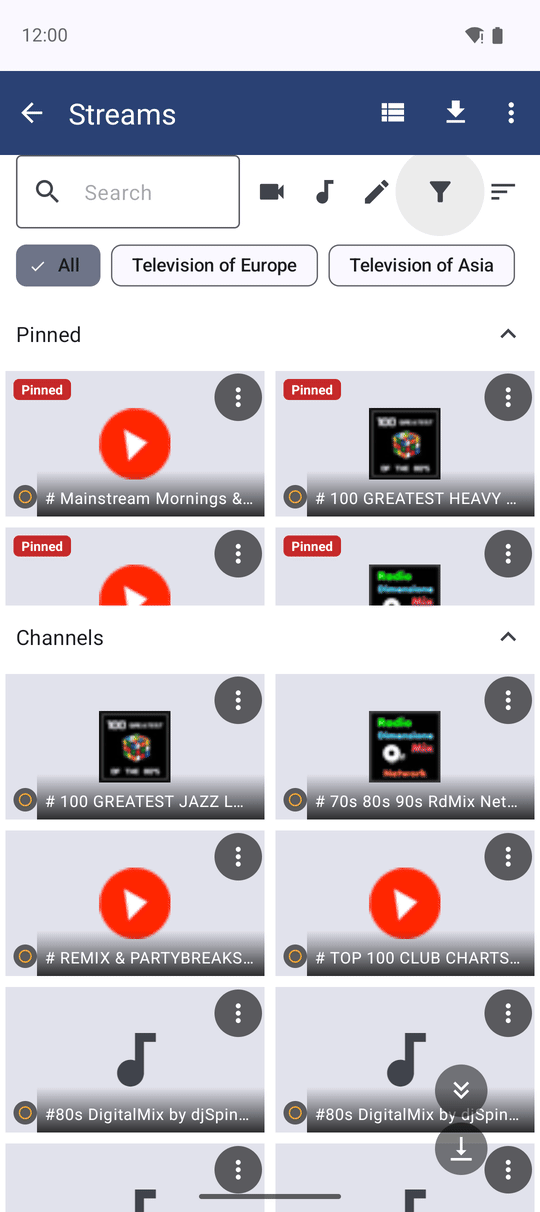
Switch Streams to grid view and video channels start filling in with a real picture: a frame captured from the live feed itself, refreshed while you browse. FastMediaSorter keeps that frame on the phone, so the next time you open Streams the channel already shows it instead of a blank tile while a fresh one is captured in the background.
Every tile in the grid fills in at once when the screen opens, rather than one picture trickling in after another while you wait.
How FastMediaSorter picks a picture when there is no live frame
Not every channel has a frame to show - radio has no picture at all, and a video channel only gets one after it has been reachable. For those, FastMediaSorter tries a fixed order of pictures, stopping at the first one it can supply:
- A tile from the downloadable Channel preview atlas - a still picture for a video channel, shown before you have watched it even once.
- The channel's own station logo, from the downloadable Station logos pack - this is the only picture a radio station can get, since it has no video to capture from.
- A small favicon - the site icon for that channel, bundled with the channel catalog itself, no separate download needed.
- The channel's country flag, when none of the above is available.
- A plain audio or video icon, when even the country is unknown.
So a logo means the station has its own artwork in the pack; a flag means FastMediaSorter knows the channel's country but has no picture for it; a plain icon means neither is available yet. Every tier keeps trying quietly in the background, so a tile that starts as a flag can still turn into a proper logo moments later.
Favicons and flags in list view
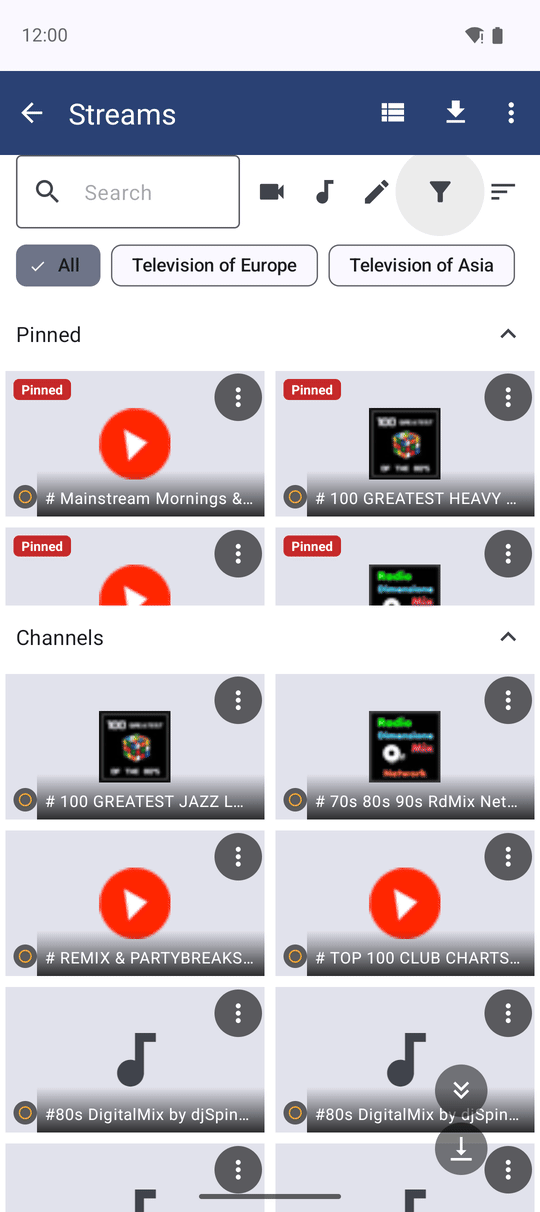
Switch to list view and each row keeps a small leading icon instead of a full tile. It shows the channel's favicon when the catalog has one, or the country flag in the same spot when it does not - the row never collapses or leaves an empty gap either way. A channel with neither shows the plain audio or video icon, same as in grid view.
Favicons in list view come from the same bundle as the catalog itself, so they are already there the moment you import channels - no extra download needed for this one.
Read the grid tile's status dot and open its menu
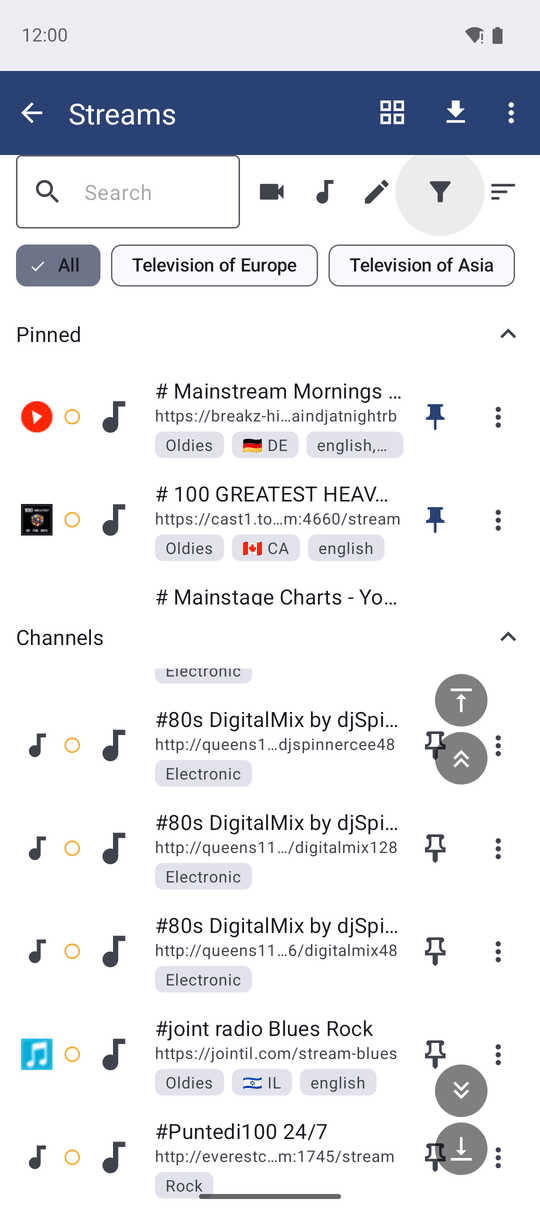
Every grid tile carries a small dot in the bottom-left corner: a hollow ring means the channel has not been played yet, a check mark means it played back fine last time, and an exclamation mark means the last attempt failed. Shape and color both change, so the meaning still comes through in black and white.
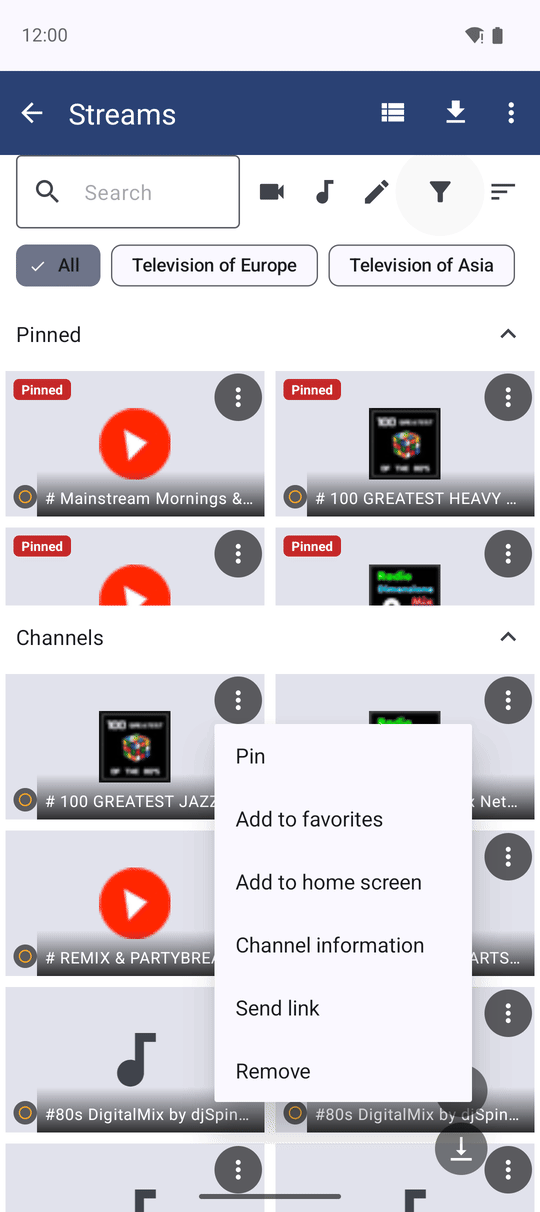
Tap the three-dot button in the top-right corner of a tile to open its menu - the same commands as the list row's overflow menu, including editing, sharing the link and removing the channel.
Understand the region and access badges
Some channels in the catalog carry a badge next to their name in list view. A Region-locked badge means the channel answered with an access error during the catalog's own checks and may not play from your location - it is kept in the catalog because it can still work for someone in its home region. A Restricted badge covers any other access limit the catalog found, without naming a specific reason.
Neither badge means the channel is broken everywhere - only that it is worth trying with that in mind. Tap the channel to open About this channel for the same information spelled out in full.
Streams list view, one row with the Region-locked badge, another with the generic Restricted badge.
Get the channel pictures and station logos
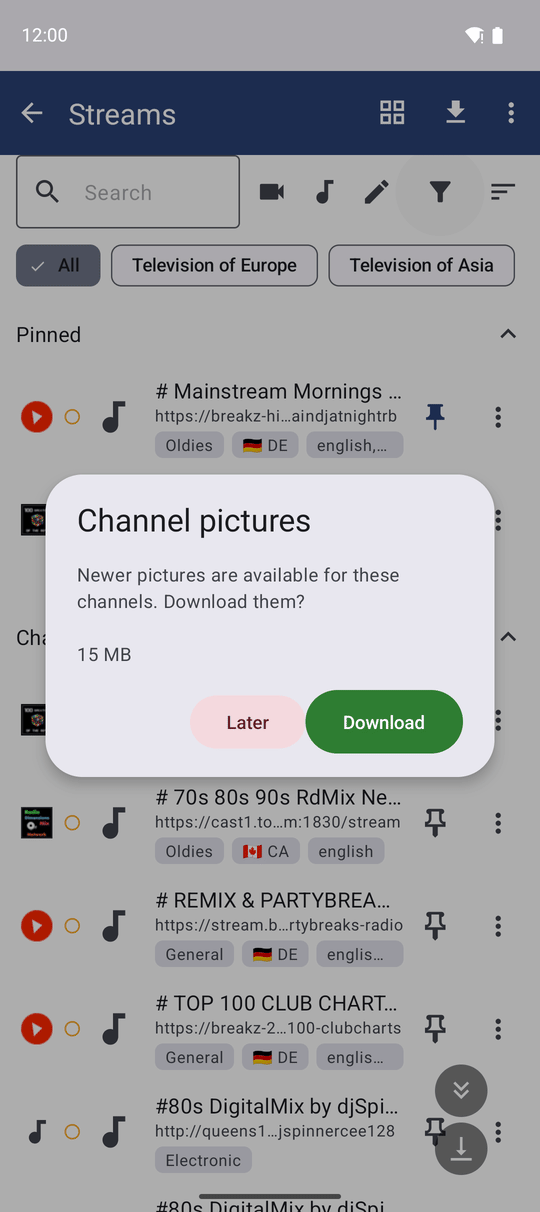
The Channel preview atlas and Station logos are downloadable picture packs, not part of the app itself - they are extensions, like the channel catalog they ride along with. After a catalog refresh finds new channels, FastMediaSorter offers each pack by name, states its download size in megabytes up front, and lets you say Download or Later.
New pictures reach an installed pack as soon as they are published on the server - you do not have to wait for an app update to see them. If the pack you already have is out of date, the next catalog refresh offers a smaller update instead of the whole pack again.
You can also manage both packs by hand any time from the Downloadable Extensions screen - see Downloadable extensions for how to install, update and delete them there.
Thumbnails keep themselves fresh
Watching a video channel updates its own tile: the frame you were just looking at becomes its thumbnail, so the grid shows what you actually saw last, not an older capture. This works whether you stop by pressing Back or by leaving the fullscreen player.
An unreachable channel is not hammered with repeated capture attempts - FastMediaSorter backs off and tries it less often instead, and a status change repaints only the dot, so scrolling the grid never flickers. None of this needs a network connection to stay calm: with no connectivity the grid simply waits rather than timing out every visible tile, and previews pick back up on their own once the connection returns.
The pictures themselves are kept in a small on-disk cache with its own size budget, cleared out automatically as needed - there is nothing to configure or clean up by hand.
Streams grid view after returning from fullscreen playback, the played channel's tile showing the freshly captured frame.
What You Get
You can tell at a glance why a channel shows a live frame, a logo, a flag or a plain icon, what its status dot and access badges mean, and how to fetch the channel preview and station-logo packs so more channels get their own picture.
Tips and Troubleshooting
- A tile still shows a flag or a plain icon after a while? That channel is not in the current picture pack yet, or you have not downloaded the pack - see step 6 above.
- Want to know exactly why a channel is badged? Open its About this channel window from the tile or row menu for the full explanation.
- Only care about the channels you already trust? Pinning keeps your favorites at the top regardless of pictures or badges - see Pinned and favorite channels.