Browsing the Channel Catalog
The catalog is how Streams goes from empty to thousands of channels worth browsing: download it, keep it fresh, then find your way around with filters, curated collections, sorting and a list that remembers exactly where you left it.
Why You'll Love This
A hand-typed list of radio stations is fine when you have three of them. FastMediaSorter's built-in catalog can hand you thousands of channels at once - curated stations, community radio, public webcams - and a list that size is only useful if you can bring in what you want, tell it apart from what you do not, and find your way back to the same view every time you open Streams.
This page covers the catalog end to end: getting it onto the device, keeping it fresh, and browsing what is in it with filters, collections and sorting. It stops short of what each channel actually looks like on screen and how you pin your favorites - those are their own pages, linked below.
- FastMediaSorter in the Standard, noLegal, Legacy or VR edition, with Streams turned on. Streams and its catalog do not exist in the Lite, Photos or FOSS editions.
- An internet connection to bring the catalog in the first place. Once channels are on the device, browsing, filtering and sorting all work from what is already there.
- A few channels in the list already - your own, or from the catalog - so there is something to filter, sort and manage. See step 1 if the list is still empty.
Turn Streams on and bring in the catalog
Turn Streams on in Settings, the Media tab, the Streams toggle. A device profile can do this for you too: switching Streams on during the first-launch wizard starts the catalog download by itself, showing Downloading.. under the row while it works. Turning the row back off mid-download cancels it, and opening a device that already has a catalog stored does not download anything extra.
Once Streams is on, Update catalog sits directly in the toolbar - no overflow menu to hunt through. Tap it and FastMediaSorter reports what changed, something like "Catalog: +48 new, 12 updated, 3 removed". If a catalog source turns out to be dead or painfully slow, the import now fails fast with a clear message instead of leaving the spinner turning.
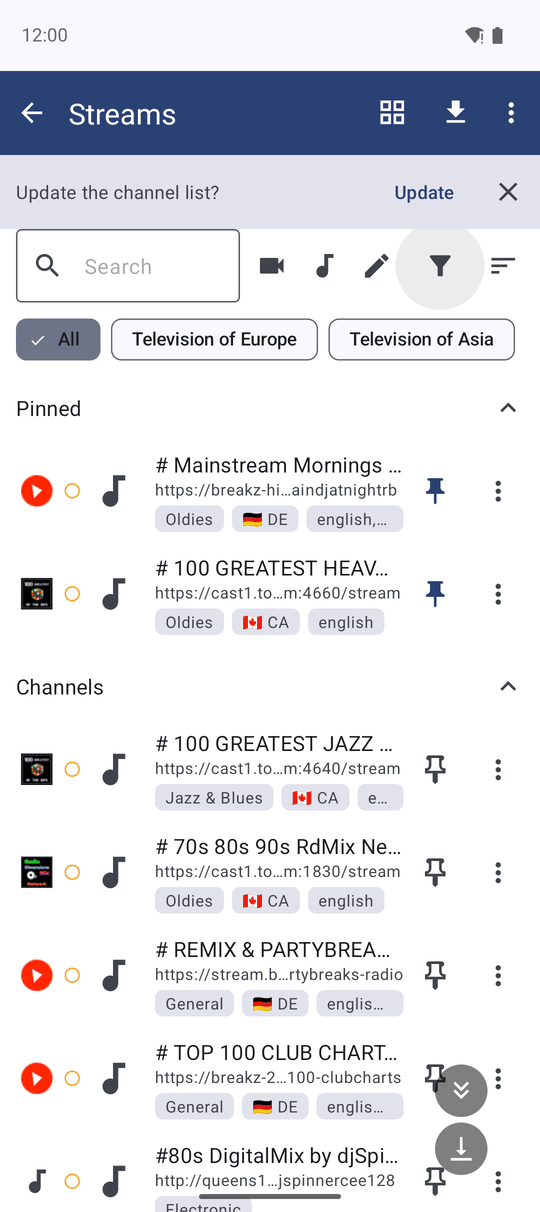
Left the list for a while? A banner offers Update the channel list? with an Update button, and it clears itself once you act on it. Decide how eager that banner should be in Settings, the Streams section, Updating the channel list: Only when I ask, Suggest when I open, or Automatically on Wi-Fi.
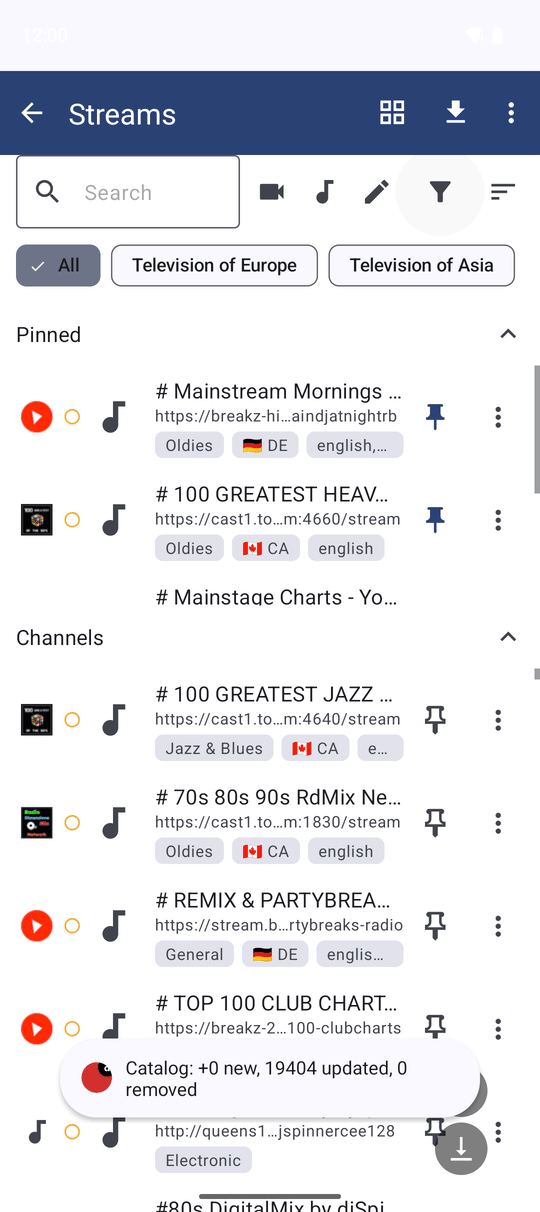
What is actually in the catalog
The catalog is more than one curated list. Alongside FastMediaSorter's own picks, it folds in private community radio and public webcams from open, keyless directories - laut.fm, the Xiph Icecast directory, WebRadioDB, Radio Paradise, iptv-org's weather and nature cams, AKC live cams, and Transport for London traffic cameras, the last marked as short clips rather than live streams.
Every name has been cleaned up at the source. Entries that used to show as "(null)", a bare dash, raw HTML codes instead of accented letters, or hundreds of stations all called "Online Radio" now arrive readable, with a nameless station listed by its own address instead. Nothing was dropped to get there - the only rows that left were exact duplicates, the same station filed once under http and once under https. A title of the form "Name (Name)" also collapses to plain "Name"; a parenthetical that actually says something different, such as a region or a quality, stays as it is.
Every channel carries one of 31 rubrics instead of a loose, free-text topic, shown in whichever language the interface is running in - things like News, Jazz & Blues or Webcam. Sorting by rubric follows the alphabet of that language.
Grid tiles or a scrolling list
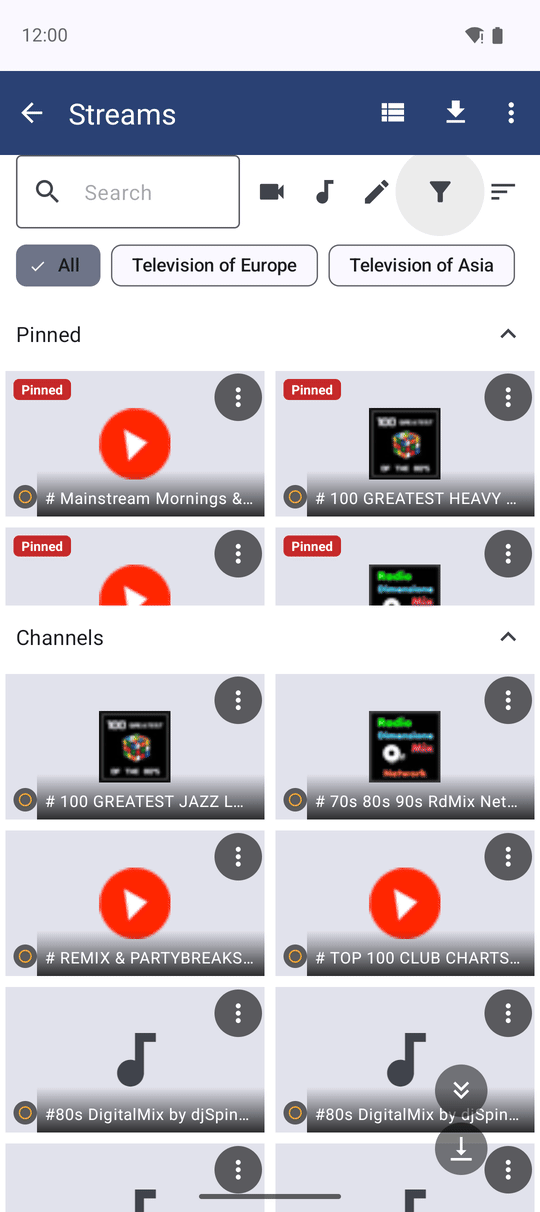
Switch the whole catalog between grid view, a picture tile for every channel, and list view, one line per channel with more room for text - the same Grid view / List view toggle you already know from Browse. In landscape, list view grows extra columns on its own and works the count out again whenever you rotate the device.
What each tile or row actually shows - a live frame, a logo, a flag or a plain icon - is its own page: see Channel pictures, logos and badges.
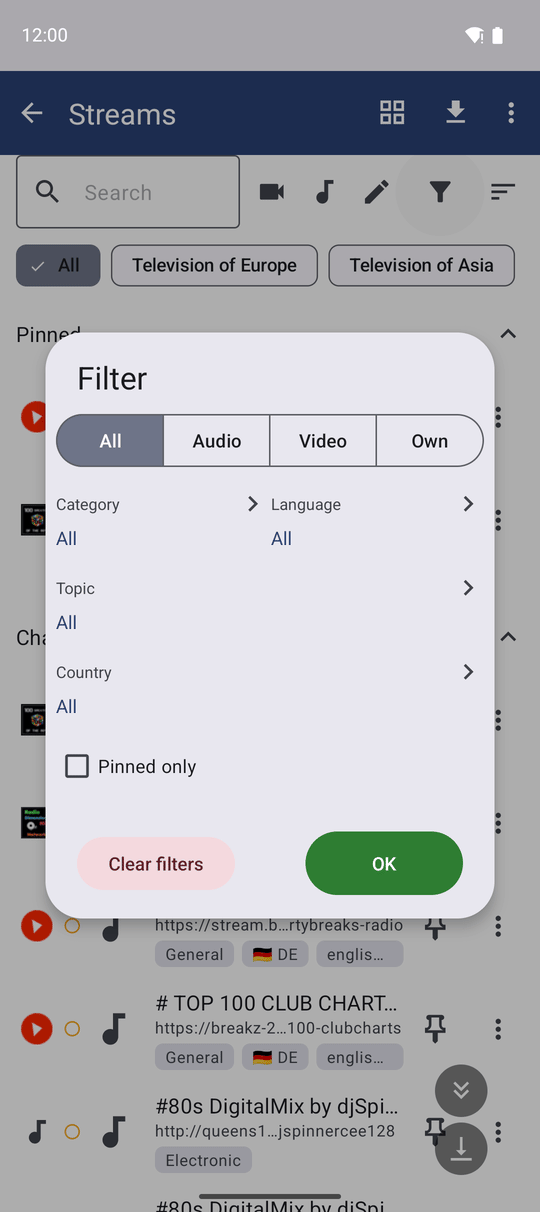
Narrow it down with filters
Tap Filter to open rows for Category, Language, Country and Topic - Topic only shows up when the catalog actually carries topics. Language and Country open a type-to-filter searchable picker with flags: the language picker pins English, Russian and Ukrainian to the top, and a country's flag-and-code chip sits before its language chip in the list. The Language list holds only real languages, one entry each however the catalog spells them - regional variants and typos fold into one. The Country list holds only real countries, by full name with a flag, in alphabetical order, with the countries of your interface language first. A filter you saved earlier whose value no longer exists goes back to All.
Two small icons beside the search box split the list by media kind in one tap - Audio, Video, or Own for channels you added yourself - and agree with whatever the Filter dialog already has selected. The filter button carries a Filter active mark when something is on; Clear filters in the dialog drops it all at once.
Sort it your way
Tap Sort and pick By name, By topic, By language, By country or Recently added. Set a default order and a default media kind for every new visit in Settings, the Streams section, fields Default order and Show by default.
Whatever you land on - filter, media kind, sort and search text alike - is restored the next time you open Streams, and the list even opens back at the same channel you last scrolled to.
Jump into a curated collection
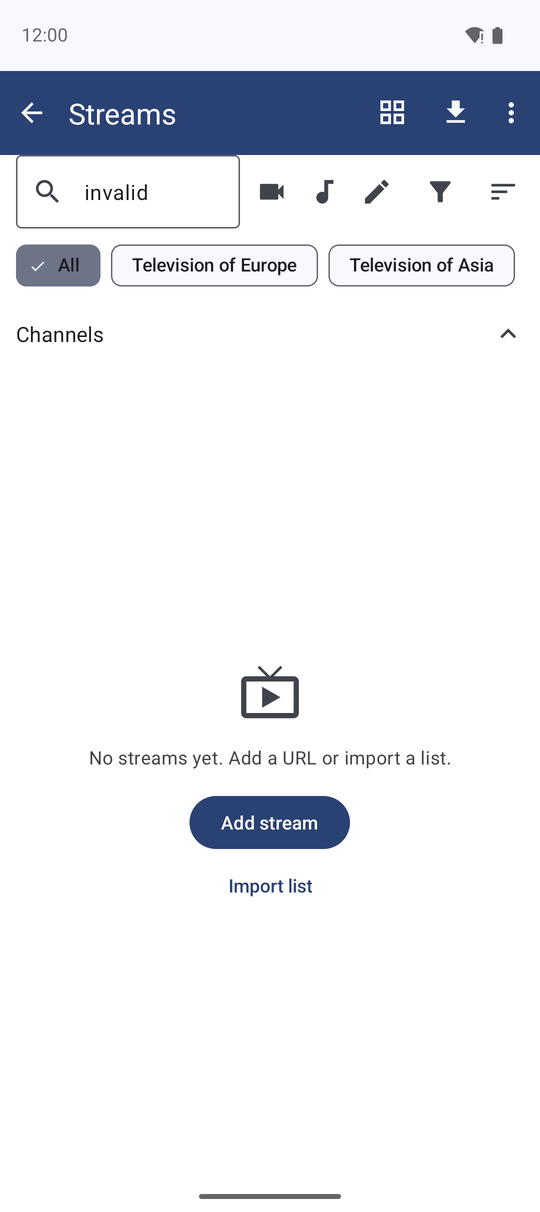
When the catalog carries them, named collections such as Russian TV, radio of the former USSR, African TV or a regional set show up as a chip strip under the toolbar, with an All chip to leave it. Pick one and the list narrows to its members in the curator's own order, while search, sorting and your other filters keep working right alongside it. A channel can belong to more than one collection, and the strip stays out of the way entirely when the catalog has none.
See which channels are alive before you tap one
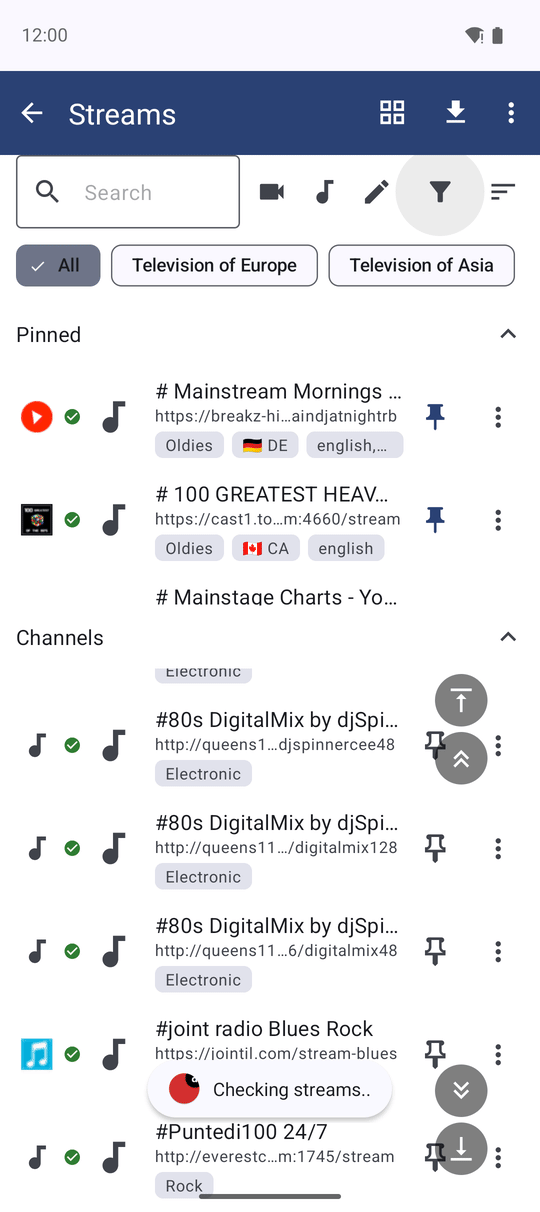
Refreshing the list does more than fetch new rows: FastMediaSorter checks every visible channel for reachability while it works, showing Checking streams.. and marking each one green or red as the answer comes in - a channel that fails shows No signal. Touching the screen stops the probe where it is, and video tiles get a fresh thumbnail out of the same pass.
The marks are informational, not permanent - clear them any time with Settings, the Streams section, Clear play marks; the channels themselves stay exactly where they were.
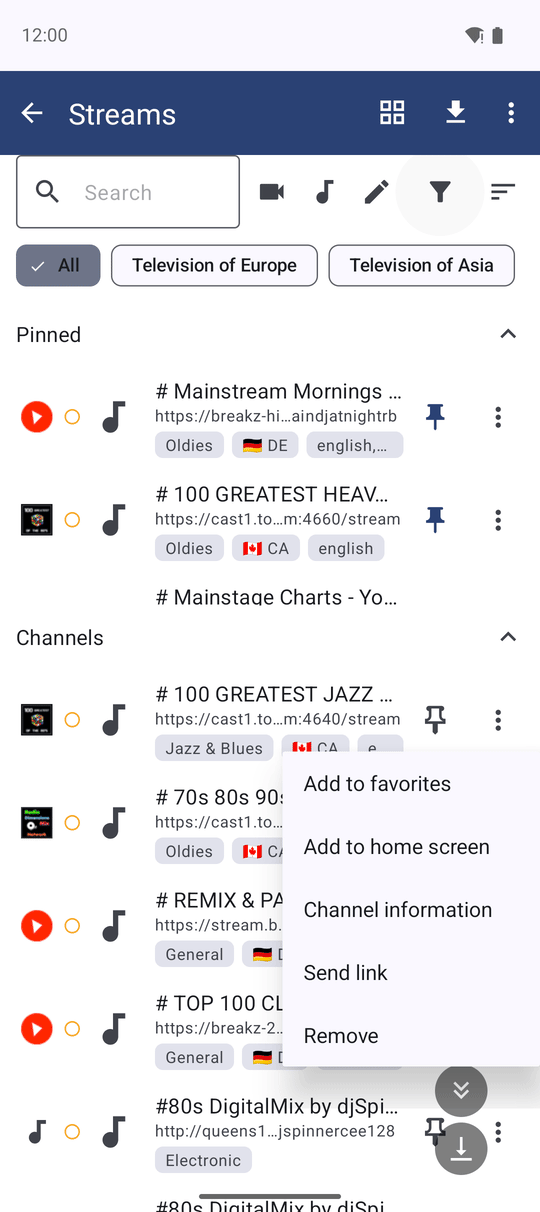
The three-dot menu on every card
Every card, in grid or list, carries a three-dot More actions button of its own: Edit for a channel you added by hand, Send link, and Remove. Where FastMediaSorter's launcher is set up, Add to home screen is there too - no long-press or hidden gesture needed for any of it.
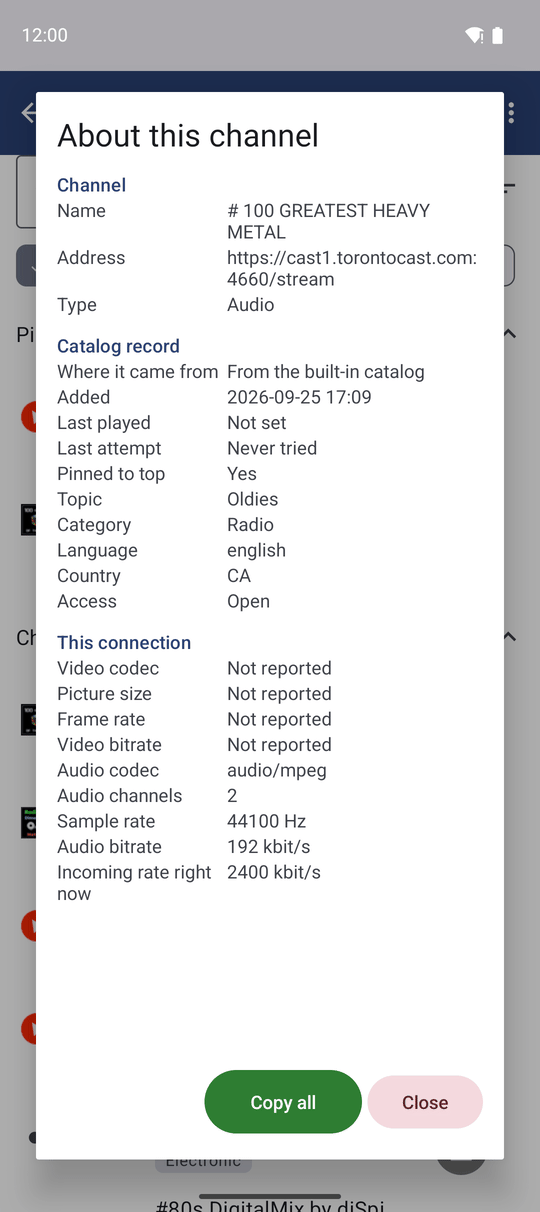
About this channel: what the app knows, right now
Open About this channel from a card's menu, in either view, or from the player's own menu while a stream plays - a channel already on screen is read straight off the running player instead of being opened a second time. It lays out what the list stores about the channel next to what its transmission is actually carrying: codecs, picture size, frame rate, bitrates and the incoming data rate, all measured the moment the window opens. Copy all puts the whole readout on the clipboard as plain text.
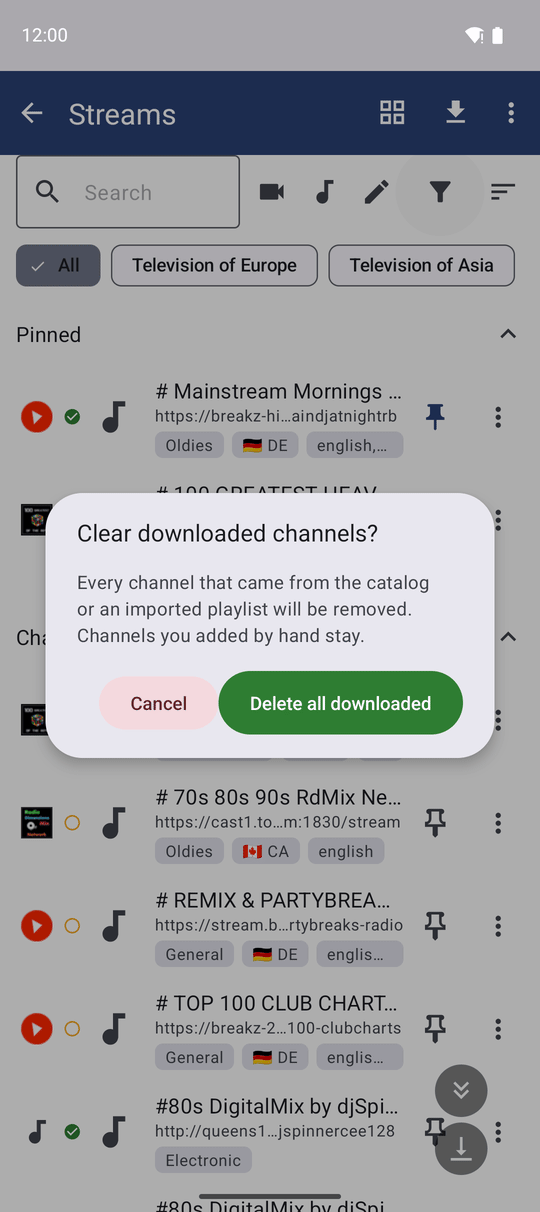
Starting fresh - clear every downloaded channel
Tap Clear all downloaded to remove, in one confirmed action, everything that came from the catalog or an imported playlist. Channels you typed in by hand are never touched. FastMediaSorter counts what it removed when it is done, so you know the clean-up actually happened.
An empty list that helps you start
A Streams screen with nothing in it says so plainly - "No streams yet. Add a URL or import a list." - with Add stream and Import list buttons built right into that message. Both open the exact same dialogs as their toolbar counterparts, so getting started never means hunting for the right icon first.
In the player - flip channels, keep your chosen tracks
Open a video channel and the previous/next buttons at the top of the fullscreen player move you to the previous or next video channel in the catalog's own order, re-sourcing the player each time instead of stepping through unrelated files. The title bar and the filename overlay both show the channel's real name instead of a raw address, falling back to a name built from the URL for anything the catalog does not recognize.
Video channels also remember the audio and subtitle track you picked, per channel. Set a general default in Settings - Audio language for streams and Subtitle language for streams - and override it for one channel at a time in that channel's own edit dialog, fields Audio language, Subtitle language and a Subtitles switch.
Fullscreen video stream player, previous/next channel buttons visible at top, channel name in the title bar.
What You Get
You can turn Streams on and let the catalog fetch itself, keep it fresh on your own schedule, tell grid from list and get extra columns in landscape, narrow thousands of channels down with filters and curated collections, sort them your way, trust the green and red health marks before you tap play, manage a channel from its own menu or the About window, clear everything downloaded and start over, and keep flipping channels and your chosen tracks without leaving the player.
Tips and Troubleshooting
- A fresh start every visit. Leave the streams screen and come back, and the search box and the filter are cleared - the full list is shown again.
- Want fewer surprises when you open Streams? Set Updating the channel list to Only when I ask in Settings, the Streams section, and nothing changes until you tap Update catalog yourself.
- A channel already playing looks unfamiliar? Open About this channel from the player's own menu - it reads live measurements off the channel that is already on screen instead of opening it a second time.
- Curious what a tile's logo, flag or status dot actually means? See Channel pictures, logos and badges.
- Want your own station in the list, not just the catalog's? See Importing M3U/IPTV playlists for adding a channel or a whole playlist by hand.